How to Sort a PivotTable in Excel: Largest to Smallest, Move Items Manually, Expand/Collapse and Show Details (Drill Down)
A PivotTable that gives the right numbers is only half the job. The person reading it should find the answer without searching: the biggest city on top, the count before the profit, the product you care about first. This chapter is about arranging a pivot: the order of fields, sorting, moving items by hand, folding groups away and opening the rows behind any number. It uses the same 24 made-up orders as the multiple values chapter.
What you'll learn in this chapter
- Put Count of Order_ID before Sum of Profit, and why the order matters
- Swap two row fields: City > Delivery_Status or Delivery_Status > City
- Sort row labels Z to A, and sort cities Largest to Smallest by profit
- Move an item by hand (Milk to the top), and the "We can't make this change" message
- Expand and collapse groups with + and −
- Double-click a number to see its rows (Show Details)
Practice file: excel-pivottable-sort-move-drill-down-practice.xlsx: Orders (the table named Orders) and Pivot answers (every pivot in this chapter, worked out with COUNTIFS and SUMIFS).
Made-up data: the 24 orders are made up for practice. They imitate a quick-commerce app such as Blinkit or Amazon Now in Pune, Nashik, Solapur, Kolhapur, Nagpur and Sambhaji Nagar.
1. The starting pivot: count and profit per city
The question is simple: how many orders did each city get, and how much profit did they make, in one table.
Classroom line
I want each city's total order count, and each city's profit too, in one pivot table.
Class मधलं वाक्य
"Pratyek city cha total order count pahije, aani pratyek city ch profit pan pahije. Eka ch pivot table madhe pahije."
प्रत्येक city चा total order count पाहिजे, आणि प्रत्येक city चं profit पण पाहिजे. एकाच pivot table मध्ये पाहिजे.
Classroom line
I want each city's total order count, and each city's profit too, in one pivot table.
- Click inside the Orders table.
- Insert > PivotTable > From Table/Range. Choose Existing Worksheet, click a cell such as H3, OK.
- Drag City into Rows.
- Drag Order_ID into Values (Count of Order_ID), then Profit into Values (Sum of Profit).
The result is the two-value pivot from the multiple values chapter: Grand Total 24 orders and 327 profit.
2. Count first, then profit
If you drag Profit in first, Sum of Profit sits on the left and Count of Order_ID on the right. Nothing is wrong with the numbers, but people read a report the way they think about it: first how many orders, then what those orders earned.
Classroom line
This works too, there's nothing wrong with it. But first we look at the order count, then at the profit of those orders.
Class मधलं वाक्य
"Asa bi chalta, chuk nahi ahe tyachat. But pehlyanda aapan order count baghto, mag tya order cha profit baghto."
असं पण चालतं, चूक नाही आहे त्यात. पण पहिल्यांदा आपण order count बघतो, मग त्या order चा profit बघतो.
Classroom line
This works too, there's nothing wrong with it. But first we look at the order count, then at the profit of those orders.
To change the order:
- In the Values box, drag Count of Order_ID above Sum of Profit.
- Or click Sum of Profit in the Values box and choose Move Down.
The columns in the pivot swap at once.
3. Two row fields: which one goes on top?
Drag Delivery_Status into Rows, below City. Each city now opens into On Time, Late and, for cancelled orders that were never delivered, (blank):
| Row Labels | Count of Order_ID | Sum of Profit |
|---|---|---|
| Kolhapur | 4 | 64 |
| On Time | 4 | 64 |
| Nagpur | 4 | 154 |
| On Time | 1 | 4 |
| Late | 2 | 50 |
| (blank) | 1 | 100 |
| Nashik | 4 | 36 |
| On Time | 3 | 8 |
| Late | 1 | 28 |
| … |
This answers "inside each city, how did deliveries go?" Now drag Delivery_Status above City in the Rows box. The same numbers regroup:
| Row Labels | Count of Order_ID | Sum of Profit |
|---|---|---|
| On Time | 15 | 108 |
| Late | 6 | 131 |
| (blank) | 3 | 88 |
| Grand Total | 24 | 327 |
(with the cities inside each status). This answers "how many orders were late, and where?" The outer field is the first thing the reader sees, so put the field of your question on top.
Figure 1. The same pivot with the row fields in two orders. City on top: each city opens into its delivery statuses. Delivery_Status on top: On Time 15 orders and 108 profit, Late 6 and 131, (blank) 3 and 88, each with its cities inside.
4. Sort: Z to A and Largest to Smallest
A pivot lists items A to Z. Two other orders are often more useful.
Sort the labels Z to A:
- Click any city name in the pivot.
- Data > Sort Z to A (or right-click > Sort > Sort Z to A).
The cities now run Solapur, Sambhaji Nagar, Pune, Nashik, Nagpur, Kolhapur.
Sort cities by profit: remove Delivery_Status from Rows first, so each city is one row.
- Right-click any number in the Sum of Profit column.
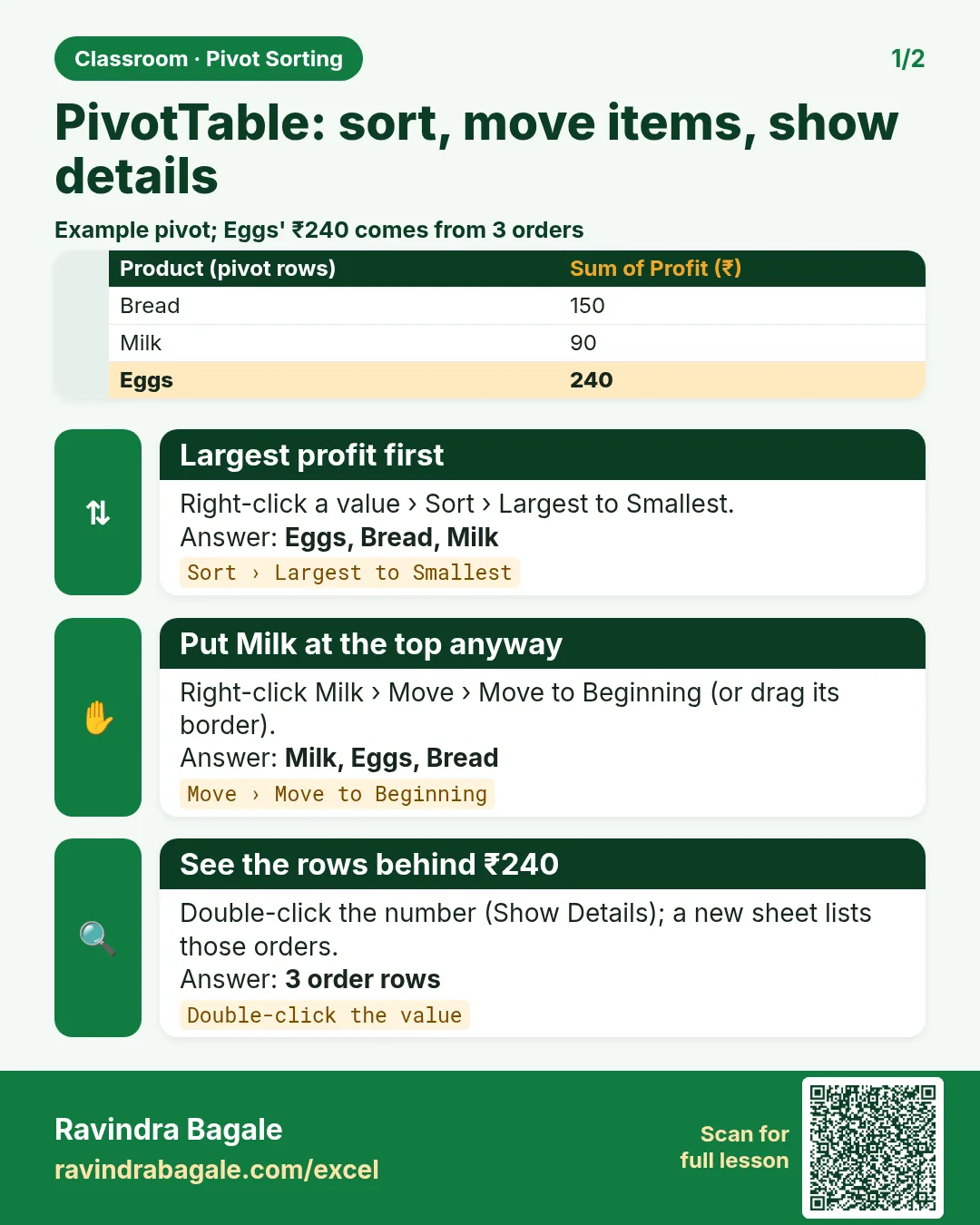
- Sort > Sort Largest to Smallest.
| Row Labels | Count of Order_ID | Sum of Profit |
|---|---|---|
| Nagpur | 4 | 154 |
| Kolhapur | 4 | 64 |
| Sambhaji Nagar | 3 | 61 |
| Nashik | 4 | 36 |
| Pune | 6 | 6 |
| Solapur | 3 | 6 |
| Grand Total | 24 | 327 |
The best city is on top and the weakest at the bottom. Pune and Solapur tie at 6. The sort stays when you refresh the pivot or change a filter. With two row fields, Excel sorts the inner items inside each group.
5. Move an item by hand: Milk to the top
Sometimes the order you want is neither A to Z nor by size. Put Product_Name in Rows (remove City) with Count of Order_ID and Sum of Quantity in Values. The products come A to Z: Bread, Eggs, Fruits, Milk, Paneer, Snacks. Milk has the most orders (6) and the most units (25), so the manager wants to see it first.
Classroom line
I want milk first, because milk sells the most.
Class मधलं वाक्य
"Milk agodar pahije mala, karan milk saglyat jaast khapta."
Milk आधी पाहिजे मला, कारण milk सगळ्यात जास्त खपतं.
Classroom line
I want milk first, because milk sells the most.
- Click the cell Milk in the pivot.
- Move the mouse to the border of the cell until the pointer becomes a four-headed arrow.
- Drag the cell up and drop it above Bread.
Or right-click Milk > Move > Move "Milk" to Beginning. Milk now sits on top and the other products keep their order.
If you drop the cell in the wrong place, for example over the numbers, Excel shows a message that starts "We can't make this change for the selected cells because it will affect a PivotTable". Click OK and try again; nothing is broken. A manual move stays until you sort that field again.
Figure 2. Left: cities sorted Largest to Smallest by Sum of Profit, Nagpur 154 on top. Right: products A to Z, then Milk dragged by its border to the top (6 orders, 25 units).
6. Expand and collapse with + and −
With two fields in Rows, every outer item has a small − button.
- Click − next to Nagpur: its statuses fold away and only its total row stays.
- Click + to open it again.
- To fold every city at once: right-click a city > Expand/Collapse > Collapse Entire Field. Expand Entire Field opens them all.
If you don't want the buttons in a printed report, PivotTable Analyze > +/- Buttons hides them.
7. Show Details: the rows behind a number
Every number in a pivot is a summary of some rows. Double-click it and Excel shows those rows.
- In the City pivot, double-click Pune's Sum of Profit (6).
- Excel adds a new sheet with a table of the 6 Pune orders:
| Order_ID | Product_Name | Status | Profit |
|---|---|---|---|
| ORD1001 | Milk | Delivered | 4 |
| ORD1002 | Paneer | Delivered | 40 |
| ORD1008 | Eggs | Delivered | −8 |
| ORD1013 | Snacks | Delivered | −10 |
| ORD1018 | Milk | Delivered | −12 |
| ORD1024 | Eggs | Returned | −8 |
(the new sheet shows every column; four are shown here). Now you can see why Pune's profit is so small: one Paneer order earns 40, and four orders lose money. Right-click a number > Show Details does the same.
The new sheet is a copy. Editing it does not change the Orders table or the pivot; delete the sheet when you are done.
Figure 3. Double-click Pune's Sum of Profit (6): a new sheet opens with the 6 Pune orders. Profits 4, 40, −8, −10, −12 and −8 add up to 6.
Ravindra Bagale's Tip
When a pivot number looks strange, don't guess. Double-click it, read the rows behind it, then delete the extra sheet. It takes ten seconds and turns "why is Pune so low?" into a clear answer.
Ravindra Bagale's Tip – मराठी
एखादा pivot number विचित्र वाटला तर अंदाज लावू नका. त्यावर double-click करा, त्यामागचे rows वाचा, मग ती extra sheet delete करा. दहा seconds लागतात आणि "Pune इतकं कमी का?" याचं स्पष्ट उत्तर मिळतं.
Ravindra Bagale's Tip – हिंदी
कोई pivot number अजीब लगे तो अंदाज़ मत लगाओ. उस पर double-click करो, उसके पीछे के rows पढ़ो, फिर वो extra sheet delete कर दो. दस seconds लगते हैं और "Pune इतना कम क्यों?" का साफ़ जवाब मिल जाता है.
8. More examples
Example 1: the best product by profit. Product_Name in Rows, Sum of Profit in Values, Sort Largest to Smallest: Paneer 300, Fruits 28, Bread 10, Snacks 5, Eggs 4, Milk −20. Milk sells the most but loses money: a question for the pricing team.
Example 2: late deliveries in Nagpur. City > Delivery_Status in Rows. Double-click Nagpur's Late profit (50): the new sheet shows 2 orders, ORD1011 Snacks (30) and ORD1016 Paneer (20).
Example 3: a short report for the manager. City > Delivery_Status in Rows, Collapse Entire Field, then sort Largest to Smallest by Sum of Profit. One row per city, best first, and anyone can click + to see the delivery split.
9. The whole chapter on one page
| Task | How |
|---|---|
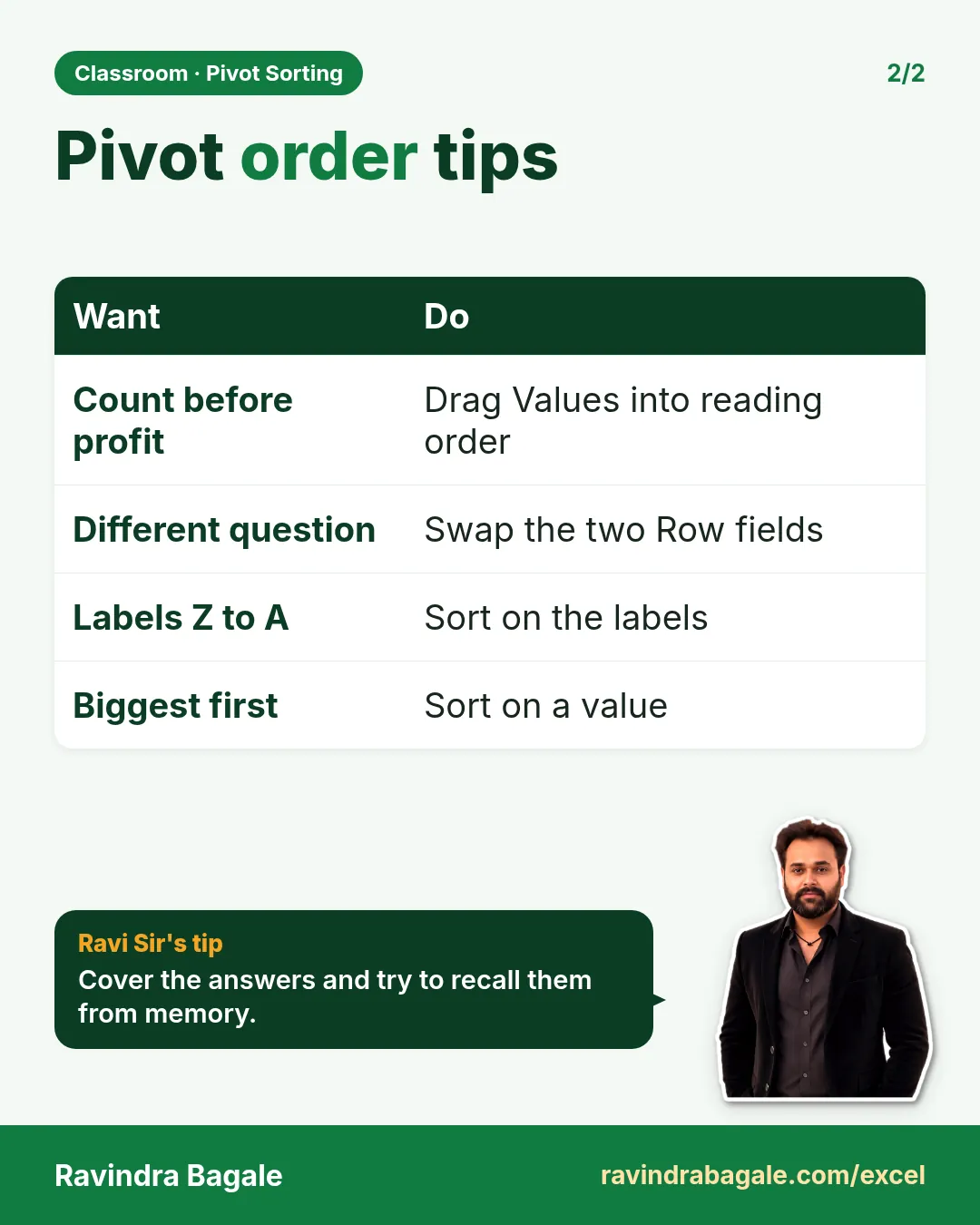
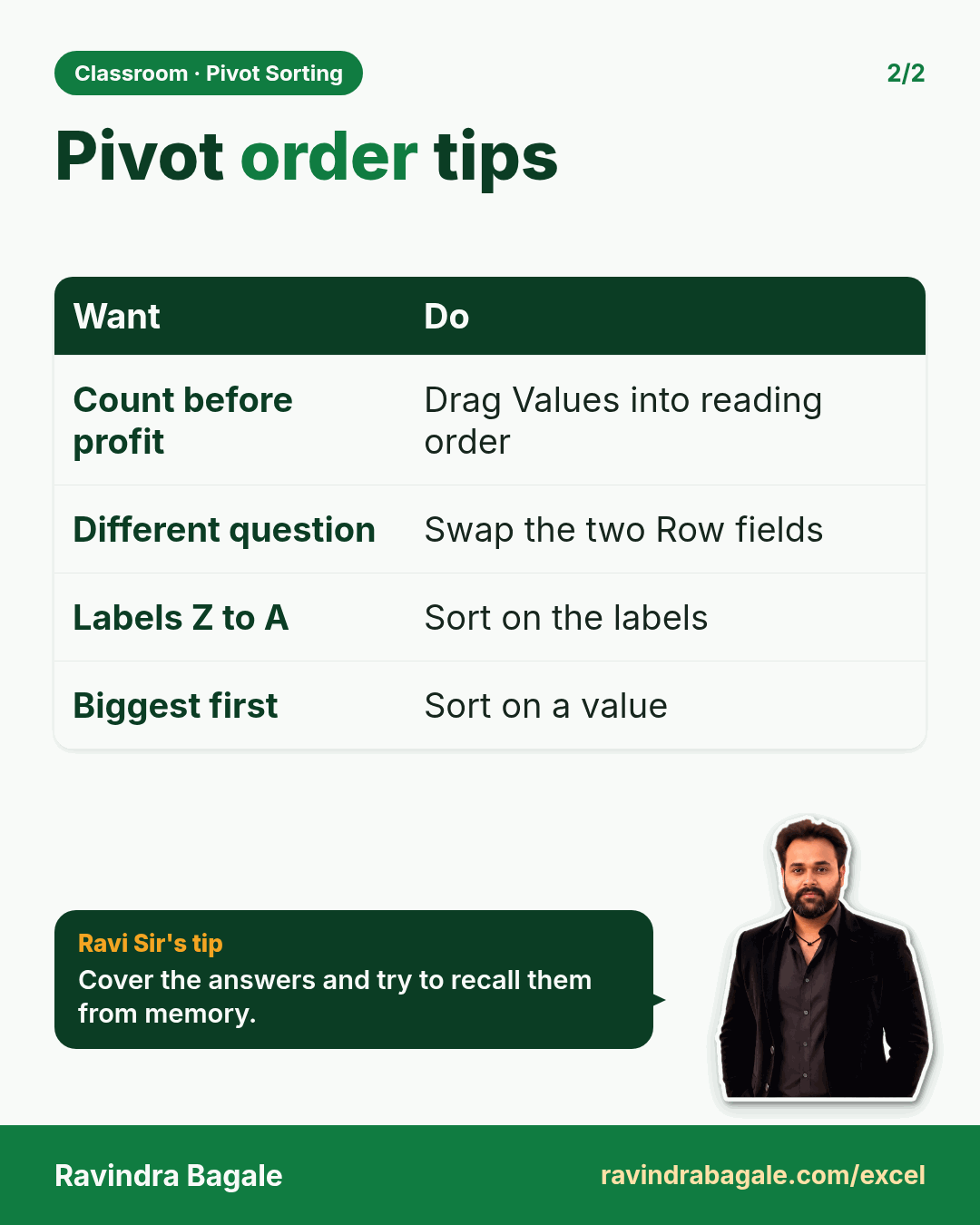
| Count before Sum | Drag in the Values box, or Move Up / Move Down |
| Change the grouping | Swap the fields in the Rows box |
| Z to A | Click a label > Data > Sort Z to A |
| Biggest first | Right-click a number > Sort > Sort Largest to Smallest |
| One item first | Drag the cell border, or Move > Move to Beginning |
| Fold groups | − / +, or Expand/Collapse > Collapse Entire Field |
| Rows behind a number | Double-click it (Show Details) |
- Put the values in the order people read them: count, then profit.
- The top row field is the first grouping the reader sees.
- Sort by the value column to put the biggest item on top.
- Drag an item by its border for a custom order.
- Double-click any number to see its rows on a new sheet.
10. Try at home
Try at home
Task 1
- Make a pivot with Delivery_Status in Rows and Sum of Profit in Values, sorted Largest to Smallest. Which status is on top? (Late, 131.)
Task 2
- Double-click the Grand Total of Count of Order_ID. How many rows does the new sheet have? (24, every order.)
Task 3
- Put Product_Name in Rows and move Paneer to the beginning. Which product is now second? (Bread.)
Recap
In short
- Count first, then profit: drag the values into reading order.
- Swap the row fields to answer a different question.
- Sort Z to A on labels, or Largest to Smallest on a value.
- Drag an item's border to move it; Move to Beginning does the same.
- Use + and − to fold groups, and double-click a number for its rows.
Quick revision cards
Quick revision
Revise this chapter in two minutes. Save the cards on your phone or download them as PNG files. All names and numbers are made up for practice.
झटपट उजळणी
हा chapter दोन मिनिटांत revise करा. Cards phone वर save करा किंवा PNG म्हणून download करा. सगळी नावं आणि आकडे सरावासाठी काल्पनिक आहेत.
झटपट दोहराई
यह chapter दो मिनट में revise करें. Cards phone पर save करें या PNG के रूप में download करें. सभी नाम और आंकड़े अभ्यास के लिए काल्पनिक हैं.

More cards for every chapter: Ravi Sir's Cards.