12. Macros and VBA
Come friends, today we teach Excel to do the work for us – Macros and VBA (Visual Basic for Applications). The same formatting, the same trimming, the same copy-paste every morning? Build a macro once and finish the job with one button! Recording macros, the VBA Editor, variables (a named place that stores a changing value), loops (doing the same action again and again), practical macros, user-defined functions and debugging – step by step. Do not worry: code looks hard the first time, but by the end of this module you will write your own macros.
चला मित्रांनो, आज आपण Excel ला "काम करायला शिकवूया" – Macros आणि VBA (Visual Basic for Applications). रोज सकाळी तेच formatting, तेच trimming, तेच copy-paste? एकदा macro बनवा आणि एक button दाबून काम संपवा! Macro record करणं, VBA Editor, variables (बदलणारी value साठवणारी जागा), loops (तीच कृती पुन्हा पुन्हा करणं), practical macros, user-defined functions आणि debugging – सगळं step by step. घाबरू नका, code पहिल्यांदा अवघड वाटतो, पण हा module संपला की तुम्ही स्वतःचे macros लिहाल.
चलो दोस्तों, आज हम Excel को "काम करना सिखाते हैं" – Macros और VBA (Visual Basic for Applications). रोज़ सुबह वही formatting, वही trimming, वही copy-paste? एक बार macro बनाइए और एक button दबाकर काम ख़त्म कीजिए! Macro record करना, VBA Editor, variables (बदलती value रखने की जगह), loops (वही काम बार-बार करना), practical macros, user-defined functions और debugging – सब step by step. घबराइए मत, code पहली बार मुश्किल लगता है, पर यह module ख़त्म होते-होते आप अपने macros ख़ुद लिखेंगे.
What you will learn in this module
- The Developer tab, Trust Center macro security and the
.xlsmformat - Recording macros with absolute and relative references; running them from a button or shortcut
- The VBA Editor: modules, Project Explorer, Immediate window
- Sub procedures, variables and data types, Range/Cells/Worksheets, MsgBox/InputBox
- If, Select Case, For, For Each and Do loops, and finding the last row
- Practical macros on our data, a delivery-fee user-defined function, On Error handling, debugging and the Personal Macro Workbook
Live story: The same clean-up every morning
Suppose every morning Rani trims spaces, formats the Amount column as rupees and splits the orders into one sheet per city – about 25 minutes of clicking. One day she forgets the trim and the Pune total is short. A macro does the same steps in the same order in two seconds. This chapter records macros, then writes VBA with variables, loops, a delivery-fee function and error handling.
All numbers in this story are fictional practice data.
Live story: रोज सकाळचं तेच clean-up
समजा रोज सकाळी Rani spaces trim करते, Amount column rupees मध्ये format करते आणि orders प्रत्येक city च्या वेगळ्या sheet मध्ये split करते – साधारण 25 मिनिटं clicking. एक दिवस ती trim विसरते आणि Pune चा total कमी येतो. Macro तेच steps त्याच क्रमाने दोन सेकंदात करतो. हा chapter macros record करतो, मग variables, loops, delivery-fee function आणि error handling सोबत VBA लिहितो.
या story मधले सगळे आकडे काल्पनिक practice data आहेत.
Live story: रोज़ सुबह वही clean-up
मान लीजिए हर सुबह Rani spaces trim करती है, Amount column को rupees में format करती है और orders को हर city की अलग sheet में split करती है – लगभग 25 मिनट clicking. एक दिन वह trim भूल जाती है और Pune का total कम आता है. Macro वही steps उसी क्रम में दो सेकंड में करता है. यह chapter macros record करता है, फिर variables, loops, delivery-fee function और error handling के साथ VBA लिखता है.
इस story के सारे आँकड़े काल्पनिक practice data हैं.
Macro safety
Macros can run any code on your computer. Enable macros only in files you trust. Microsoft 365 blocks macros by default in files downloaded from the internet or received as e-mail attachments (the Mark of the Web). Practise on your own files. All code in this module is plain VBA for Excel on Windows; some features (Personal Macro Workbook path, ActiveX controls) differ on Mac.
Concepts in this chapter
- 12.1Developer Tab, Macro Security and .xlsm
- 12.2Recording a Macro: Absolute vs Relative
- 12.3Running Macros: Button, Shortcut and the Macros Dialog
- 12.4The VBA Editor (VBE)
- 12.5Sub Procedures
- 12.6Variables and Data Types
- 12.7Range, Cells and Worksheets
- 12.8MsgBox and InputBox
- 12.9If and Select Case
- 12.10Loops: For, For Each and Do
- 12.11Finding the Last Row (and Column)
- 12.12Practical Macros on Our Data
- 12.13User-Defined Functions: a Delivery Fee Function
- 12.14Error Handling with On Error
- 12.15Debugging: F8, Breakpoints, Immediate and Locals Windows
- 12.16The Personal Macro Workbook
- 12.17Office Scripts: What They Are and Who Can Use Them
- 12.18Recording an Office Script and Reading the Code
- 12.19Writing a Small Office Script: Colour the Late Orders
- 12.20Running a Script from Power Automate: On a Schedule or When a File Arrives
- 12.21VBA vs Office Scripts: Which One When?
Review and practice
- ★Practice and Answer Key: An Office Script that Summarises Orders by Status
- ★Practice and Answer Key: A Macro that Tags Late Orders
The chapter recap is at the end of the last concept page.
Quick revision cards
Quick revision
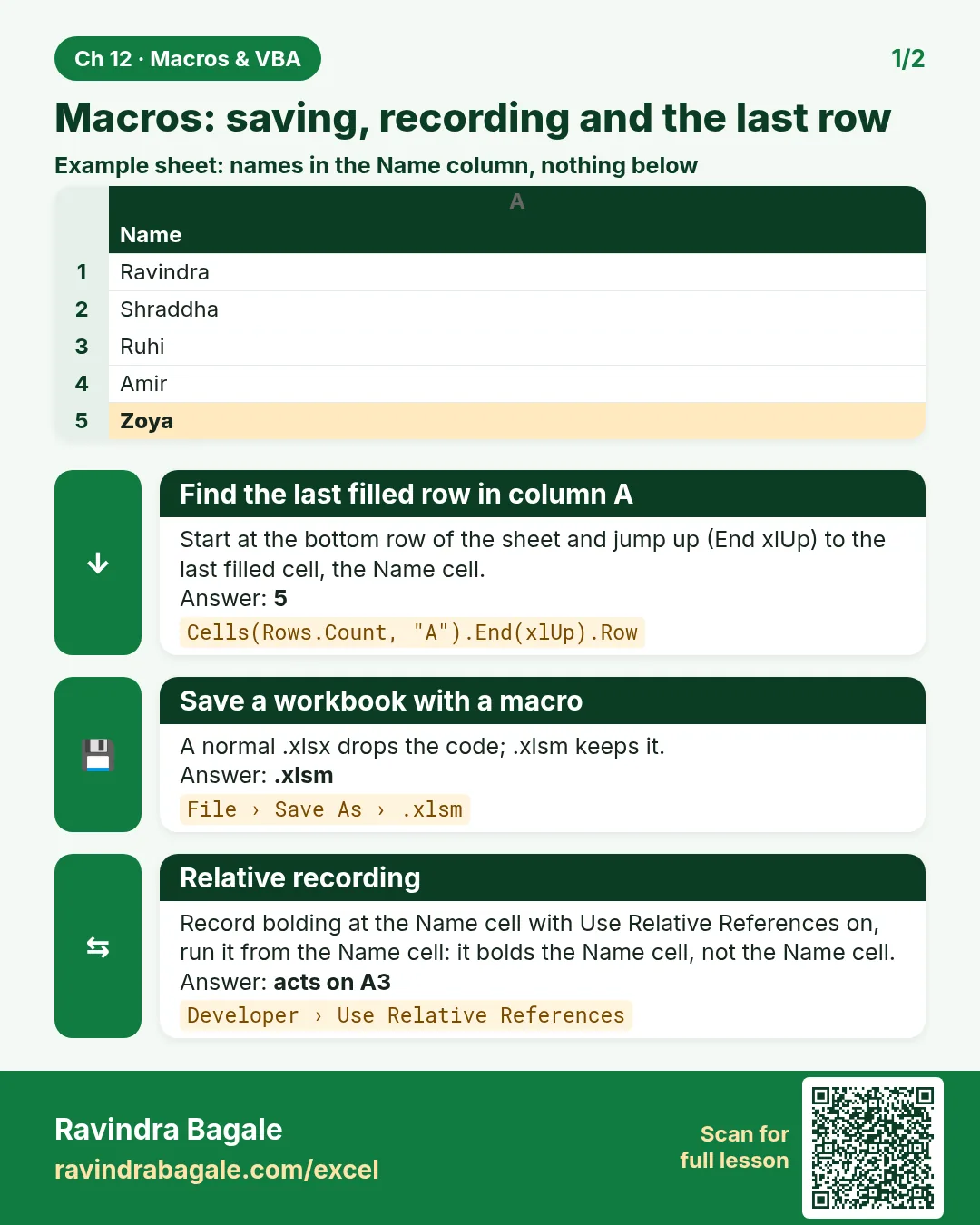
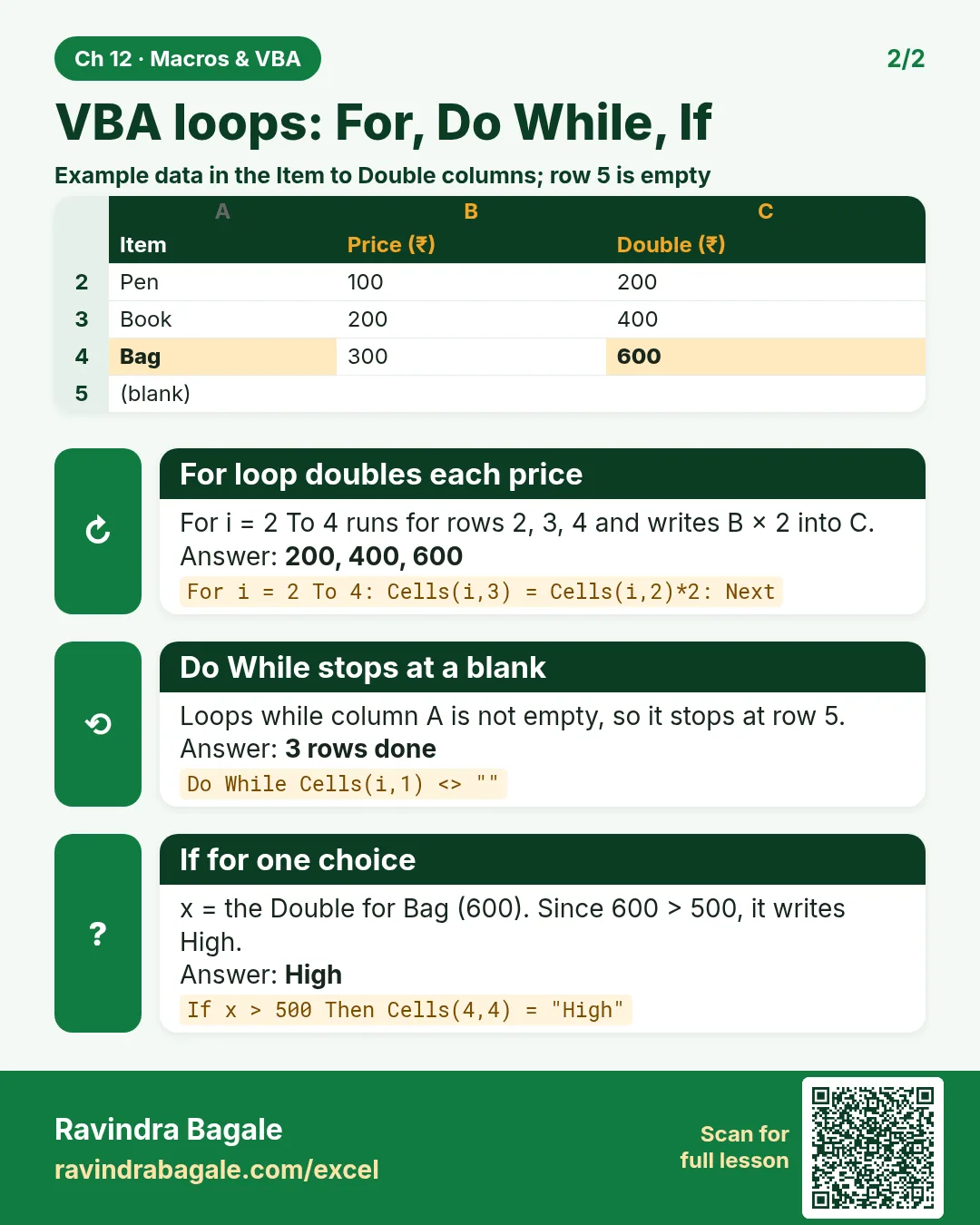
Revise this chapter in two minutes. Save the cards on your phone or download them as PNG files. All names and numbers are made up for practice.
झटपट उजळणी
हा chapter दोन मिनिटांत revise करा. Cards phone वर save करा किंवा PNG म्हणून download करा. सगळी नावं आणि आकडे सरावासाठी काल्पनिक आहेत.
झटपट दोहराई
यह chapter दो मिनट में revise करें. Cards phone पर save करें या PNG के रूप में download करें. सभी नाम और आंकड़े अभ्यास के लिए काल्पनिक हैं.


More cards for every chapter: Ravi Sir's Cards.