12.20 Running a Script from Power Automate: On a Schedule or When a File Arrives
Example first. Shahrukh wants "Mark Late Orders" to run every morning at 8:00, before the Nashik team arrives, even if nobody opens the workbook. Later he also wants a second flow: whenever a new daily export file lands in a OneDrive folder, run a script on it. Power Automate does both. A flow starts with a trigger (a time, or an event such as a new file) and then runs actions, and one of those actions can be the Excel Online (Business) Run script action.
Office Scripts + Power Automate — in 30 seconds
What: Power Automate is Microsoft's workflow service. Its Excel Online (Business) connector has a Run script action that runs one of your Office Scripts on a workbook in OneDrive or SharePoint.
Why: The work happens in the cloud on a timetable or when something happens, with nobody clicking Run. The script can also return a value that the next step, such as an email, can use.
Tiny example: Trigger Recurrence (every day at 8:00) › action Run script (File: Orders.xlsx, Script: Mark Late Orders) › the script returns 3.
Office Scripts + Power Automate — 30 सेकंदात
काय: Power Automate ही Microsoft ची workflow service आहे. तिच्या Excel Online (Business) connector मध्ये Run script action आहे, जो OneDrive किंवा SharePoint मधल्या workbook वर तुमचा Office Script चालवतो.
का: काम cloud मध्ये वेळापत्रकानुसार किंवा काही घडल्यावर होतं, कोणीही Run click न करता. Script एक value return करू शकतो जी पुढची step, उदा. email, वापरू शकते.
छोटं उदाहरण: Trigger Recurrence (रोज 8:00 ला) › action Run script (File: Orders.xlsx, Script: Mark Late Orders) › script 3 return करतो.
Office Scripts + Power Automate — 30 सेकंड में
क्या: Power Automate Microsoft की workflow service है. इसके Excel Online (Business) connector में Run script action है, जो OneDrive या SharePoint के workbook पर आपका Office Script चलाता है.
क्यों: काम cloud में समय-सारणी पर या कुछ होने पर होता है, बिना किसी के Run click किए. Script एक value return कर सकता है जिसे अगली step, जैसे email, इस्तेमाल कर सकती है.
छोटा उदाहरण: Trigger Recurrence (रोज़ 8:00 बजे) › action Run script (File: Orders.xlsx, Script: Mark Late Orders) › script 3 return करता है.
First look at the data (before → after):
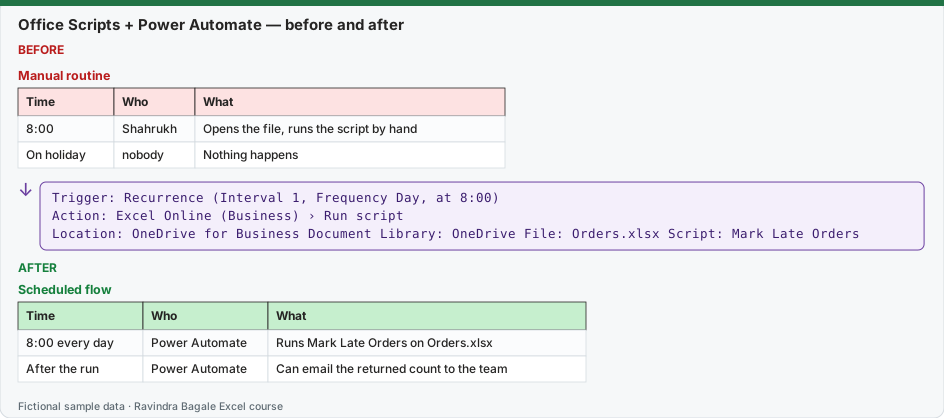
Expected result — Scheduled flow
| Time | Who | What |
|---|---|---|
| 8:00 every day | Power Automate | Runs Mark Late Orders on Orders.xlsx |
| After the run | Power Automate | Can email the returned count to the team |
About this data: Teaching sample for a fictional shop “FreshGo Mart”. Figures and names (e.g. Neha Shah) are made up for this lesson on running a script from power automate on a.
Before table and formula as text
Before — Manual routine
| Time | Who | What |
|---|---|---|
| 8:00 | Shahrukh | Opens the file, runs the script by hand |
| On holiday | nobody | Nothing happens |
About this data: Demo table only — not real customer or company data. Built to practise running a script from power automate on a.
Formula / click path
Trigger:  Recurrence  (Interval 1, Frequency Day, at 8:00)
Action:   Excel Online (Business) › Run script
          Location: OneDrive for Business   Document Library: OneDrive   File: Orders.xlsx   Script: Mark Late Orders
Do it step by step:
- Sign in to Power Automate with your work account and create a Scheduled cloud flow.
- Give it a name, set it to repeat every 1 Day, choose a start time of 8:00 and create it. The flow starts with a Recurrence trigger.
- Add an action, search for "Excel run script" and choose Run script from the Excel Online (Business) connector.
- Set Location to OneDrive for Business, Document Library to OneDrive, pick Orders.xlsx in File and Mark Late Orders in Script.
- Save the flow and use Test to run it once. Open the workbook and check K1 and the yellow rows.
- Open My flows, select the flow and read the run history to confirm it succeeded.
स्टेप बाय स्टेप करून बघा:
- तुमच्या work account ने Power Automate मध्ये sign in करा आणि Scheduled cloud flow बनवा.
- नाव द्या, दर 1 Day repeat करायला सांगा, start time 8:00 निवडा आणि create करा. Flow Recurrence trigger ने सुरू होतो.
- Action add करा, "Excel run script" शोधा आणि Excel Online (Business) connector मधला Run script निवडा.
- Location OneDrive for Business, Document Library OneDrive, File मध्ये Orders.xlsx आणि Script मध्ये Mark Late Orders निवडा.
- Flow save करा आणि एकदा चालवायला Test वापरा. Workbook उघडून K1 आणि पिवळ्या rows तपासा.
- My flows उघडा, flow निवडा आणि तो यशस्वी झाला याची खात्री run history वाचून करा.
स्टेप बाय स्टेप करके देखें:
- अपने work account से Power Automate में sign in करें और Scheduled cloud flow बनाएँ.
- नाम दें, हर 1 Day repeat सेट करें, start time 8:00 चुनें और create करें. Flow Recurrence trigger से शुरू होता है.
- Action जोड़ें, "Excel run script" खोजें और Excel Online (Business) connector का Run script चुनें.
- Location OneDrive for Business, Document Library OneDrive, File में Orders.xlsx और Script में Mark Late Orders चुनें.
- Flow save करें और एक बार चलाने के लिए Test करें. Workbook खोलकर K1 और पीली rows जाँचें.
- My flows खोलें, flow चुनें और run history पढ़कर पक्का करें कि वह सफल रहा.
Version note
Running scripts from Power Automate needs a business Microsoft 365 licence that includes Power Automate, on top of the Office Scripts requirements. Microsoft notes that E1 and F3 licences can use scripts with Power Automate but do not get the Power Automate integration inside Excel. Inside the Code Editor, the old 'Script scheduling' option is temporarily disabled by Microsoft (existing schedules keep running), so use a Power Automate flow as shown here. Screen labels in Power Automate change from time to time; the trigger and action names below are the ones Microsoft uses in its documentation.
Flow 1: every morning (scheduled)
- Trigger: Recurrence, every 1 day at 8:00 (set your time zone in the trigger's settings).
- Action: Excel Online (Business) › Run script: Location OneDrive for Business, Document Library OneDrive, File Orders.xlsx, Script Mark Late Orders.
- Optional action: Office 365 Outlook › Send an email (V2) to the team. In the body, insert the dynamic content result from the Run script step. Because our script returns the late count, the email can say "Late orders today: 3".
Flow 2: when a new file arrives
- Trigger: OneDrive for Business › When a file is created, pointing at a folder such as /Daily Exports.
- Action: Excel Online (Business) › Run script. In File, choose the new file from the trigger's dynamic content instead of a fixed file, and pick your script.
- The new export must contain the Table and sheet names the script expects (for example a Table named tblOrders). If each export is a plain range, the first step of your script should create the Table.
(Scripts stored in a team SharePoint library use the separate action Run script from SharePoint library.)
Passing values in and out
- Out: whatever main returns (a number, text or an array) appears as result in later steps.
- In: add parameters to main, for example
function main(workbook: ExcelScript.Workbook, limit: number). Power Automate shows an input box for limit in the Run script action.
Rules and limits from Microsoft's documentation
| Rule | What it means for you |
|---|---|
| About 1,600 Run script calls per user per day (resets at 12:00 AM UTC, which is 5:30 AM in India) | Fine for daily or hourly flows; too low for "every new row". |
| A script run from Power Automate has a timeout of 120 seconds | Keep flow scripts short; read and write in blocks. |
| Parameters sent to a script are limited in size (Microsoft lists 28.6 MB) | Send IDs or small lists, not whole datasets. |
| No external calls (such as fetch) when the script runs from Power Automate | Get web data with a Power Automate action instead, and pass it into the script. |
| Do not use relative references such as getActiveWorksheet in flows | Always use getWorksheet("Name") and getTable("Name"). |
| A script cannot call another script | Chain several Run script actions in the flow instead. |
About this data: Made-up rows so you can copy the pattern for running a script from power automate on a. Currencies may use ₹, £, € or $.
Troubleshooting. If two runs touch the same workbook at the same moment you can get merge conflicts. Microsoft's tutorial suggests limiting concurrency in the trigger's Settings so only one run happens at a time.
Microsoft sources: Run Office Scripts with Power Automate; Tutorial: automatically run scripts with Power Automate; Platform limits, requirements and error messages for Office Scripts.
Practice task (try it before you open the answer):
- Plan (on paper) a flow that runs a script called Daily Summary every weekday at 6:30 PM and emails the result to your manager.
- Which trigger and which two actions do you need?
- Your script uses getActiveWorksheet(). What must you change before using it in the flow?
Answer
- A Scheduled cloud flow with Recurrence, frequency Week, on Monday to Friday at 18:30 (check the time zone).
- Trigger: Recurrence. Actions: Excel Online (Business) › Run script (File, Script Daily Summary), then Office 365 Outlook › Send an email (V2) with the result dynamic content in the body.
- Replace
workbook.getActiveWorksheet()withworkbook.getWorksheet("Summary")(or the real sheet name), because flows must not rely on the active sheet.
Ravindra Bagale's Tip
Test every flow with a copy of the workbook first. A scheduled flow on the real file that goes wrong will go wrong every morning until you notice.
Ravindra Bagale's Tip – मराठी
प्रत्येक flow आधी workbook च्या copy वर test करा. खऱ्या file वरचा चुकीचा scheduled flow तुमच्या लक्षात येईपर्यंत रोज सकाळी चुकत राहील.
Ravindra Bagale's Tip – हिंदी
हर flow पहले workbook की copy पर test करें. असली file पर गलत scheduled flow तब तक हर सुबह गलती करेगा जब तक आप ध्यान न दें.
Worked example — running a script from power automate on a
Why
Aamir Khan in Pune and Emma Clarke abroad both need a clear, repeatable way to use running a script from power automate on a on a GreenField Dairy sheet without breaking totals.
What
Running A Script From Power Automate On A is the Excel idea this page teaches. We will walk one tiny example end to end.
How
- Open a blank sheet. In A1 type a short label for running a script from power automate on a.
- Enter a small made-up value for Aamir Khan using £ where money appears.
- Add a second value for Emma Clarke using € so you see mixed currencies stay numeric.
- Apply the method from this lesson step by step (menu or formula as shown above).
- Check the result still works inside SUM or a simple check cell.
Formula / action
Follow the formula or ribbon steps shown in this lesson (keep values numeric).Meaning: Once running a script from power automate on a is correct on one row, copy the same pattern down the column.
Practice tasks (10+)
Try these on a blank sheet. Open a hint only if you are stuck. No quiz — just practice.
1. Rebuild the smallest example of running a script from power automate on a on a blank sheet for QuickCart Delivery.
Hint: Use only the steps on this page. Keep numbers numeric.
2. Change one input for Aarti Kulkarni and confirm the result updates.
Hint: If the result is stuck, check absolute vs relative references.
3. Repeat the same steps with a £ or € value for Carlos Rivera.
Hint: Formatting must not break SUM.
4. Write the result meaning in one plain sentence next to the cell.
Hint: Imagine explaining it to a new joiners.
5. Add a second row and fill the method down.
Hint: Double-click the fill handle if the pattern is consistent.
6. Break the example on purpose, then fix it using this lesson.
Hint: Common break: text instead of a number.
7. Apply running a script from power automate on a to a 5-row made-up QuickCart Delivery table.
Hint: Keep column headers clear.
8. Check your answer with a simple total or COUNT.
Hint: A wrong total usually means a format or key mismatch.
9. Swap ₹ and $ on one column and re-check totals.
Hint: Stored values stay the same; only the display changes.
10. List two mistakes beginners make with running a script from power automate on a.
Hint: Look back at the tip box on this page.
11. Teach the steps out loud in under one minute.
Hint: Why → What → How.
12. Save the sheet as QuickCartDe_practice.xlsx.
Hint: Use a clear file name for class.
Loading practice tasks...
- Last used row (Easy): Which row number is the last filled row? The headings are in row 1.
- Late orders (Easy): How many rows have Status "Late"?
- Total amount (Easy): Add up the Amount column.
- Worst delay (Easy): What is the largest number in the Days late column?
- Late orders in Pune (Medium): How many orders are Late and in City "Pune"?
- Customer for an order (Medium): Find the Customer for Order ID "DL-704".
- Money stuck in late orders (Medium): Add up the Amount column for rows where Status is "Late".
- Big orders (Medium): How many rows have an Amount of 2000 or more?
- Message text (Medium): Build the text "N late orders", where N is the count of Late rows.
- Average delay of late orders (Hard): What is the average Days late for rows with Status "Late"? Round to 1 decimal.
- Tag for the first row (Hard): For the first row, return "Chase" if Days late is 3 or more, else "OK".
- Warning or all clear (Hard): Return "Warning" if any order is 3 or more days late, else "All clear".
Quick revision cards
Three standalone cards. Each one explains the idea with its own example. Scan the QR to open this lesson.