12.18 Recording an Office Script and Reading the Code
Example first. Zoya does not want to write code yet. She wants Excel to watch her once: make the header row bold, fill it orange, and turn A1:I11 into a Table. The Action Recorder writes the script for her. Then she opens the code and finds that she can read most of it, because each recorded action becomes one line with a comment.
Recording an Office Script — in 30 seconds
What: The Action Recorder watches what you do in the workbook and writes an Office Script with one line per action. You can run it again later on the same or another workbook.
Why: It is the fastest way to start: no code to type, and the recorded code teaches you the method names you need when you later write scripts yourself.
Tiny example: After recording "bold the header", the script contains a line like getFont().setBold(true) for the range A1:I1.
Recording an Office Script — 30 सेकंदात
काय: Action Recorder तुम्ही workbook मध्ये काय करता ते पाहतो आणि प्रत्येक action साठी एक line असलेला Office Script लिहितो. तो नंतर त्याच किंवा दुसऱ्या workbook वर परत चालवता येतो.
का: सुरुवात करायचा हा सर्वात जलद मार्ग: code type करायचा नाही, आणि recorded code मधून पुढे स्वतः scripts लिहिताना लागणारी method names शिकायला मिळतात.
छोटं उदाहरण: "Header bold करा" record केल्यावर script मध्ये A1:I1 range साठी getFont().setBold(true) सारखी line येते.
Recording an Office Script — 30 सेकंड में
क्या: Action Recorder देखता है कि आप workbook में क्या करते हैं और हर action के लिए एक line वाला Office Script लिखता है. इसे बाद में उसी या दूसरे workbook पर फिर चलाया जा सकता है.
क्यों: शुरुआत का यह सबसे तेज़ तरीका है: code type नहीं करना, और recorded code से आगे खुद scripts लिखने के लिए ज़रूरी method names सीखने को मिलते हैं.
छोटा उदाहरण: "Header bold करो" record करने के बाद script में A1:I1 range के लिए getFont().setBold(true) जैसी line आती है.
First look at the data (before → after):
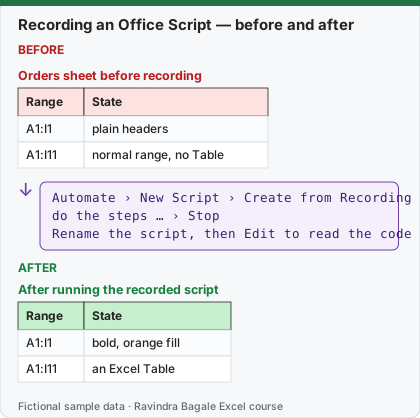
Expected result — After running the recorded script
| Range | State |
|---|---|
| A1:I1 | bold, orange fill |
| A1:I11 | an Excel Table |
About this data: Teaching sample for a fictional shop “FreshGo Mart”. Figures and names (e.g. Aarti Kulkarni) are made up for this lesson on recording an office script and reading the code.
Before table and formula as text
Before — Orders sheet before recording
| Range | State |
|---|---|
| A1:I1 | plain headers |
| A1:I11 | normal range, no Table |
About this data: Demo table only — not real customer or company data. Built to practise recording an office script and reading the code.
Formula / click path
Automate › New Script › Create from Recording
do the steps … › Stop
Rename the script, then Edit to read the code
Do it step by step:
- Open the Orders workbook in Excel on the web (saved in OneDrive for Business).
- Select Automate › New Script › Create from Recording. The Record Actions pane opens and lists every action you take.
- Select A1:I1, press Ctrl + B, and choose an orange fill colour from Home › Fill Color.
- Select A1:I11 and press Ctrl + T, keep My table has headers ticked and select OK.
- Select Stop in the Record Actions pane. The new script appears. Select Rename and call it Format Orders.
- Select Edit to open the code in the Code Editor and read it with the table below.
स्टेप बाय स्टेप करून बघा:
- Orders workbook Excel on the web मध्ये उघडा (OneDrive for Business मध्ये save केलेलं).
- Automate › New Script › Create from Recording निवडा. Record Actions pane उघडतो आणि तुमची प्रत्येक action list करतो.
- A1:I1 select करा, Ctrl + B दाबा, आणि Home › Fill Color मधून orange रंग निवडा.
- A1:I11 select करून Ctrl + T दाबा, My table has headers tick ठेवा आणि OK निवडा.
- Record Actions pane मध्ये Stop निवडा. नवीन script दिसतो. Rename निवडून त्याला Format Orders नाव द्या.
- Code Editor मध्ये code उघडायला Edit निवडा आणि खालच्या table सोबत वाचा.
स्टेप बाय स्टेप करके देखें:
- Orders workbook को Excel on the web में खोलें (OneDrive for Business में save किया हुआ).
- Automate › New Script › Create from Recording चुनें. Record Actions pane खुलता है और आपकी हर action list करता है.
- A1:I1 select करें, Ctrl + B दबाएँ, और Home › Fill Color से orange रंग चुनें.
- A1:I11 select करके Ctrl + T दबाएँ, My table has headers tick रखें और OK चुनें.
- Record Actions pane में Stop चुनें. नया script दिखता है. Rename चुनकर उसका नाम Format Orders रखें.
- Code Editor में code खोलने के लिए Edit चुनें और नीचे की table के साथ पढ़ें.
Version note
Office Scripts need a work or school Microsoft 365 licence (Microsoft lists Office 365 Business, Business Premium, ProPlus, ProPlus for Devices, A3, A5, E1, E3, E5 and F3), the workbook stored in OneDrive for Business or SharePoint, and connected experiences turned on by your admin. They run in Excel on the web, Excel for Windows (Version 2210 or later) and Excel for Mac. Personal and Family plans can try them only as a preview through the Microsoft 365 Insider programme. If you do not see the Automate tab, your licence or your admin settings do not allow it yet.
What the recorded code looks like (illustrative: your recording may differ slightly, for example in the colour code or comment wording)
function main(workbook: ExcelScript.Workbook) {
    let selectedSheet = workbook.getActiveWorksheet();
    // Set font bold to true for range A1:I1 on selectedSheet
    selectedSheet.getRange("A1:I1").getFormat().getFont().setBold(true);
    // Set fill color to #FFC000 for range A1:I1 on selectedSheet
    selectedSheet.getRange("A1:I1").getFormat().getFill().setColor("#FFC000");
    // Add a new table at range A1:I11 on selectedSheet
    let newTable = workbook.addTable(selectedSheet.getRange("A1:I11"), true);
}
| Recorded line | What it means |
|---|---|
let selectedSheet = workbook.getActiveWorksheet(); |
Work on the sheet that is active when the script runs. |
getRange("A1:I1").getFormat().getFont().setBold(true) |
Go to A1:I1 › its format › its font › make it bold. |
getFormat().getFill().setColor("#FFC000") |
Fill colour as a hex code (#FFC000 is an orange). |
workbook.addTable(selectedSheet.getRange("A1:I11"), true) |
Make a Table from A1:I11; true means the first row has headers. |
About this data: Made-up rows so you can copy the pattern for recording an office script and reading the code. Currencies may use ₹, £, € or $.
Reading pattern. Almost every line follows "get something, then do something to it": getRange(…) › getFormat() › getFill() › setColor(…). Methods that start with get fetch an object or a value; methods that start with set change something.
Absolute vs relative recording (from Microsoft's recording page)
| Mode | What is recorded | Best when |
|---|---|---|
| Absolute (default) | The exact cell addresses: editing A3 edits A3 every time. | Your data is always in the same place. |
| Relative | Positions relative to the cell selected when you start: "two rows below the current cell". | The script should act on the current cell or the cells around it. |
About this data: Fictional worksheet used in class. Safe to edit; nothing here is live production data.
To switch, open the drop-down menu in the Record Actions pane and select Relative mode. (This is the same idea as Use Relative References for VBA macros in lesson 12.2.)
Things to fix after recording
- getActiveWorksheet() depends on which sheet is open. Replace it with
workbook.getWorksheet("Orders")before you run the script from Power Automate; Microsoft's tutorial says flows should not use relative references like the active worksheet. - Running the script twice adds a second Table on top of the first and fails. Recorded scripts do not check "is it already done?"; you add that logic in the Code Editor (lesson 12.19).
- Recorded scripts repeat the same
getRangecall on every line. Store it once in a variable, for exampleconst header = selectedSheet.getRange("A1:I1");.
Microsoft sources: Record your actions as Office Scripts; Tutorial: automatically run scripts with Power Automate.
Practice task (try it before you open the answer):
- Record a script that sets the number format of G2:G11 to show two decimals and makes column G wider.
- Open it in the Code Editor and find the line that changes the number format.
- Change the script so it uses the sheet named Orders instead of the active sheet.
Answer
- Automate › New Script › Create from Recording, select G2:G11, apply Home › Number Format › Number, widen column G, then Stop and Rename.
- The recorded line uses a method like
setNumberFormat(…)on the range G2:G11 (the exact format text depends on what you clicked). - Replace
let selectedSheet = workbook.getActiveWorksheet();withlet selectedSheet = workbook.getWorksheet("Orders");. Nothing else needs to change.
Ravindra Bagale's Tip
Record first, then read and tidy the code. Students who record ten small scripts learn the method names faster than students who start from a blank editor.
Ravindra Bagale's Tip – मराठी
आधी record करा, मग code वाचा आणि नीट करा. दहा छोटे scripts record करणारे विद्यार्थी, रिकाम्या editor पासून सुरू करणाऱ्यांपेक्षा method names लवकर शिकतात.
Ravindra Bagale's Tip – हिंदी
पहले record करें, फिर code पढ़ें और साफ़ करें. दस छोटे scripts record करने वाले छात्र, खाली editor से शुरू करने वालों से जल्दी method names सीखते हैं.
Worked example — recording an office script and reading the code
Why
Priya Deshmukh in Pune and Oliver Bennett abroad both need a clear, repeatable way to use recording an office script and reading the code on a Maple Bakery Co sheet without breaking totals.
What
Recording An Office Script And Reading The Code is the Excel idea this page teaches. We will walk one tiny example end to end.
How
- Open a blank sheet. In A1 type a short label for recording an office script and reading the code.
- Enter a small made-up value for Priya Deshmukh using € where money appears.
- Add a second value for Oliver Bennett using € so you see mixed currencies stay numeric.
- Apply the method from this lesson step by step (menu or formula as shown above).
- Check the result still works inside SUM or a simple check cell.
Formula / action
Follow the formula or ribbon steps shown in this lesson (keep values numeric).Meaning: Once recording an office script and reading the code is correct on one row, copy the same pattern down the column.
Practice tasks (10+)
Try these on a blank sheet. Open a hint only if you are stuck. No quiz — just practice.
1. Rebuild the smallest example of recording an office script and reading the code on a blank sheet for Orbit Logistics.
Hint: Use only the steps on this page. Keep numbers numeric.
2. Change one input for Neha Shah and confirm the result updates.
Hint: If the result is stuck, check absolute vs relative references.
3. Repeat the same steps with a £ or € value for Anna Kowalski.
Hint: Formatting must not break SUM.
4. Write the result meaning in one plain sentence next to the cell.
Hint: Imagine explaining it to a new joiners.
5. Add a second row and fill the method down.
Hint: Double-click the fill handle if the pattern is consistent.
6. Break the example on purpose, then fix it using this lesson.
Hint: Common break: text instead of a number.
7. Apply recording an office script and reading the code to a 5-row made-up Orbit Logistics table.
Hint: Keep column headers clear.
8. Check your answer with a simple total or COUNT.
Hint: A wrong total usually means a format or key mismatch.
9. Swap ₹ and $ on one column and re-check totals.
Hint: Stored values stay the same; only the display changes.
10. List two mistakes beginners make with recording an office script and reading the code.
Hint: Look back at the tip box on this page.
11. Teach the steps out loud in under one minute.
Hint: Why → What → How.
12. Save the sheet as OrbitLogist_practice.xlsx.
Hint: Use a clear file name for class.
Loading practice tasks...
- Last used row (Easy): Which row number is the last filled row? The headings are in row 1.
- Late orders (Easy): How many rows have Status "Late"?
- Total amount (Easy): Add up the Amount column.
- Worst delay (Easy): What is the largest number in the Days late column?
- Late orders in Pune (Medium): How many orders are Late and in City "Pune"?
- Customer for an order (Medium): Find the Customer for Order ID "DL-704".
- Money stuck in late orders (Medium): Add up the Amount column for rows where Status is "Late".
- Big orders (Medium): How many rows have an Amount of 2000 or more?
- Message text (Medium): Build the text "N late orders", where N is the count of Late rows.
- Average delay of late orders (Hard): What is the average Days late for rows with Status "Late"? Round to 1 decimal.
- Tag for the first row (Hard): For the first row, return "Chase" if Days late is 3 or more, else "OK".
- Warning or all clear (Hard): Return "Warning" if any order is 3 or more days late, else "All clear".
Quick revision cards
Three standalone cards. Each one explains the idea with its own example. Scan the QR to open this lesson.