12.19 Writing a Small Office Script: Colour the Late Orders
Example first. Ruhi wants the script that a recorder cannot make: look at every order, decide if it is late (more than 15 minutes), colour only those rows, and write the count. That needs a loop and an if, so we write it in the Code Editor. It is the Office Scripts twin of the TagLateOrders VBA macro in this chapter's answer key, and it works on the Table named tblOrders.
A small Office Script — in 30 seconds
What: A script that reads the table values into memory, loops over the rows, colours the rows where Mins is above 15 and writes "Late orders: 3" in K1.
Why: Reading all values once and looping in memory is fast and clear. Using the table and column names keeps the script working when columns move or rows are added.
Tiny example: On our 10 orders the script colours AMN-1005, BLK-1007, BLK-1010 and returns 3.
A small Office Script — 30 सेकंदात
काय: Table च्या values memory मध्ये वाचणारा, rows वर loop करणारा, Mins 15 पेक्षा जास्त असलेल्या rows रंगवणारा आणि K1 मध्ये "Late orders: 3" लिहिणारा script.
का: सगळ्या values एकदाच वाचून memory मध्ये loop करणं जलद आणि स्पष्ट असतं. Table आणि column ची नावं वापरल्याने columns हलले किंवा rows वाढल्या तरी script चालतो.
छोटं उदाहरण: आपल्या 10 orders वर script AMN-1005, BLK-1007, BLK-1010 रंगवतो आणि 3 return करतो.
A small Office Script — 30 सेकंड में
क्या: Table की values memory में पढ़ने वाला, rows पर loop करने वाला, Mins 15 से ज़्यादा वाली rows रंगने वाला और K1 में "Late orders: 3" लिखने वाला script.
क्यों: सारी values एक बार पढ़कर memory में loop करना तेज़ और साफ़ है. Table और column के नाम इस्तेमाल करने से columns खिसकें या rows बढ़ें तब भी script चलता है.
छोटा उदाहरण: हमारी 10 orders पर script AMN-1005, BLK-1007, BLK-1010 को रंगता है और 3 return करता है.
First look at the data (before → after):
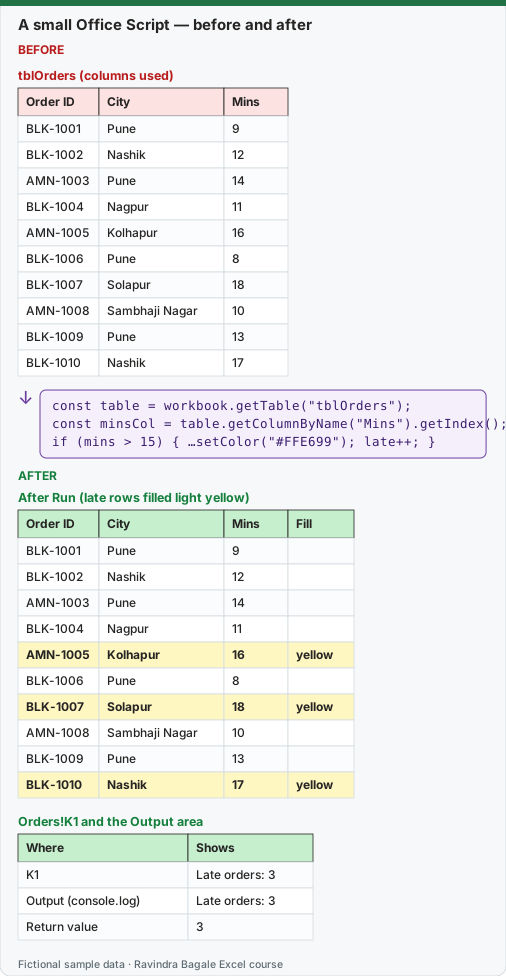
Expected result — After Run (late rows filled light yellow)
| Order ID | City | Mins | Fill |
|---|---|---|---|
| BLK-1001 | Pune | 9 | — |
| BLK-1002 | Nashik | 12 | — |
| AMN-1003 | Pune | 14 | — |
| BLK-1004 | Nagpur | 11 | — |
| AMN-1005 | Kolhapur | 16 | yellow |
| BLK-1006 | Pune | 8 | — |
| BLK-1007 | Solapur | 18 | yellow |
| AMN-1008 | Sambhaji Nagar | 10 | — |
| BLK-1009 | Pune | 13 | — |
| BLK-1010 | Nashik | 17 | yellow |
About this data: Teaching sample for a fictional shop “Orbit Logistics”. Figures and names (e.g. Vikram Rao) are made up for this lesson on writing a small office script colour the late.
Expected result — Orders!K1 and the Output area
| Where | Shows |
|---|---|
| K1 | Late orders: 3 |
| Output (console.log) | Late orders: 3 |
| Return value | 3 |
About this data: Demo table only — not real customer or company data. Built to practise writing a small office script colour the late.
Before table and formula as text
Before — tblOrders (columns used)
| Order ID | City | Mins |
|---|---|---|
| BLK-1001 | Pune | 9 |
| BLK-1002 | Nashik | 12 |
| AMN-1003 | Pune | 14 |
| BLK-1004 | Nagpur | 11 |
| AMN-1005 | Kolhapur | 16 |
| BLK-1006 | Pune | 8 |
| BLK-1007 | Solapur | 18 |
| AMN-1008 | Sambhaji Nagar | 10 |
| BLK-1009 | Pune | 13 |
| BLK-1010 | Nashik | 17 |
About this data: Made-up rows so you can copy the pattern for writing a small office script colour the late. Currencies may use ₹, £, € or $.
Formula / click path
const table = workbook.getTable("tblOrders");
const minsCol = table.getColumnByName("Mins").getIndex();
if (mins > 15) { …setColor("#FFE699"); late++; }
Do it step by step:
- Make sure the 10 orders are a Table named tblOrders on the sheet Orders (lesson 6.10).
- Select Automate › New Script › Create in Code Editor.
- Delete the starter code and paste the script below.
- Select Run. Three rows turn light yellow and K1 shows Late orders: 3.
- Change the Mins of BLK-1001 to 20 and run the script again. K1 now shows Late orders: 4.
- Rename the script to Mark Late Orders and undo the change to BLK-1001.
स्टेप बाय स्टेप करून बघा:
- 10 orders Orders sheet वर tblOrders नावाच्या Table मध्ये आहेत याची खात्री करा (lesson 6.10).
- Automate › New Script › Create in Code Editor निवडा.
- Starter code delete करा आणि खालचा script paste करा.
- Run निवडा. तीन rows हलक्या पिवळ्या होतात आणि K1 मध्ये Late orders: 3 दिसतं.
- BLK-1001 चे Mins 20 करा आणि script परत चालवा. K1 आता Late orders: 4 दाखवतो.
- Script चं नाव Mark Late Orders करा आणि BLK-1001 चा बदल undo करा.
स्टेप बाय स्टेप करके देखें:
- पक्का करें कि 10 orders Orders sheet पर tblOrders नाम की Table में हैं (lesson 6.10).
- Automate › New Script › Create in Code Editor चुनें.
- Starter code delete करें और नीचे का script paste करें.
- Run चुनें. तीन rows हल्की पीली हो जाती हैं और K1 में Late orders: 3 दिखता है.
- BLK-1001 के Mins 20 करें और script फिर चलाएँ. K1 अब Late orders: 4 दिखाता है.
- Script का नाम Mark Late Orders रखें और BLK-1001 का बदलाव undo करें.
Version note
Office Scripts need a work or school Microsoft 365 licence (Microsoft lists Office 365 Business, Business Premium, ProPlus, ProPlus for Devices, A3, A5, E1, E3, E5 and F3), the workbook stored in OneDrive for Business or SharePoint, and connected experiences turned on by your admin. They run in Excel on the web, Excel for Windows (Version 2210 or later) and Excel for Mac. Personal and Family plans can try them only as a preview through the Microsoft 365 Insider programme. If you do not see the Automate tab, your licence or your admin settings do not allow it yet.
The script
function main(workbook: ExcelScript.Workbook): number {
  // 1. Find the table by name (safer than "the active sheet")
  const table = workbook.getTable("tblOrders");
  const body = table.getRangeBetweenHeaderAndTotal();
  const values = body.getValues();

  // 2. Which column holds the minutes?
  const minsCol = table.getColumnByName("Mins").getIndex();

  // 3. Walk the rows; colour late rows and count them
  let late = 0;
  for (let i = 0; i < values.length; i++) {
    const mins = values[i][minsCol] as number;
    if (mins > 15) {
      body.getRow(i).getFormat().getFill().setColor("#FFE699");
      late++;
    }
  }

  // 4. Write the count next to the table and return it (Power Automate can use it)
  workbook.getWorksheet("Orders").getRange("K1").setValue(`Late orders: ${late}`);
  console.log(`Late orders: ${late}`);
  return late;
}
Line by line
| Part | What it does |
|---|---|
function main(workbook: ExcelScript.Workbook): number |
The script returns a number (the count). Power Automate can use a returned value in later steps. |
workbook.getTable("tblOrders") |
Find the Table by its name, wherever it is. |
getRangeBetweenHeaderAndTotal() |
The data rows only: no header row, no Total row. |
getValues() |
Read all the values at once into a 2-D array (rows × columns). Row 0 is the first order. |
getColumnByName("Mins").getIndex() |
The position of the Mins column (counting from 0), so the script still works if columns are moved. |
values[i][minsCol] as number |
The Mins value of row i. as number tells TypeScript to treat it as a number. |
body.getRow(i).getFormat().getFill().setColor("#FFE699") |
Colour that whole row of the table light yellow. |
`Late orders: ${late}` |
A template string: the text with the value of late put inside. |
About this data: Fictional worksheet used in class. Safe to edit; nothing here is live production data.
Why read once and loop in memory? Each call that talks to the workbook (getValues, setValue, setColor) takes time. Microsoft's guidance is to read data in one go, work in memory and write back as few times as possible. Here we read once; we write only for the 3 late rows and K1.
Make it safe to run twice. Right now, if BLK-1001 was late yesterday and is fixed today, its yellow fill stays. Add one line before the loop to clear old colours first:
body.getFormat().getFill().clear();
How this was tested: the script was compile-checked with the TypeScript compiler against the ExcelScript method names from Microsoft's reference, and run against a small mock of the 10 orders. It coloured rows AMN-1005, BLK-1007, BLK-1010 and returned 3. Run it in your own Excel on the web to see the real colours.
Microsoft sources: Office Scripts in Excel (overview); Platform limits, requirements and error messages for Office Scripts.
Practice task (try it before you open the answer):
- Change the script so it colours orders with Amount above 500 instead of late orders, and writes "Big orders: n" in K2.
- What number should it return on our 10 orders?
- Add the clear line so old colours are removed first.
Answer
- Use
const amtCol = table.getColumnByName("Amount").getIndex();, testvalues[i][amtCol] as number > 500, and write togetRange("K2")withBig orders: ${big}. - It returns 1 (BLK-1007, amount 1299).
- Put
body.getFormat().getFill().clear();on the line before the for loop.
Ravindra Bagale's Tip
Always find data by Table name and column name in scripts, never by "A1:I11" or "column H". Tables grow and columns move; names stay.
Ravindra Bagale's Tip – मराठी
Scripts मध्ये data नेहमी Table नाव आणि column नावाने शोधा, "A1:I11" किंवा "column H" ने नाही. Tables वाढतात आणि columns हलतात; नावं तशीच राहतात.
Ravindra Bagale's Tip – हिंदी
Scripts में data हमेशा Table नाम और column नाम से ढूँढें, "A1:I11" या "column H" से नहीं. Tables बढ़ती हैं और columns खिसकते हैं; नाम वही रहते हैं.
Worked example — writing a small office script colour the late
Why
Aamir Khan in Pune and Liam Murphy abroad both need a clear, repeatable way to use writing a small office script colour the late on a FreshGo Mart sheet without breaking totals.
What
Writing A Small Office Script Colour The Late is the Excel idea this page teaches. We will walk one tiny example end to end.
How
- Open a blank sheet. In A1 type a short label for writing a small office script colour the late.
- Enter a small made-up value for Aamir Khan using £ where money appears.
- Add a second value for Liam Murphy using $ so you see mixed currencies stay numeric.
- Apply the method from this lesson step by step (menu or formula as shown above).
- Check the result still works inside SUM or a simple check cell.
Formula / action
Follow the formula or ribbon steps shown in this lesson (keep values numeric).Meaning: Once writing a small office script colour the late is correct on one row, copy the same pattern down the column.
Practice tasks (10+)
Try these on a blank sheet. Open a hint only if you are stuck. No quiz — just practice.
1. Rebuild the smallest example of writing a small office script colour the late on a blank sheet for Summit Schools.
Hint: Use only the steps on this page. Keep numbers numeric.
2. Change one input for Neha Shah and confirm the result updates.
Hint: If the result is stuck, check absolute vs relative references.
3. Repeat the same steps with a £ or € value for Emma Clarke.
Hint: Formatting must not break SUM.
4. Write the result meaning in one plain sentence next to the cell.
Hint: Imagine explaining it to a new joiners.
5. Add a second row and fill the method down.
Hint: Double-click the fill handle if the pattern is consistent.
6. Break the example on purpose, then fix it using this lesson.
Hint: Common break: text instead of a number.
7. Apply writing a small office script colour the late to a 5-row made-up Summit Schools table.
Hint: Keep column headers clear.
8. Check your answer with a simple total or COUNT.
Hint: A wrong total usually means a format or key mismatch.
9. Swap ₹ and $ on one column and re-check totals.
Hint: Stored values stay the same; only the display changes.
10. List two mistakes beginners make with writing a small office script colour the late.
Hint: Look back at the tip box on this page.
11. Teach the steps out loud in under one minute.
Hint: Why → What → How.
12. Save the sheet as SummitSchoo_practice.xlsx.
Hint: Use a clear file name for class.
Loading practice tasks...
- Last used row (Easy): Which row number is the last filled row? The headings are in row 1.
- Late orders (Easy): How many rows have Status "Late"?
- Total amount (Easy): Add up the Amount column.
- Worst delay (Easy): What is the largest number in the Days late column?
- Late orders in Pune (Medium): How many orders are Late and in City "Pune"?
- Customer for an order (Medium): Find the Customer for Order ID "DL-704".
- Money stuck in late orders (Medium): Add up the Amount column for rows where Status is "Late".
- Big orders (Medium): How many rows have an Amount of 2000 or more?
- Message text (Medium): Build the text "N late orders", where N is the count of Late rows.
- Average delay of late orders (Hard): What is the average Days late for rows with Status "Late"? Round to 1 decimal.
- Tag for the first row (Hard): For the first row, return "Chase" if Days late is 3 or more, else "OK".
- Warning or all clear (Hard): Return "Warning" if any order is 3 or more days late, else "All clear".
Quick revision cards
Three standalone cards. Each one explains the idea with its own example. Scan the QR to open this lesson.