12.17 Office Scripts: What They Are and Who Can Use Them
Example first. Every morning Shraddha opens the shared Orders workbook in her browser, makes the header bold, colours the late orders and writes a count in K1. Her VBA macros from this chapter cannot help, because VBA does not run in Excel on the web. Office Scripts are the web-friendly answer: small programs, saved in OneDrive, that you record or write from the Automate tab and can even run from Power Automate while nobody has the file open.
Office Scripts — in 30 seconds
What: Office Scripts are small programs written in TypeScript (a typed form of JavaScript) that automate steps in an Excel workbook. You create them from the Automate tab with the Action Recorder or the Code Editor.
Why: They work in Excel on the web, they are stored in the cloud with your account, colleagues can run them with a button, and Power Automate can run them on a schedule.
Tiny example: Every script starts with function main(workbook: ExcelScript.Workbook). Excel passes the open workbook in as workbook, and your code works on it.
Office Scripts — 30 सेकंदात
काय: Office Scripts म्हणजे TypeScript (JavaScript चा typed प्रकार) मध्ये लिहिलेले छोटे programs जे Excel workbook मधल्या steps automate करतात. ते Automate tab मधून Action Recorder किंवा Code Editor ने बनवले जातात.
का: ते Excel on the web मध्ये चालतात, तुमच्या account सोबत cloud मध्ये save होतात, सहकारी ते button ने चालवू शकतात, आणि Power Automate ते schedule वर चालवू शकतो.
छोटं उदाहरण: प्रत्येक script function main(workbook: ExcelScript.Workbook) ने सुरू होतो. Excel उघडलेलं workbook workbook म्हणून आत देतो, आणि तुमचा code त्यावर काम करतो.
Office Scripts — 30 सेकंड में
क्या: Office Scripts TypeScript (JavaScript का typed रूप) में लिखे छोटे programs हैं जो Excel workbook की steps automate करते हैं. इन्हें Automate tab से Action Recorder या Code Editor से बनाया जाता है.
क्यों: ये Excel on the web में चलते हैं, आपके account के साथ cloud में save होते हैं, साथी इन्हें button से चला सकते हैं, और Power Automate इन्हें schedule पर चला सकता है.
छोटा उदाहरण: हर script function main(workbook: ExcelScript.Workbook) से शुरू होता है. Excel खुला workbook workbook के रूप में अंदर देता है, और आपका code उस पर काम करता है.
First look at the data (before → after):
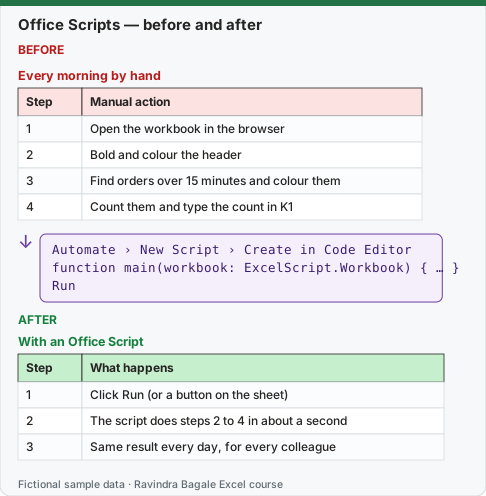
Expected result — With an Office Script
| Step | What happens |
|---|---|
| 1 | Click Run (or a button on the sheet) |
| 2 | The script does steps 2 to 4 in about a second |
| 3 | Same result every day, for every colleague |
About this data: Teaching sample for a fictional shop “HomeNest Supplies”. Figures and names (e.g. Vikram Rao) are made up for this lesson on office scripts what they are and who can use.
Before table and formula as text
Before — Every morning by hand
| Step | Manual action |
|---|---|
| 1 | Open the workbook in the browser |
| 2 | Bold and colour the header |
| 3 | Find orders over 15 minutes and colour them |
| 4 | Count them and type the count in K1 |
About this data: Demo table only — not real customer or company data. Built to practise office scripts what they are and who can use.
Formula / click path
Automate › New Script › Create in Code Editor
function main(workbook: ExcelScript.Workbook) { … }
Run
Do it step by step:
- Save the Orders workbook in OneDrive for Business or SharePoint and open it in Excel on the web.
- Select the Automate tab. The Office Scripts group shows New Script and View Scripts.
- Select New Script › Create in Code Editor. The Code Editor pane opens with an empty
mainfunction. - Replace the code with the small script below and select Run.
- Check that K1 on the Orders sheet now says Checked by script and that the Output area shows the message.
- Select the script name at the top of the pane to rename it, for example Hello Orders.
स्टेप बाय स्टेप करून बघा:
- Orders workbook OneDrive for Business किंवा SharePoint मध्ये save करा आणि Excel on the web मध्ये उघडा.
- Automate tab निवडा. Office Scripts group मध्ये New Script आणि View Scripts दिसतात.
- New Script › Create in Code Editor निवडा. रिकाम्या
mainfunction सह Code Editor pane उघडतो. - Code बदलून खालचा छोटा script टाका आणि Run निवडा.
- Orders sheet वरचा K1 आता Checked by script दाखवतो आणि Output भागात message दिसतो ते तपासा.
- Rename करण्यासाठी pane च्या वर script च्या नावावर click करा, उदा. Hello Orders.
स्टेप बाय स्टेप करके देखें:
- Orders workbook को OneDrive for Business या SharePoint में save करें और Excel on the web में खोलें.
- Automate tab चुनें. Office Scripts group में New Script और View Scripts दिखते हैं.
- New Script › Create in Code Editor चुनें. खाली
mainfunction के साथ Code Editor pane खुलता है. - Code बदलकर नीचे वाला छोटा script डालें और Run चुनें.
- जाँचें कि Orders sheet का K1 अब Checked by script दिखाता है और Output हिस्से में message आता है.
- Rename करने के लिए pane के ऊपर script के नाम पर click करें, जैसे Hello Orders.
Version note
Office Scripts need a work or school Microsoft 365 licence (Microsoft lists Office 365 Business, Business Premium, ProPlus, ProPlus for Devices, A3, A5, E1, E3, E5 and F3), the workbook stored in OneDrive for Business or SharePoint, and connected experiences turned on by your admin. They run in Excel on the web, Excel for Windows (Version 2210 or later) and Excel for Mac. Personal and Family plans can try them only as a preview through the Microsoft 365 Insider programme. If you do not see the Automate tab, your licence or your admin settings do not allow it yet.
Your first script, line by line
function main(workbook: ExcelScript.Workbook) {
  // Get the Orders sheet by its name
  const sheet = workbook.getWorksheet("Orders");
  // Write a note in K1
  sheet.getRange("K1").setValue("Checked by script");
  // Show a message in the Output pane of the Code Editor
  console.log("Hello from Office Scripts");
}
| Line | Meaning in plain English |
|---|---|
function main(workbook: ExcelScript.Workbook) |
Every script has one main function. Excel calls it and hands over the workbook. |
workbook.getWorksheet("Orders") |
Get the sheet named Orders. Using names (not "the active sheet") makes scripts safe to run from Power Automate later. |
sheet.getRange("K1").setValue(…) |
Write a value into K1. |
console.log(…) |
Print a message in the Output area of the Code Editor. Useful for checking your logic. |
// … |
A comment. Excel ignores it; people read it. |
About this data: Made-up rows so you can copy the pattern for office scripts what they are and who can use. Currencies may use ₹, £, € or $.
What you can do with Office Scripts (from Microsoft's overview)
- Action Recorder: record your clicks and typing and turn them into a script (lesson 12.18).
- Code Editor: edit recorded scripts or write new ones, with if/else and loops that the Excel UI does not have (lesson 12.19).
- Copy as code: record a few actions and copy them as script code without saving a whole script.
- Buttons: add a button to the sheet so colleagues can run a script with one click.
- Sharing: share a script with the people who can open the workbook.
- Power Automate: run a script from a flow, on a schedule or when something happens (lesson 12.20).
Where scripts are saved. A script belongs to you, not to the workbook: it is stored as a file in your OneDrive (Microsoft's file-storage page describes the .osts files in a Documents/Office Scripts folder). That is why sharing a script is a separate step from sharing the workbook.
Limits worth knowing now (Microsoft's platform-limits page): a single read or write between the script and the workbook can carry about 5 MB, and one range can hold at most 5 million cells. For a training sheet of 10 orders this never matters; for 2 lakh rows, read and write in blocks.
Microsoft sources: Office Scripts in Excel (overview); Platform limits, requirements and error messages for Office Scripts.
Practice task (try it before you open the answer):
- Change the hello script so it writes today's message "Report ready" in K2 instead of K1.
- Add a second console.log that prints the text "Done".
- Run it and say where each message appears.
Answer
- Change the range line to
sheet.getRange("K2").setValue("Report ready");. - Add
console.log("Done");before the closing brace. - "Report ready" appears in cell K2 of the Orders sheet; both log messages appear in the Output area of the Code Editor, not in the sheet.
Ravindra Bagale's Tip
Ask your IT admin first whether Office Scripts are switched on for your organisation. Ten minutes of checking saves an afternoon of searching for a missing Automate tab.
Ravindra Bagale's Tip – मराठी
आधी तुमच्या IT admin ला विचारा की तुमच्या organisation साठी Office Scripts चालू आहेत का. दहा मिनिटांची खात्री, गायब Automate tab शोधण्यातली पूर्ण दुपार वाचवते.
Ravindra Bagale's Tip – हिंदी
पहले अपने IT admin से पूछें कि आपके organisation के लिए Office Scripts चालू हैं या नहीं. दस मिनट की जाँच, गायब Automate tab ढूँढने की पूरी दोपहर बचाती है.
Worked example — office scripts what they are and who can use
Why
Priya Deshmukh in Pune and Carlos Rivera abroad both need a clear, repeatable way to use office scripts what they are and who can use on a Maple Bakery Co sheet without breaking totals.
What
Office Scripts What They Are And Who Can Use is the Excel idea this page teaches. We will walk one tiny example end to end.
How
- Open a blank sheet. In A1 type a short label for office scripts what they are and who can use.
- Enter a small made-up value for Priya Deshmukh using £ where money appears.
- Add a second value for Carlos Rivera using ₹ so you see mixed currencies stay numeric.
- Apply the method from this lesson step by step (menu or formula as shown above).
- Check the result still works inside SUM or a simple check cell.
Formula / action
Follow the formula or ribbon steps shown in this lesson (keep values numeric).Meaning: Once office scripts what they are and who can use is correct on one row, copy the same pattern down the column.
Practice tasks (10+)
Try these on a blank sheet. Open a hint only if you are stuck. No quiz — just practice.
1. Rebuild the smallest example of office scripts what they are and who can use on a blank sheet for Orbit Logistics.
Hint: Use only the steps on this page. Keep numbers numeric.
2. Change one input for Vikram Rao and confirm the result updates.
Hint: If the result is stuck, check absolute vs relative references.
3. Repeat the same steps with a £ or € value for Sophie Martin.
Hint: Formatting must not break SUM.
4. Write the result meaning in one plain sentence next to the cell.
Hint: Imagine explaining it to a new joiners.
5. Add a second row and fill the method down.
Hint: Double-click the fill handle if the pattern is consistent.
6. Break the example on purpose, then fix it using this lesson.
Hint: Common break: text instead of a number.
7. Apply office scripts what they are and who can use to a 5-row made-up Orbit Logistics table.
Hint: Keep column headers clear.
8. Check your answer with a simple total or COUNT.
Hint: A wrong total usually means a format or key mismatch.
9. Swap ₹ and $ on one column and re-check totals.
Hint: Stored values stay the same; only the display changes.
10. List two mistakes beginners make with office scripts what they are and who can use.
Hint: Look back at the tip box on this page.
11. Teach the steps out loud in under one minute.
Hint: Why → What → How.
12. Save the sheet as OrbitLogist_practice.xlsx.
Hint: Use a clear file name for class.
Loading practice tasks...
- Last used row (Easy): Which row number is the last filled row? The headings are in row 1.
- Late orders (Easy): How many rows have Status "Late"?
- Total amount (Easy): Add up the Amount column.
- Worst delay (Easy): What is the largest number in the Days late column?
- Late orders in Pune (Medium): How many orders are Late and in City "Pune"?
- Customer for an order (Medium): Find the Customer for Order ID "DL-704".
- Money stuck in late orders (Medium): Add up the Amount column for rows where Status is "Late".
- Big orders (Medium): How many rows have an Amount of 2000 or more?
- Message text (Medium): Build the text "N late orders", where N is the count of Late rows.
- Average delay of late orders (Hard): What is the average Days late for rows with Status "Late"? Round to 1 decimal.
- Tag for the first row (Hard): For the first row, return "Chase" if Days late is 3 or more, else "OK".
- Warning or all clear (Hard): Return "Warning" if any order is 3 or more days late, else "All clear".
Quick revision cards
Three standalone cards. Each one explains the idea with its own example. Scan the QR to open this lesson.