How to Create a PivotTable in Excel for Beginners: Rows, Values, Count vs Sum and Report Filter (Blinkit Orders Example)
So far every summary in this course was a formula: COUNTIFS, SUMIFS, UNIQUE. A PivotTable builds the same summaries by dragging column names into boxes, with no formula at all, and changes its answer the moment you drag a different column. In this chapter you build your first pivots on the 24 made-up orders: count of orders, city-wise profit, orders by payment mode and status, and profit of delivered orders only.
What you'll learn in this chapter
- Where PivotTables fit: raw data to dashboard
- Insert a PivotTable from a table (two ways)
- The four boxes: Filters, Columns, Rows, Values
- Text in Values gives Count; numbers give Sum
- City-wise profit with a Grand Total
- Several pivots on one sheet, and a report filter for Status = Delivered
Practice file: excel-first-pivottable-practice.xlsx: Orders (the table named Orders) and Pivot answers (every pivot result in this chapter, worked out with formulas so you can check yours).
Made-up data: the 24 orders are made up for practice. They imitate a quick-commerce app such as Blinkit or Amazon Now in Pune, Nashik, Solapur, Kolhapur, Nagpur and Sambhaji Nagar.
1. From raw data to a dashboard
A dashboard is built in steps, and each step uses what you learned before:
- Raw data: the orders as they arrive, in a plain range.
- Excel Table: Ctrl+T, a name, filters (Table vs Range).
- PivotTables: summaries by city, payment mode, status (this chapter).
- Pivot Charts and KPI cards: charts and big single numbers built on the pivots.
- Dashboard: all of it on one screen.
Classroom line
In the end we build a dashboard. Everything should be visible on a single screen.
Class मधलं वाक्य
"Shevti aapan dashboard banavto. Ekach screen var sagla disayla pahije."
शेवटी आपण dashboard बनवतो. एकाच screen वर सगळं दिसायला पाहिजे.
Classroom line
In the end we build a dashboard. Everything should be visible on a single screen.
Before you build anything, decide what you want to know: how many orders, profit by city, how many were paid online, how many were delivered late. Each question becomes one pivot.
Classroom line
You have to decide what all you want to analyse.
Class मधलं वाक्य
"Tumhala tharvava lagel kay kay analyze karaycha ahe."
तुम्हाला ठरवावं लागेल काय काय analyze करायचं आहे.
Classroom line
You have to decide what all you want to analyse.
Figure 1. The workflow: Raw data → Excel Table → PivotTable → Pivot Charts and KPI cards → Dashboard on one screen.
2. Insert a PivotTable
- Click any cell inside the Orders table.
- Insert > PivotTable (in Excel 365 choose From Table/Range), or Table Design > Summarize with PivotTable.
- Table/Range already says Orders.
- Choose New Worksheet and click OK.
A new sheet opens with an empty pivot area on the left and the PivotTable Fields pane on the right. The top of the pane lists the 13 column names; the bottom has four boxes:
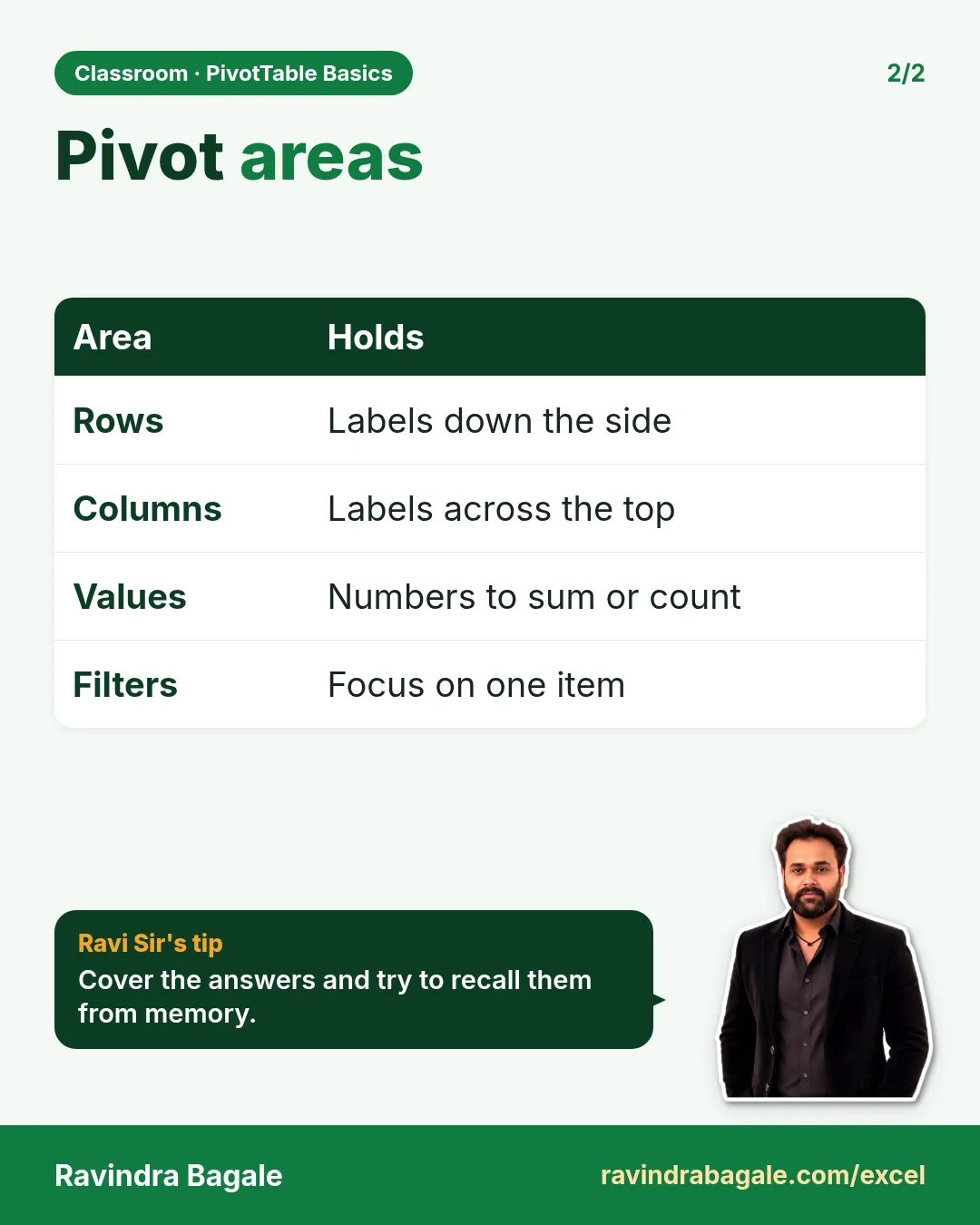
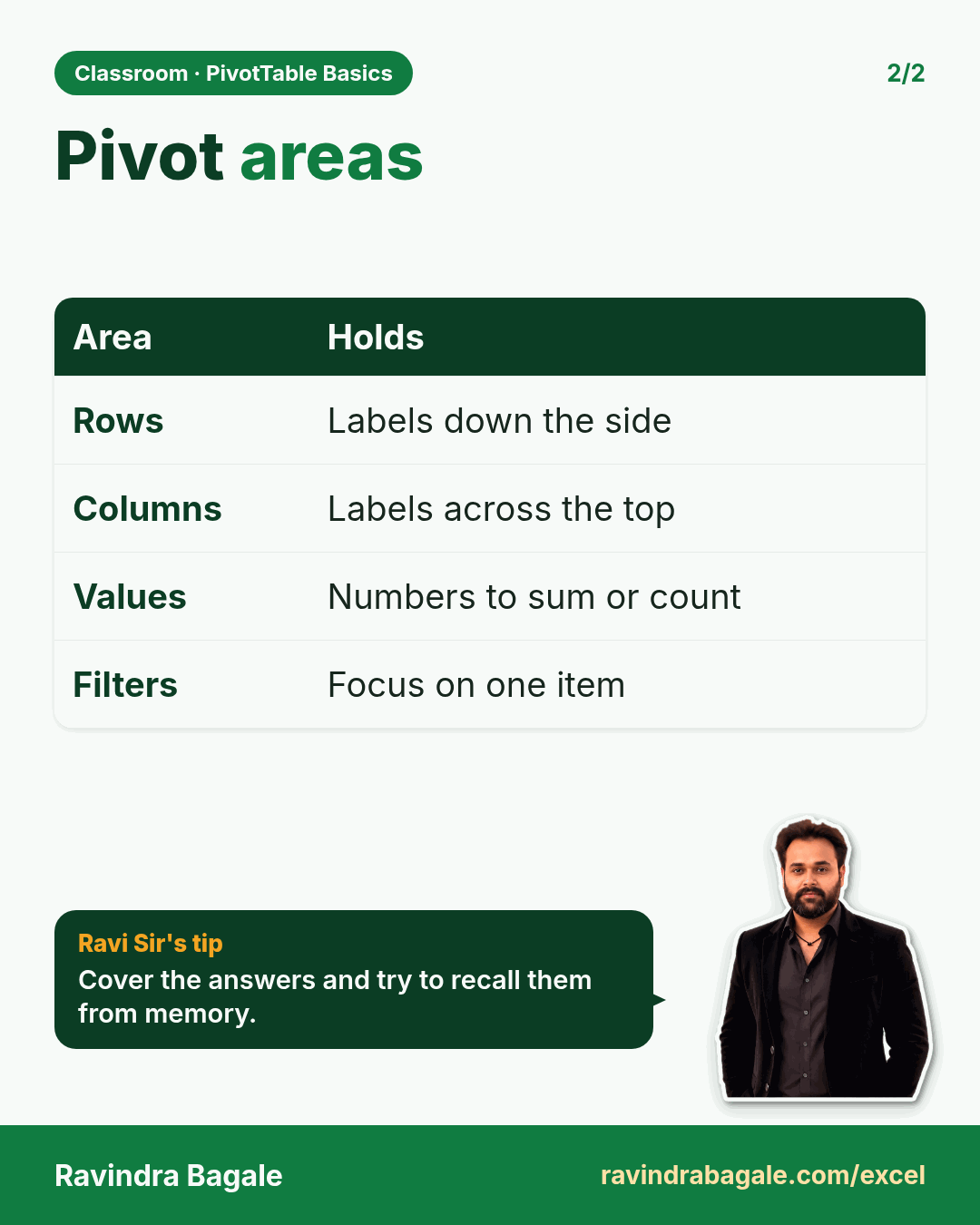
- Filters: limits the whole pivot to some values (a report filter).
- Columns: values across the top.
- Rows: values down the side.
- Values: the numbers being counted or added.
Using the table name as the source means new orders added to the table are included the next time you click PivotTable Analyze > Refresh.
3. Values: Count or Sum?
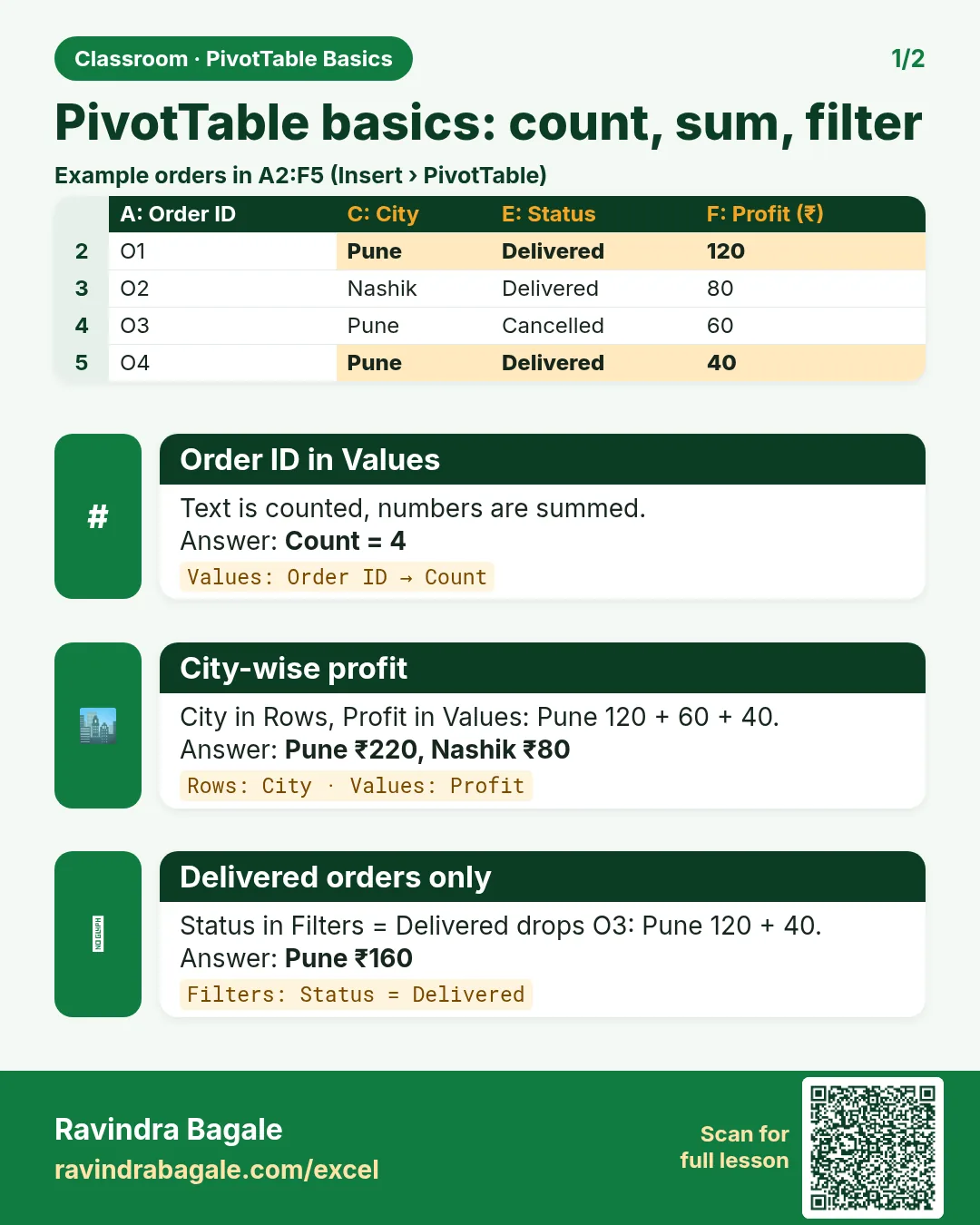
- Drag Order_ID into Values. The pivot shows Count of Order_ID: 24. Order IDs are text: they cannot be added, so Excel counts them.
- Remove it (drag it out of the box) and drag Profit into Values: Sum of Profit: 327. Profit is a number, so Excel adds it.
Classroom line
What would I do with the order IDs themselves? I only need their count.
Class मधलं वाक्य
Order ID घेऊन मी काय करू... मला फक्त त्यांचा count पाहिजे.
Classroom line – हिंदी
"Order ID leke main kya karu... mujhe sirf unka count chahiye."
The rule: text and dates go to Rows (or Columns, or Filters); numbers go to Values. A text column dropped in Values is counted; a number column is summed. To change it, click the field in Values > Value Field Settings and pick Sum, Count, Average, Max or Min.
4. City-wise profit
- Drag City into Rows.
- Keep Profit in Values.
| Row Labels | Sum of Profit |
|---|---|
| Kolhapur | 64 |
| Nagpur | 154 |
| Nashik | 36 |
| Pune | 6 |
| Sambhaji Nagar | 61 |
| Solapur | 6 |
| Grand Total | 327 |
- Each city appears once, even though Pune has 6 orders: the pivot groups them.
- The cities are sorted A to Z.
- Grand Total is added for you.
When you tick a text field's box in the pane instead of dragging, Excel puts it in Rows by itself.
Classroom line
If it is a text column, it goes to Rows, not to Values.
Class मधलं वाक्य
Text column असेल तर तो Rows मध्ये येईल, Values मध्ये नाही.
Classroom line – हिंदी
"Text column hai toh row mein aayega, value mein nahi."
Figure 2. City in Rows and Profit in Values give one row per city, sorted A to Z: Kolhapur 64, Nagpur 154, Nashik 36, Pune 6, Sambhaji Nagar 61, Solapur 6, Grand Total 327.
Ravindra Bagale's Tip
Check every new pivot against one number you already know. Here the Grand Total must be 327, the same as =SUM(Orders[Profit]). If it isn't, a field is in the wrong box or the source range is wrong.
Ravindra Bagale's Tip – मराठी
प्रत्येक नवीन pivot एका आधीच माहीत असलेल्या number शी तपासा. इथे Grand Total 327 च यायला हवा, =SUM(Orders[Profit]) इतका. नसेल तर एखादं field चुकीच्या box मध्ये आहे किंवा source range चुकली आहे.
Ravindra Bagale's Tip – हिंदी
हर नए pivot को एक पहले से पता number से check करो. यहाँ Grand Total 327 ही आना चाहिए, =SUM(Orders[Profit]) जितना. न आए तो कोई field गलत box में है या source range गलत है.
5. More pivots on the same sheet
You can build another pivot next to the first one without starting again:
- Click inside the first pivot, then PivotTable Analyze > Select > Entire PivotTable.
- Press Ctrl+C.
- Click an empty cell a few columns to the right, for example D3, and press Ctrl+V.
- Click inside the copy and change its fields: remove City and Profit, put Payment_Mode in Rows and Order_ID in Values.
Or insert a fresh one: Insert > PivotTable, choose Existing Worksheet, click in Location and click the cell where it should start (Excel writes something like Sheet2!$D$3), then OK.
Leave at least one empty column between pivots: a pivot that grows must not run into its neighbour.
| Pivot | Rows | Values | Result |
|---|---|---|---|
| 2 | Payment_Mode | Count of Order_ID | COD 9, Online 15 |
| 3 | Delivery_Status | Count of Order_ID | Late 6, On Time 15, (blank) 3 |
| 4 | Status | Count of Order_ID | Cancelled 3, Delivered 18, Returned 3 |
Each Grand Total is 24. In pivot 3, (blank) is the 3 cancelled orders, which were never delivered and so have no Delivery_Status.
Figure 3. Four pivots side by side: city-wise profit, orders by payment mode (COD 9, Online 15), by delivery status (Late 6, On Time 15, blank 3) and by status (Cancelled 3, Delivered 18, Returned 3).
6. Report filter: profit of delivered orders only
The city-wise profit in section 4 includes cancelled and returned orders. Nagpur's 154 contains 100 from a cancelled order (ORD1006) that never earned anything.
- Click inside the city-wise profit pivot.
- Drag Status into Filters. A filter cell appears above the pivot: Status (All).
- Open it, choose Delivered, click OK.
| Row Labels | Sum of Profit |
|---|---|
| Kolhapur | 60 |
| Nagpur | 54 |
| Nashik | 20 |
| Pune | 14 |
| Sambhaji Nagar | 65 |
| Solapur | 14 |
| Grand Total | 227 |
The best city changes from Nagpur to Sambhaji Nagar once only delivered orders count. This is the same answer as =SUMIFS(Orders[Profit],Orders[Status],"Delivered") from the SUMIFS chapter, built without a formula.
Figure 4. Status in Filters set to Delivered. Profit by city drops to Kolhapur 60, Nagpur 54, Nashik 20, Pune 14, Sambhaji Nagar 65, Solapur 14, Grand Total 227.
7. The whole chapter on one page
| Box | Put here | Example |
|---|---|---|
| Rows | text or dates to group by | City |
| Columns | a second grouping across the top | Payment_Mode |
| Values | numbers to add, or anything to count | Sum of Profit, Count of Order_ID |
| Filters | a condition for the whole pivot | Status = Delivered |
- Raw data → Table → PivotTable → Pivot Charts and KPI cards → Dashboard.
- Insert > PivotTable from the table, New Worksheet.
- Text in Values = Count; numbers in Values = Sum.
- Pivots group, sort A to Z and add a Grand Total.
- Copy a pivot with Select > Entire PivotTable, Ctrl+C, Ctrl+V; or Existing Worksheet + Location.
- A report filter answers "for delivered orders only".
8. Try at home
Try at home
Task 1
- Build a pivot with Product_Name in Rows and Quantity in Values. What is the Grand Total? (81.)
Task 2
- In the city-wise profit pivot, set the Status filter to Returned. Which cities appear? (Kolhapur 4, Nashik 16 and Pune −8; Grand Total 12.)
Task 3
- Put City in Rows, Payment_Mode in Columns and Order_ID in Values. How many Online orders does Pune have? (5.)
9. Going further: a second practice table
Sections 1 to 8 used the 24 grocery orders. The next sections need a Revenue and a Cost column, so we use a small shop sales table instead. It has 12 rows, one row per sale, and is saved as an Excel Table named Sales (Ctrl+T, then type the name in Table Design > Table Name).
| Order_ID | Order_Date | City | Category | Salesperson | Revenue (₹) | Cost (₹) |
|---|---|---|---|---|---|---|
| S101 | 05-01-2026 | Pune | Grocery | Shahrukh | 12,000 | 9,000 |
| S102 | 12-01-2026 | Nashik | Fashion | Zoya | 18,000 | 12,000 |
| S103 | 20-01-2026 | Pune | Electronics | Raja | 45,000 | 38,000 |
| S104 | 03-02-2026 | Nagpur | Grocery | Rani | 9,000 | 7,000 |
| S105 | 10-02-2026 | Kolhapur | Fashion | Zoya | 15,000 | 10,000 |
| S106 | 18-02-2026 | Pune | Fashion | Shahrukh | 21,000 | 14,000 |
| S107 | 25-02-2026 | Nashik | Electronics | Raja | 30,000 | 26,000 |
| S108 | 04-03-2026 | Nagpur | Electronics | Rani | 36,000 | 30,000 |
| S109 | 11-03-2026 | Kolhapur | Grocery | Shahrukh | 8,000 | 6,000 |
| S110 | 19-03-2026 | Pune | Grocery | Zoya | 14,000 | 10,000 |
| S111 | 24-03-2026 | Nashik | Grocery | Rani | 6,000 | 4,500 |
| S112 | 30-03-2026 | Kolhapur | Electronics | Raja | 26,000 | 22,000 |
| Total | 2,40,000 | 1,88,500 |
Made-up data for practice: every name, city figure and amount is made up. Download it: pivottable-going-further-practice.xlsx (sheet Sales = the table above; sheet Answers = every result below worked out with formulas, so you can check your pivots).
Before you build a pivot on any data of your own, check the source once:
- Row 1 has a heading for every column, and no two headings are the same.
- There are no fully blank rows or columns inside the data.
- Revenue and Cost are real numbers, not text (numbers sit on the right of the cell).
- Dates are real Excel dates, not text, or they cannot be grouped into months later.
- The data is an Excel Table with a clear name such as Sales. Ctrl+T makes a Table, not a PivotTable: the Table is the source, the PivotTable is the summary.
A PivotTable never changes this source data. It only reads it and builds a summary you can rearrange.
10. Each city's share of total revenue (% of Grand Total)
Question: Pune sells the most, but what share of all revenue does it bring? You do not need a formula for this.
- Click inside the Sales table, then Insert > PivotTable > New Worksheet > OK.
- Drag City into Rows.
- Drag Revenue into Values. Drag Revenue into Values a second time. You now have Sum of Revenue and Sum of Revenue2.
- Right-click any number in the Sum of Revenue2 column.
- Choose Show Values As > % of Grand Total.
- Click the heading cell of that column and type a clear name: Revenue Share %.
| Row Labels | Sum of Revenue | Revenue Share % |
|---|---|---|
| Kolhapur | 49,000 | 20.42% |
| Nagpur | 45,000 | 18.75% |
| Nashik | 54,000 | 22.50% |
| Pune | 92,000 | 38.33% |
| Grand Total | 2,40,000 | 100.00% |
Pune's share is 92,000 ÷ 2,40,000 = 38.33%. The shares always add up to 100%. The same menu has Running Total In: once dates are grouped by month (see Group dates by month), it shows January 75,000, February 1,50,000, March 2,40,000.
11. Show only the top 3 cities (Value Filters)
- Use the pivot from section 10 (City in Rows, Sum of Revenue in Values).
- Click the drop-down arrow on the Row Labels cell.
- Choose Value Filters > Top 10.
- Change 10 to 3, keep Items and Sum of Revenue, click OK.
Result: Pune 92,000, Nashik 54,000 and Kolhapur 49,000. Nagpur is hidden, and the Grand Total now shows only the visible cities: 1,95,000. On a big table, use the same steps with 5 for a "Top 5 products" report. To remove it: drop-down arrow > Clear Filter From "City".
12. Profit and margin with a Calculated Field
The Sales table has Revenue and Cost but no Profit column. A Calculated Field is a new field you create inside the PivotTable with a formula that uses other fields.
- Build a pivot: Category in Rows, Revenue and Cost in Values.
- Click inside the pivot, then PivotTable Analyze > Fields, Items & Sets > Calculated Field.
- In Name type
Profit. - In Formula type
=Revenue-Cost(double-click a field in the list to insert its name). - Click Add.
- Now type
Marginin Name and=(Revenue-Cost)/Revenuein Formula, click Add, then OK. - Right-click a Margin number > Number Format > Percentage, 1 decimal place.
| Row Labels | Sum of Revenue | Sum of Cost | Sum of Profit | Sum of Margin |
|---|---|---|---|---|
| Electronics | 1,37,000 | 1,16,000 | 21,000 | 15.3% |
| Fashion | 54,000 | 36,000 | 18,000 | 33.3% |
| Grocery | 49,000 | 36,500 | 12,500 | 25.5% |
| Grand Total | 2,40,000 | 1,88,500 | 51,500 | 21.5% |
A calculated field always works on the totals of each row of the pivot. Grocery's margin is 12,500 ÷ 49,000 = 25.5%: total profit divided by total revenue. That is the correct margin.
The wrong way is to work out a margin % on every sale and then average those percentages. Grocery's five sales have margins 25%, 22.2%, 25%, 28.6% and 25%; their average is 25.2%, not 25.5%. The small sales count as much as the big ones, so the average is off. Always divide total profit by total revenue.
A calculated field cannot use cell references like A2, and it always adds (Sum) first. Keep its formulas to simple field maths like the two above.
Ravindra Bagale's Tip
Check the Grand Total of Profit against a number you already know: 2,40,000 − 1,88,500 = 51,500. If the pivot shows something else, the formula in the calculated field is wrong.
Ravindra Bagale's Tip – मराठी
Profit चा Grand Total एका आधीच माहीत असलेल्या number शी तपासा: 2,40,000 − 1,88,500 = 51,500. Pivot मध्ये वेगळा आकडा आला, तर calculated field मधला formula चुकलाय.
Ravindra Bagale's Tip – हिंदी
Profit का Grand Total एक पहले से पता number से check करो: 2,40,000 − 1,88,500 = 51,500. Pivot में अलग आंकड़ा आए, तो calculated field का formula गलत है.
Same margin with the Data Model (DAX measure). If you tick Add this data to the Data Model in the Create PivotTable box, Calculated Field is not available. Instead you add a measure: right-click the table name Sales in the PivotTable Fields pane > Add Measure. A measure is a formula written in DAX, the formula language of the Data Model. If your table has a Profit column, the margin measure is:
Profit Margin := DIVIDE(SUM(Sales[Profit]), SUM(Sales[Revenue]))In our Sales table there is no Profit column, so write it as Profit Margin := DIVIDE(SUM(Sales[Revenue]) - SUM(Sales[Cost]), SUM(Sales[Revenue])). DIVIDE divides the first number by the second and shows a blank instead of an error when revenue is 0. Format the measure as a percentage. The result is the same: Grocery 25.5%. More on this in Power Pivot and the Data Model.
13. Count unique salespeople (Distinct Count)
Question: how many different salespeople sold in each city? Normal Count counts rows, so Pune would show 4 (four sales), but only 3 people made them.
- Click inside the Sales table, Insert > PivotTable.
- Tick Add this data to the Data Model, choose New Worksheet, click OK.
- Drag City into Rows and Salesperson into Values.
- Click Count of Salesperson in Values > Value Field Settings > choose Distinct Count > OK.
Result: Kolhapur 3, Nagpur 1, Nashik 3, Pune 3. The Grand Total is 4, not 10, because only four different people (Shahrukh, Zoya, Raja, Rani) appear in the whole table. Distinct Count appears in the list only when the pivot uses the Data Model.
14. Pull one pivot number into a cell (GETPIVOTDATA)
GETPIVOTDATA reads one value out of a PivotTable, for example to show it in a report cell. Say the city pivot from section 10 starts at cell A3 (Row Labels is in A3):
=GETPIVOTDATA("Revenue",$A$3,"City","Pune")"Revenue"= the value field to read (Sum of Revenue).$A$3= any cell inside the pivot, so Excel knows which pivot."City","Pune"= the row to read: City is Pune.
Result: 92000. You rarely type it: in an empty cell type = and click Pune's revenue in the pivot, and Excel writes the GETPIVOTDATA formula for you. Unlike a plain =B7, it still finds Pune after the pivot is sorted or filtered. The KPI card chapter uses it for dashboard cards.
15. Common PivotTable mistakes and fixes
| What you see | Why | Fix |
|---|---|---|
| Count of Revenue instead of Sum | Some revenue cells are text or blank | Make them real numbers, then Value Field Settings > Sum |
| New rows are missing | The pivot was built on a fixed range, or not refreshed | Build it on a Table and click PivotTable Analyze > Refresh |
| Old numbers after editing the data | A pivot does not update by itself | Right-click the pivot > Refresh |
| Dates will not group into months | Text dates or blank date cells | Turn them into real dates, fill the blanks |
| No Distinct Count in the list | The pivot is not on the Data Model | Rebuild it with Add this data to the Data Model ticked |
| Margin looks wrong | Percentages were averaged | Total profit ÷ total revenue (section 12) |
16. 20 pivot questions, from beginner to expert
Every question below can be answered on the Sales table by moving fields, without SUMIFS or COUNTIFS. Try them in order.
| No. | Level | Question | How |
|---|---|---|---|
| 1 | Beginner | Total revenue by city | Rows City, Values Sum of Revenue (Pune 92,000) |
| 2 | Beginner | Number of sales by salesperson | Rows Salesperson, Values Count of Order_ID (3 each) |
| 3 | Beginner | Average sale by city | Value Field Settings > Average (Pune 23,000) |
| 4 | Beginner | Total cost by category | Rows Category, Values Sum of Cost (Grocery 36,500) |
| 5 | Beginner | Revenue of Grocery only | Category in Filters = Grocery (49,000) |
| 6 | Intermediate | Category revenue in each city | Rows City, Columns Category (cross-tab chapter) |
| 7 | Intermediate | Best salesperson first | Sort Largest to Smallest (sort chapter): Raja 1,01,000 |
| 8 | Intermediate | Top 3 cities | Value Filters > Top 10 set to 3 (section 11) |
| 9 | Intermediate | Revenue by month | Order_Date in Rows, grouped by Months (group dates chapter) |
| 10 | Intermediate | Each city's share of revenue | Show Values As > % of Grand Total (section 10) |
| 11 | Advanced | Filter by city with buttons | Slicer on City (slicers chapter) |
| 12 | Advanced | Revenue between two dates | Timeline on Order_Date (PivotTables chapter) |
| 13 | Advanced | Revenue and cost side by side as a chart | Two Values fields + Pivot Chart (Pivot Chart chapter) |
| 14 | Advanced | Profit margin by category | Calculated Field (section 12): Fashion 33.3% |
| 15 | Advanced | Running total by month | Show Values As > Running Total In (section 10) |
| 16 | Expert | Unique salespeople per city | Data Model + Distinct Count (section 13) |
| 17 | Expert | Join sales with a second table, e.g. store details | Relationships in the Data Model (Data Model chapter) |
| 18 | Expert | One-screen management dashboard | Pivot Charts + slicers + timeline (KPI card chapter) |
| 19 | Expert | Show one pivot result in a report cell | GETPIVOTDATA (section 14) |
| 20 | Expert | Margin across several tables | DAX measure with DIVIDE (section 12) |
17. PivotTable interview questions
What is the difference between an Excel Table and a PivotTable?
An Excel Table holds and organises the source rows (Ctrl+T). A PivotTable reads those rows and shows a summary you can rearrange.
What is the difference between a report filter and a slicer?
Both filter the pivot. A slicer shows clickable buttons, shows what is selected at a glance, and one slicer can control several pivots built on the same source (Slicer > Report Connections).
Can one PivotTable show several Values fields?
Yes. Section 12 shows Sum of Revenue, Sum of Cost, Profit and Margin in one pivot.
What does GETPIVOTDATA do?
It returns one value from a pivot by field and item names, for example =GETPIVOTDATA("Revenue",$A$3,"City","Pune") = 92000.
Calculated field or DAX measure?
A calculated field works in a normal PivotTable and uses simple field maths on totals. A DAX measure works in a Data Model pivot and can do more, such as Distinct Count style logic, relationships between tables and safe division with DIVIDE.
Does a PivotTable update by itself when the data changes?
No. Click PivotTable Analyze > Refresh (or right-click > Refresh).
18. Practice on the Sales table
Try at home
Task 4
- Category in Rows, Revenue in Values twice, the second one as % of Grand Total. What is Electronics' share? (57.08%.)
Task 5
- Salesperson in Rows, add the Profit calculated field. Who earned the most profit? (Raja and Zoya tie at 15,000.)
Task 6
- Add the Margin calculated field to the Salesperson pivot. Whose margin is highest? (Zoya, 31.9%.)
Task 7
- With Data Model ticked, Category in Rows and Distinct Count of Salesperson. How many people sold Grocery? (3: Shahrukh, Zoya, Rani.)
Recap
In short
- A PivotTable summarizes a table by dragging fields into Rows, Columns, Values and Filters.
- Text in Values is counted; numbers are summed.
- City-wise profit: City in Rows, Profit in Values, Grand Total 327.
- Copy a pivot or use Existing Worksheet to build several on one sheet.
- Status in Filters = Delivered gives profit of delivered orders only: 227.
- Show Values As > % of Grand Total gives each city's share: Pune 38.33%.
- A Calculated Field (=Revenue-Cost) adds Profit; margin = total profit ÷ total revenue, never an average of percentages.
- Distinct Count (Data Model) counts different people, GETPIVOTDATA pulls one pivot number into a cell.
Quick revision cards
Quick revision
Revise this chapter in two minutes. Save the cards on your phone or download them as PNG files. All names and numbers are made up for practice.
झटपट उजळणी
हा chapter दोन मिनिटांत revise करा. Cards phone वर save करा किंवा PNG म्हणून download करा. सगळी नावं आणि आकडे सरावासाठी काल्पनिक आहेत.
झटपट दोहराई
यह chapter दो मिनट में revise करें. Cards phone पर save करें या PNG के रूप में download करें. सभी नाम और आंकड़े अभ्यास के लिए काल्पनिक हैं.

More cards for every chapter: Ravi Sir's Cards.
Loading practice tasks...
- Distinct groups (Easy): How many different values in B2:B11?
- List groups (Easy): Unique list of B2:B11.
- Filter names (Easy): Names in A2:A11 where B is "Snacks".
- Sum of filtered (Medium): Sum of D2:D11 where B is "Dairy", using FILTER.
- Count filtered (Medium): Rows where D is above the average of D2:D11.
- Sorted values (Medium): D2:D11 sorted largest first.
- Top value via SORT (Medium): The largest E2:E11 value using SORT and INDEX.
- Second largest (Hard): Second largest D2:D11 using SORT and INDEX.
- Numbers 1 to 5 (Hard): A spill of numbers 1 to 5.
- Two-condition filter (Hard): Sum of D2:D11 where B is "Snacks" or "Dairy".
- Names joined (Hard): Names where B is "Snacks", joined with ", ".