Restaurant Management System in Excel: Menu, Orders, GST Bills, Printable Bill, Food Cost and Sales Dashboard
Ruhi's Kitchen in Kolhapur serves misal in the morning and thalis all day, with dine-in, takeaway and delivery. Ruhi Bagale wants three things every night: the day's sales, which dishes sell, and whether food cost is under control. This 7-sheet system keeps a menu with price and cost per plate, logs every item on every bill, builds the bill with discount and GST, prints any bill on demand, and reports sales and food cost by item, day and order type.
What you'll learn on this page
- Keep a menu with price and food cost per plate
- Log orders as item lines and number the lines of each bill
- Total each bill with SUMIFS and add discount and GST
- Print any bill by picking its number
- Report item-wise sales, food cost % and rank
- Compare dine-in, takeaway and delivery
Download the template: restaurant-management-system-template.xlsx: a 7-sheet system with example data and real formulas (Read me, Setup, Orders, Bills, Print bill, Report, Dashboard). Yellow cells are inputs you can type over; green cells hold formulas; blue rows are headers and totals. Replace the example data with your own and every report and the dashboard recalculate.
Made-up data: every name, amount, business and date on this page is made up for practice. Cities are used only to make the examples feel real.
1. The business story
Ruhi's Kitchen, 15 to 17 October 2026 (made-up menu and bills, real GST rule).
| What | Value |
|---|---|
| Bills | 12 (29 item lines) |
| Item sales before discount | ₹7,440 |
| Sales after discount and GST | ₹7,604 |
| Food cost | ₹2,573, which is 34.6% of item sales |
| Top item | Chicken thali, ₹1,920 |
| GST collected | ₹362.10 |
GST: restaurant service outside "specified premises" (hotels with room tariff above ₹7,500) is taxed at 5% without input tax credit; the rate sits in Setup B4 so you can change it. For costing one dish see the recipe cost calculator; the industry KPIs are in 27.16 restaurants: spend per cover and food cost.
Figure 1. The menu and GST rate in Setup feed the order lines; Bills totals each bill; Print bill, Report and Dashboard read Orders and Bills.
2. Build it sheet by sheet
Step 1. Setup: menu and GST
- On Setup, type the restaurant name in B3 and the GST rate in B4 (5%).
- From row 7: Item code, Item, Category, Price, Food cost per plate. Food cost % F7:
=E7/D7; colour it red above 40%. - Type order types in H7:H9 and payment modes in I7:I9 for drop-downs.
Step 2. Orders: one row per item
- On Orders, type bill no, date, order type, table, item code and qty. Item F5:
=XLOOKUP(E5,Setup!$A$7:$A$16,Setup!$B$7:$B$16,"Check code")(XLOOKUP). - Rate H5 looks up the price; amount I5
=G5*H5; food cost J5=G5*XLOOKUP(E5,Setup!$A$7:$A$16,Setup!$E$7:$E$16,0). - Line key K5:
=A5&"-"&COUNTIF($A$5:A5,A5)gives R-1006-1, R-1006-2... The growing range counts the lines of that bill so far.
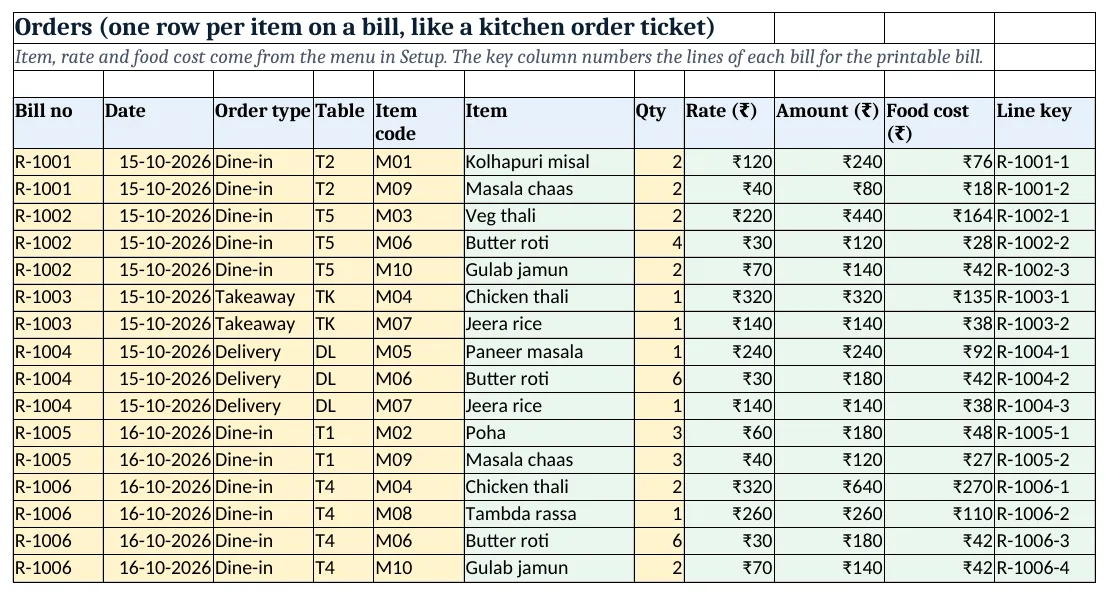
Figure 2. Order lines: item, rate and food cost looked up from the menu, with a line key for the printable bill
Step 3. Bills: totals, discount and GST
- On Bills, one row per bill. Date B5
=XLOOKUP(A5,Orders!$A$5:$A$200,Orders!$B$5:$B$200); items D5 and subtotal E5=SUMIFS(Orders!$I$5:$I$200,Orders!$A$5:$A$200,A5)(SUMIFS). - Discount G5
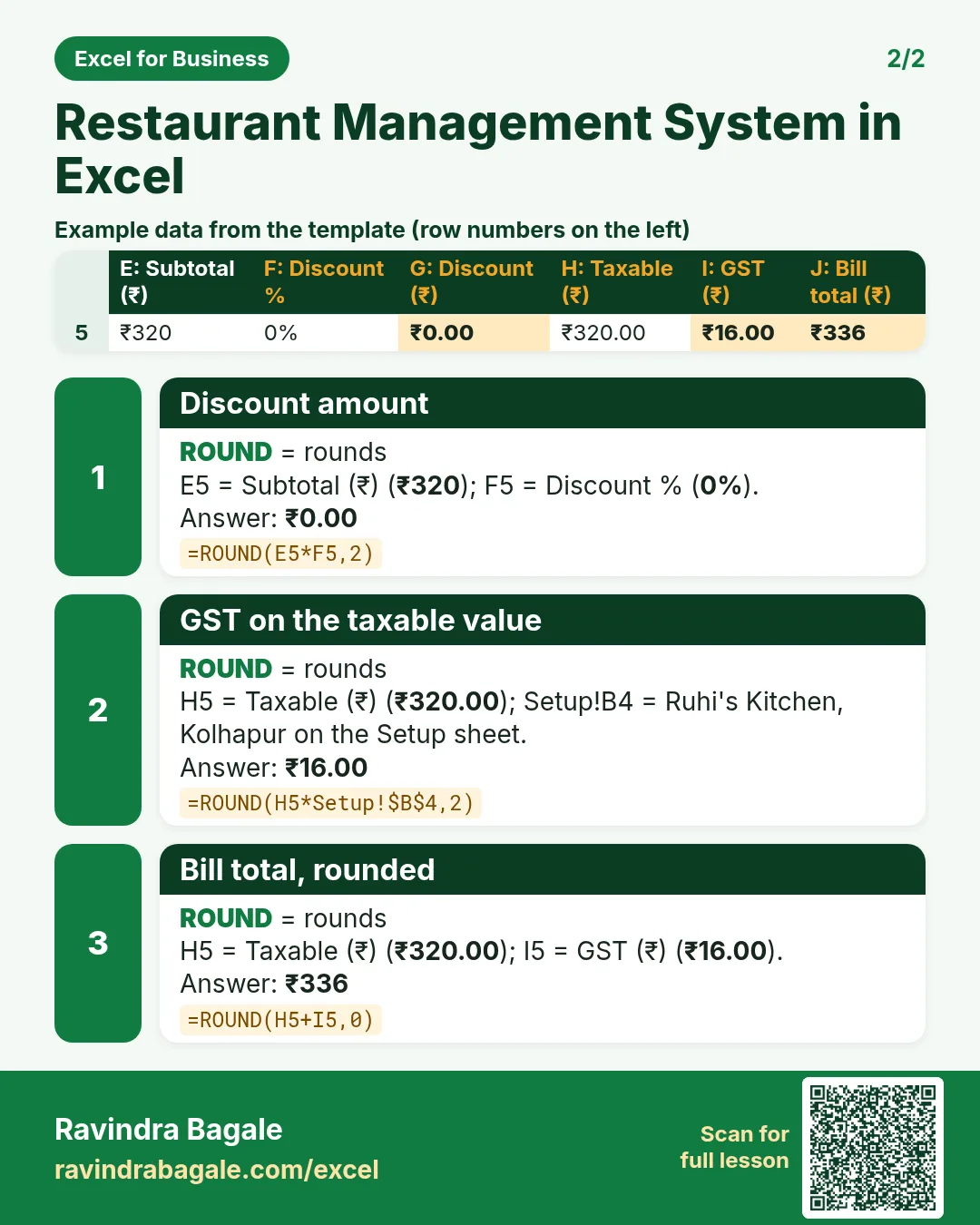
=ROUND(E5*F5,2), taxable H5=E5-G5, GST I5=ROUND(H5*Setup!$B$4,2)and bill total J5=ROUND(H5+I5,0).
Step 4. Print bill: pick a number
- On Print bill, B4 is a drop-down of bill numbers. For line 1 the item B9 is
=XLOOKUP($B$4&"-"&A9,Orders!$K$5:$K$200,Orders!$F$5:$F$200,""): the line key finds that bill's n-th line, and blank lines stay empty. - Subtotal E20
=SUM(E9:E18); CGST E22 is half the GST and SGST E23 the rest, so they always add up. - Bill total E24 reads the Bills sheet. Set the print area to A1:E26 (print area).
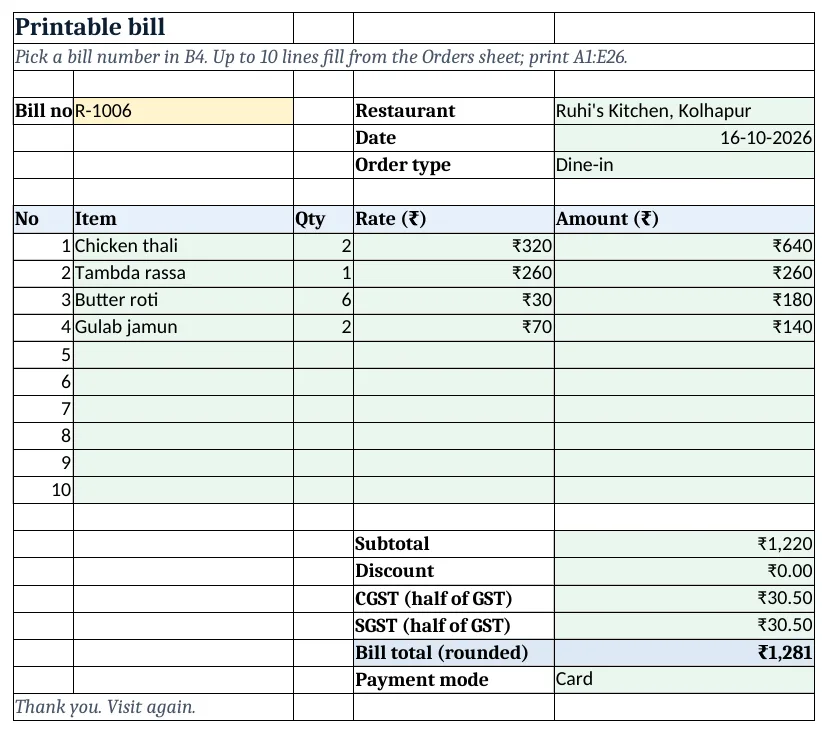
Figure 3. The printable bill for R-1006 with CGST and SGST, filled by picking the bill number
Step 5. Report and Dashboard
- On Report, per item: qty
=SUMIFS(Orders!$G$5:$G$200,Orders!$E$5:$E$200,A5), sales, food cost, food cost % and rank=RANK(D5,$D$5:$D$14)(RANK). - Day block from row 18: bills
=COUNTIF(Bills!$B$5:$B$100,A18), sales and average bill. Order type block from row 23. - On Dashboard, KPI cards: sales
=SUM(Bills!$J$5:$J$100), bills, average bill, food cost %=Report!F15, top item=INDEX(Report!B5:B14,MATCH(MAX(Report!D5:D14),Report!D5:D14,0))and GST.
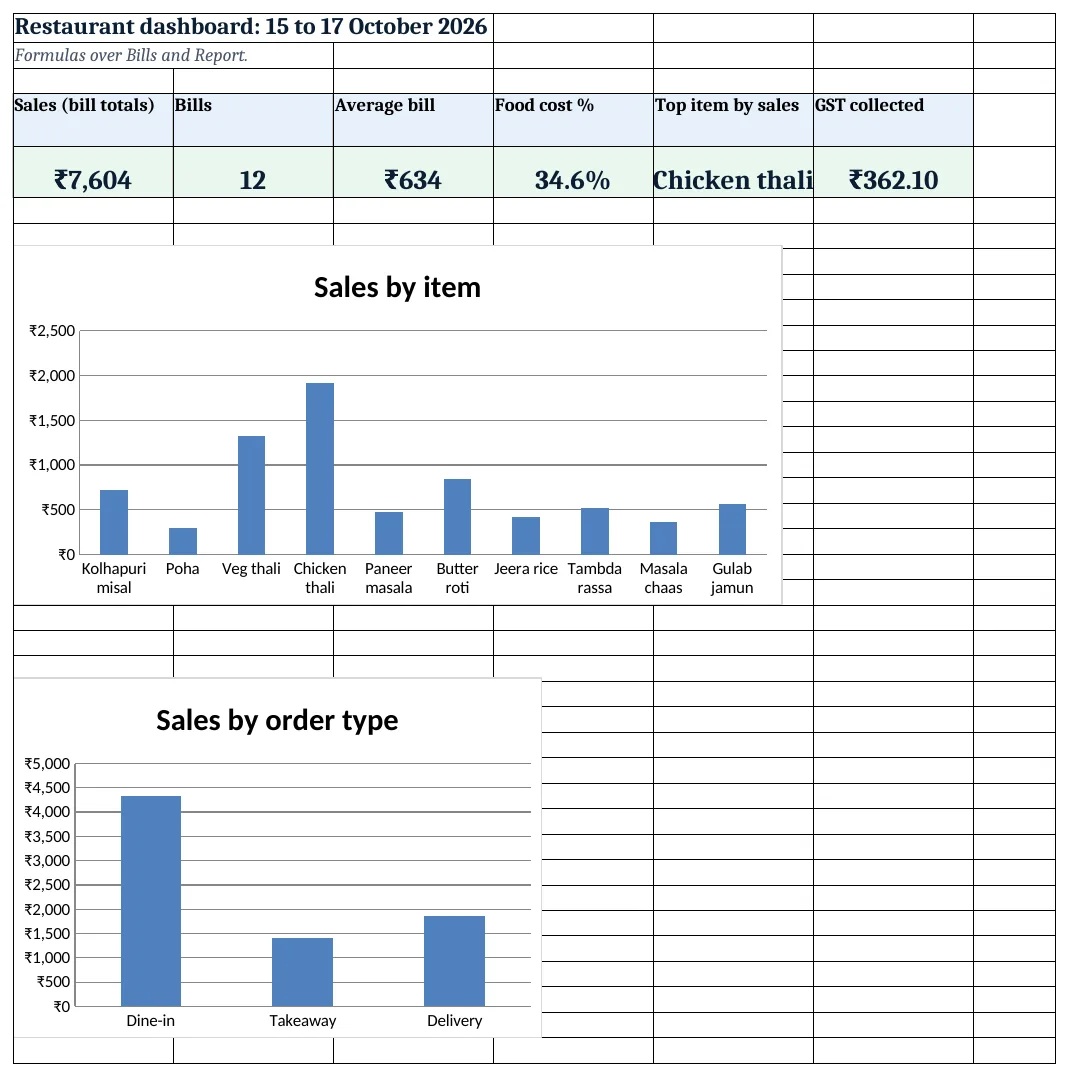
Figure 4. The restaurant dashboard: sales, bills, average bill, food cost %, top item and GST
Ravindra Bagale's Tip
Close the day by matching the Bills total with cash in the drawer plus UPI received. Find any difference that night, not at month end.
Ravindra Bagale's Tip – मराठी
दिवस बंद करताना Bills total हे drawer मधील cash आणि UPI सोबत जुळवा. फरक त्याच रात्री शोधा, महिन्याच्या शेवटी नाही.
Ravindra Bagale's Tip – हिंदी
दिन बंद करते समय Bills total को drawer के cash और UPI से मिलाओ. फर्क उसी रात ढूँढो, महीने के आखिर में नहीं.
3. Formulas used
| Cell | Formula | What it does |
|---|---|---|
| Setup!F7 | =E7/D7 |
Food cost % of the dish |
| Orders!F5 | =XLOOKUP(E5,Setup!$A$7:$A$16,Setup!$B$7:$B$16,"Check code") |
Item name from the code |
| Orders!H5 | =XLOOKUP(E5,Setup!$A$7:$A$16,Setup!$D$7:$D$16,0) |
Rate from the menu |
| Orders!J5 | =G5*XLOOKUP(E5,Setup!$A$7:$A$16,Setup!$E$7:$E$16,0) |
Food cost of the line |
| Orders!K5 | =A5&"-"&COUNTIF($A$5:A5,A5) |
Line key: bill no and line number |
| Bills!E5 | =SUMIFS(Orders!$I$5:$I$200,Orders!$A$5:$A$200,A5) |
Subtotal of the bill |
| Bills!G5 | =ROUND(E5*F5,2) |
Discount amount |
| Bills!I5 | =ROUND(H5*Setup!$B$4,2) |
GST on the taxable value |
| Bills!J5 | =ROUND(H5+I5,0) |
Bill total, rounded |
| Print bill!B9 | =XLOOKUP($B$4&"-"&A9,Orders!$K$5:$K$200,Orders!$F$5:$F$200,"") |
Line 1 item for the picked bill |
| Print bill!E22 | =ROUND(XLOOKUP($B$4,Bills!$A$5:$A$100,Bills!$I$5:$I$100)/2,2) |
CGST, half the GST |
| Print bill!E23 | =XLOOKUP($B$4,Bills!$A$5:$A$100,Bills!$I$5:$I$100)-E22 |
SGST, the other half |
| Report!C5 | =SUMIFS(Orders!$G$5:$G$200,Orders!$E$5:$E$200,A5) |
Quantity sold |
| Report!F5 | =IFERROR(E5/D5,0) |
Food cost % of the item |
| Report!G5 | =RANK(D5,$D$5:$D$14) |
Rank by sales |
| Report!B18 | =COUNTIF(Bills!$B$5:$B$100,A18) |
Bills on the day |
| Dashboard!E5 | =INDEX(Report!B5:B14,MATCH(MAX(Report!D5:D14),Report!D5:D14,0)) |
Top item by sales |
Every formula above is written in the template, so you can click a cell and see it in the formula bar. All values on this page were recalculated in LibreOffice with zero errors.
4. Common mistakes
- Typing the price on each order. Prices change; type them once in Setup and look them up. A typed old price gives a wrong bill.
- Computing GST on the subtotal before discount. GST is on the value actually charged: subtotal minus discount.
- Splitting GST as two separate roundings. Round CGST and make SGST = GST − CGST, so the two halves always add up to the GST on the bill.
- Measuring food cost on bill totals. Food cost % compares cost with item sales before GST, not with the bill total including tax.
- Charging 18% everywhere. 18% with input tax credit applies to restaurants in specified premises (hotels with room tariff above ₹7,500). A standalone restaurant charges 5%. Confirm your case.
Ravindra Bagale's Tip
Review dishes with food cost above 40% every month. Either the recipe, the portion or the price needs a change.
Ravindra Bagale's Tip – मराठी
दर महिन्याला 40% पेक्षा जास्त food cost असलेले dishes तपासा. Recipe, portion किंवा price यापैकी काहीतरी बदलायला हवे.
Ravindra Bagale's Tip – हिंदी
हर महीने 40% से ज़्यादा food cost वाली dishes देखो. Recipe, portion या price में से कुछ बदलना होगा.
5. More real examples
Example 1: Tiffin service with monthly plans. Replace bills with a monthly plan per customer and log daily deliveries; the bill is plan rate × days delivered.
Example 2: Café with a loyalty discount. Add a Customer phone column in Bills and a COUNTIF of earlier bills; give 10% from the fifth visit with an IF.
Example 3: Two outlets. Add an Outlet column in Orders and Bills; the Report gets a SUMIFS by outlet.
Quick revision cards
Quick revision
Each card shows formulas from this page, each with an example and its answer from the template. Scan the QR code on a card to open this lesson. All names and numbers are made up for practice.
झटपट उजळणी
प्रत्येक card वर या page मधले formulas, त्यांचं example आणि template मधलं उत्तर आहे. Card वरचा QR code scan केला की हा lesson उघडतो. सगळी नावं आणि आकडे सरावासाठी काल्पनिक आहेत.
झटपट दोहराई
हर card पर इस page के formulas, उनका example और template का उत्तर है. Card का QR code scan करें तो यह lesson खुलेगा. सभी नाम और आंकड़े अभ्यास के लिए काल्पनिक हैं.
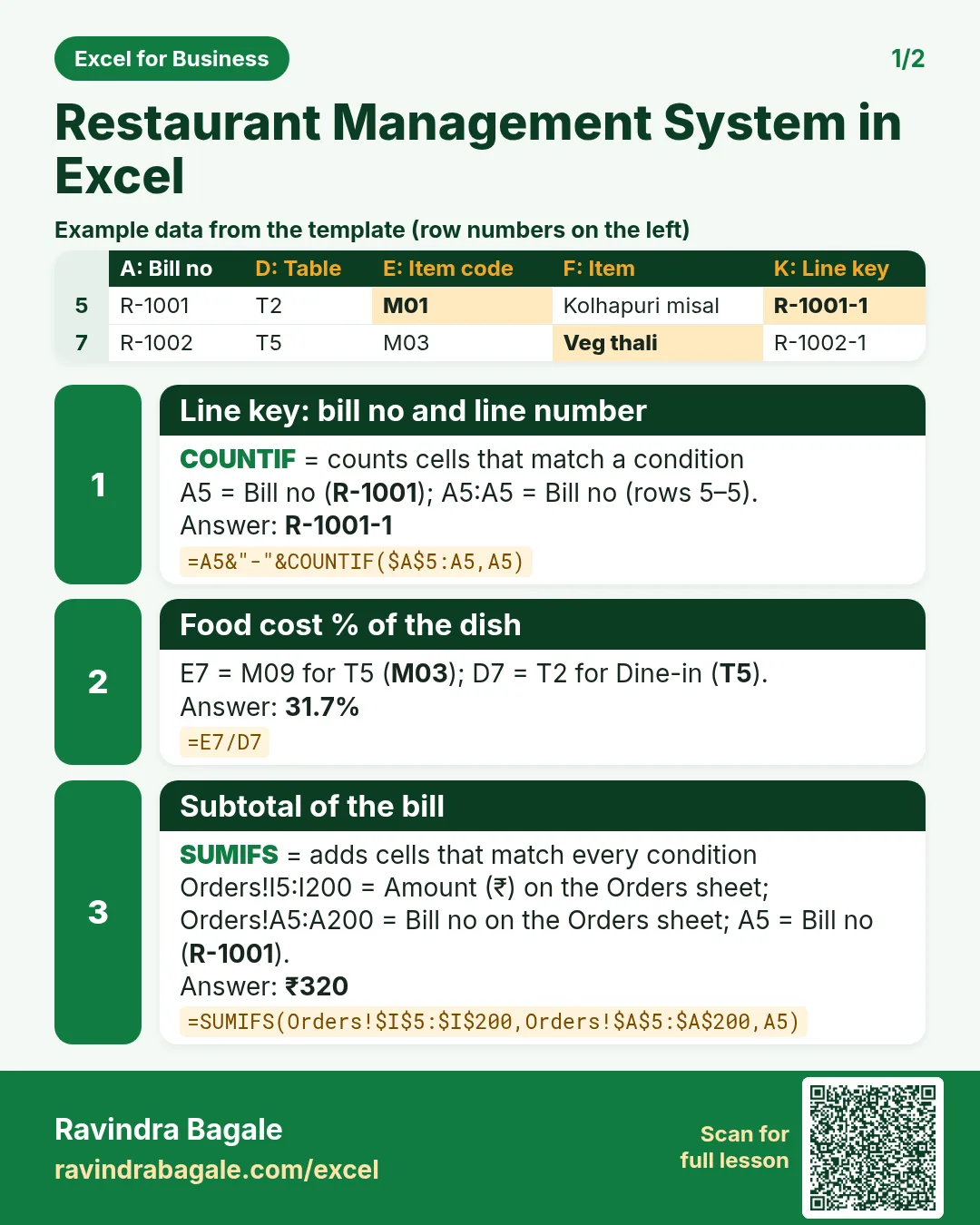


More cards: Ravi Sir's Cards.
6. Frequently asked questions
How do I make a restaurant bill in Excel?
Log items as order lines with a bill number, total them with SUMIFS on a Bills sheet, add discount and GST, and build a print sheet that looks up the lines of the picked bill.
What GST rate applies to restaurants?
Outside specified premises, 5% without input tax credit; in specified premises (hotels with room tariff above ₹7,500 a night), 18% with credit. Check with your accountant.
How do I calculate food cost percentage?
Food cost of items sold ÷ item sales. Here ₹2,573 ÷ ₹7,440 = 34.6%.
How do I show several items of one bill on a print sheet?
Number each bill's lines with a key (bill no & COUNTIF) and look up bill no & 1, & 2, ... with XLOOKUP, returning blank when not found.
Which dish sells best?
The Report ranks items by sales with RANK; the dashboard shows the top one with INDEX/MATCH.
7. Quick quiz
Ten questions on this page. Sign in to save your score.