Hotel Management System in Excel: Room Bookings, Daily Occupancy, ADR, RevPAR, GST Room Bill and Dashboard
Raja Residency in Sambhaji Nagar has 8 rooms: four Standard, three Deluxe and one Suite. Raja used to keep bookings in a diary and found out about double bookings at the reception desk. This 7-sheet system keeps every stay as one row, works out nights, GST and balance, tells you who is in house today, counts rooms sold on every night, and gives the three numbers every hotelier tracks: occupancy, ADR and RevPAR. A printable room bill comes out for any booking.
What you'll learn on this page
- Keep rooms, rates and the GST rule in Setup
- Compute nights, room amount, GST rate by tariff and balance
- Mark each stay Checked out, In house or Upcoming
- Count rooms sold each night with COUNTIFS on check-in and check-out
- Calculate occupancy, ADR and RevPAR
- Print a room bill with CGST and SGST
Download the template: hotel-management-system-template.xlsx: a 7-sheet system with example data and real formulas (Read me, Setup, Bookings, Occupancy, Room bill, Report, Dashboard). Yellow cells are inputs you can type over; green cells hold formulas; blue rows are headers and totals. Replace the example data with your own and every report and the dashboard recalculate.
Made-up data: every name, amount, business and date on this page is made up for practice. Cities are used only to make the examples feel real.
1. The business story
Raja Residency, 1 to 17 October 2026 (made-up rooms and guests; GST rule checked 17 October 2026).
| KPI | Value | Meaning |
|---|---|---|
| Rooms sold | 71 room-nights of 136 available (8 rooms × 17 nights) | |
| Occupancy | 52.2% | rooms sold ÷ rooms available |
| ADR | ₹3,720 | room revenue ÷ rooms sold |
| RevPAR | ₹1,942 | room revenue ÷ rooms available |
| Room revenue | ₹2,64,100 | |
| In house today | 4 guests, balance due ₹45,500 |
GST on hotel rooms: 5% without input tax credit when the value of supply per night is up to ₹7,500, and 18% above (rates since 22 September 2025). The Suite at ₹8,500 is billed at 18%. The industry view of these KPIs is in 27.15 hospitality: occupancy, ADR and RevPAR; the hotel restaurant can run on the restaurant system.
Figure 1. Rooms, rates and the GST rule live in Setup; Bookings is the one entry sheet; Occupancy, Room bill, Report and Dashboard read it.
2. Build it sheet by sheet
Step 1. Setup: rooms and the GST rule
- On Setup, type the as-of date in B3, the hotel in B4, the GST threshold ₹7,500 in B5, 5% in B6, 18% in B7 and the report start date in B8.
- From row 11 list Room, Type, Rate per night: 101-104 Standard ₹2,800, 201-203 Deluxe ₹4,500, 301 Suite ₹8,500. Keep room types and booking sources as lists in E and F.
Step 2. Bookings: nights, GST and balance
- On Bookings, type booking, guest, source, room, check-in, check-out, extras and advance. Type E5 and rate F5 come from the room with XLOOKUP (XLOOKUP).
- Nights I5:
=H5-G5(check-out is the morning the guest leaves). Room amount J5:=I5*F5. - GST rate K5:
=IF(F5<=Setup!$B$5,Setup!$B$6,Setup!$B$7); GST L5=ROUND(J5*K5,2); total N5=J5+L5+M5; balance P5=N5-O5. - Status Q5:
=IF(H5<=Setup!$B$3,"Checked out",IF(G5<=Setup!$B$3,"In house","Upcoming"))(nested IF). Colour In house green and Upcoming amber.
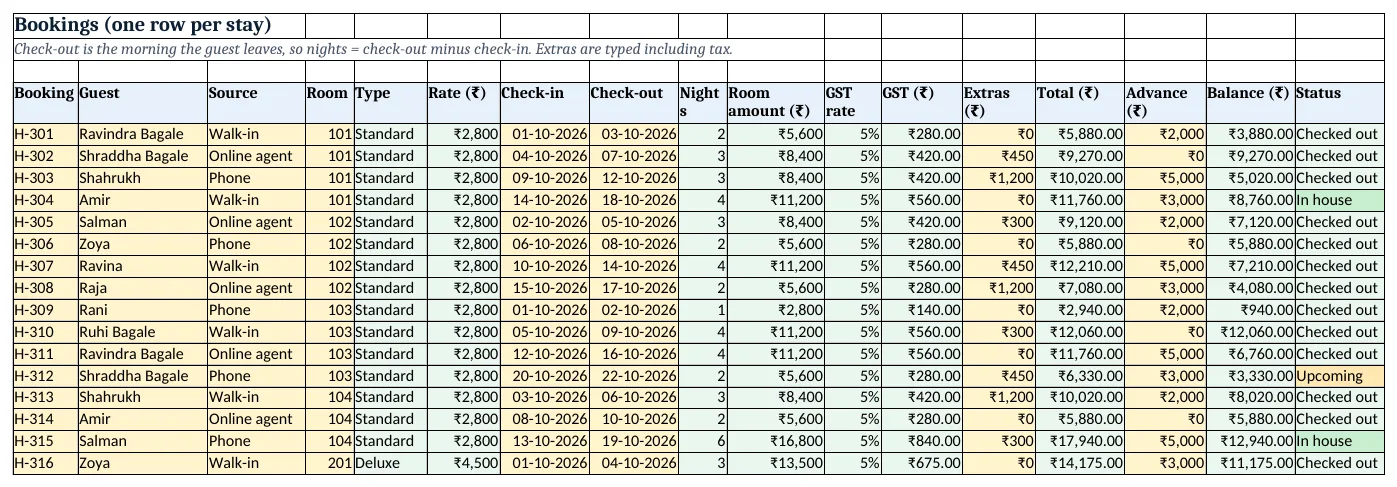
Figure 2. The Bookings sheet: nights, GST rate by tariff, totals, balance and the In house / Upcoming status
Step 3. Occupancy: rooms sold each night
- On Occupancy, rooms available B3:
=COUNTA(Setup!A11:A18)= 8. Dates from A6=Setup!B8, then=A6+1down to 17 October. - Rooms sold B6:
=COUNTIFS(Bookings!$G$5:$G$200,"<="&A6,Bookings!$H$5:$H$200,">"&A6): a room is sold on a night when check-in ≤ that date < check-out (COUNTIFS). - Occupancy C6
=B6/$B$3; room revenue D6 with the same conditions in SUMIFS over the rate; ADR E6=IFERROR(D6/B6,0); RevPAR F6=D6/$B$3. - Period row 23: occupancy
=B23/($B$3*COUNT(A6:A22)), ADR=D23/B23, RevPAR=D23/($B$3*COUNT(A6:A22)). Add a 3-colour scale on C6:C22 (colour scales).
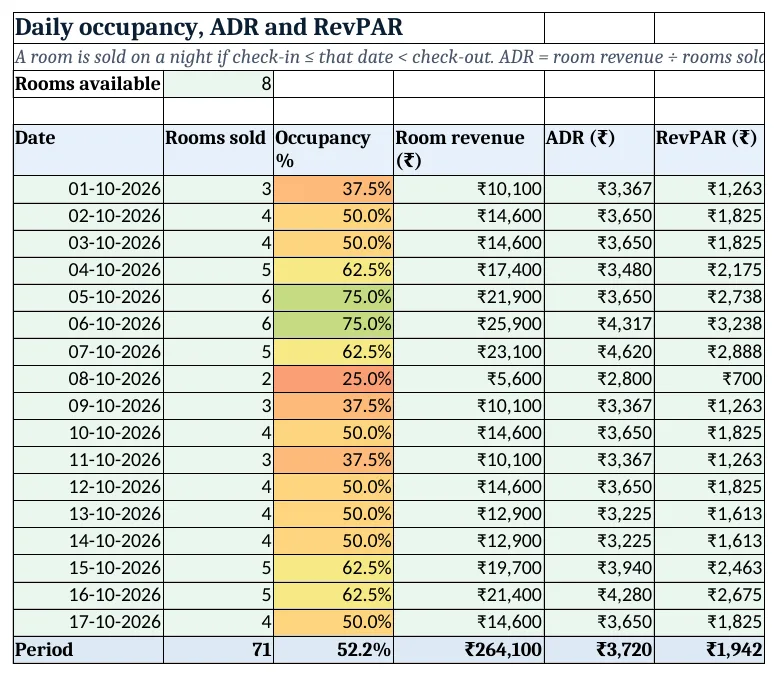
Figure 3. Daily occupancy with a colour scale, room revenue, ADR and RevPAR for each night and the period
Step 4. Room bill
- On Room bill, pick the booking in B4. Each line is
=XLOOKUP($B$4,Bookings!$A$5:$A$200,Bookings!$B$5:$B$200)with the right column. - CGST B16 is half the GST rounded; SGST B17 the rest. Total B19
=B13+B16+B17+B18, balance B21=B19-B20. - Set the print area to A1:D22 (print area). H-327: 2 Suite nights ₹17,000 + GST ₹3,060 + extras ₹450 = ₹20,510; advance ₹5,000; balance ₹15,510.
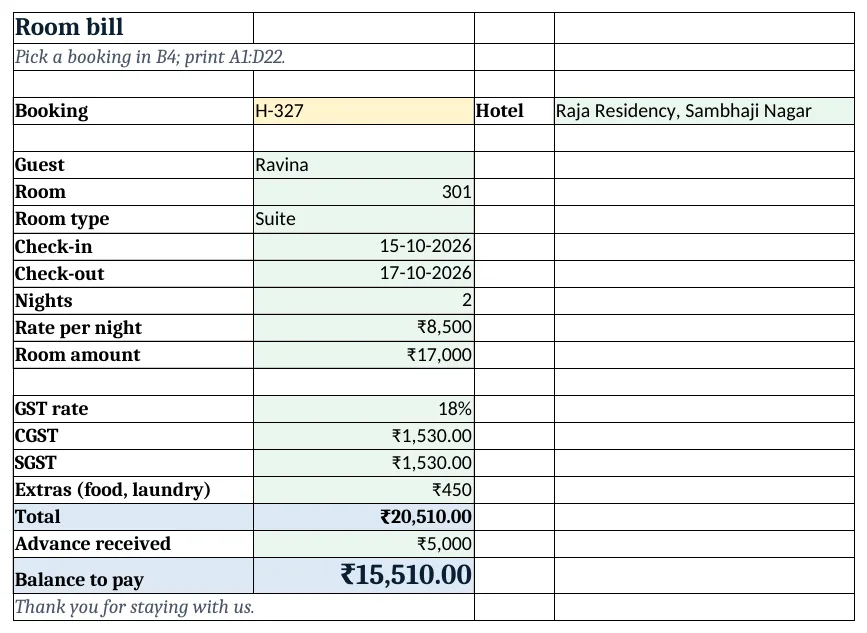
Figure 4. The printable room bill for H-327 (Suite, GST 18%)
Step 5. Report and Dashboard
- On Report, per room type: bookings
=COUNTIF(Bookings!$E$5:$E$200,A5), nights and room revenue with SUMIFS, average rate=IFERROR(D5/C5,0); per source: bookings, revenue and share. - On Dashboard, KPI cards for occupancy, ADR, RevPAR and room revenue from Occupancy row 23, guests in house
=COUNTIF(Bookings!$Q$5:$Q$200,"In house"), upcoming arrivals and balance due from in-house guests=SUMIFS(Bookings!$P$5:$P$200,Bookings!$Q$5:$Q$200,"In house")(KPI cards).
Ravindra Bagale's Tip
Type the booking the moment the call ends, with the advance. A booking that lives only in someone's memory is the one that gets double-booked.
Ravindra Bagale's Tip – मराठी
फोन संपताच advance सह booking टाका. फक्त कोणाच्या तरी आठवणीत असलेले booking च double-book होते.
Ravindra Bagale's Tip – हिंदी
फ़ोन खत्म होते ही advance के साथ booking डालो. जो booking सिर्फ किसी की याद में होती है वही double-book होती है.
3. Formulas used
| Cell | Formula | What it does |
|---|---|---|
| Bookings!E5 | =XLOOKUP(D5,Setup!$A$11:$A$18,Setup!$B$11:$B$18,"Check room") |
Room type from the room number |
| Bookings!I5 | =H5-G5 |
Nights |
| Bookings!K5 | =IF(F5<=Setup!$B$5,Setup!$B$6,Setup!$B$7) |
GST rate by tariff per night |
| Bookings!L5 | =ROUND(J5*K5,2) |
GST amount |
| Bookings!N5 | =J5+L5+M5 |
Total with GST and extras |
| Bookings!P5 | =N5-O5 |
Balance after advance |
| Bookings!Q5 | =IF(H5<=Setup!$B$3,"Checked out",IF(G5<=Setup!$B$3,"In house","Upcoming")) |
Stay status on the as-of date |
| Occupancy!B6 | =COUNTIFS(Bookings!$G$5:$G$200,"<="&A6,Bookings!$H$5:$H$200,">"&A6) |
Rooms sold on the night |
| Occupancy!C6 | =B6/$B$3 |
Occupancy % |
| Occupancy!D6 | =SUMIFS(Bookings!$F$5:$F$200,Bookings!$G$5:$G$200,"<="&A6,Bookings!$H$5:$H$200,">"&A6) |
Room revenue of the night |
| Occupancy!E6 | =IFERROR(D6/B6,0) |
ADR of the night |
| Occupancy!F6 | =D6/$B$3 |
RevPAR of the night |
| Occupancy!C23 | =B23/($B$3*COUNT(A6:A22)) |
Period occupancy |
| Occupancy!E23 | =D23/B23 |
Period ADR |
| Room bill!B16 | =ROUND(XLOOKUP($B$4,Bookings!$A$5:$A$200,Bookings!$L$5:$L$200)/2,2) |
CGST half |
| Report!E5 | =IFERROR(D5/C5,0) |
Average rate by room type |
| Dashboard!G5 | =SUMIFS(Bookings!$P$5:$P$200,Bookings!$Q$5:$Q$200,"In house") |
Balance due from in-house guests |
Every formula above is written in the template, so you can click a cell and see it in the formula bar. All values on this page were recalculated in LibreOffice with zero errors.
4. Common mistakes
- Counting the check-out day as a night. A guest checking in on the 15th and out on the 17th stays 2 nights. Nights = check-out − check-in, and rooms sold uses check-out greater than the date.
- One GST rate for every room. The rate follows the value per night: 5% up to ₹7,500, 18% above. The Suite needs 18%.
- Dividing revenue by all rooms and calling it ADR. ADR divides by rooms sold; dividing by rooms available is RevPAR. Track both.
- Not checking a room before booking it. If a night shows more rooms sold than available, or a room twice, it is a double booking. Look at Occupancy before saving a booking.
- Leaving advance in the extras column. Advance reduces the balance, extras increase the total. Keep them in separate columns.
Ravindra Bagale's Tip
Watch RevPAR more than ADR. A high rate with empty rooms earns less than a fair rate with full rooms.
Ravindra Bagale's Tip – मराठी
ADR पेक्षा RevPAR वर लक्ष ठेवा. रिकाम्या rooms सोबत जास्त rate पेक्षा भरलेल्या rooms सोबत योग्य rate जास्त कमावते.
Ravindra Bagale's Tip – हिंदी
ADR से ज़्यादा RevPAR पर ध्यान दो. खाली rooms के साथ ऊँचे rate से भरे rooms के साथ सही rate ज़्यादा कमाता है.
5. More real examples
Example 1: Homestay with 3 rooms. Same sheets, rooms 1 to 3; occupancy and RevPAR are still the right questions.
Example 2: Hostel beds. Treat each bed as a room in Setup; occupancy becomes bed occupancy.
Example 3: Resort with meal plans. Add a Plan column (room only, breakfast, all meals) with a per-night plan charge looked up from Setup and added to the room amount.
Quick revision cards
Quick revision
Each card shows formulas from this page, each with an example and its answer from the template. Scan the QR code on a card to open this lesson. All names and numbers are made up for practice.
झटपट उजळणी
प्रत्येक card वर या page मधले formulas, त्यांचं example आणि template मधलं उत्तर आहे. Card वरचा QR code scan केला की हा lesson उघडतो. सगळी नावं आणि आकडे सरावासाठी काल्पनिक आहेत.
झटपट दोहराई
हर card पर इस page के formulas, उनका example और template का उत्तर है. Card का QR code scan करें तो यह lesson खुलेगा. सभी नाम और आंकड़े अभ्यास के लिए काल्पनिक हैं.
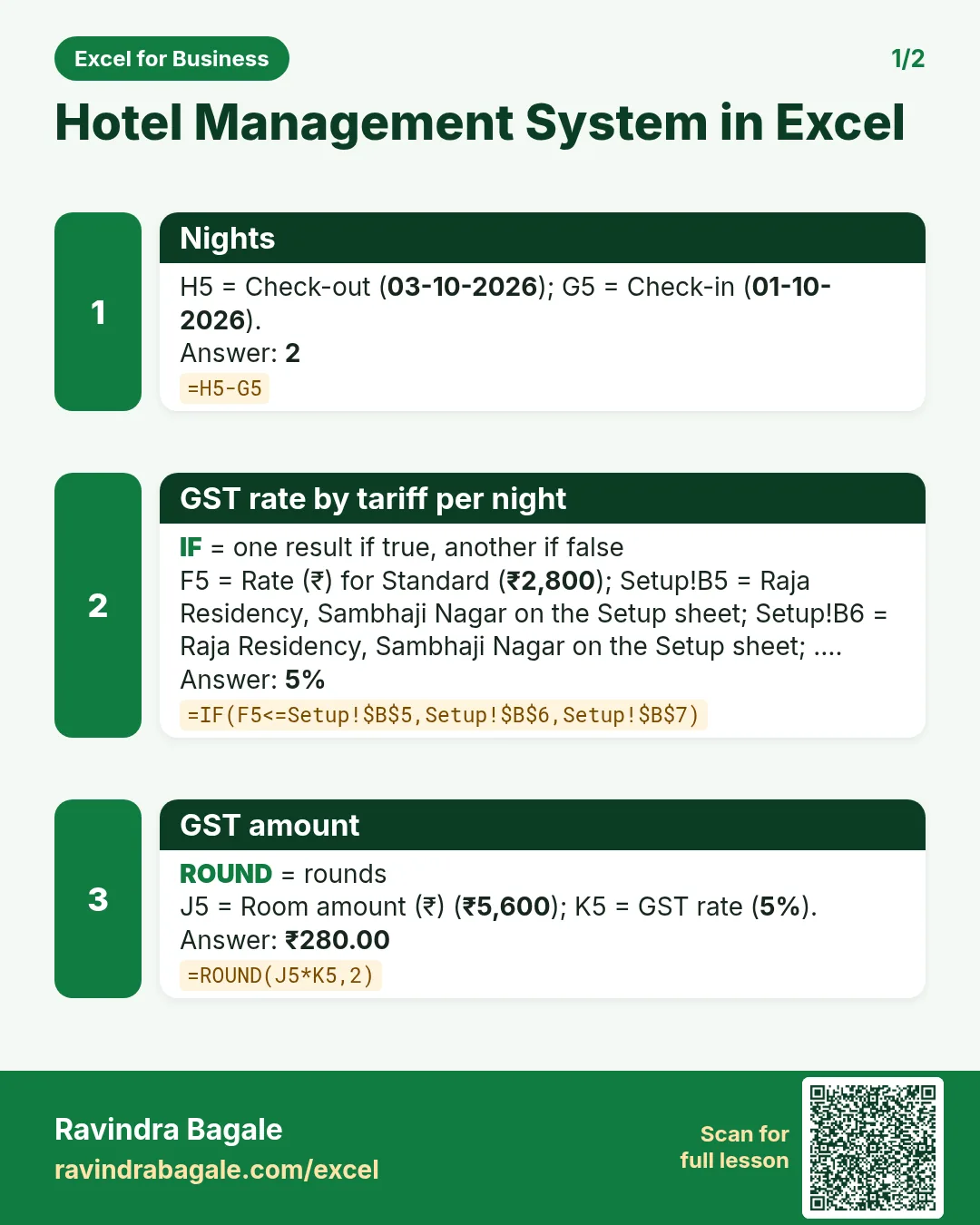

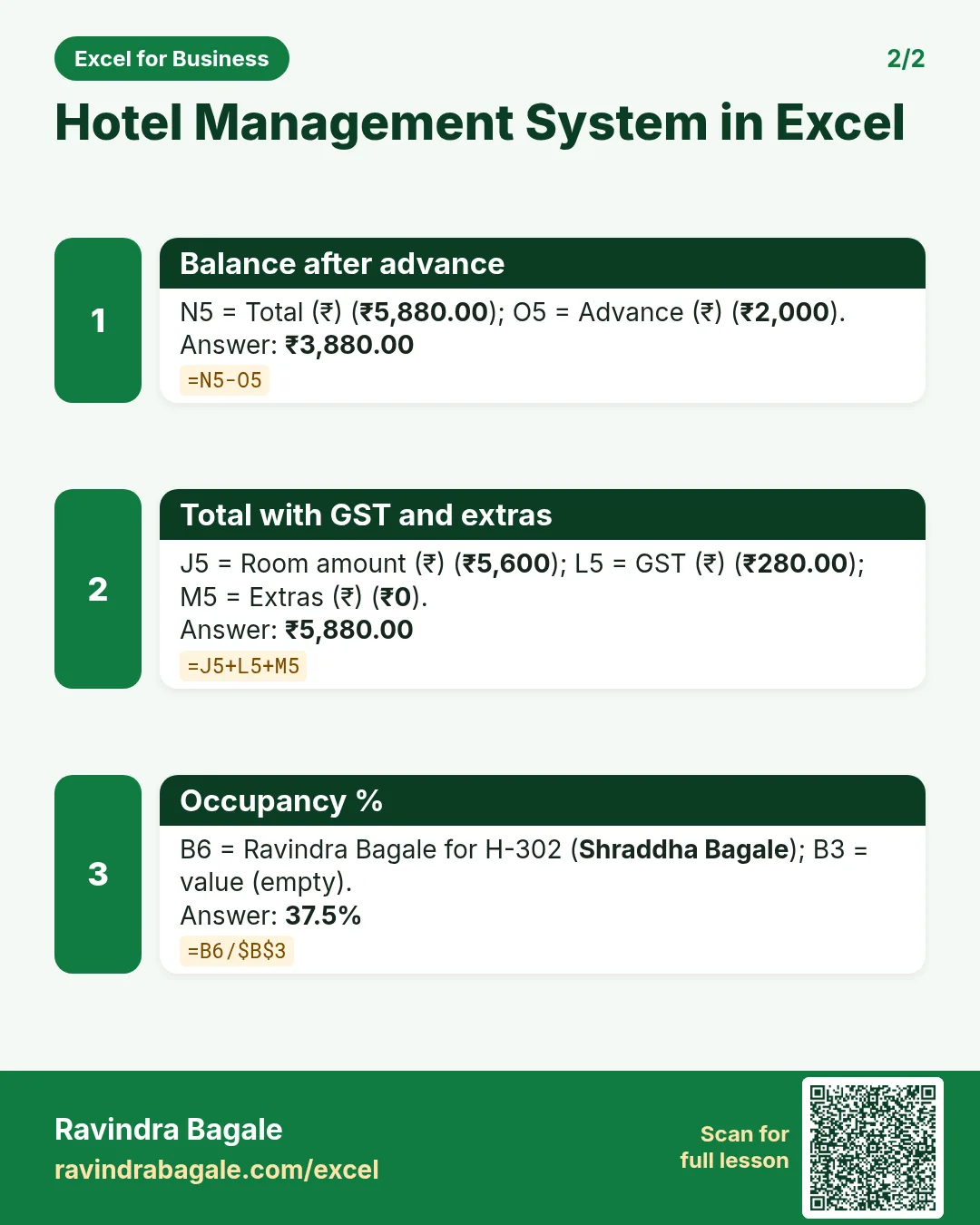

More cards: Ravi Sir's Cards.
6. Frequently asked questions
How do I calculate hotel occupancy in Excel?
Count rooms sold each night with COUNTIFS(check-in ≤ date, check-out > date), divide by rooms available. For a period, divide total rooms sold by rooms × nights.
What is the difference between ADR and RevPAR?
ADR = room revenue ÷ rooms sold (average price of a sold room). RevPAR = room revenue ÷ rooms available (it falls when rooms stay empty).
What GST applies to hotel rooms?
From 22 September 2025: 5% without input tax credit when the value per night is up to ₹7,500, 18% with credit above. Check with your accountant.
How do I find guests in house today?
Status = In house when check-in ≤ today and check-out > today. Set Setup B3 to =TODAY() and count with COUNTIF.
Can I avoid double bookings?
Check the Occupancy sheet before saving: rooms sold cannot exceed rooms available. For a per-room check, add a COUNTIFS on room number with the same date conditions.
7. Quick quiz
Ten questions on this page. Sign in to save your score.
Loading practice tasks...
- Total nights (Easy): Add up Nights in D2:D11.
- Average rate per night (Easy): Average of E2:E11, rounded to 2 decimals.
- Rows in Standard (Easy): How many rows have Room type "Standard"?
- Largest nights (Easy): The largest value in D2:D11.
- Nights for Standard (Medium): Total of D2:D11 where B is "Standard".
- Standard in Leeds (Medium): Total of D2:D11 where B is "Standard" and C is "Leeds".
- Best in Standard (Medium): Largest E2:E11 value where B is "Standard".
- Value of row 2 (Medium): D2 times E2.
- Look up Mateo Garcia (Medium): The Nights for "Mateo Garcia" (use a lookup on column A).
- Total value (Hard): Sum of D times E for all rows.
- Share of Standard (Hard): Share of D2:D11 that is "Standard", rounded to 3 decimals.
- Rank of row 2 (Hard): Rank of D2 among D2:D11 (largest = 1).
- Above average? (Hard): "Above" if E2 is above the average of E2:E11, else "Below".