Excel Conditional Formatting Tutorial: Highlight Cells, Top 3, Duplicates, Data Bars, Color Scales and Icon Sets
A table of numbers is hard to read. A table where the weak marks are red, the strong ones green and the top three stand out can be read in two seconds. Conditional Formatting does this for you: you give Excel a rule, and it colours every cell that meets the rule, and keeps doing it when the numbers change. In this chapter you use the built-in rules on a marks sheet and on a small city snapshot from a quick-commerce app, and you learn the edges that catch people out: what "Between" includes, how Top 10% rounds, and why an icon set can put a red arrow on a perfectly good number.
What you'll learn in this chapter
- Highlight Cells Rules: Less Than, Greater Than, Between
- Text that Contains, A Date Occurring and Duplicate Values
- Manage Rules: edit, delete and duplicate a rule
- Top/Bottom Rules: Top 3 items and Top 10%
- Data Bars with negative numbers
- Color Scales, and when to reverse them
- Icon Sets, and how Excel decides which icon a cell gets
Practice file: excel-conditional-formatting-practice.xlsx: every rule from this chapter already set up on four sheets (Marks, Orders, Cities, Dates), plus check cells in column J of Marks that count what each rule colours.
Made-up data: the marks, names, order IDs and city numbers are made up for practice. The city snapshot imitates a quick-commerce app such as Blinkit or Amazon Now, but no real shop, order or person is used.
1. The marks sheet
Ten people, three subjects. A1:G11, data in rows 2 to 11:
| A Name | B Science | C Maths | D English | E Total | F Result | G Percentage | |
|---|---|---|---|---|---|---|---|
| 2 | Ravindra Bagale | 88 | 92 | 79 | 259 | Pass | 86.33 |
| 3 | Shraddha Bagale | 76 | 85 | 90 | 251 | Pass | 83.67 |
| 4 | Ruhi Bagale | 91 | 95 | 84 | 270 | Pass | 90.00 |
| 5 | Shahrukh | 45 | 30 | 52 | 127 | Fail | 42.33 |
| 6 | Amir | 62 | 75 | 58 | 195 | Pass | 65.00 |
| 7 | Salman | 33 | 41 | 38 | 112 | Fail | 37.33 |
| 8 | Zoya | 70 | 68 | 81 | 219 | Pass | 73.00 |
| 9 | Ravina | 55 | 35 | 60 | 150 | Pass | 50.00 |
| 10 | Raja | 28 | 47 | 25 | 100 | Fail | 33.33 |
| 11 | Rani | 80 | 72 | 77 | 229 | Pass | 76.33 |
Total is =SUM(B2:D2), Result is =IF(AND(B2>=35,C2>=35,D2>=35),"Pass","Fail") and Percentage is =E2/300*100, each dragged down. (These formulas come from the IF and AND chapter.)
Classroom line
Today let's see how to highlight data.
Class मधलं वाक्य
"Aaj aapan baghuya, data highlight kasa karaycha."
आज आपण बघूया, data highlight कसा करायचा.
Classroom line
Today let's see how to highlight data.
2. Less Than 35: red
- Select the Maths and English marks, C2:D11.
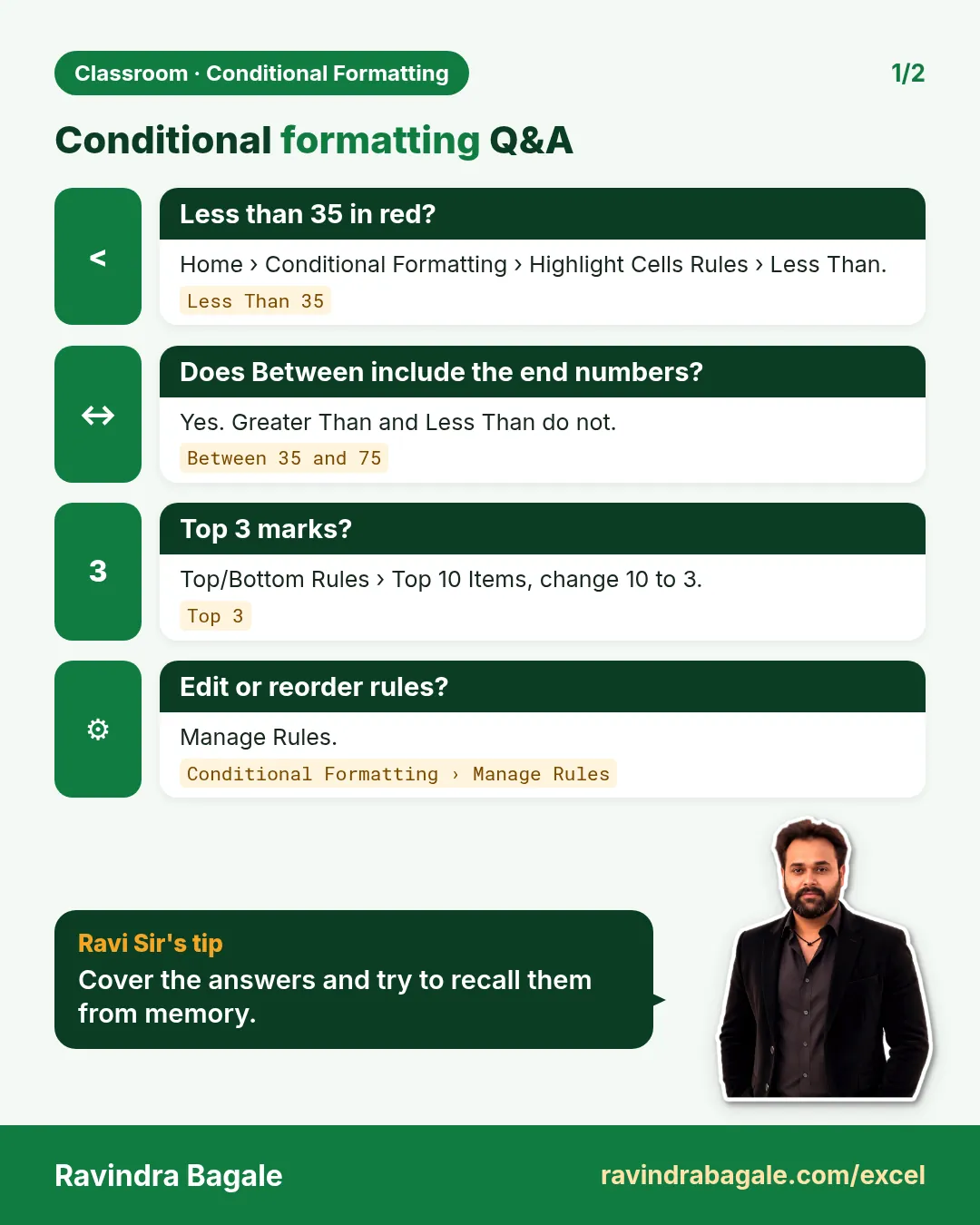
- Go to Home > Conditional Formatting > Highlight Cells Rules > Less Than.
- Excel fills the box with a suggestion: the average of the selection (here 64.2). Replace it with 35.
- Leave the format on Light Red Fill with Dark Red Text and click OK.
Two cells turn red: Shahrukh's Maths (30) and Raja's English (25). Change a mark to 20 and it turns red at once; change it to 50 and the colour goes. The rule watches the cell, not the number you typed when you made it.
3. Greater Than 75 and Between 35 and 75
Keep C2:D11 selected and add two more rules the same way:
- Highlight Cells Rules > Greater Than, type 75, choose Green Fill with Dark Green Text, OK. 8 cells turn green.
- Highlight Cells Rules > Between, type 35 and 75, choose Yellow Fill with Dark Yellow Text, OK. 10 cells turn yellow.
2 + 8 + 10 = 20, all the cells of C2:D11, so every mark has exactly one colour.
Look closely at the edges. Amir's Maths is exactly 75: it is not "greater than 75", so it is yellow, not green. Ravina's Maths is exactly 35: not "less than 35", and Between includes both ends, so it is also yellow. If 75 should count as green, use Greater Than 74 or a rule "greater than or equal to" (section 6 of the whole-row chapter shows how to write any rule as a formula).
Figure 1. Maths and English with three rules: below 35 red (2 cells), above 75 green (8 cells), 35 to 75 yellow (10 cells). 75 and 35 sit inside Between, so they are yellow.
4. Text, dates and duplicates
Text that Contains:
- Select the Result column, F2:F11.
- Home > Conditional Formatting > Highlight Cells Rules > Text that Contains.
- Type Fail. In the format list choose Custom Format..., then on the Font tab choose Bold and on the Fill tab a light orange. OK, OK.
Three cells are marked: Shahrukh, Salman and Raja. Pick colours people can read: dark text on a dark fill is hard to see, especially on a projector or a printout.
A Date Occurring marks dates relative to today: Yesterday, Today, Tomorrow, In the last 7 days, Last week, This week, Next week, Last month, This month, Next month.
- Select a column of dates (the Dates sheet has 1 to 22 August 2026 in A2:A23).
- Highlight Cells Rules > A Date Occurring, pick In the last 7 days, OK.
The result depends on the day you open the file, because Excel compares each date with today's date. Dates from August 2026 are only "last 7 days" during the week after them. Use this rule for follow-up lists and due dates, and type dates close to today when you test it.
Duplicate Values:
- On the Orders sheet select the order IDs, A2:A11.
- Highlight Cells Rules > Duplicate Values, keep Duplicate and Light Red Fill, OK.
ORD2002 and ORD2005 each appear twice, so 4 cells turn red: both copies of each. Duplicate order IDs usually mean an order was entered twice, so this is a quick data-cleaning check. Column B of the practice sheet shows =COUNTIF($A$2:$A$11,A2), which gives 2 on exactly those four rows.
Figure 2. Text that Contains "Fail" marks 3 results. Duplicate Values marks 4 cells: both copies of ORD2002 and both copies of ORD2005.
5. Manage Rules
Every rule you add is kept in a list. To see it:
- Select the cells (or any cell inside them).
- Home > Conditional Formatting > Manage Rules.
- At the top, Show formatting rules for lets you switch between Current Selection and This Worksheet.
From here you can:
- Edit Rule: select a rule, click Edit Rule, change >75 to >80 or change the green to orange, OK.
- Delete Rule: select it and click Delete Rule.
- Duplicate Rule: makes a copy you can edit, handy when two rules differ only in the number.
- Applies to: the range the rule covers, such as
=$C$2:$D$11. Change it here if you added rows.
To remove all rules at once: Home > Conditional Formatting > Clear Rules > Clear Rules from Selected Cells or Clear Rules from Entire Sheet. Clearing a rule does not touch the values.
Classroom line
Whoever you are going to show this report to, it should look good to them.
Class मधलं वाक्य
ज्याला कोणाला तुम्ही हा report दाखवणार आहात, त्याला तो बघायला छान वाटला पाहिजे.
Classroom line – हिंदी
"Jisko bhi aap ye report dikhane wale ho, usko dekhne ke liye achha lagna chahiye."
6. Top 3 and Top 10%
- Select the totals, E2:E11.
- Home > Conditional Formatting > Top/Bottom Rules > Top 10 Items.
- Change 10 to 3, choose a fill, OK.
The three highest totals are marked: 270 (Ruhi Bagale), 259 (Ravindra Bagale) and 251 (Shraddha Bagale). The name "Top 10 Items" is just the default number; you choose how many.
Top 10% works on a share of the cells instead of a count. On 10 cells, 10% is 1 cell, so only 270 is marked. If the share does not come out as a whole number, Excel rounds it down, but it always marks at least one cell: 1% of 10 cells is 0.1, and Excel still marks the top cell. Bottom 10 Items, Bottom 10%, Above Average and Below Average work the same way.
Ravindra Bagale's Tip
Before you trust a colour, count it. Put =COUNTIF(C2:D11,"<35") next to the table: if it says 2, exactly two cells must be red. If the count and the colours disagree, the rule's range or number is wrong. The practice file has a check cell like this for every rule.
Ravindra Bagale's Tip – मराठी
Colour वर विश्वास ठेवण्याआधी ते मोजा. Table च्या शेजारी =COUNTIF(C2:D11,"<35") टाका: ते 2 म्हणत असेल तर नेमक्या दोनच cells लाल हव्यात. Count आणि colours जुळत नसतील तर rule ची range किंवा number चुकलेला आहे. Practice file मध्ये प्रत्येक rule साठी असा check cell आहे.
Ravindra Bagale's Tip – हिंदी
Colour पर भरोसा करने से पहले उसे गिनो. Table के बगल में =COUNTIF(C2:D11,"<35") डालो: अगर वह 2 कहता है तो ठीक दो ही cells लाल होने चाहिए. Count और colours मेल न खाएँ तो rule की range या number गलत है. Practice file में हर rule के लिए ऐसा check cell है.
7. Data Bars
A data bar draws a small bar inside each cell: the longer the bar, the bigger the number. On the Cities sheet, column C holds the change in orders compared with last week:
| City | Orders today | Change vs last week % | Avg delivery mins |
|---|---|---|---|
| Pune | 130 | 40 | 11 |
| Nashik | 25 | 25 | 14 |
| Solapur | 30 | -10 | 9 |
| Kolhapur | 20 | 15 | 12 |
| Nagpur | 10 | -30 | 18 |
| Sambhaji Nagar | 8 | 5 | 16 |
- Select C2:C7.
- Home > Conditional Formatting > Data Bars, pick a Gradient Fill or Solid Fill colour.
Pune's 40 gets the longest bar. The two negative numbers, Solapur (−10) and Nagpur (−30), get red bars that grow to the left of an axis line, so a fall is visible at a glance. You can change the negative colour and the axis in Manage Rules > Edit Rule > Negative Value and Axis.
Figure 3. Data bars on the weekly change: the longest bar is Pune (40). Solapur (−10) and Nagpur (−30) get red bars to the left of the axis.
8. Color Scales
A color scale colours every cell on a sliding scale between two or three colours.
- Select the delivery minutes, D2:D7.
- Home > Conditional Formatting > Color Scales.
- Choose Green - Yellow - Red if high numbers are good, or Red - Yellow - Green if low numbers are good.
For delivery minutes, low is good, so pick the one that puts green on the lowest value: Solapur (9 minutes) turns green and Nagpur (18 minutes) red. For sales or marks, where high is good, use the other order. Picking the wrong one paints your best city red.
Classroom line
We want to create a dashboard or report that looks attractive.
Class मधलं वाक्य
आपल्याला असा dashboard किंवा report तयार करायचा आहे जो आकर्षक दिसेल.
Classroom line – हिंदी
"Humein aisa dashboard ya report create karna hai jo glamorous ho."
9. Icon Sets, and the red arrow surprise
- Select the orders today, B2:B7.
- Home > Conditional Formatting > Icon Sets > 3 Arrows (Colored).
Only Pune gets a green up arrow. Nashik (25) and Solapur (30) get red down arrows, the same as Nagpur (10). Why?
By default Excel does not compare cells with each other. It splits the range from the smallest to the largest value into parts:
- Smallest = 8, largest = 130, so the range is 122.
- Green up arrow: value ≥ 8 + 67% of 122 = 89.74.
- Yellow side arrow: value ≥ 8 + 33% of 122 = 48.26.
- Red down arrow: everything below 48.26.
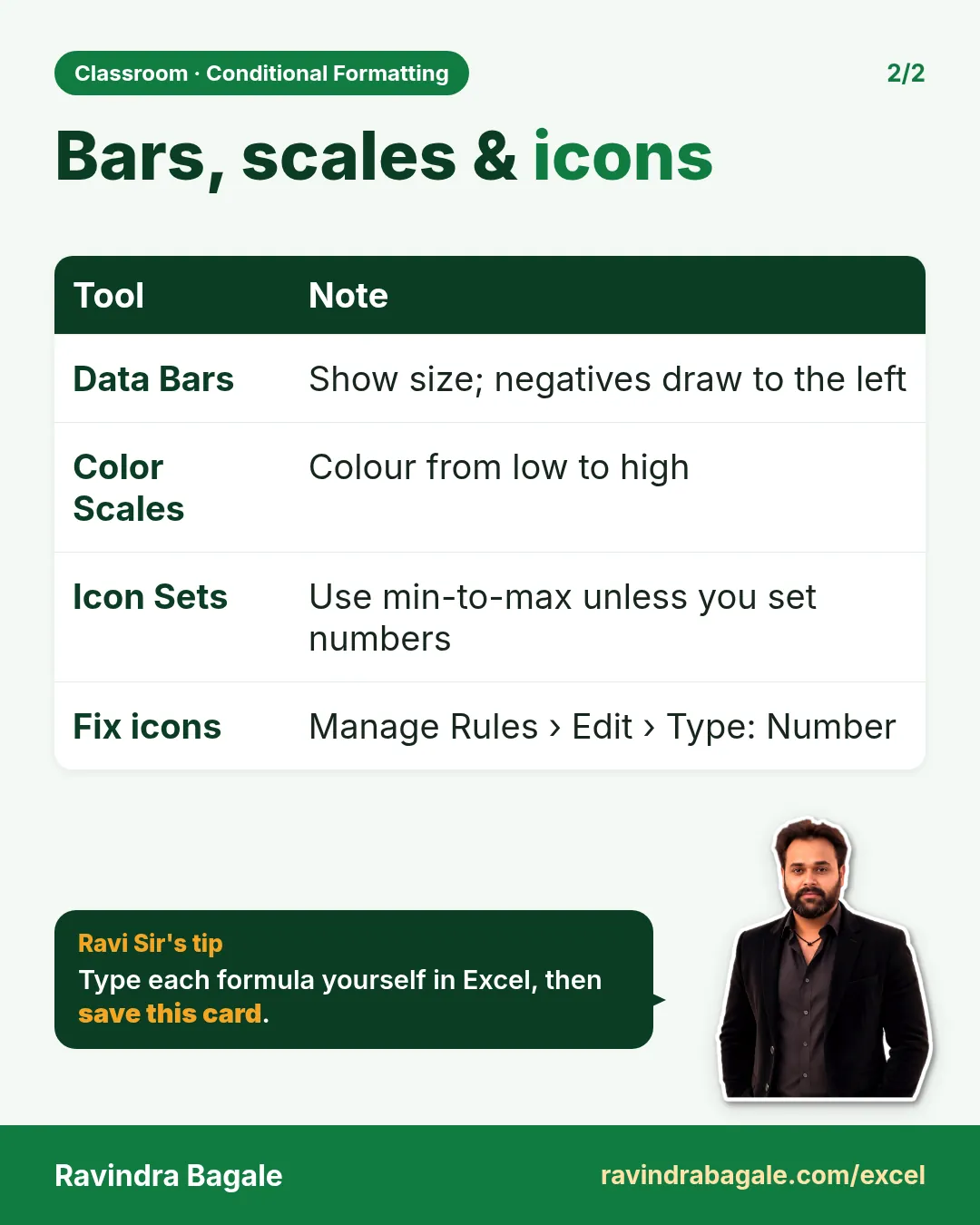
One big city (Pune, 130) stretches the range, so every other city falls below 48.26 and gets red. Nothing is wrong with Excel; the default rule just does not suit this data. To fix it, open Manage Rules > Edit Rule, change Type from Percent to Number and type your own cut-offs, for example green from 25 and yellow from 15.
The same idea applies to the other icon sets, such as 5 Ratings (stars): with five icons the default cut-offs are 80%, 60%, 40% and 20% of the range.
Figure 4. 3 Arrows on orders today: 8 to 130 is split at 48.26 (33%) and 89.74 (67%). Only Pune (130) is above 89.74; every other city is below 48.26 and gets a red arrow.
Ravindra Bagale's Tip
An icon set answers "where does this value sit between the smallest and the largest?", not "is this value good?". Whenever one value is far bigger than the rest, switch the Type to Number and write your own limits. Then the arrows mean what your manager thinks they mean.
Ravindra Bagale's Tip – मराठी
Icon set हे सांगतो की value सगळ्यात लहान आणि सगळ्यात मोठ्या value च्या मध्ये कुठे आहे; value चांगली आहे का हे नाही. एखादी value बाकीच्यांपेक्षा खूप मोठी असेल तेव्हा Type बदलून Number करा आणि स्वतःच्या limits लिहा. मग arrows चा अर्थ तोच होतो जो तुमच्या manager ला वाटतो.
Ravindra Bagale's Tip – हिंदी
Icon set यह बताता है कि value सबसे छोटी और सबसे बड़ी value के बीच कहाँ है; value अच्छी है या नहीं, यह नहीं. जब कोई एक value बाकी सबसे बहुत बड़ी हो, Type को Number करो और अपनी limits लिखो. तब arrows का मतलब वही होगा जो तुम्हारे manager को लगता है.
10. The whole chapter on one page
| Rule | Where | Menu | Result here |
|---|---|---|---|
| Less Than 35 | C2:D11 | Highlight Cells Rules | 2 red cells |
| Greater Than 75 | C2:D11 | Highlight Cells Rules | 8 green cells |
| Between 35 and 75 | C2:D11 | Highlight Cells Rules | 10 yellow cells (35 and 75 included) |
| Text that Contains "Fail" | F2:F11 | Highlight Cells Rules | 3 cells |
| Duplicate Values | Order IDs | Highlight Cells Rules | 4 cells |
| Top 3 Items | E2:E11 | Top/Bottom Rules | 270, 259, 251 |
| Data Bars | Change % | Data Bars | negatives red, to the left |
| Color Scale | Avg minutes | Color Scales | low = green (reversed) |
| 3 Arrows | Orders today | Icon Sets | only 130 green |
- Select the cells first, then choose the rule.
- Less Than and Greater Than leave the number itself out; Between includes both ends.
- Manage Rules is where you edit, delete and fix the range of a rule.
- Top 10% rounds down but always marks at least one cell.
- Reverse a color scale when low numbers are good.
- Icon sets split the range from min to max; set your own numbers when one value is huge.
11. Try at home
Try at home
Task 1
- On the Marks sheet, mark the Science marks below 35 in red. How many cells turn red? (2: Salman 33 and Raja 28.)
Task 2
- Mark the Bottom 3 totals. Which names are they? (Raja 100, Salman 112, Shahrukh 127.)
Task 3
- Edit the 3 Arrows rule on the Cities sheet: Type Number, green from 25, yellow from 15. How many green arrows now? (3: Pune, Nashik and Solapur.)
Recap
In short
- Conditional Formatting colours cells by a rule and updates with the data.
- Between includes both numbers; Greater Than and Less Than do not.
- Top/Bottom rules mark a count or a share of the cells.
- Data bars show size and draw negatives to the left.
- Icon sets use the min-to-max range unless you set numbers.
Quick revision cards
Quick revision
Revise this chapter in two minutes. Save the cards on your phone or download them as PNG files. All names and numbers are made up for practice.
झटपट उजळणी
हा chapter दोन मिनिटांत revise करा. Cards phone वर save करा किंवा PNG म्हणून download करा. सगळी नावं आणि आकडे सरावासाठी काल्पनिक आहेत.
झटपट दोहराई
यह chapter दो मिनट में revise करें. Cards phone पर save करें या PNG के रूप में download करें. सभी नाम और आंकड़े अभ्यास के लिए काल्पनिक हैं.
More cards for every chapter: Ravi Sir's Cards.