CA Office Compliance Management System in Excel: GST and TDS Due Dates, Filing Status, Fees and Staff Report
Bagale & Associates, a small CA practice in Pune, files GST and TDS for 8 clients with 3 staff. Due dates live in everyone's head, and a missed GSTR-1 shows up only when the client calls about a late fee. This page builds an 8-sheet system: the regular due dates are typed once, every client gets the right tasks for the month, status works itself out from the filed date, fees are billed, and the staff report shows who is behind.
What you'll learn on this page
- Keep a due-date table for GSTR-1, GSTR-3B and TDS in Setup
- Give each client the tasks that match their filing type
- Work out On time, Late, Overdue, Due soon and Upcoming from two dates
- Count days late for each task
- Bill monthly fees with GST and track outstanding
- Print a fee invoice from a client ID
- Report workload and on-time rate per staff member
Download the template: ca-office-compliance-management-system-template.xlsx: a 8-sheet system with example data and real formulas (Read me, Setup, Clients, Compliance, Fees, Fee invoice, Staff report, Dashboard). Yellow cells are inputs you can type over; green cells hold formulas; blue rows are headers and totals. Replace the example data with your own and every report and the dashboard recalculate.
Made-up data: every name, amount, business and date on this page is made up for practice. Cities are used only to make the examples feel real.
1. The business story
Bagale & Associates, Pune, as of 17 October 2026 (made-up clients and filing dates). The due dates are the regular ones for the September 2026 period: GSTR-1 on the 11th (13th for the quarterly GSTR-1 under QRMP), GSTR-3B on the 20th (22nd under QRMP for Maharashtra), TDS deposit for September by 7 October and the quarterly TDS return for July to September by 31 October. When the government extends a date, change it once in Setup.
| Question | Where the system answers it |
|---|---|
| What is overdue right now? | Compliance: 1 task, the GSTR-1 of Ravina Foods, 6 days late |
| What is coming up this week? | 6 GSTR-3B returns due on 20 and 22 October |
| How are we doing? | 11 of 13 filed tasks on time (84.6%); 2 filed 2 days late |
| What fees are pending? | Fees: ₹8,260 outstanding out of ₹48,380 billed |
For personal bills and reminders, see the bill payment reminder; for a GST invoice register see 21.5 GST invoice register.
Figure 1. Setup holds the due-date table; Clients decides who gets which task; Compliance works out status; Fees, Staff report and Dashboard read.
2. Build it sheet by sheet
Step 1. Setup: the due-date table
- B3 as-of date, B4 due soon window (7 days), B5 GST on professional fees (an input).
- In A9:D14 type Compliance, For filing type, Due date, Basis: GSTR-1 (Monthly, 11 Oct), GSTR-3B (Monthly, 20 Oct), GSTR-1 (quarter) (QRMP, 13 Oct), GSTR-3B (quarter) (QRMP, 22 Oct), TDS deposit (TDS, 7 Oct), TDS return Q2 (TDS, 31 Oct).
- Staff in D3:D5 and filing types in E3:E5 feed the drop-downs.
Step 2. Clients
- Row 4: Client ID, Client, GST filing, TDS, Monthly fee, Staff, Tasks, Pending, Overdue.
- GST filing is Monthly, QRMP or None; TDS is Yes or No. That decides which tasks the client gets each month.
- G5
=COUNTIF(Compliance!$A$5:$A$500,A5), H5 pending with COUNTIFS on a blank filed date, I5 overdue.
Step 3. Compliance calendar
- One row per client per task. Row 4: Client ID, Client, Compliance, Due date, Filed on, Status, Days late, Staff.
- D5
=XLOOKUP(C5,Setup!$A$9:$A$14,Setup!$C$9:$C$14)picks the due date from Setup (XLOOKUP). - F5:
=IF(E5<>"",IF(E5<=D5,"On time","Late"),IF(D5<Setup!$B$3,"Overdue",IF(D5-Setup!$B$3<=Setup!$B$4,"Due soon","Upcoming")))(nested IF). - G5 days late: filed − due when filed late, today − due when still pending past the date. Overdue rows go red; Late and Due soon amber.
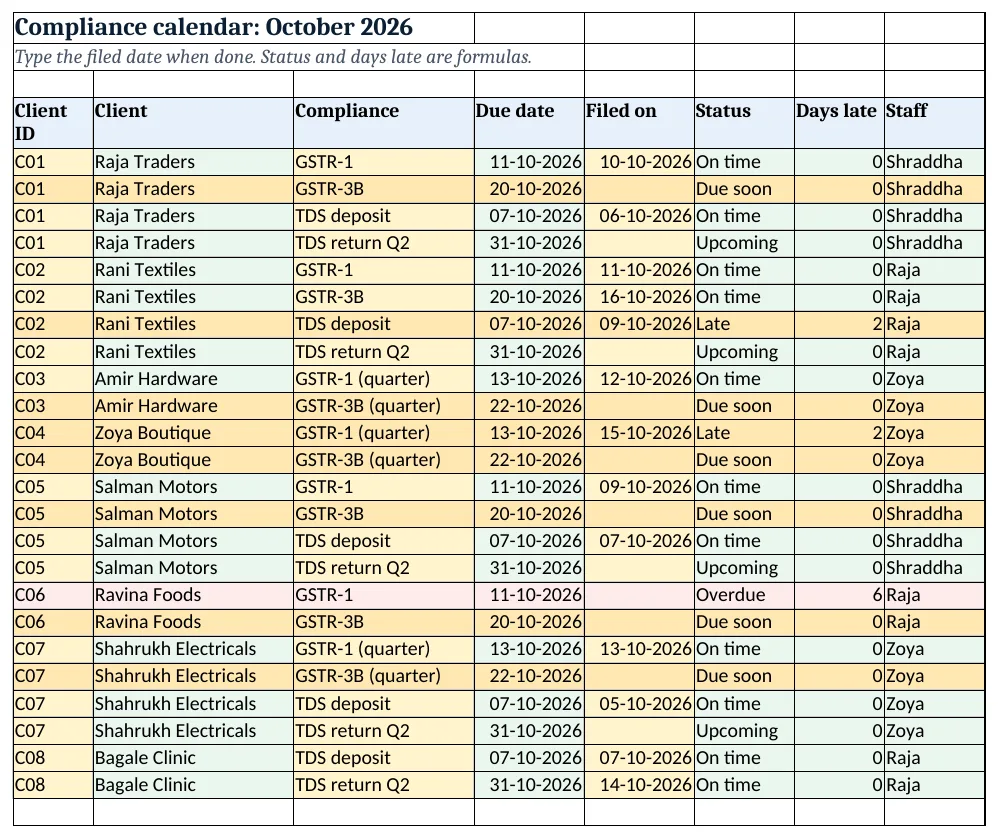
Figure 2. Compliance calendar: due date, filed date, status and days late for every client task
Step 4. Fees and fee invoice
- Fees row 4: Invoice no, Client ID, Client, Fee, GST, Invoice total, Received, Outstanding. E5
=ROUND(D5*Setup!$B$5,0), F5=D5+E5, H5=F5-G5. - On Fee invoice type a client ID in B4; rows 6 to 12 pull invoice number, client, fee, GST, total, received and balance. Print A1:C16 (print area).
Step 5. Staff report
- Rows 5 to 7, one per staff member: tasks
=COUNTIF(Compliance!$H$5:$H$500,A5), filed (COUNTIFS with "<>"), pending, overdue, late. - G5 on-time rate = On time ÷ filed. Rows 11 to 16 count tasks and pending per compliance (COUNTIFS).
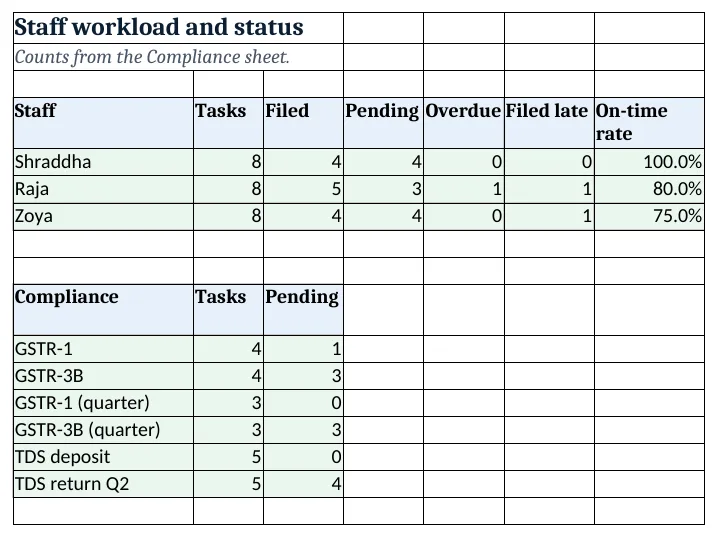
Figure 3. Staff report: tasks, filed, pending, overdue, late and on-time rate
Step 6. Dashboard
- Cards: tasks this month, overdue, due within 7 days, on-time rate, fees billed and fees outstanding.
- Chart 1 at A8: tasks, filed and pending by staff. Chart 2 at A25: pending by compliance.
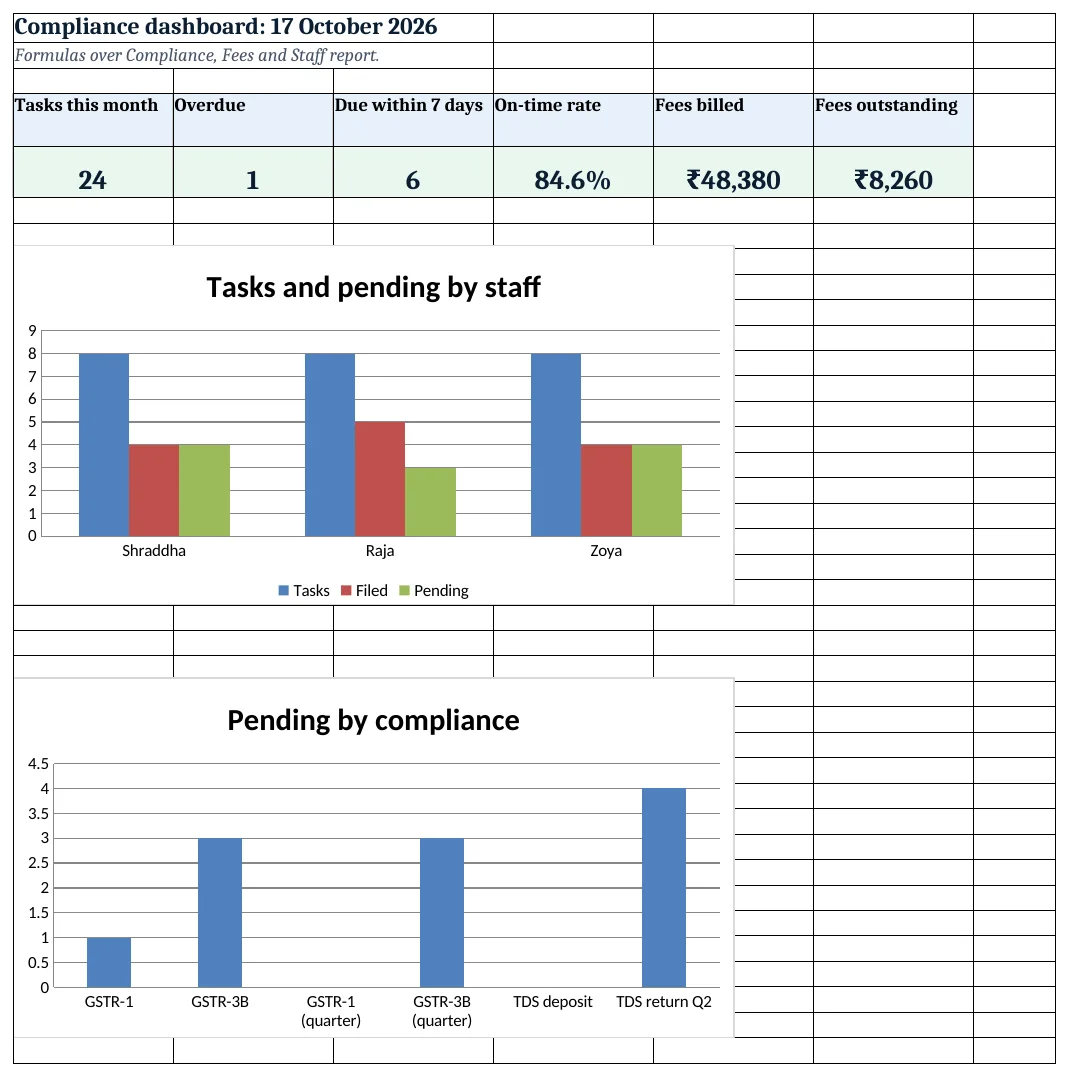
Figure 4. Compliance dashboard: KPI cards and charts
Ravindra Bagale's Tip
Start each morning with the Due soon filter, not the Overdue one. Work done three days early never becomes an apology call.
Ravindra Bagale's Tip – मराठी
रोज सकाळी Overdue नाही तर Due soon filter ने सुरुवात करा. तीन दिवस आधी केलेले काम कधीच माफीच्या फोनमध्ये बदलत नाही.
Ravindra Bagale's Tip – हिंदी
हर सुबह Overdue नहीं, Due soon filter से शुरू करो. तीन दिन पहले किया काम कभी माफी के फोन में नहीं बदलता.
3. Formulas used
| Cell | Formula | What it does |
|---|---|---|
| Clients!G5 | =COUNTIF(Compliance!$A$5:$A$500,A5) |
Tasks for the client |
| Clients!H5 | =COUNTIFS(Compliance!$A$5:$A$500,A5,Compliance!$E$5:$E$500,"") |
Pending tasks |
| Clients!I5 | =COUNTIFS(Compliance!$A$5:$A$500,A5,Compliance!$F$5:$F$500,"Overdue") |
Overdue tasks |
| Compliance!B5 | =XLOOKUP(A5,Clients!$A$5:$A$100,Clients!$B$5:$B$100,"Check ID") |
Client name from ID |
| Compliance!D5 | =XLOOKUP(C5,Setup!$A$9:$A$14,Setup!$C$9:$C$14) |
Due date from the Setup table |
| Compliance!F5 | =IF(E5<>"",IF(E5<=D5,"On time","Late"),IF(D5<Setup!$B$3,"Overdue",IF(D5-Setup!$B$3<=Setup!$B$4,"Due soon","Upcoming"))) |
On time, Late, Overdue, Due soon or Upcoming |
| Compliance!G5 | =IF(E5<>"",MAX(0,E5-D5),IF(D5<Setup!$B$3,Setup!$B$3-D5,0)) |
Days late |
| Compliance!H5 | =XLOOKUP(A5,Clients!$A$5:$A$100,Clients!$F$5:$F$100,"") |
Staff responsible |
| Fees!A5 | ="BA/26-27/"&TEXT(ROW()+96,"000") |
Invoice number |
| Fees!E5 | =ROUND(D5*Setup!$B$5,0) |
GST on the fee |
| Fees!H5 | =F5-G5 |
Outstanding |
| Fee invoice!B12 | =XLOOKUP($B$4,Fees!$B$5:$B$12,Fees!$H$5:$H$12,"Not found") |
Balance due on the invoice |
| Staff report!G5 | =IFERROR(COUNTIFS(Compliance!$H$5:$H$500,A5,Compliance!$F$5:$F$500,"On time")/C5,0) |
On-time rate |
| Staff report!C11 | =COUNTIFS(Compliance!$C$5:$C$500,A11,Compliance!$E$5:$E$500,"") |
Pending for the compliance |
| Dashboard!D5 | =COUNTIF(Compliance!$F$5:$F$500,"On time")/COUNT(Compliance!$E$5:$E$500) |
On-time rate for the office |
Every formula above is written in the template, so you can click a cell and see it in the formula bar. All values on this page were recalculated in LibreOffice with zero errors.
4. Common mistakes
- Typing due dates on every row. When a date is extended you must fix 20 rows. Keep the table in Setup and look it up.
- Marking a return filed before the acknowledgement. Type the filed date only after the return is actually filed and the acknowledgement is saved.
- One due date for all GSTR-3B. Monthly filers and QRMP filers have different dates. Keep separate rows for each.
- Leaving the as-of date old. Nothing turns Overdue if B3 never moves. Use =TODAY() in daily use.
- Not counting days late. Late fees and interest depend on days. Keep the column even when the return is filed.
Ravindra Bagale's Tip
Collect client data by the 5th. Most late filings start with late sales data, not late work in the office.
Ravindra Bagale's Tip – मराठी
Client चा data 5 तारखेपर्यंत घ्या. बहुतेक उशिरा filing ऑफिसमधील कामामुळे नाही तर उशिरा आलेल्या sales data मुळे होते.
Ravindra Bagale's Tip – हिंदी
Client का data 5 तारीख तक लो. ज़्यादातर देर से filing office के काम से नहीं, देर से आए sales data से होती है.
5. More real examples
Example 1: Income tax return season. Add ITR rows with the due date for each client category in Setup and the same status formula.
Example 2: Payroll compliance for clients. Add PF and ESI monthly payment rows, using the due dates from the payroll calculator.
Example 3: Assurance practice with engagements. Replace returns with review milestones (planning, fieldwork, report) and use the same Due soon and Overdue flags.
Quick revision cards
Quick revision
Each card shows formulas from this page, each with an example and its answer from the template. Scan the QR code on a card to open this lesson. All names and numbers are made up for practice.
झटपट उजळणी
प्रत्येक card वर या page मधले formulas, त्यांचं example आणि template मधलं उत्तर आहे. Card वरचा QR code scan केला की हा lesson उघडतो. सगळी नावं आणि आकडे सरावासाठी काल्पनिक आहेत.
झटपट दोहराई
हर card पर इस page के formulas, उनका example और template का उत्तर है. Card का QR code scan करें तो यह lesson खुलेगा. सभी नाम और आंकड़े अभ्यास के लिए काल्पनिक हैं.
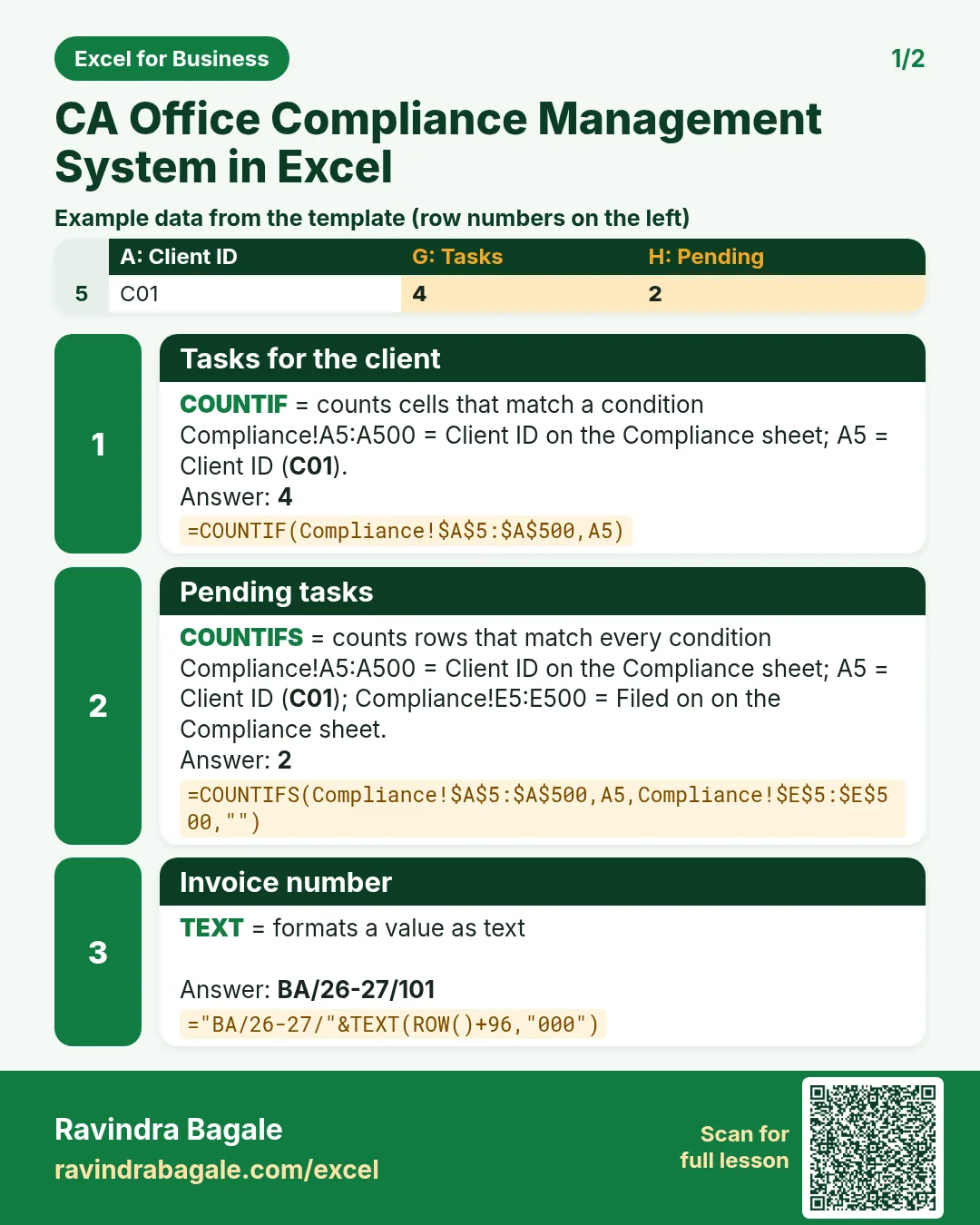

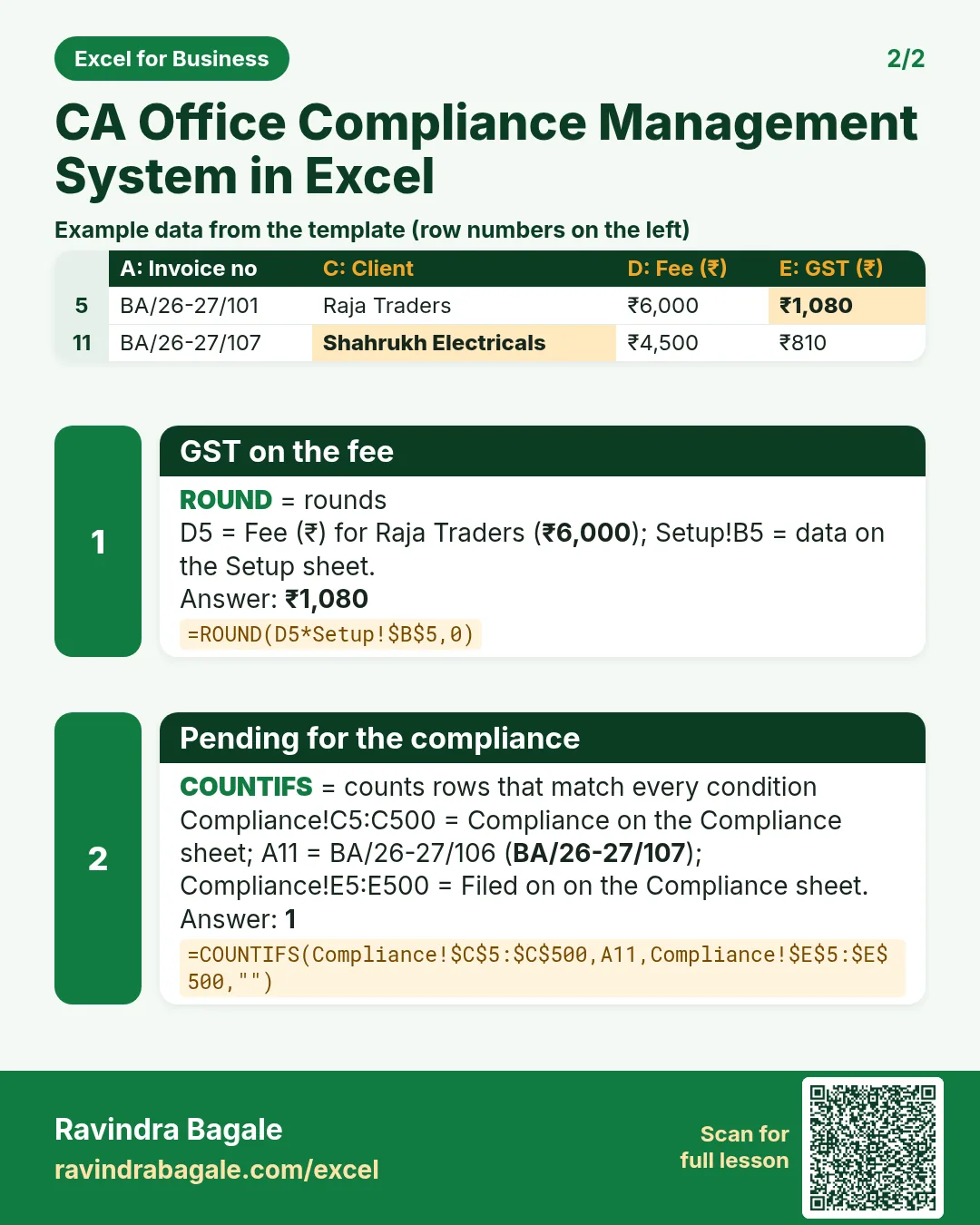

More cards: Ravi Sir's Cards.
6. Frequently asked questions
What are the GSTR-1 and GSTR-3B due dates?
For monthly filers GSTR-1 is due on the 11th and GSTR-3B on the 20th of the next month. Under QRMP, GSTR-1 is due on the 13th after the quarter and GSTR-3B on the 22nd or 24th depending on the state (22nd for Maharashtra). Check the portal for extensions.
When is TDS deposited and when is the return due?
TDS deducted in a month is deposited by the 7th of the next month (other than March). Quarterly TDS returns are due on 31 July, 31 October, 31 January and 31 May.
How do I flag overdue compliance in Excel?
If the filed date is blank and the due date is before today, show Overdue: the nested IF in Compliance F5 does this.
How do I handle a government extension?
Change the due date once in Setup C9:C14; every task row looks it up and the status updates.
Can I add late fees?
Days late is already worked out. Add a late fee column using the rates that apply to that return; keep it separate from your fee.
7. Quick quiz
Ten questions on this page. Sign in to save your score.
Loading practice tasks...
- Pass or fail (Easy): "Pass" if B2 is at least 40, else "Fail". (sheet "Scores")
- Total (Easy): B2 plus C2. (sheet "Scores")
- Passed score 1 (Easy): How many in B2:B11 are 40 or more? (sheet "Scores")
- Days taken (Easy): C2 minus B2. (sheet "Dates")
- Start year (Easy): Year of B3. (sheet "Dates")
- Due month (Easy): Month number of C3. (sheet "Dates")
- Earliest start (Easy): Earliest date in B2:B9 (as a date number). (sheet "Dates")
- Passed both (Medium): TRUE if B3 and C3 are both at least 40. (sheet "Scores")
- Passed either (Medium): TRUE if B4 or C4 is at least 75. (sheet "Scores")
- Grade (Medium): Grade for the average of B2:C2: "A" 75+, "B" 60+, "C" 40+, else "F". (sheet "Scores")
- Working days (Medium): Working days from B2 to C2. (sheet "Dates")
- Weekday of due (Medium): Weekday number of C4 (Sunday = 1). (sheet "Dates")