Tuition Centre Management System in Excel: Groups, Monthly Fees, Test Marks, Progress Card and Dashboard
Shraddha Tuition Centre in Nashik runs four groups for Std 9 and 10. Fees are monthly from the month a learner joins, and short tests run every fortnight. Shraddha wanted one file that tells her who owes fees, who is slipping in tests and what to show a guardian at the meeting. This page builds that 8-sheet system with a progress card that fills itself from a learner ID.
What you'll learn on this page
- List groups, tutors and monthly fees in Setup
- Count months due from the joining month with YEAR and MONTH
- Total fees paid and the balance per learner
- Log tests and work out each learner's average with AVERAGEIFS
- Rank learners and flag those below 60%
- Fill a progress card with a key built from ID and test number
- Report fees and test averages by group
Download the template: tuition-centre-management-system-template.xlsx: a 8-sheet system with example data and real formulas (Read me, Setup, Learners, Fees, Tests, Progress card, Report, Dashboard). Yellow cells are inputs you can type over; green cells hold formulas; blue rows are headers and totals. Replace the example data with your own and every report and the dashboard recalculate.
Made-up data: every name, amount, business and date on this page is made up for practice. Cities are used only to make the examples feel real.
1. The business story
Shraddha Tuition Centre, Nashik, as of 17 October 2026 (made-up data). Groups: M10 (Maths, Std 10, ₹1,800 a month), S10 (Science, Std 10, ₹1,800), E09 (English, Std 9, ₹1,200) and M09 (Maths, Std 9, ₹1,500).
| Question | Where the system answers it |
|---|---|
| Who has not paid? | Learners, Balance: 4 learners owe ₹8,100 in all |
| How are tests going? | Dashboard: average 73.2%, with 3 learners below 60% |
| Who is on top? | Learners, Rank: Ravina More is rank 1 |
| What do I show Rani's guardian? | Progress card for T03: average 82%, rank 4 of 12 |
12 learners have paid ₹73,080 so far. For grade letters from marks, see IFS grades.
Figure 1. Setup holds groups and fees; Learners, Fees and Tests are the entry sheets; Progress card, Report and Dashboard only read.
2. Build it sheet by sheet
Step 1. Setup: groups and fees
- In B3 type the as-of date and in B4 the centre name.
- In A7:D10 type Group code, Group, Tutor, Monthly fee. Short codes like M10 make every other sheet easier to type.
- List payment modes in F7:F8.
Step 2. Learners: months due and balance
- Headers in row 4: Learner ID, Name, Group, Joined (month), Discount %, Monthly fee, Months due, Fee due, Paid, Balance, Average test %, Rank.
- F5 fee from the group
=XLOOKUP(C5,Setup!$A$7:$A$10,Setup!$D$7:$D$10,0). - G5 months due, counting the joining month:
=(YEAR(Setup!$B$3)-YEAR(D5))*12+MONTH(Setup!$B$3)-MONTH(D5)+1(date functions). Joined June, as-of October = 5 months. - H5
=ROUND(G5*F5*(1-E5),0), I5 paid with SUMIFS on Fees, J5 balance=H5-I5.
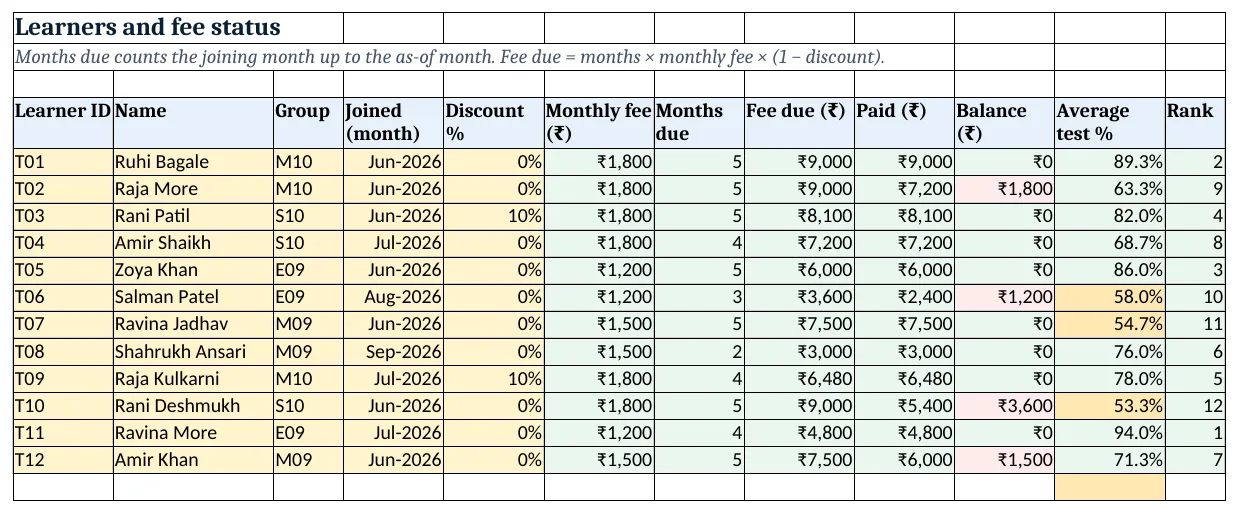
Figure 2. Learners: months due, fee balance, test average and rank
Step 3. Fees and Tests: the entry sheets
- Fees: Date, Learner ID, Name, Amount, Mode, For month. C5 looks up the name.
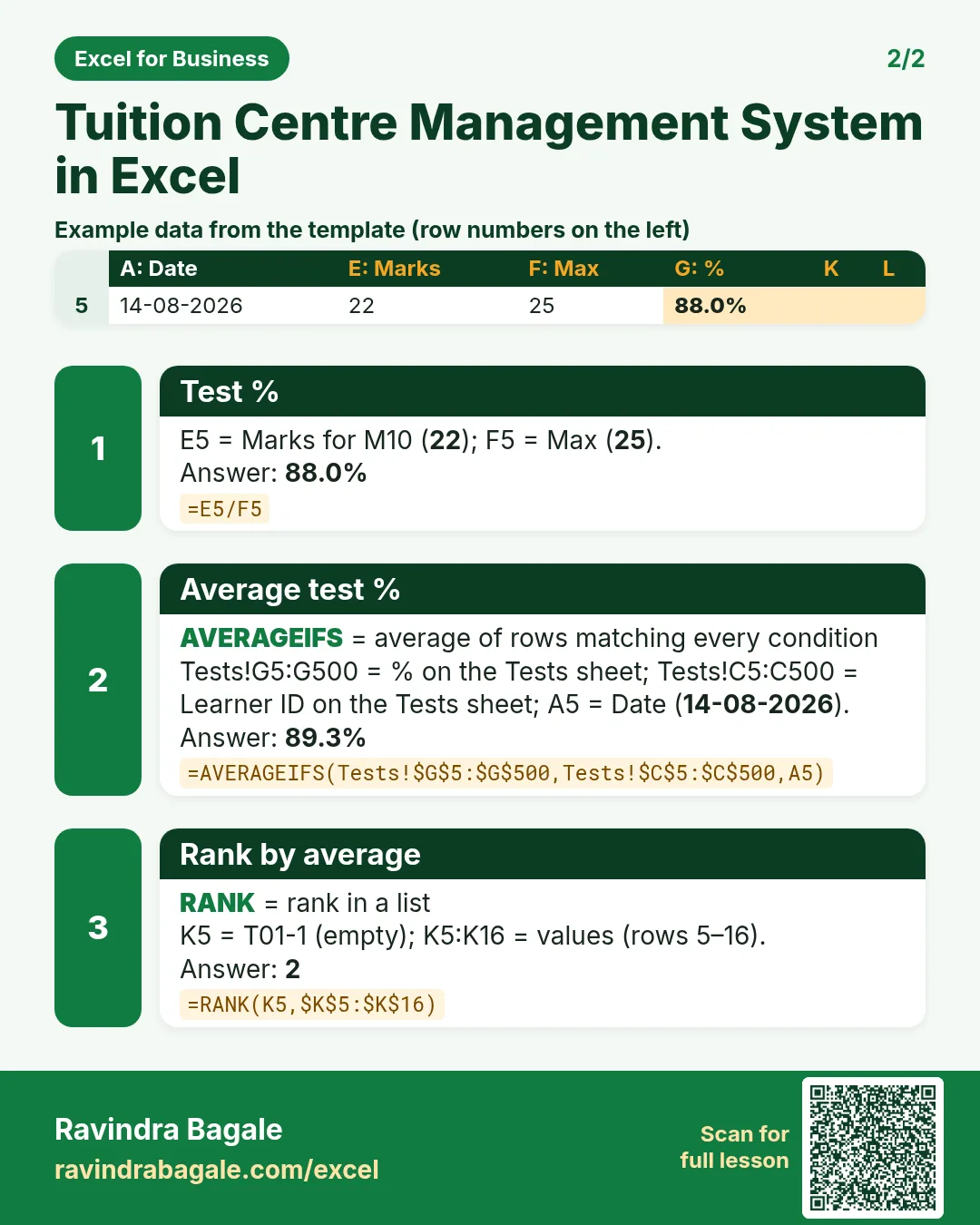
- Tests: Date, Test, Learner ID, Group, Marks, Out of, %, Key. G5
=E5/F5keeps tests of different totals comparable. - H5 builds a key:
=C5&"-"&COUNTIF($C$5:C5,C5), so T03's tests become T03-1, T03-2 and so on (joining text).
Step 4. Average and rank
- Back on Learners, K5
=AVERAGEIFS(Tests!$G$5:$G$500,Tests!$C$5:$C$500,A5)(AVERAGEIFS). - L5
=RANK(K5,$K$5:$K$16)(RANK). Colour K5:K16 red below 60% with conditional formatting.
Step 5. Progress card
- Type a learner ID in B4. B5 shows the name, D5 the group name through a nested XLOOKUP.
- Rows 8 to 13 use the key: B8
=XLOOKUP($B$4&"-"&A8,Tests!$H$5:$H$500,Tests!$B$5:$B$500,"")returns test 1's name; the same key returns the date, marks and %. - B15 average, B16 rank as "4 of 12", B17 fee balance. Print it for the guardian meeting (print area).
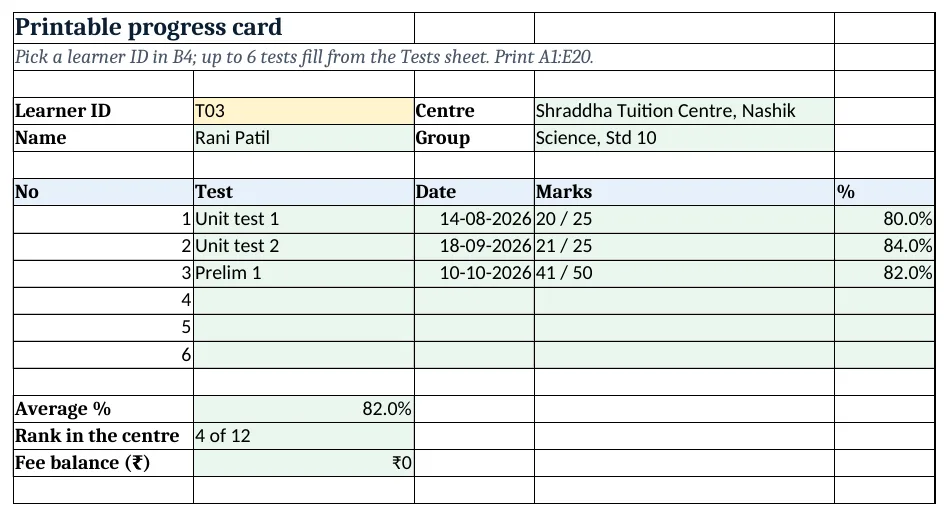
Figure 3. Progress card: test-wise marks, average, rank and fee balance for one learner
Step 6. Report and dashboard
- Report rows 5 to 8, one per group: learners (COUNTIF), fee due, paid, balance (SUMIFS) and average test % (AVERAGEIFS on Tests by group).
- Dashboard cards: learners, collected, balance, learners with balance, average test %, top learner
=XLOOKUP(1,Learners!$L$5:$L$200,Learners!$B$5:$B$200)and learners below 60%. - Chart 1 at A8: average test % by group. Chart 2 at A25: fee balance by group.
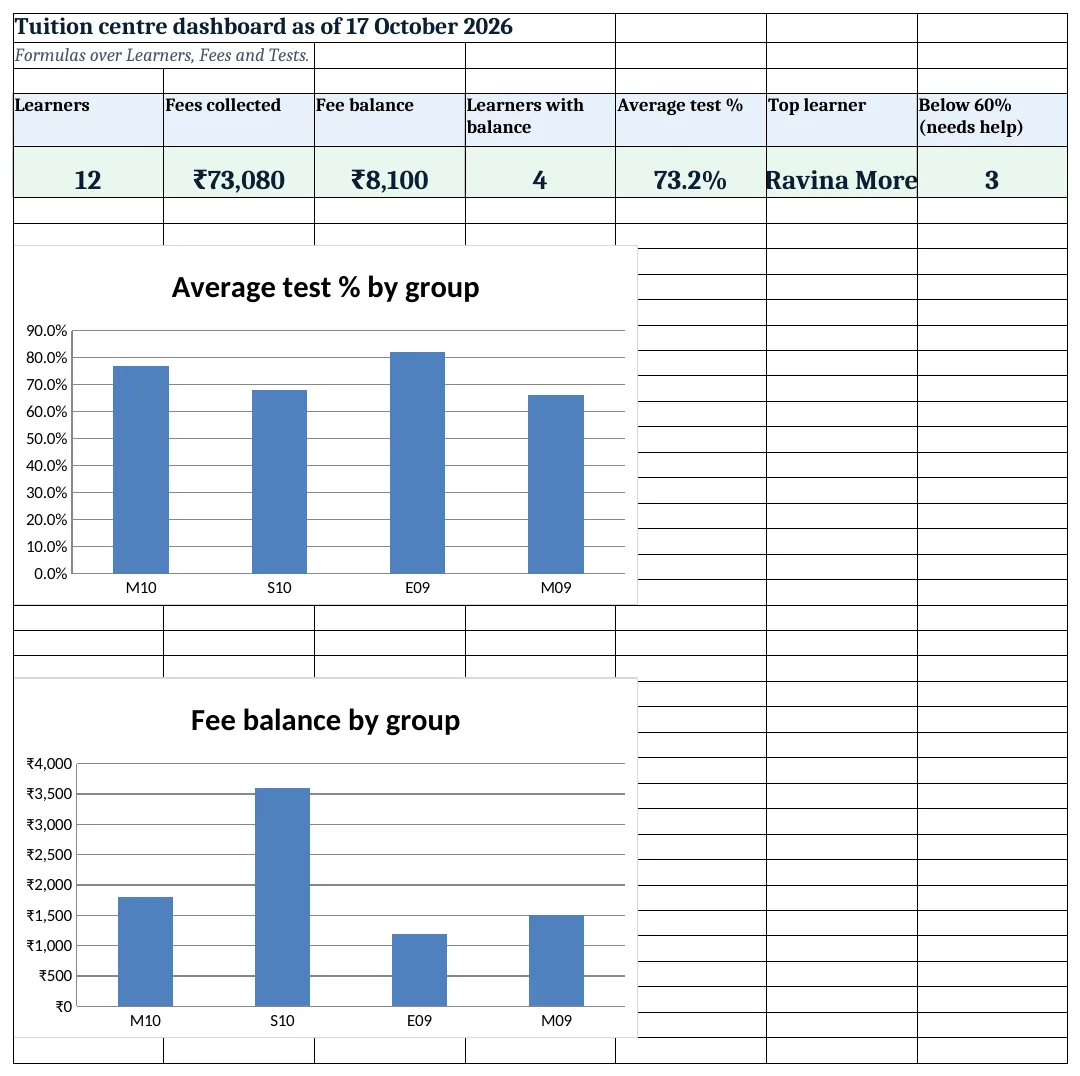
Figure 4. Tuition dashboard: KPI cards and charts
Ravindra Bagale's Tip
Show a guardian the trend, not just the latest test. Three tests going 55, 62, 70 is good news even if 70 is not top of the group.
Ravindra Bagale's Tip – मराठी
पालकांना फक्त शेवटची test नाही तर trend दाखवा. 55, 62, 70 असे गुण वाढत असतील तर 70 हा group मध्ये सर्वात जास्त नसला तरी ती चांगली बातमी आहे.
Ravindra Bagale's Tip – हिंदी
Guardian को सिर्फ आखिरी test नहीं, trend दिखाओ. 55, 62, 70 बढ़ रहे हैं तो 70 group में सबसे ऊपर न हो तब भी अच्छी खबर है.
3. Formulas used
| Cell | Formula | What it does |
|---|---|---|
| Learners!F5 | =XLOOKUP(C5,Setup!$A$7:$A$10,Setup!$D$7:$D$10,0) |
Monthly fee of the group |
| Learners!G5 | =(YEAR(Setup!$B$3)-YEAR(D5))*12+MONTH(Setup!$B$3)-MONTH(D5)+1 |
Months due including the joining month |
| Learners!H5 | =ROUND(G5*F5*(1-E5),0) |
Fee due after discount |
| Learners!I5 | =SUMIFS(Fees!$D$5:$D$500,Fees!$B$5:$B$500,A5) |
Paid so far |
| Learners!J5 | =H5-I5 |
Fee balance |
| Learners!K5 | =AVERAGEIFS(Tests!$G$5:$G$500,Tests!$C$5:$C$500,A5) |
Average test % |
| Learners!L5 | =RANK(K5,$K$5:$K$16) |
Rank by average |
| Tests!G5 | =E5/F5 |
Test % |
| Tests!H5 | =C5&"-"&COUNTIF($C$5:C5,C5) |
Key: ID and test number |
| Progress card!B8 | =XLOOKUP($B$4&"-"&A8,Tests!$H$5:$H$500,Tests!$B$5:$B$500,"") |
Test name for the learner and test number |
| Progress card!B16 | =XLOOKUP($B$4,Learners!$A$5:$A$200,Learners!$L$5:$L$200)&" of "&COUNTA(Learners!$A$5:$A$200) |
Rank shown as "n of total" |
| Report!G5 | =AVERAGEIFS(Tests!$G$5:$G$500,Tests!$D$5:$D$500,A5) |
Average test % of the group |
| Dashboard!F5 | =XLOOKUP(1,Learners!$L$5:$L$200,Learners!$B$5:$B$200) |
Name of the rank 1 learner |
| Dashboard!G5 | =COUNTIF(Learners!$K$5:$K$200,"<0.6") |
Learners below 60% |
Every formula above is written in the template, so you can click a cell and see it in the formula bar. All values on this page were recalculated in LibreOffice with zero errors.
4. Common mistakes
- Forgetting the +1 in months due. A learner who joined in October owes October. Without +1 the sheet says 0 months.
- Averaging marks, not %. A 20-mark and a 50-mark test cannot be averaged as marks. Average the % column.
- Typing the progress card by hand. It goes stale the day another test is added. Use the key and XLOOKUP.
- Using names as the key. Two learners named Zoya break every lookup. Use the learner ID.
- Ranking with blanks. A learner with no tests gives an error in AVERAGEIFS. Wrap it in IFERROR or log a test first.
Ravindra Bagale's Tip
Collect fees in the first week of the month and log them the same day. The balance column is only as good as the Fees sheet.
Ravindra Bagale's Tip – मराठी
महिन्याच्या पहिल्या आठवड्यात fees घ्या आणि त्याच दिवशी नोंदवा. Balance column तितकाच खरा जितकी Fees sheet.
Ravindra Bagale's Tip – हिंदी
महीने के पहले हफ्ते में fees लो और उसी दिन लिखो. Balance column उतना ही सही है जितनी Fees sheet.
5. More real examples
Example 1: Coaching for competitive exams. Add a Mock test type and a separate average for mocks with AVERAGEIFS on two conditions.
Example 2: Home tutor with 6 learners. Drop the group report; keep Learners, Fees and the progress card. Months due works the same.
Example 3: Quarterly fees. Change months due to quarters: =INT(G5/3)+1 and the fee to a quarterly amount.
Quick revision cards
Quick revision
Each card shows formulas from this page, each with an example and its answer from the template. Scan the QR code on a card to open this lesson. All names and numbers are made up for practice.
झटपट उजळणी
प्रत्येक card वर या page मधले formulas, त्यांचं example आणि template मधलं उत्तर आहे. Card वरचा QR code scan केला की हा lesson उघडतो. सगळी नावं आणि आकडे सरावासाठी काल्पनिक आहेत.
झटपट दोहराई
हर card पर इस page के formulas, उनका example और template का उत्तर है. Card का QR code scan करें तो यह lesson खुलेगा. सभी नाम और आंकड़े अभ्यास के लिए काल्पनिक हैं.
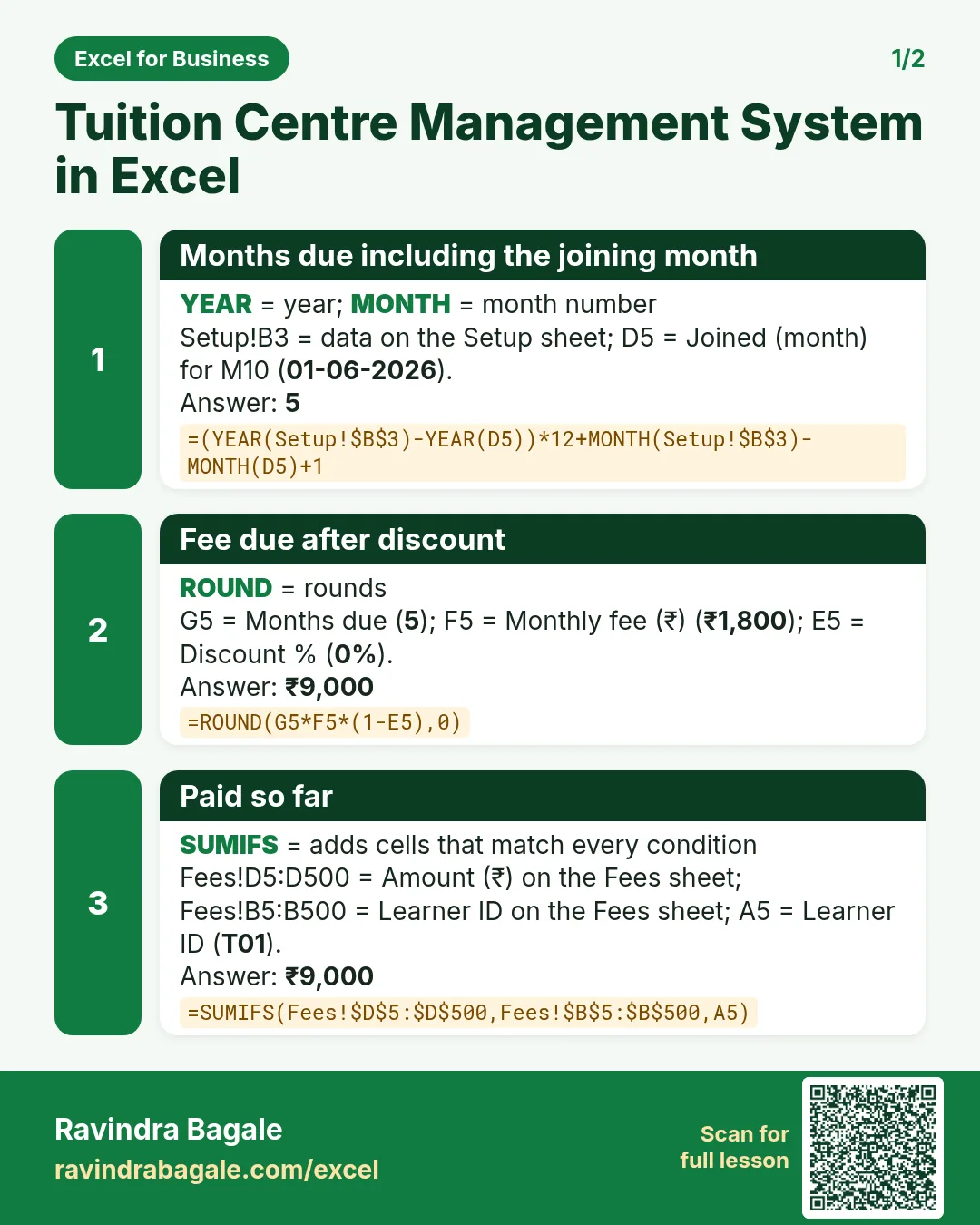


More cards: Ravi Sir's Cards.
6. Frequently asked questions
How do I calculate months between two dates in Excel?
Use =(YEAR(end)-YEAR(start))*12+MONTH(end)-MONTH(start)+1 to count both the first and the current month.
How do I rank learners by average marks?
Work out the average with AVERAGEIFS and use =RANK(K5,$K$5:$K$16); the highest average gets rank 1.
How can a progress card pick up all tests of one learner?
Number each learner's tests with a key like =C5&"-"&COUNTIF($C$5:C5,C5) and look up ID-1, ID-2 and so on.
Can I show fee balance on the progress card?
Yes, B17 looks it up from Learners. Remove it if you prefer to talk about fees separately.
How do I add a new group?
Add a row in Setup A7:D10 (extend the range) and a row on Report; drop-downs and lookups pick it up.
7. Quick quiz
Ten questions on this page. Sign in to save your score.
Loading practice tasks...
- Total billable hours (Easy): Add up Billable hours in D2:D11. (sheet "Data")
- Average rate per hour (Easy): Average of E2:E11, rounded to 2 decimals. (sheet "Data")
- Rows in Cloud (Easy): How many rows have Practice "Cloud"? (sheet "Data")
- Largest billable hours (Easy): The largest value in D2:D11. (sheet "Data")
- Days taken (Easy): C2 minus B2. (sheet "Dates")
- Start year (Easy): Year of B3. (sheet "Dates")
- Due month (Easy): Month number of C3. (sheet "Dates")
- Earliest start (Easy): Earliest date in B2:B9 (as a date number). (sheet "Dates")
- Billable hours for Cloud (Medium): Total of D2:D11 where B is "Cloud". (sheet "Data")
- Cloud in Boston (Medium): Total of D2:D11 where B is "Cloud" and C is "Boston". (sheet "Data")
- Working days (Medium): Working days from B2 to C2. (sheet "Dates")
- Weekday of due (Medium): Weekday number of C4 (Sunday = 1). (sheet "Dates")