Excel FILTER Function: Return All Matching Rows, Multiple Conditions, Starts With and #SPILL! Error
Every lookup returns one answer. Ask XLOOKUP for Salman and you get either the first Salman or the last, never both. FILTER returns every row that matches, as a live list that updates when the data changes. In this chapter you will filter by one condition, by two (AND and OR), show a message when nothing matches, find names that start with or contain some letters, and fix the #SPILL! error.
What you'll learn in this chapter
- FILTER syntax: array, include, if_empty
- Every match instead of one
- Return one column or full rows
- Numbers: total of 200 or more
- AND with
*, OR with+ - A message when nothing matches (and #CALC!)
- Starts with (LEFT) and contains (SEARCH)
- The #SPILL! error and how to fix it
Practice file: excel-filter-function-practice.xlsx: ten FILTER examples on one sheet, each one formula in its top-left cell, and a Your turn sheet.
Which Excel has FILTER? Excel 2021, Excel 2024, Microsoft 365 and Excel for the web. In older versions, use the Filter button (Data › Filter) to see matching rows.
1. The table
The student table from the INDEX and MATCH chapter: roll (A), name (B), maths (C), science (D), english (E), total (F), result (G), percentage (H), data in A5:H15. Two students are called Salman: roll 104 (Pass) and roll 111 (Fail).
2. FILTER syntax
=FILTER(array, include, [if_empty])
- array: what to return: one column, or the whole table.
- include: the condition, written as a test on a column of the same height, such as
B5:B15="Salman". - if_empty (optional): what to show if no row matches.
3. Every match, not just one
=FILTER(G5:G15,B5:B15="Salman")
→ Pass and Fail, one below the other. Both Salmans, at last. But which result belongs to which Salman? Return the whole rows instead:
=FILTER(A5:H15,B5:B15="Salman")
→ two full rows: 104 Salman 88 35 72 195 Pass 65.00 and 111 Salman 30 55 41 126 Fail 42.00. You typed one formula in one cell; the answer spills into as many rows and columns as it needs.
Figure 1. XLOOKUP returns one Salman. FILTER returns every row where the name is Salman, full rows included.
Classroom line
Seeing this, you may wonder: if it is this easy, why did we spend time learning all those lookups?
Class मधलं वाक्य
"Asa vatta yala baghun ki evdha sopa ahe tar kashala apan sagla lookup shikat baslo?"
हे बघून असं वाटतं की एवढं सोपं आहे तर कशाला आपण सगळं lookup शिकत बसलो?
Classroom line
Seeing this, you may wonder: if it is this easy, why did we spend time learning all those lookups?
Classroom line
At work we use FILTER more. But lookups are asked in interviews, so you need to learn them too.
Class मधलं वाक्य
"Company madhe filter jast vaparto. But lookup interview madhe vichartat, mhanun shikava lagla."
Company मध्ये filter जास्त वापरतो. But lookup interview मध्ये विचारतात, म्हणून शिकावा लागला.
Classroom line
At work we use FILTER more. But lookups are asked in interviews, so you need to learn them too.
4. Conditions on numbers
Students with a total of 200 or more:
=FILTER(A5:H15,F5:F15>=200)
→ four rows: Ravindra 229, Shraddha 270, Zoya 241, Rani 246. Change Zoya's maths to 40 and her total drops to 214; she stays. Change it to 20 and she disappears from the list at once.
Only the names of students who failed:
=FILTER(B5:B15,G5:G15="Fail")
→ Ruhi, Shahrukh, Ravina, Salman.
5. Two conditions: AND and OR
The obvious idea, AND(C5:C15>=80,F5:F15>=200), does not work. AND looks at all 22 values and returns a single TRUE or FALSE for the whole lot, not one answer per row, and FILTER shows #VALUE!. Joining the tests with & doesn't work either. Nor does a comma between them: FILTER's third argument is if_empty, so a second condition after a comma is silently ignored, and a third one gives a "too many arguments" message.
AND: multiply the conditions.
=FILTER(A5:H15,(C5:C15>=80)*(F5:F15>=200))
Each test gives a column of TRUE/FALSE values. Multiplying turns TRUE into 1 and FALSE into 0, so a row gives 1 only if both tests are TRUE (1 × 1). Result: Shraddha (92, 270) and Rani (81, 246). Salman (104) has 88 in maths but a total of 195, so 1 × 0 = 0 and he is left out.
OR: add the conditions.
=FILTER(A5:H15,(C5:C15>=85)+(E5:E15>=85))
A row passes if the sum is 1 or more, so either test is enough: Shraddha (92 maths, 90 english), Salman 104 (88 maths) and Rani (89 english). Shraddha matches both tests (sum 2) and still appears only once.
Each condition needs its own brackets: (C5:C15>=80)*(F5:F15>=200).
Figure 2. Each test gives TRUE (1) or FALSE (0) per row. Multiply for AND: 1 only if both are 1. Add for OR: 1 or more if either is 1.
Ravindra Bagale's Tip
Before you trust a FILTER with two conditions, type each condition alone in a spare column, for example =(C5:C15>=80)*(F5:F15>=200). You see the 1s and 0s row by row and can check them against the data. Once the 1s are on the right rows, put the condition into FILTER.
Ravindra Bagale's Tip – मराठी
दोन conditions असलेल्या FILTER वर विश्वास ठेवण्याआधी प्रत्येक condition एका रिकाम्या column मध्ये एकटी type करा, उदा. =(C5:C15>=80)*(F5:F15>=200). Row-row 1 आणि 0 दिसतात आणि data सोबत जुळवून पाहता येतात. 1 योग्य rows वर आले की condition FILTER मध्ये टाका.
Ravindra Bagale's Tip – हिंदी
दो conditions वाले FILTER पर भरोसा करने से पहले हर condition को एक खाली column में अकेले type करो, जैसे =(C5:C15>=80)*(F5:F15>=200). Row-row 1 और 0 दिखते हैं और data से मिलाकर देख सकते हो. 1 सही rows पर आ जाएँ तो condition FILTER में डालो.
6. When nothing matches
Maths 95 or more and total 200 or more: nobody qualifies. Without the third argument, FILTER shows #CALC! (the result is empty). Add a message:
=FILTER(A5:H15,(C5:C15>=95)*(F5:F15>=200),"No student found")
→ No student found. Always add if_empty to a FILTER that someone else will use; a message is clearer than an error.
Figure 3. No row passes both tests. Without if_empty FILTER shows #CALC!; with it, your message.
7. Names that start with some letters
=FILTER(B5:B15,B5:B15="ra*") finds nothing. Inside a condition, = compares exactly, so * is just a star, not a wildcard. (XLOOKUP's match_mode 2 understands wildcards, but it still returns only the first match.)
Use LEFT, which takes the first characters of a text: =LEFT("Ravindra",2) → "Ra".
=FILTER(B5:B15,LEFT(B5:B15,2)="ra")
→ Ravindra, Ravina, Raja, Rani. The comparison ignores capital letters, so "Ra" matches "ra".
Contains, anywhere in the name: SEARCH returns the position of the text, or an error if it is not there. ISNUMBER turns that into TRUE/FALSE:
=FILTER(B5:B15,ISNUMBER(SEARCH("ra",B5:B15)))
→ Ravindra, Shraddha, Ravina, Raja, Rani. Shraddha is new: "ra" sits inside her name (Shraddha).
Figure 4. LEFT(name, 2)="ra" keeps names that start with ra. SEARCH finds ra anywhere, so Shraddha joins the list.
8. The #SPILL! error
A FILTER result needs empty cells to spill into. If anything is in the way, even a single number or a space, the formula shows #SPILL! and no results.
Try it:
- Write
=FILTER(A5:H15,F5:F15>=200)in J5. It spills four rows into J5:Q8. - Type
9in L7. J5 shows #SPILL!. - Click J5: Excel draws a dashed border around the range it needs.
- Delete L7. The four rows come back.
SPILL! also appears if the spill range would run off the sheet or into merged cells. The fix is always the same: give it room.
Figure 5. A 9 typed inside the spill range blocks the result. Delete it and the four rows spill back.
9. The whole chapter on one page
=FILTER(array, include, [if_empty])returns every matching row.- Return one column (
G5:G15) or the whole table (A5:H15). - AND = multiply conditions; OR = add them; each in its own brackets.
- The AND() function,
&or a comma between conditions don't work inside FILTER. - No match → #CALC!; the third argument shows your message instead.
=is exact: useLEFT(...)="ra"for starts with andISNUMBER(SEARCH("ra",...))for contains.-
SPILL! = something is in the way; clear the cells.
- FILTER: Excel 2021, 2024, Microsoft 365 and Excel for the web.
10. Try at home
Try at home
Task 1
- List every student whose result is Pass and whose english is 80 or more. (Shraddha, Zoya, Rani.)
Task 2
- List names that start with "sh". (Shraddha, Shahrukh.)
Task 3
- List students with maths below 35 or science below 35. (Ruhi, Ravina, Salman 111.)
Task 4
- Write a FILTER that finds nobody and add the message "No student found".
Recap
In short
- Lookups return one match; FILTER returns all of them.
*between conditions = AND,+= OR.- Add if_empty so nobody sees #CALC!.
- Use LEFT for starts with and SEARCH for contains.
-
SPILL! means the result has no room.
Quick revision cards
Quick revision
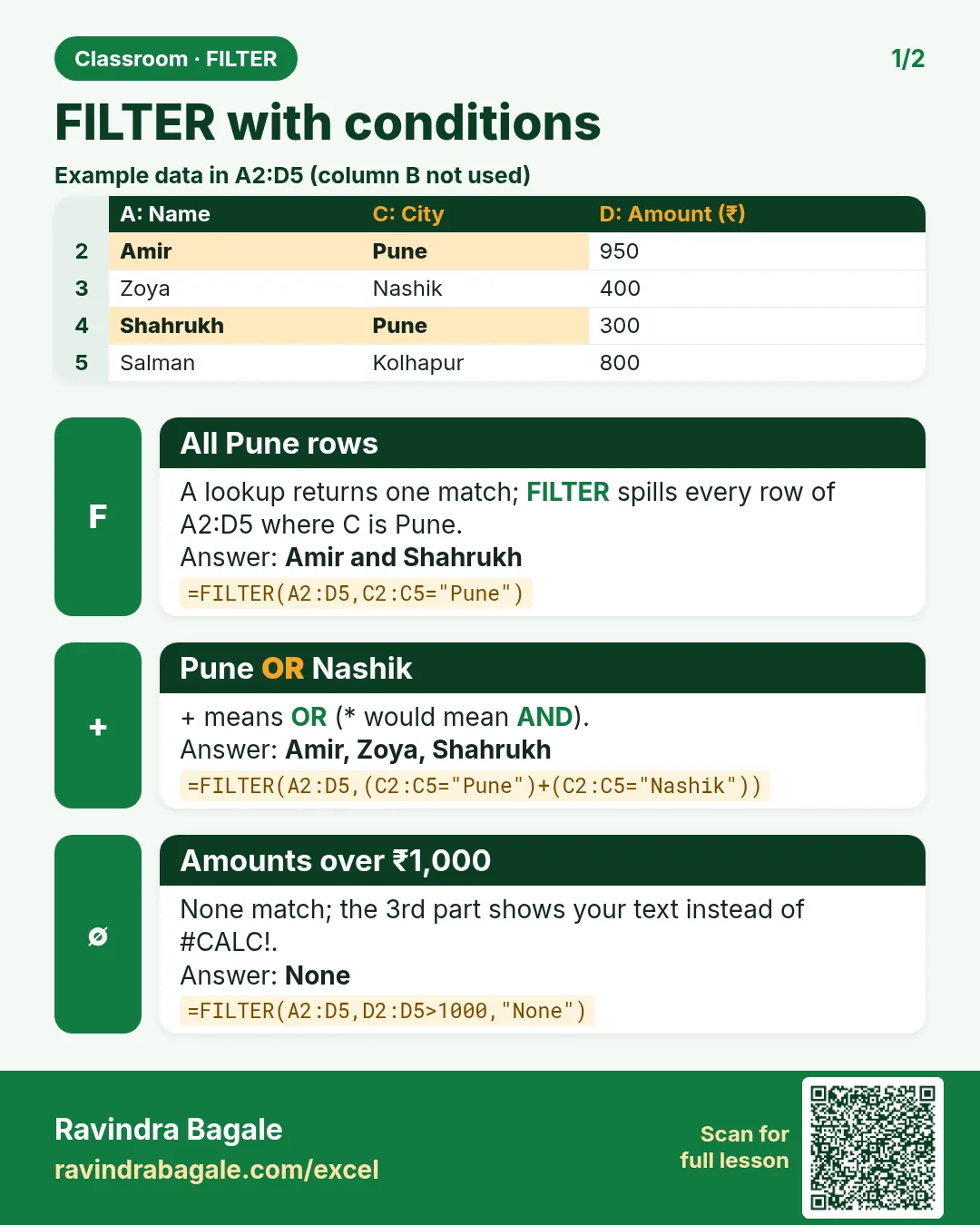
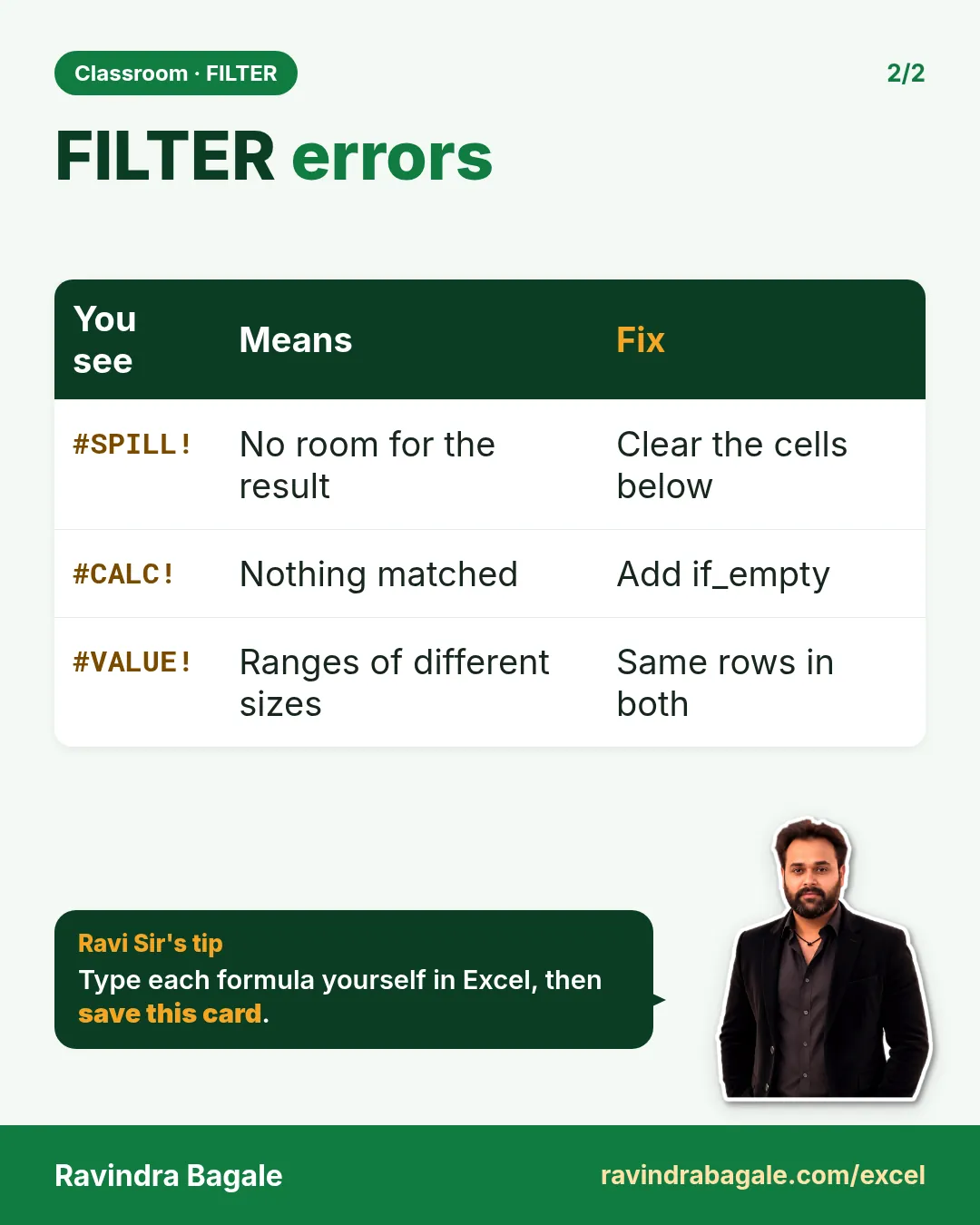
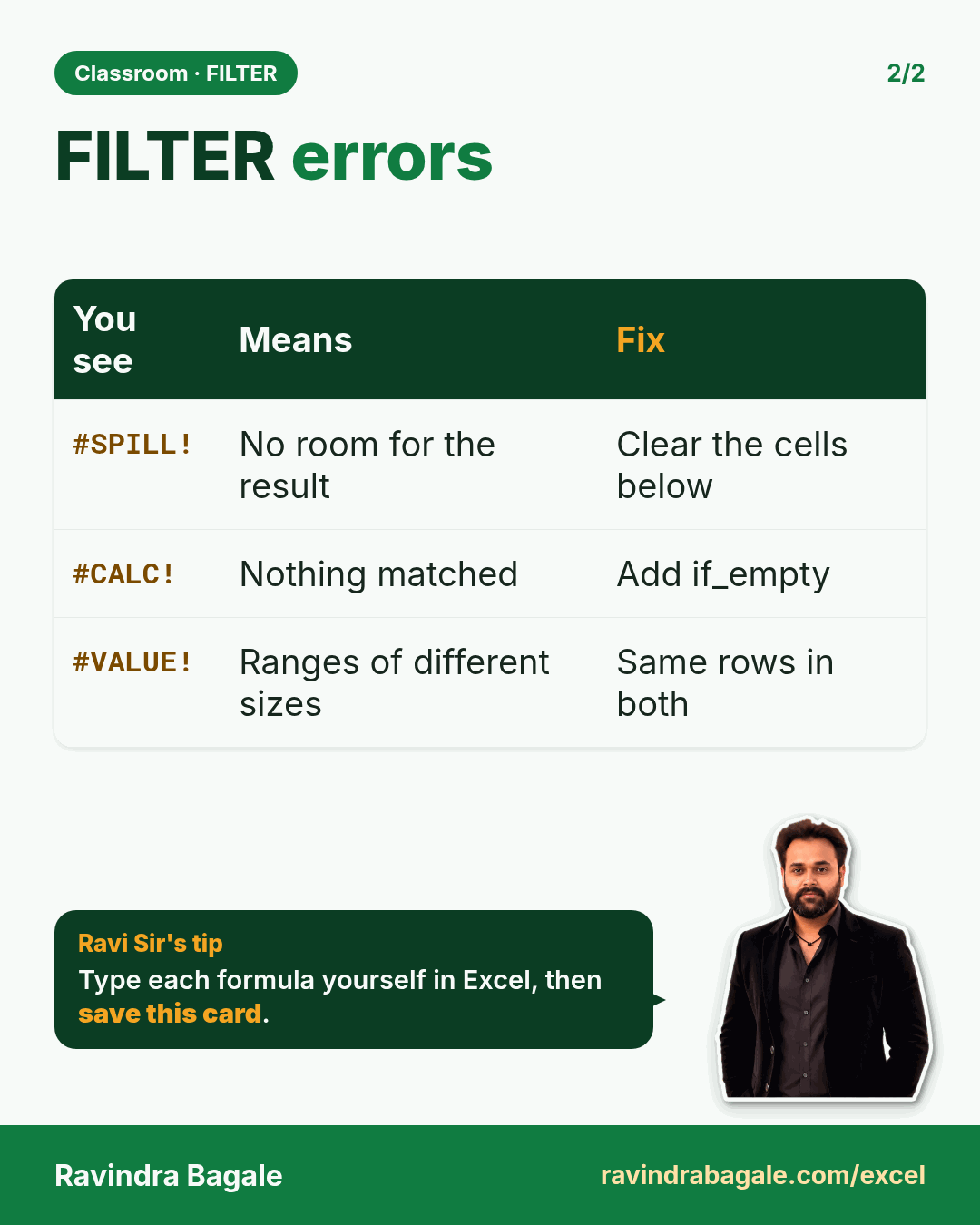
Revise this chapter in two minutes. Save the cards on your phone or download them as PNG files. All names and numbers are made up for practice.
झटपट उजळणी
हा chapter दोन मिनिटांत revise करा. Cards phone वर save करा किंवा PNG म्हणून download करा. सगळी नावं आणि आकडे सरावासाठी काल्पनिक आहेत.
झटपट दोहराई
यह chapter दो मिनट में revise करें. Cards phone पर save करें या PNG के रूप में download करें. सभी नाम और आंकड़े अभ्यास के लिए काल्पनिक हैं.

More cards for every chapter: Ravi Sir's Cards.
Loading practice tasks...
- VLOOKUP name (Easy): Name for ID "O103" with VLOOKUP. (sheet "Lookup")
- XLOOKUP value (Easy): The Unit price for ID "O103". (sheet "Lookup")
- Position (Easy): Position of "Emma Schmidt" in B2:B9. (sheet "Lookup")
- Distinct groups (Easy): How many different values in B2:B11? (sheet "Arrays")
- List groups (Easy): Unique list of B2:B11. (sheet "Arrays")
- Filter names (Easy): Names in A2:A11 where B is "Website". (sheet "Arrays")
- INDEX and MATCH (Medium): ID for name "Emma Schmidt" using INDEX and MATCH. (sheet "Lookup")
- Not found message (Medium): Quantity for ID "Z999", or "Not found". (sheet "Lookup")
- IFNA with VLOOKUP (Medium): VLOOKUP of "Z999" in A2:E9 column 4, or "Missing". (sheet "Lookup")
- Sum of filtered (Medium): Sum of D2:D11 where B is "App", using FILTER. (sheet "Arrays")
- Count filtered (Medium): Rows where D is above the average of D2:D11. (sheet "Arrays")
- Sorted values (Medium): D2:D11 sorted largest first. (sheet "Arrays")