Grocery List in Excel with Prices: Auto Total, Category Drop-Down and Tick Items as You Shop
Rani in Sambhaji Nagar orders her monthly kirana on Blinkit or Amazon Now, and buys the rest at the local shop. Every month she goes over the ₹6,000 budget and only finds out at checkout. A grocery list with prices shows the total before she shops, splits it by category, and while she shops it shows how much is already in the cart and what is still left to buy.
What you'll learn on this page
- Item, quantity and price with Amount = Qty × Price
- A budget cell and an over-budget message
- An In cart? drop-down (Yes/No)
- SUMIF for the cart total and per-category totals
- COUNTIF for items left
- Greyed, struck-through rows for bought items
Download the template: grocery-list-with-prices-template.xlsx: example data with real formulas. Yellow cells are inputs you can type over; green cells hold formulas; blue rows are headers and totals. Replace the example data with your own and everything recalculates.
Made-up data: every name, amount, shop and date on this page is made up for practice. Cities are used only to make the examples feel real.
1. The example
Rani's list (made-up prices) has 15 items:
| Item | Qty | Price | Amount |
|---|---|---|---|
| Rice | 10 kg | ₹62 | ₹620 |
| Milk | 30 litre | ₹56 | ₹1,680 |
| Ghee | 1 kg | ₹640 | ₹640 |
| … 12 more |
The list total is ₹6,531, so the budget check says Over by ₹531 before she even starts. By category, Dairy is the biggest at ₹2,060 (milk ₹1,680 + paneer ₹380), then Oil and ghee at ₹1,415.
Halfway through shopping she has marked 8 items Yes: ₹2,566 in the cart, ₹3,965 still to buy, 7 items left. To get within budget she cuts paneer (₹380) and one litre of oil (₹155): 6,531 − 535 = ₹5,996.
Figure 1. Qty × Price gives each amount; the In cart? column splits the ₹6,531 list into ₹2,566 in the cart and ₹3,965 still to buy; the budget check warns Over by ₹531.
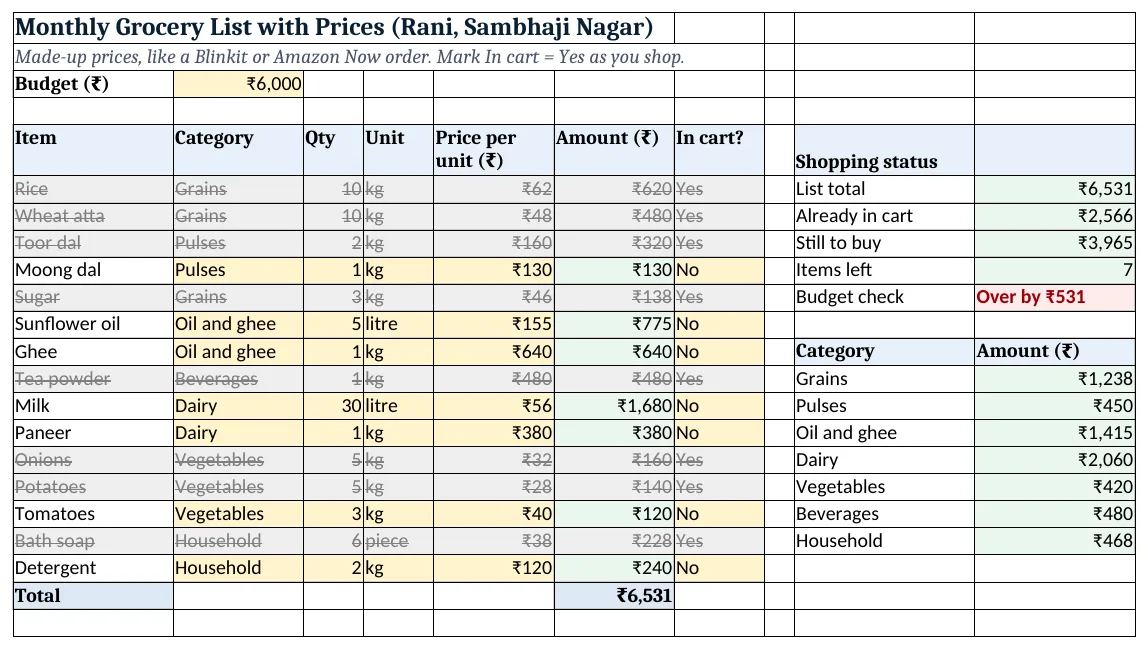
Figure 2. The template sheet, recalculated with its example data. Download it above and replace the yellow cells with your own numbers.
2. Build it step by step
Step 1. Budget and headers
- In A3 type Budget (₹) and in B3 6000.
- In A5:G5 type Item, Category, Qty, Unit, Price per unit (₹), Amount (₹), In cart?.
Step 2. Items and drop-downs
- Type the items from A6 with category, quantity, unit and price (yellow cells).
- Select B6:B300 > Data > Data Validation > List and type the categories, separated by commas (drop-down lists).
- Select G6:G300 > the same with
Yes,No.
Step 3. Amount and total
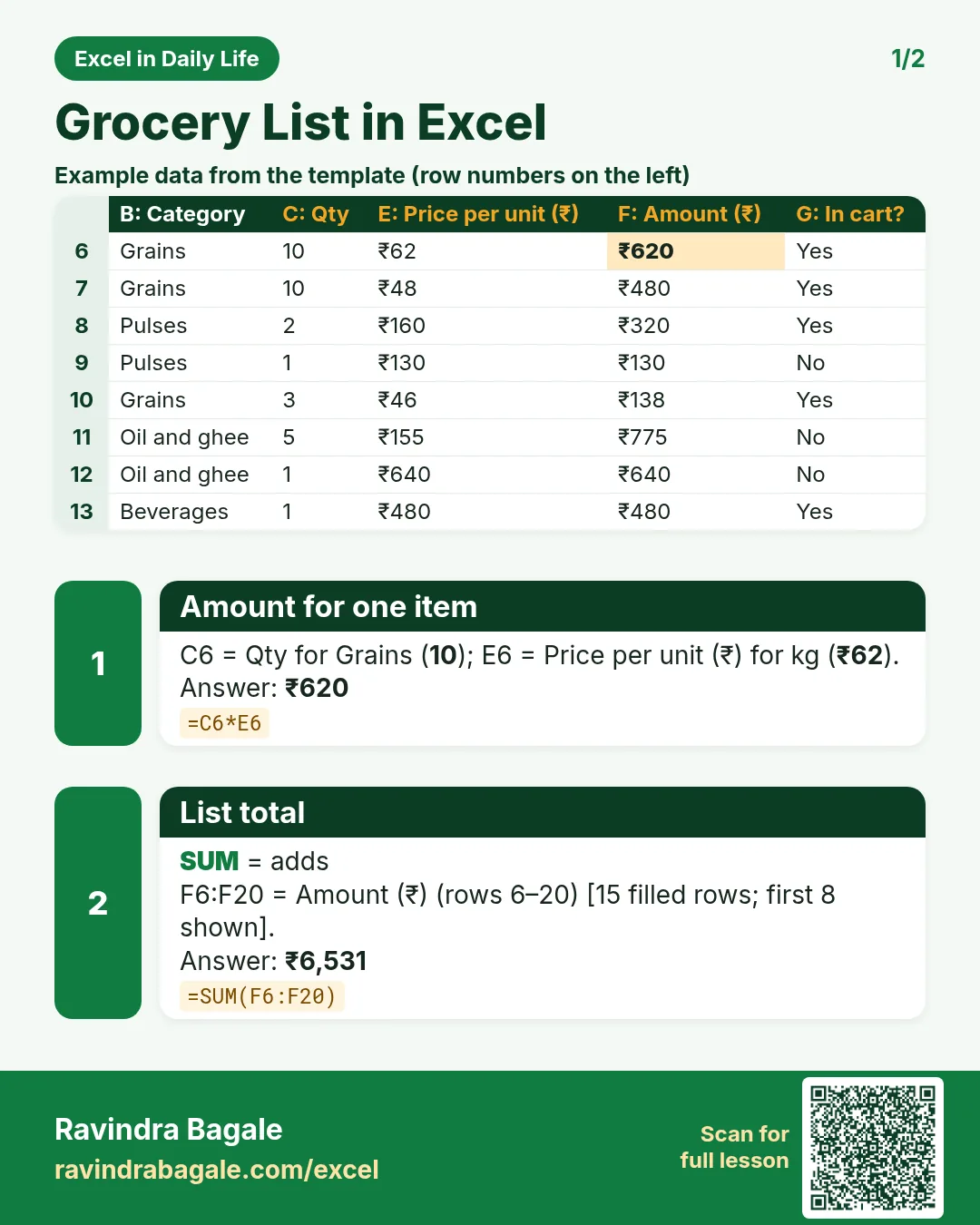
- In F6 type
=C6*E6and copy down to row 20. - In F21 type
=SUM(F6:F20): ₹6,531.
Step 4. Shopping status
- In J6 type
=F21(list total). - In J7 type
=SUMIF(G6:G20,"Yes",F6:F20): ₹2,566 in the cart (SUMIF). - In J8 type
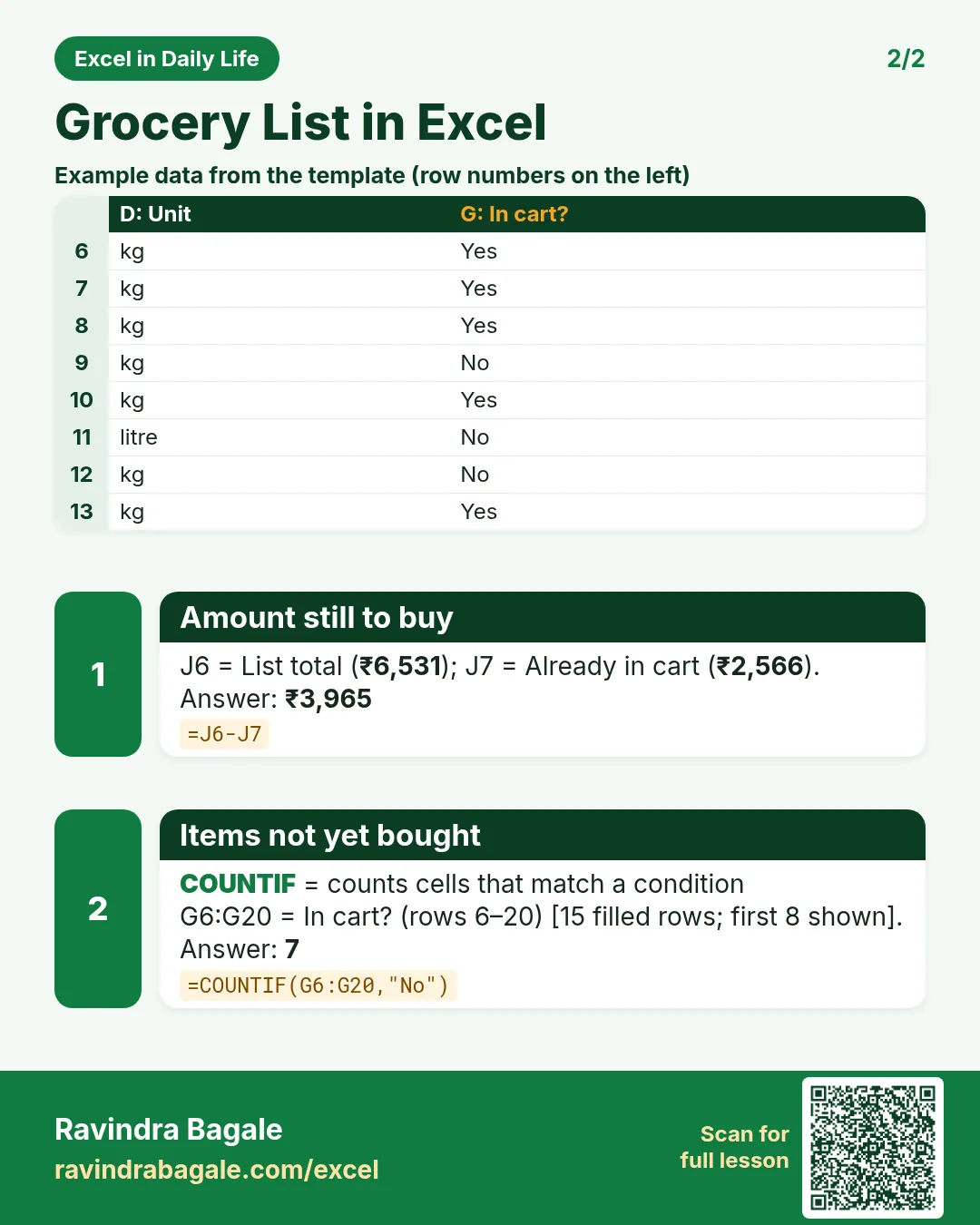
=J6-J7: ₹3,965 still to buy. - In J9 type
=COUNTIF(G6:G20,"No"): 7 items left. - In J10 type
=IF(J6>B3,"Over by ₹"&TEXT(J6-B3,"#,##0"),"Within budget").
Step 5. Per-category totals
- Type the categories in I13:I19.
- In J13 type
=SUMIF($B$6:$B$20,I13,$F$6:$F$20)and copy down: Dairy ₹2,060.
Step 6. Grey out bought items
- Select A6:G300 > Conditional Formatting > New Rule > Use a formula:
=$G6="Yes"(formula rules). - Format: grey fill, grey font, Strikethrough.
- Select J10 > a rule
=$J$6>$B$3with red fill.
Ravindra Bagale's Tip
Keep last month's prices next to this month's. A quick look shows which items went up, and you can switch brands or pack sizes for those.
Ravindra Bagale's Tip – मराठी
मागच्या महिन्याचे भाव या महिन्याच्या शेजारी ठेवा. कोणत्या वस्तू महाग झाल्या ते लगेच कळतं, त्यासाठी brand किंवा pack size बदलता येतो.
Ravindra Bagale's Tip – हिंदी
पिछले महीने के दाम इस महीने के बगल में रखो. कौन सी चीज़ें महंगी हुईं तुरंत दिखता है, उनके लिए brand या pack size बदल सकते हो.
3. Formulas used
| Cell | Formula | What it does |
|---|---|---|
| F6 | =C6*E6 |
Amount for one item |
| F21 | =SUM(F6:F20) |
List total |
| J7 | =SUMIF(G6:G20,"Yes",F6:F20) |
Amount already in the cart |
| J8 | =J6-J7 |
Amount still to buy |
| J9 | =COUNTIF(G6:G20,"No") |
Items not yet bought |
| J10 | =IF(J6>B3,"Over by ₹"&TEXT(J6-B3,"#,##0"),"Within budget") |
Budget message |
| J13 | =SUMIF($B$6:$B$20,I13,$F$6:$F$20) |
Total for one category |
Every formula above is written in the template, so you can click a cell and see it in the formula bar. All values on this page were recalculated in the file.
4. Common mistakes
- Price per pack vs per kg. Keep the unit and the price on the same basis: 5 litres × ₹155 per litre, not × the price of a 5-litre can.
- Typing "yes" with a space. SUMIF looks for exactly "Yes". The drop-down prevents typing errors.
- Forgetting the $ in SUMIF.
$B$6:$B$20must stay fixed when you copy J13 down. - Number stored as text. A price pasted from a website with "₹" may be text; Amount then shows #VALUE!. Type the number only and format it as ₹.
- New items below the Total row. Insert new rows above the Total so they are inside F6:F20.
Ravindra Bagale's Tip
Sort the list by Category before you go to the shop (Data > Sort). You walk each aisle once instead of going back for the dal.
Ravindra Bagale's Tip – मराठी
दुकानात जाण्याआधी list Category प्रमाणे sort करा (Data > Sort). प्रत्येक aisle एकदाच, डाळीसाठी परत फिरायला नको.
Ravindra Bagale's Tip – हिंदी
दुकान जाने से पहले list को Category से sort करो (Data > Sort). हर aisle एक बार, दाल के लिए वापस नहीं लौटना पड़ेगा.
5. More real examples
Example 1: Weekly vegetable list. Smaller list, budget ₹800, same formulas.
Example 2: Party shopping. Categories like snacks, drinks, decoration and return gifts; budget check before ordering.
Example 3: Compare two apps. Add a second price column for another app and =MIN(E6,H6) to see which is cheaper per item.
Quick revision cards
Quick revision
Each card shows formulas from this page, each with an example and its answer from the template. Scan the QR code on a card to open this lesson. All names and numbers are made up for practice.
झटपट उजळणी
प्रत्येक card वर या page मधले formulas, त्यांचं example आणि template मधलं उत्तर आहे. Card वरचा QR code scan केला की हा lesson उघडतो. सगळी नावं आणि आकडे सरावासाठी काल्पनिक आहेत.
झटपट दोहराई
हर card पर इस page के formulas, उनका example और template का उत्तर है. Card का QR code scan करें तो यह lesson खुलेगा. सभी नाम और आंकड़े अभ्यास के लिए काल्पनिक हैं.


More cards: Ravi Sir's Cards.
6. Frequently asked questions
How do I make a grocery list in Excel with prices?
Columns for item, quantity and price, Amount = Qty × Price, and a SUM at the bottom. The template adds a budget check and an In cart column.
How do I tick items as I shop?
Use a Yes/No drop-down (or an in-cell checkbox in Microsoft 365, see the habit tracker). A formula rule greys out the row.
How do I total only the items in my cart?
=SUMIF(G6:G20,"Yes",F6:F20).
How do I reuse the list every month?
Keep it as a master list. At the start of the month change every In cart? to No and update the prices.
Can I see spending by category?
Yes: SUMIF on the Category column, as in J13:J19.
7. Quick quiz
Ten questions on this page. Sign in to save your score.
Loading practice tasks...
- VLOOKUP name (Easy): Name for ID "P103" with VLOOKUP.
- XLOOKUP value (Easy): The Price for ID "P103".
- Position (Easy): Position of "Neha Gupta" in B2:B9.
- INDEX and MATCH (Medium): ID for name "Neha Gupta" using INDEX and MATCH.
- Not found message (Medium): Units sold for ID "Z999", or "Not found".
- IFNA with VLOOKUP (Medium): VLOOKUP of "Z999" in A2:E9 column 4, or "Missing".
- XMATCH (Medium): Position of ID "P103" in A2:A9.
- Slab rate (Hard): Rate for E2 from the slab table G2:H6.
- Slab amount (Hard): E3 times its slab rate.
- Two-way lookup (Hard): Value in A2:E9 at the row of "Neha Gupta" and column "Units sold".
- Lookup the top (Hard): Name with the largest Units sold.