Gym Membership Management System in Excel: Plans, Renewals, Check-ins, Receipts and Dashboard
Raja Fitness in Pune has 12 members on four plans. Raja used to flip through a register to find whose plan had ended, and members walked in for weeks after expiry without anyone noticing. This page builds a 7-sheet Excel system where the end date, days left and renewal status work themselves out, every visit is logged, a receipt prints in one click and the dashboard shows who to call today.
What you'll learn on this page
- Keep plans, days and fees in one Setup table
- Work out each end date with XLOOKUP and flag Active, Expiring or Expired
- Log check-ins and count visits in the last 30 days with COUNTIFS
- Check whether a visit fell inside the paid period with AND
- Print a membership receipt from one member ID
- Report fees and members by plan and trainer with SUMIFS
- Build KPI cards and charts for renewals and visits
Download the template: gym-membership-management-system-template.xlsx: a 7-sheet system with example data and real formulas (Read me, Setup, Members, Check-ins, Receipt, Report, Dashboard). Yellow cells are inputs you can type over; green cells hold formulas; blue rows are headers and totals. Replace the example data with your own and every report and the dashboard recalculate.
Made-up data: every name, amount, business and date on this page is made up for practice. Cities are used only to make the examples feel real.
1. The business story
Raja Fitness, Pune, as of 17 October 2026 (made-up data). Four plans: Monthly (30 days, ₹1,500), Quarterly (90 days, ₹4,000), Half-yearly (180 days, ₹7,000) and Yearly (365 days, ₹12,000). Three trainers: Salman, Zoya and Amir.
| Question | Where the system answers it |
|---|---|
| Whose plan ends this week? | Members, Status = Expiring: 3 members, including Raja whose plan ends today |
| Who is still coming after expiry? | Check-ins, Valid on that day? = No |
| How much is still to collect? | Dashboard: ₹2,500 balance against ₹51,500 collected |
| Are members actually using the gym? | Members, Visits (last 30 days): 9.6 visits per active member |
Today 7 members are Active, 3 are Expiring and 2 have Expired. For a personal workout log with sets and personal bests, see the gym workout log; this page is the owner's side of the counter.
Figure 1. Setup holds plans and trainers; Members and Check-ins are the entry sheets; Receipt, Report and Dashboard only read.
2. Build it sheet by sheet
Step 1. Setup: plans, trainers and the reminder window
- In B3 type the as-of date (17-10-2026, or
=TODAY()to keep it live) and in B5 the reminder window in days (7). - Type the plans in A8:C11 with Plan, Days, Fee. In D8 type
=C8/B8for the fee per day; it shows why the yearly plan is the best deal (₹32.9 a day against ₹50). - Type trainers in F8:F10 and payment modes in G8:G10. These lists feed the drop-downs on Members.
Step 2. Members: one row per membership
- Headers in row 4: Member ID, Name, Plan, Trainer, Start, End, Fee, Discount, Paid, Balance, Days left, Status, Visits (last 30 days).
- In F5 work out the end date:
=E5+XLOOKUP(C5,Setup!$A$8:$A$11,Setup!$B$8:$B$11)-1. The −1 matters: a 30-day plan starting 1 October ends on 30 October. - In G5 bring in the fee with XLOOKUP and in J5 the balance
=G5-H5-I5. - In K5 days left
=F5-Setup!$B$3and in L5 the status:=IF(F5<Setup!$B$3,"Expired",IF(F5-Setup!$B$3<=Setup!$B$5,"Expiring","Active")). Raja (G06) ends today, so 0 days left shows Expiring. - Colour L5:L16 with conditional formatting: red for Expired, amber for Expiring. A renewal is a new row, so the history stays.
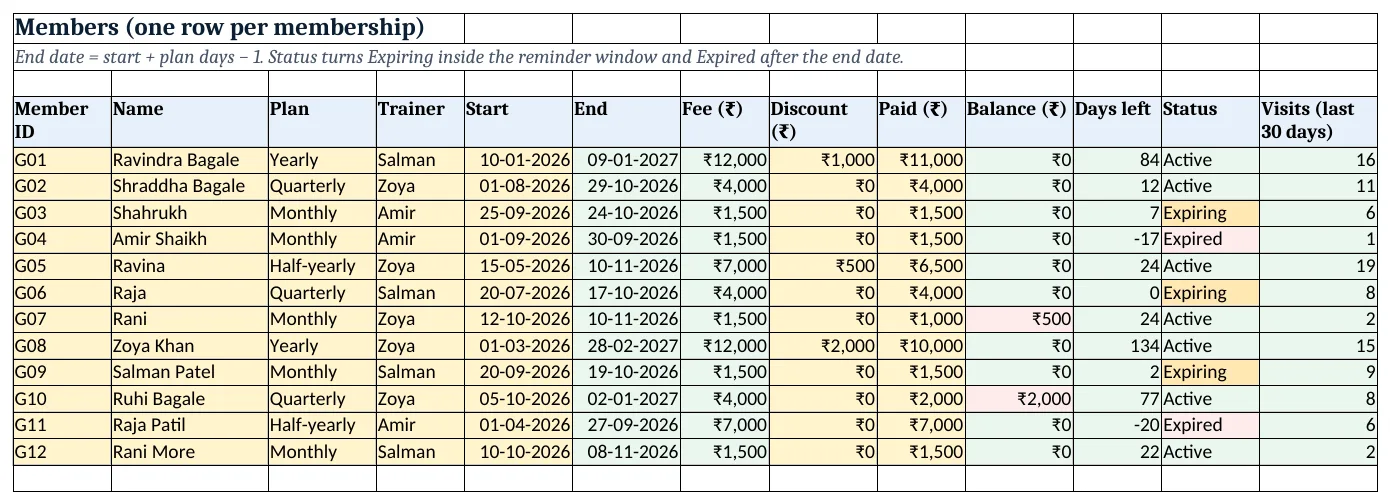
Figure 2. Members: end dates, balance, days left and status worked out from the plan
Step 3. Check-ins: one row per visit
- Headers: Date, Member ID, Name, In, Out, Minutes, Valid on that day?. C5 looks up the name with
XLOOKUP(B5,…,"Check ID")so a mistyped ID shows at once. - In F5 minutes in the gym:
=ROUND((E5-D5)*1440,0); see time calculations. - In G5 test the visit against the paid period with AND: Yes when the date is between that member's start and end.
- Back on Members, M5 counts recent visits:
=COUNTIFS('Check-ins'!$B$5:$B$600,A5,'Check-ins'!$A$5:$A$600,">"&(Setup!$B$3-30)).
Step 4. Receipt: print one member
- On Receipt type a member ID in B4. Rows 6 to 14 use
=XLOOKUP($B$4,Members!$A$5:$A$16,Members!$B$5:$B$16)and the same pattern for plan, dates, fee, paid and balance. - Set the print area to A1:D16. The example shows Ruhi Bagale on a Quarterly plan with ₹2,000 paid and ₹2,000 still due.
Step 5. Report: plans, trainers and the last 7 days
- Plans in A5:A8 (
=Setup!A8). B5 counts members=COUNTIF(Members!$C$5:$C$16,A5), C5 counts those not expired with COUNTIFS. - D5 fees billed after discount with SUMIFS, E5 collected, F5 balance
=D5-E5. - Rows 11 to 13 repeat this per trainer, and rows 16 to 22 count check-ins per day for the last 7 days.
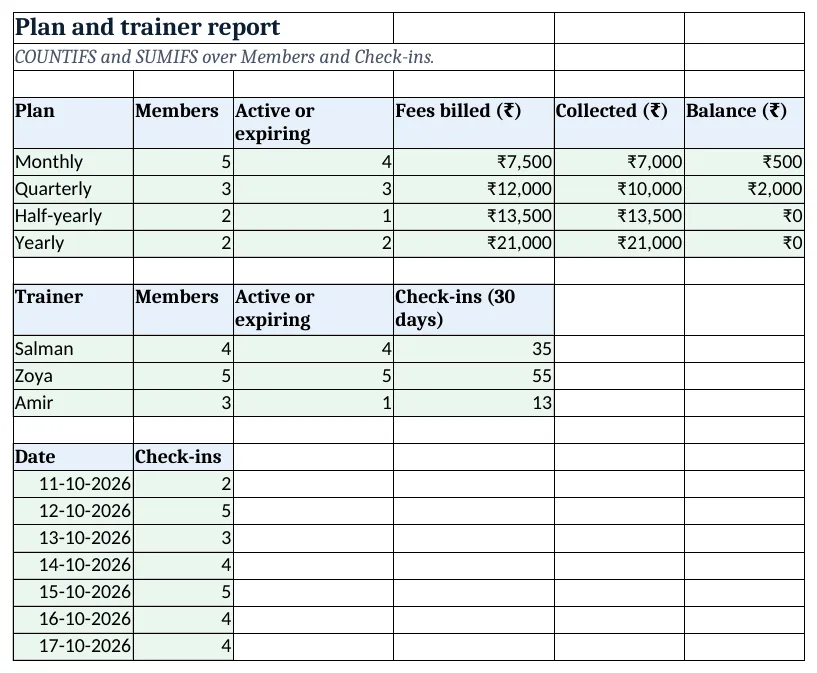
Figure 3. Report: members and money by plan, trainers and the last 7 days of check-ins
Step 6. Dashboard: who to call today
- Six KPI cards in row 4: Active
=COUNTIF(Members!$L$5:$L$16,"Active"), Expiring, Expired, Collected, Balance and visits per active member. - Chart 1 at A8: members by plan. Chart 2 at A25: check-ins over the last 7 days (dashboard charts).
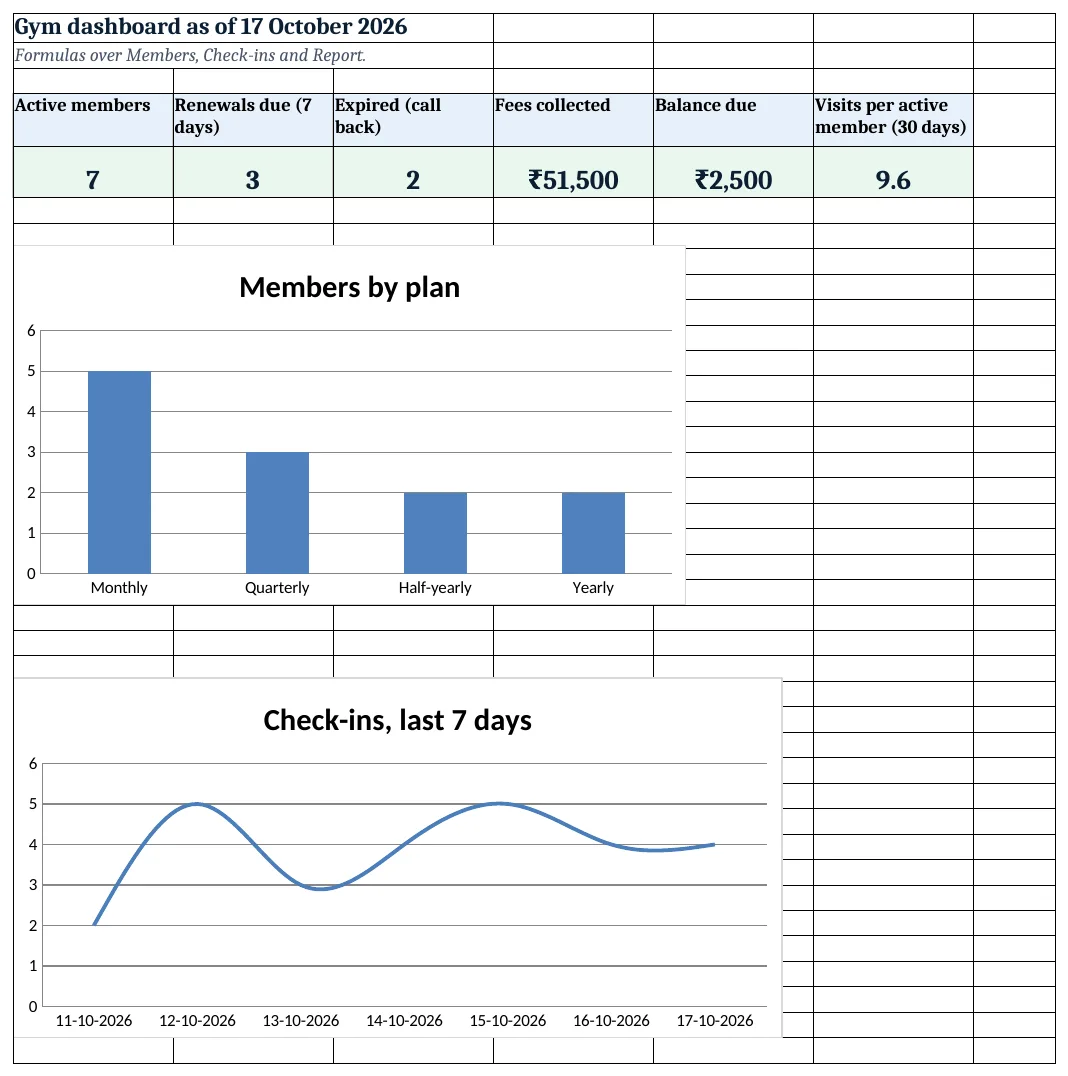
Figure 4. Gym dashboard: KPI cards for renewals and money, with charts
Ravindra Bagale's Tip
Every morning sort Members by Days left and call the Expiring list before they walk in. A renewal asked for a week early is far easier than one chased after expiry.
Ravindra Bagale's Tip – मराठी
रोज सकाळी Members sheet Days left नुसार sort करा आणि Expiring यादीतील लोकांना फोन करा. Expiry नंतर पाठलाग करण्यापेक्षा आठवडाभर आधी renewal मागणे खूप सोपे असते.
Ravindra Bagale's Tip – हिंदी
रोज सुबह Members sheet को Days left से sort करो और Expiring सूची वालों को फोन करो. Expiry के बाद पीछा करने से हफ्ता पहले renewal माँगना कहीं आसान है.
3. Formulas used
| Cell | Formula | What it does |
|---|---|---|
| Setup!D8 | =C8/B8 |
Fee per day of the plan |
| Members!F5 | =E5+XLOOKUP(C5,Setup!$A$8:$A$11,Setup!$B$8:$B$11)-1 |
End date from start and plan days |
| Members!G5 | =XLOOKUP(C5,Setup!$A$8:$A$11,Setup!$C$8:$C$11,0) |
Plan fee |
| Members!J5 | =G5-H5-I5 |
Balance to collect |
| Members!K5 | =F5-Setup!$B$3 |
Days left on the plan |
| Members!L5 | =IF(F5<Setup!$B$3,"Expired",IF(F5-Setup!$B$3<=Setup!$B$5,"Expiring","Active")) |
Active, Expiring or Expired |
| Members!M5 | =COUNTIFS('Check-ins'!$B$5:$B$600,A5,'Check-ins'!$A$5:$A$600,">"&(Setup!$B$3-30)) |
Visits in the last 30 days |
| Check-ins!C5 | =XLOOKUP(B5,Members!$A$5:$A$16,Members!$B$5:$B$16,"Check ID") |
Name from the member ID |
| Check-ins!F5 | =ROUND((E5-D5)*1440,0) |
Minutes in the gym |
| Check-ins!G5 | =IF(AND(A5>=XLOOKUP(B5,Members!$A$5:$A$16,Members!$E$5:$E$16),A5<=XLOOKUP(B5,Members!$A$5:$A$16,Members!$F$5:$F$16)),"Yes","No") |
Was the plan valid on that day? |
| Receipt!B7 | =XLOOKUP($B$4,Members!$A$5:$A$16,Members!$C$5:$C$16) |
Plan of the chosen member |
| Report!B5 | =COUNTIF(Members!$C$5:$C$16,A5) |
Members on the plan |
| Report!D5 | =SUMIFS(Members!$G$5:$G$16,Members!$C$5:$C$16,A5)-SUMIFS(Members!$H$5:$H$16,Members!$C$5:$C$16,A5) |
Fees billed after discount |
| Dashboard!A5 | =COUNTIF(Members!$L$5:$L$16,"Active") |
Active members |
| Dashboard!F5 | =ROUND(SUMIFS(Members!$M$5:$M$16,Members!$L$5:$L$16,"<>Expired")/COUNTIF(Members!$L$5:$L$16,"<>Expired"),1) |
Average visits per active member |
Every formula above is written in the template, so you can click a cell and see it in the formula bar. All values on this page were recalculated in LibreOffice with zero errors.
4. Common mistakes
- Forgetting the −1 in the end date. Start + 30 gives the 31st day. Members get a free day and the Expiring list is a day late.
- Overwriting a row on renewal. Add a new row for the new plan. Overwriting loses what was paid before and breaks the trainer report.
- Typing names in Check-ins. Names repeat and get misspelt. Type the member ID and let XLOOKUP fill the name.
- Leaving the as-of date fixed. If B3 stays on an old date, nobody ever shows Expired. Use =TODAY() in daily use.
- Counting expired members as active. Use COUNTIFS with "<>Expired" or the status column, not a plain count of rows.
Ravindra Bagale's Tip
Watch the Visits column too. A member with 1 visit in 30 days is about to drop out; a friendly call now keeps the renewal.
Ravindra Bagale's Tip – मराठी
Visits column पण पहा. 30 दिवसांत 1 visit असलेला member सोडून जाण्याच्या तयारीत असतो; आता केलेला एक फोन renewal वाचवतो.
Ravindra Bagale's Tip – हिंदी
Visits column भी देखो. 30 दिन में 1 visit वाला member छोड़ने वाला है; अभी किया एक फोन renewal बचा लेता है.
5. More real examples
Example 1: Yoga studio. Plans become 12-session cards. Replace days with sessions, count check-ins per card with COUNTIFS and flag "2 sessions left".
Example 2: Swimming pool. Add a Slot column (6 am, 7 am, 6 pm) on Check-ins and a slot report to see which hour is crowded.
Example 3: Personal training add-on. Add a PT fee column on Members and a trainer incentive column on Report, like the salon commission system.
Quick revision cards
Quick revision
Each card shows formulas from this page, each with an example and its answer from the template. Scan the QR code on a card to open this lesson. All names and numbers are made up for practice.
झटपट उजळणी
प्रत्येक card वर या page मधले formulas, त्यांचं example आणि template मधलं उत्तर आहे. Card वरचा QR code scan केला की हा lesson उघडतो. सगळी नावं आणि आकडे सरावासाठी काल्पनिक आहेत.
झटपट दोहराई
हर card पर इस page के formulas, उनका example और template का उत्तर है. Card का QR code scan करें तो यह lesson खुलेगा. सभी नाम और आंकड़े अभ्यास के लिए काल्पनिक हैं.
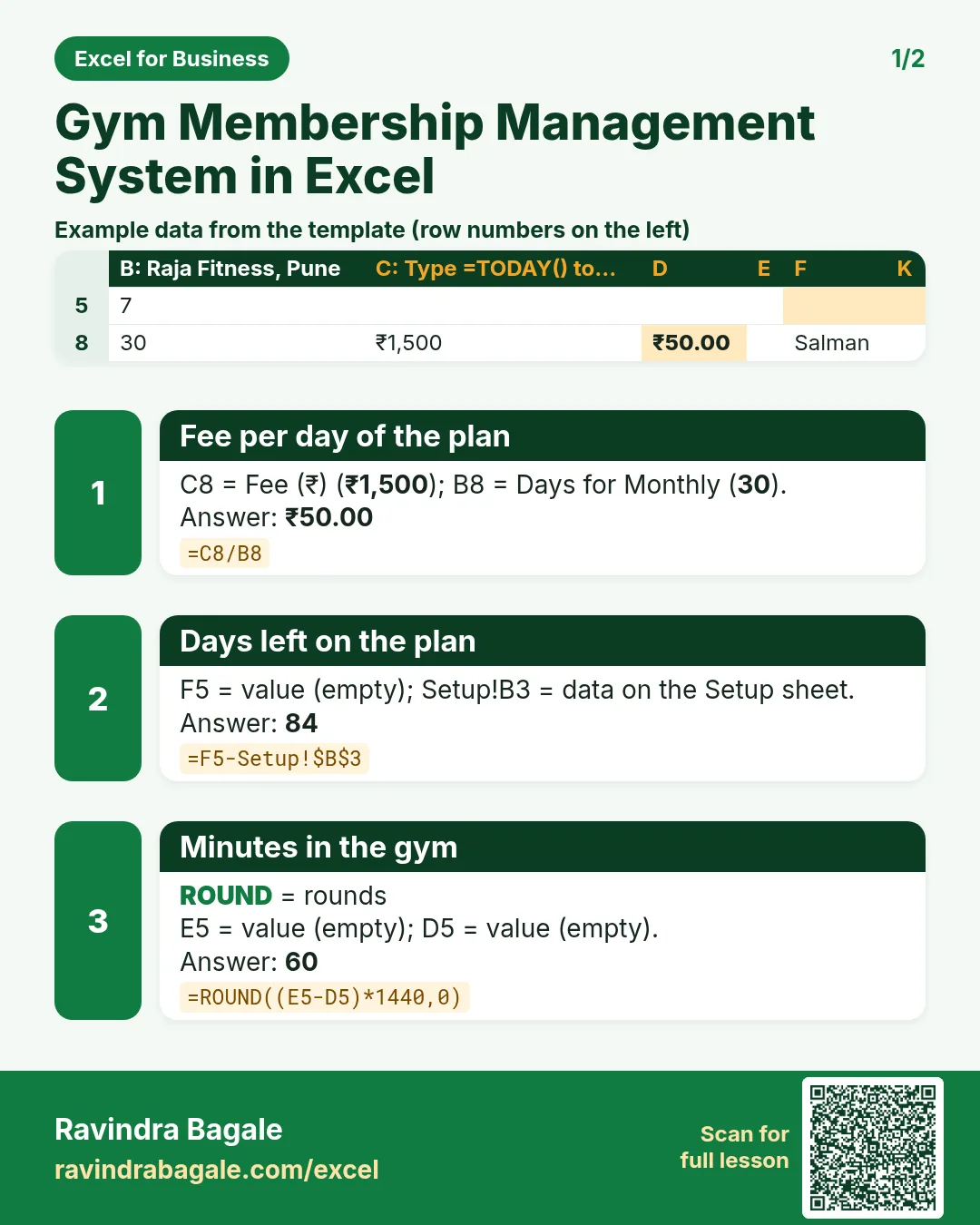

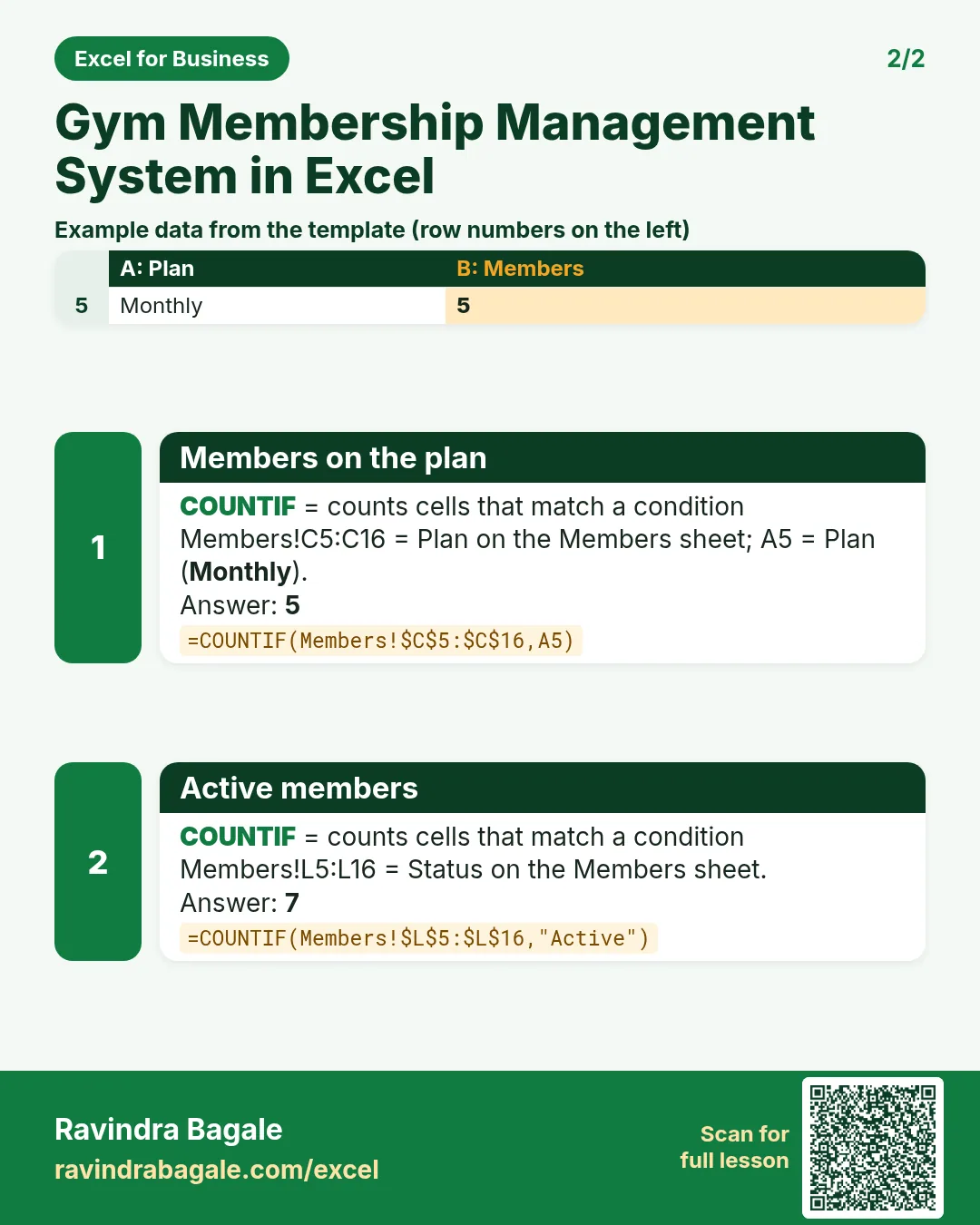

More cards: Ravi Sir's Cards.
6. Frequently asked questions
How do I calculate a membership end date in Excel?
Add the plan days to the start date and subtract 1: =E5+XLOOKUP(C5,Setup!$A$8:$A$11,Setup!$B$8:$B$11)-1. For calendar months use =EDATE(E5,3)-1 instead.
How do I highlight memberships expiring in 7 days?
Work out days left with =F5-Setup!$B$3, show Expiring when it is between 0 and the window, and colour that text amber with conditional formatting.
Should I charge GST on gym fees?
That depends on your registration and the current rate for your service. The template shows fees as charged; check the GST treatment with your accountant before adding a tax column.
How do I count a member's visits in the last 30 days?
COUNTIFS with two conditions: the member ID and a date later than as-of − 30, as in Members M5.
Can I use this for more than one branch?
Add a Branch column on Members and Check-ins and a branch block on Report with SUMIFS. Keep one file so the dashboard adds up.
7. Quick quiz
Ten questions on this page. Sign in to save your score.
Loading practice tasks...
- Total invoices (Easy): Add up Invoices in D2:D11. (sheet "Data")
- Average amount (Easy): Average of E2:E11, rounded to 2 decimals. (sheet "Data")
- Rows in Admin (Easy): How many rows have Department "Admin"? (sheet "Data")
- Largest invoices (Easy): The largest value in D2:D11. (sheet "Data")
- Days taken (Easy): C2 minus B2. (sheet "Dates")
- Start year (Easy): Year of B3. (sheet "Dates")
- Due month (Easy): Month number of C3. (sheet "Dates")
- Earliest start (Easy): Earliest date in B2:B9 (as a date number). (sheet "Dates")
- Invoices for Admin (Medium): Total of D2:D11 where B is "Admin". (sheet "Data")
- Admin in Milan (Medium): Total of D2:D11 where B is "Admin" and C is "Milan". (sheet "Data")
- Working days (Medium): Working days from B2 to C2. (sheet "Dates")
- Weekday of due (Medium): Weekday number of C4 (Sunday = 1). (sheet "Dates")