Excel SORT, FILTER and TAKE Together: Top 3 Profit Orders and Biggest Losses by City
A manager rarely wants all 24 orders. They want "the three most profitable orders" or "the two biggest losses in Pune". In this chapter you build exactly those answers with formulas that update themselves: SORT puts the rows in order, TAKE keeps only as many as you need, and FILTER narrows the table to one city first. You will also learn the rule for nesting them and the # spill operator. We use the same 24 made-up orders as the COUNTA, UNIQUE and COUNTIF chapter; what each column means is explained in the dataset chapter.
What you'll learn in this chapter
- SORT by a column number, ascending (1) or descending (-1)
- TAKE the top rows, and the bottom rows with a negative number
- Top 3 profit orders, and top 3 among delivered orders
- FILTER a city, then SORT and TAKE: the biggest losses in Pune
- The nesting rule: the step you want last goes outermost
- The spill operator #
Practice file: blinkit-sort-filter-take-practice.xlsx: the Orders sheet with nine results in column O, one under the other, each labelled with its formula; a Read me sheet and a Your turn sheet.
Made-up data: all 24 orders, areas, products, prices and profits are made up for practice. No real customer, shop or order is used, and product names are generic.
Which Excel has these functions? SORT and FILTER: Excel 2021, Excel 2024, Microsoft 365 and Excel for the web. TAKE and the # operator: Microsoft 365 and Excel 2024. Section 8 shows how to get the same top 3 without TAKE.
1. The table
The orders table in A1:M25: Order_ID (A), Order_Date (B), City (C), Area (D), Product_Name (E), Quantity (F), Cost_Price (G), Selling_Price (H), Payment_Mode (I), Status (J), Delivery_Time_mins (K), Delivery_Status (L) and Profit (M). The data is in A2:M25, and Profit is the 13th column of it. Remember that number: SORT asks for it.
2. SORT by profit
=SORT(array, [sort_index], [sort_order])
- array: what to sort, here the whole table A2:M25.
- sort_index: the column number inside the array to sort by. A is 1, C (City) is 3, M (Profit) is 13.
- sort_order: 1 = ascending (smallest first), -1 = descending (largest first).
Highest profit first, in O3:
=SORT(A2:M25,13,-1)
→ all 24 orders, from ORD1006 (100) at the top to ORD1014 (−15) at the bottom. One formula, 24 rows × 13 columns.
Classroom line
The one with the most profit has come to the top.
Class मधलं वाक्य
"Jyala profit jast alay te varti alela ahe."
ज्याला profit जास्त आलाय ते वरती आलेलं आहे.
Classroom line
The one with the most profit has come to the top.
=SORT(A2:M25,13,1) puts the biggest loss first; =SORT(A2:M25,3,1) sorts the orders by City from A to Z (Kolhapur first, Solapur last). The original table is not touched; SORT writes a sorted copy.
Figure 1. SORT(A2:M25,13,-1): column 13 is Profit and -1 means largest first. ORD1006 (100) comes to the top and ORD1014 (−15) goes to the bottom.
3. TAKE only what you need
=TAKE(array, rows)
TAKE keeps the first rows rows of an array. Give it the sorted table and 3:
=TAKE(SORT(A2:M25,13,-1),3)
→ the top 3 profit orders:
| Order_ID | City | Product_Name | Quantity | Status | Profit |
|---|---|---|---|---|---|
| ORD1006 | Nagpur | Paneer | 6 | Cancelled | 100 |
| ORD1007 | Sambhaji Nagar | Paneer | 5 | Delivered | 80 |
| ORD1022 | Kolhapur | Paneer | 4 | Delivered | 60 |
(The formula returns all 13 columns; six are shown here.)
Classroom line
TAKE means take only as many as you need.
Class मधलं वाक्य
"Take mhanje jevde pahijet tevdech ghyayche."
Take म्हणजे जेवढे पाहिजेत तेवढेच घ्यायचे.
Classroom line
TAKE means take only as many as you need.
Classroom line
Now I don't want all the records; I want the top 3 profit records.
Class मधलं वाक्य
"Ata mala sagle records nako ahet, top 3 profit wale records pahijet mala."
आता मला सगळे records नको आहेत, top 3 profit वाले records पाहिजेत मला.
Classroom line
Now I don't want all the records; I want the top 3 profit records.
A negative number takes rows from the bottom. The same sorted table, -3:
=TAKE(SORT(A2:M25,13,-1),-3)
→ the bottom 3, the biggest losses: ORD1013 (−10), ORD1018 (−12), ORD1014 (−15). They come in the order of the sorted table, so the worst one is last. =TAKE(SORT(A2:M25,13,1),3) gives the same three orders with the worst first: −15, −12, −10.
Figure 2. From the table sorted by profit, TAKE(…,3) keeps the first three rows (100, 80, 60) and TAKE(…,-3) keeps the last three (−10, −12, −15).
4. Top 3, but only delivered orders
Look at the top row again: ORD1006 is Cancelled. Its profit of 100 never reached the business, because profit is worked out on every row, even for orders that were cancelled or returned. So filter the delivered orders first, then sort, then take:
=TAKE(SORT(FILTER(A2:M25,J2:J25="Delivered"),13,-1),3)
→ ORD1007 (80), ORD1022 (60), ORD1002 (40). The SUMIFS chapter uses the same rule for totals: count profit only for delivered orders.
5. The nesting rule
Read the formula from the inside out:
- FILTER keeps the delivered rows (18 of 24).
- SORT puts those 18 in order of profit.
- TAKE keeps the first 3.
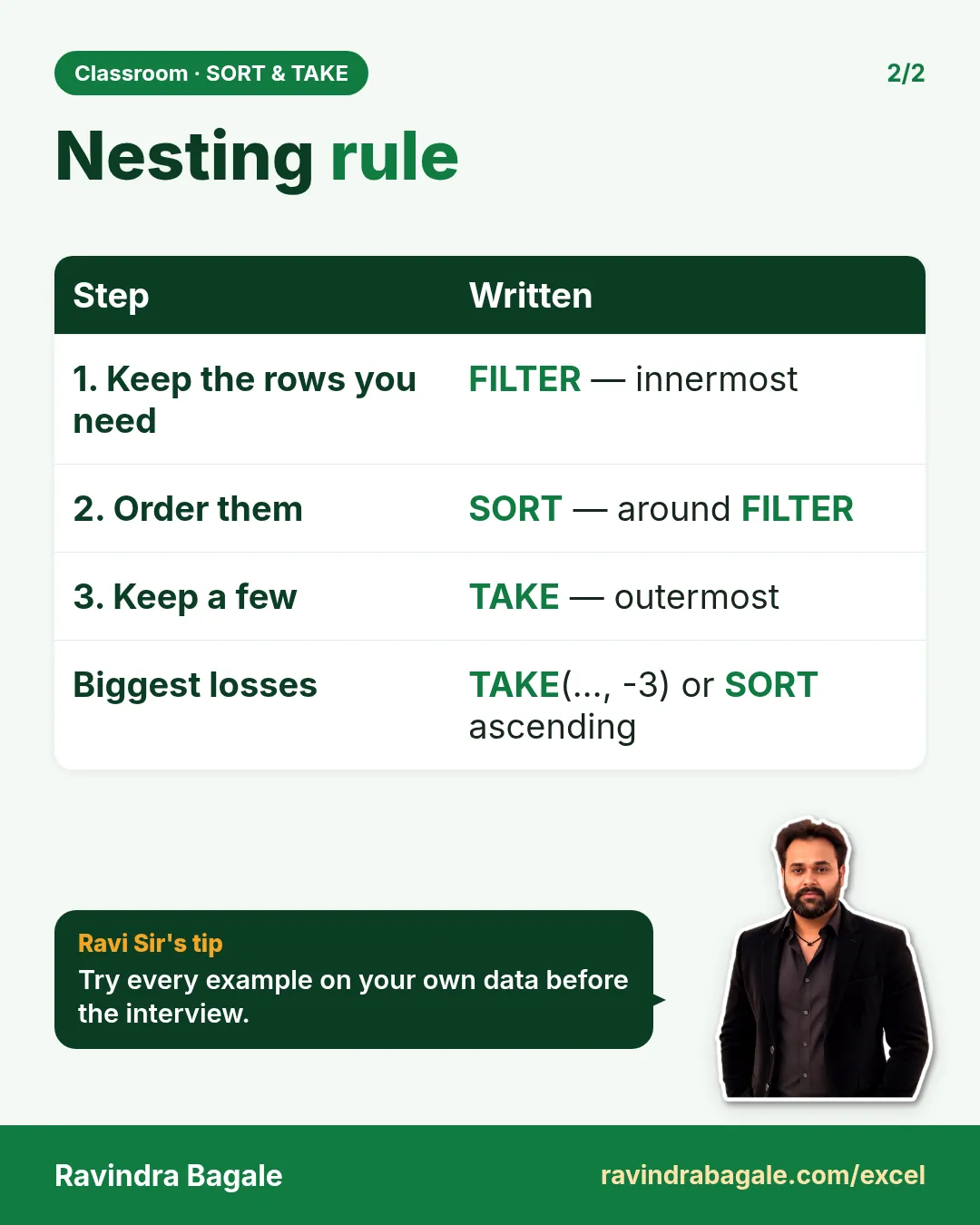
The step you want to happen last is written outermost, so it is the first word you type. Ask yourself: what do I want at the very end? Three rows. So TAKE comes first in the formula, then SORT, then FILTER on the inside.
Classroom line
Whichever step you want last goes first of all.
Class मधलं वाक्य
"Kuthla kaam aplala last pahije te saglyat agodar."
कुठलं काम आपल्याला last पाहिजे ते सगळ्यात आधी.
Classroom line
Whichever step you want last goes first of all.
Figure 3. Inside out: FILTER keeps 18 delivered rows, SORT orders them by profit, TAKE keeps 3. The step you want last is written outermost.
Ravindra Bagale's Tip
Build a nested formula one layer at a time. Write the FILTER alone and look at the rows. Then click into the formula bar and wrap it in SORT. Then wrap that in TAKE. If something breaks, you know exactly which layer did it.
Ravindra Bagale's Tip – मराठी
Nested formula एका वेळी एक layer करत बनवा. आधी फक्त FILTER लिहा आणि rows पहा. मग formula bar मध्ये click करून त्याला SORT ने wrap करा. मग त्याला TAKE ने wrap करा. काही बिघडलं तर नेमक्या कोणत्या layer मुळे ते लगेच कळतं.
Ravindra Bagale's Tip – हिंदी
Nested formula एक बार में एक layer करके बनाओ. पहले सिर्फ़ FILTER लिखो और rows देखो. फिर formula bar में click करके उसे SORT से wrap करो. फिर उसे TAKE से wrap करो. कुछ बिगड़े तो ठीक किस layer की वजह से, यह तुरंत पता चलता है.
6. The biggest losses in one city
Which Pune orders lost the most money? First the Pune rows:
=FILTER(A2:M25,C2:C25="Pune")
→ 6 orders: ORD1001, ORD1002, ORD1008, ORD1013, ORD1018, ORD1024. Sorted with the biggest loss first, keep 2:
=TAKE(SORT(FILTER(A2:M25,C2:C25="Pune"),13,1),2)
→ ORD1018 (Milk, −12) and ORD1013 (Snacks, −10). Both are small orders: 2 units, where the margin doesn't cover the 20 delivery cost. That is a finding a manager can act on, for example a minimum order value.
Change "Pune" to "Sambhaji Nagar" and the answer becomes ORD1014 (−15) and ORD1021 (−4).
Figure 4. FILTER keeps the 6 Pune orders, SORT(…,13,1) puts the biggest loss first, TAKE(…,2) keeps ORD1018 (−12) and ORD1013 (−10).
A spill result needs empty cells. If you write the FILTER right next to a summary table, the result has no room and shows #SPILL!; move the formula or clear the cells (see the FILTER chapter).
7. The spill operator
Say the Pune FILTER is in O54 and spills into O54:AA59. To sort that result you could type the range, =SORT(O54:AA59,13,-1), but if a seventh Pune order arrives, the spill grows and your range misses it. Instead write:
=SORT(O54#,13,-1)
O54# means "the whole result that spilled from O54", however big it is today. Excel also writes it for you: when you select a spill range with the mouse, the formula shows the # reference.
→ the 6 Pune orders sorted by profit: ORD1002 (40), ORD1001 (4), ORD1008 (−8), ORD1024 (−8), ORD1013 (−10), ORD1018 (−12). ORD1008 and ORD1024 both have −8; SORT keeps them in their original order.
=ROWS(O54#) → 6, the number of Pune orders, and it updates as the spill grows.
Figure 5. O54 holds the Pune FILTER, spilling into O54:AA59. O54# refers to the whole spill, so =SORT(O54#,13,-1) and =ROWS(O54#) follow it when it grows.
8. Without TAKE
If your Excel has SORT but not TAKE (Excel 2021), INDEX with SEQUENCE picks the same rows:
=INDEX(SORT(A2:M25,13,-1),SEQUENCE(3),SEQUENCE(1,13))
SEQUENCE(3) asks for rows 1, 2, 3 and SEQUENCE(1,13) for all 13 columns → the same top 3 as =TAKE(SORT(A2:M25,13,-1),3). TAKE is shorter and easier to read; this is the fallback.
9. The whole chapter on one page
| Question | Formula | Answer |
|---|---|---|
| All orders, best first | =SORT(A2:M25,13,-1) |
24 rows |
| Top 3 profit | =TAKE(SORT(A2:M25,13,-1),3) |
ORD1006, ORD1007, ORD1022 |
| Bottom 3 | =TAKE(SORT(A2:M25,13,-1),-3) |
ORD1013, ORD1018, ORD1014 |
| Top 3 delivered | =TAKE(SORT(FILTER(A2:M25,J2:J25="Delivered"),13,-1),3) |
ORD1007, ORD1022, ORD1002 |
| 2 biggest Pune losses | =TAKE(SORT(FILTER(A2:M25,C2:C25="Pune"),13,1),2) |
ORD1018, ORD1013 |
| Sort a spill | =SORT(O54#,13,-1) |
follows the spill |
- SORT's second argument is a column number inside the array; 1 = ascending, -1 = descending.
- TAKE with a positive number keeps rows from the top; with a negative number, from the bottom.
- Filter first, sort next, take last, and write it the other way round: TAKE(SORT(FILTER(…))).
O54#is the whole spill of O54.- SORT and FILTER: Excel 2021, 2024, Microsoft 365 and Excel for the web. TAKE and #: Microsoft 365 and Excel 2024.
10. Try at home
Try at home
Task 1
- Sort the orders by Delivery_Time_mins, longest delivery first. Which order took longest? (ORD1011, 24 minutes.)
Task 2
- Show the 5 most profitable delivered orders.
Task 3
- Show the 2 lowest-profit orders of Sambhaji Nagar. (ORD1014 −15, ORD1021 −4.)
Task 4
- Filter the Nashik orders into a cell, then sort that result with the # operator.
Recap
In short
- SORT(table, column number, 1 or -1) orders the rows.
- TAKE(…, 3) keeps the top 3; TAKE(…, -3) the bottom 3.
- FILTER first when only some rows count, such as delivered orders or one city.
- The step you want last is written outermost.
- O54# follows a spill range wherever it grows.
Quick revision cards
Quick revision
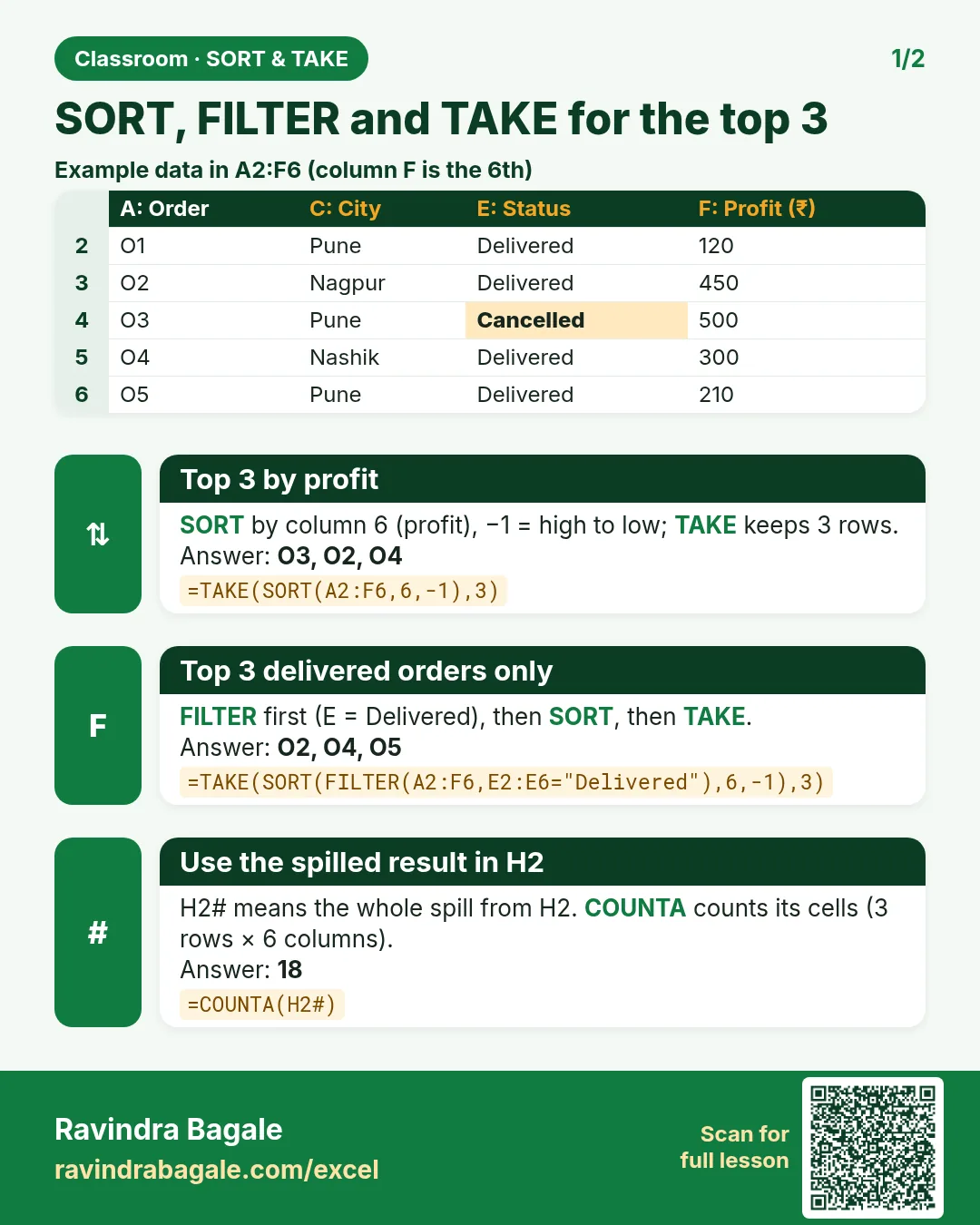
Revise this chapter in two minutes. Save the cards on your phone or download them as PNG files. All names and numbers are made up for practice.
झटपट उजळणी
हा chapter दोन मिनिटांत revise करा. Cards phone वर save करा किंवा PNG म्हणून download करा. सगळी नावं आणि आकडे सरावासाठी काल्पनिक आहेत.
झटपट दोहराई
यह chapter दो मिनट में revise करें. Cards phone पर save करें या PNG के रूप में download करें. सभी नाम और आंकड़े अभ्यास के लिए काल्पनिक हैं.

More cards for every chapter: Ravi Sir's Cards.
Loading practice tasks...
- Distinct groups (Easy): How many different values in B2:B11?
- List groups (Easy): Unique list of B2:B11.
- Filter names (Easy): Names in A2:A11 where B is "Standard".
- Sum of filtered (Medium): Sum of D2:D11 where B is "Deluxe", using FILTER.
- Count filtered (Medium): Rows where D is above the average of D2:D11.
- Sorted values (Medium): D2:D11 sorted largest first.
- Top value via SORT (Medium): The largest E2:E11 value using SORT and INDEX.
- Second largest (Hard): Second largest D2:D11 using SORT and INDEX.
- Numbers 1 to 5 (Hard): A spill of numbers 1 to 5.
- Two-condition filter (Hard): Sum of D2:D11 where B is "Standard" or "Deluxe".
- Names joined (Hard): Names where B is "Standard", joined with ", ".