How to Create a KPI Card in Excel: Link a Shape to a Cell (Total Orders and Profit) for a Dashboard
A dashboard opens with a few big numbers: total orders, total profit, the share delivered. These are KPI cards (Key Performance Indicators). In Excel a card is simply a shape that shows the value of a cell, so when the data changes, the card changes too. This chapter builds the cards step by step, explains the one rule that trips everyone up, and shows where cards sit in the dashboard flow.
What you'll learn in this chapter
- What a KPI card is and which numbers belong on one
- Helper cells: one cell per card value
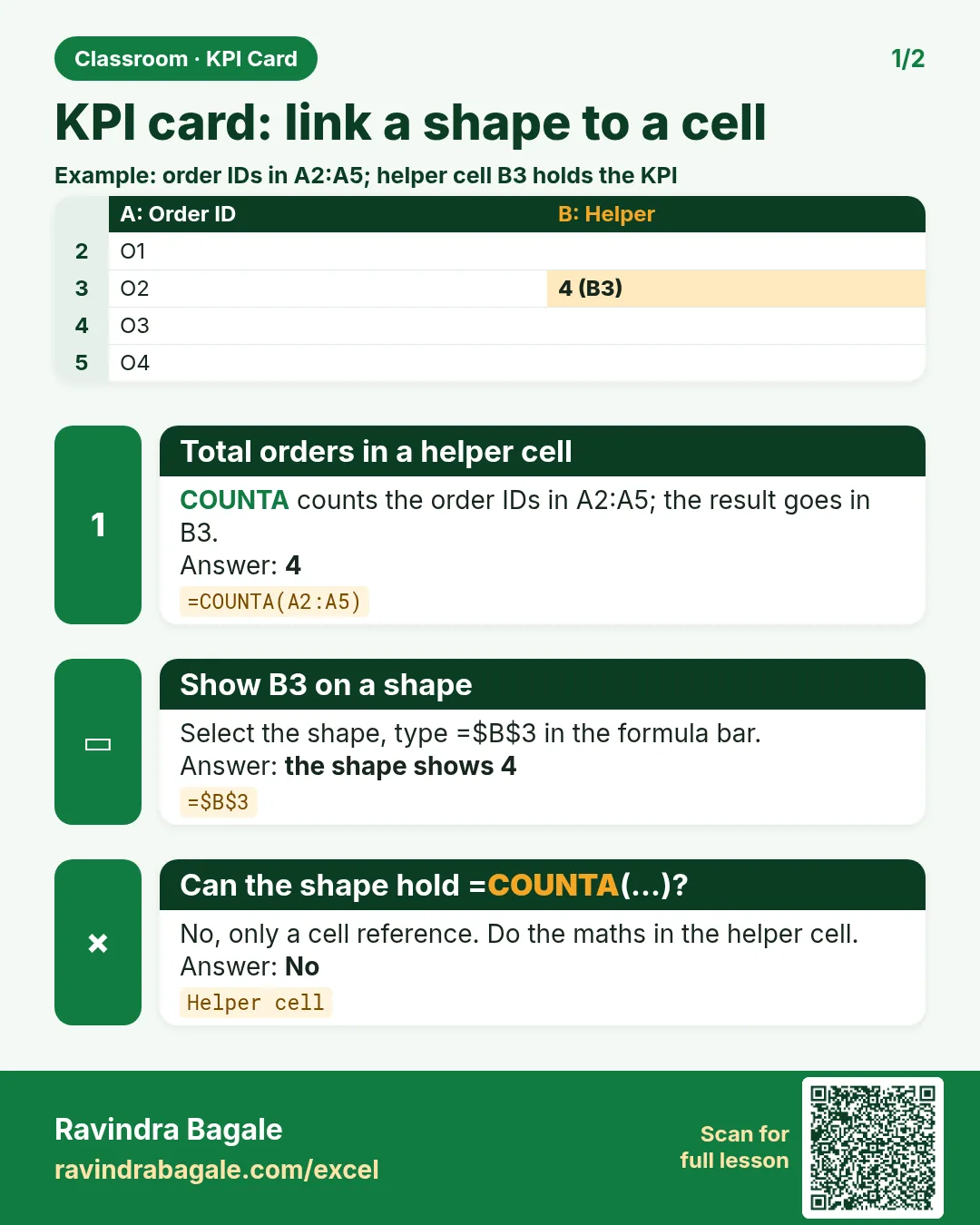
- Insert a rectangle and link it to a cell with =$B$3
- Why a shape accepts only a cell reference, never a formula
- GETPIVOTDATA: a helper cell that follows a pivot's total
- Card text with a label, and Recommended Charts beside the cards
Practice file: excel-kpi-card-link-shape-to-cell-practice.xlsx: Orders (the table named Orders) and KPI (helper cells for four cards, with ready card text).
Made-up data: the 24 orders are made up for practice. They imitate a quick-commerce app such as Blinkit or Amazon Now in Pune, Nashik, Solapur, Kolhapur, Nagpur and Sambhaji Nagar.
1. What goes on a KPI card
A card shows one number that answers a question the reader asks every day:
- Total Orders: 24
- Total Profit: ₹327
- Delivered: 75% (18 of 24 orders)
- On time: 71.4% (15 of the 21 orders with a delivery status)
Details, splits and comparisons belong in charts and pivots. A card is a headline.
2. Step 1: put each value in a helper cell
Make a sheet called KPI and give every card its own cell:
| A | B | |
|---|---|---|
| 2 | KPI | Value |
| 3 | Total Orders | =ROWS(Orders[Order_ID]) → 24 |
| 4 | Total Profit | =SUM(Orders[Profit]) → 327 |
| 5 | Delivered share | =COUNTIFS(Orders[Status],"Delivered")/ROWS(Orders[Order_ID]) → 75% |
| 6 | On-time share | =COUNTIFS(Orders[Delivery_Status],"On Time")/COUNTIFS(Orders[Delivery_Status],"?*") → 71.4% |
"?*" counts cells with at least one character, so the 3 cancelled orders with an empty Delivery_Status are left out. Because the formulas use the table name, new rows in Orders update the values by themselves.
3. Step 2: draw the card and link it
- Insert > Shapes > Rectangle (or Rounded Rectangle).
- Drag on the sheet to draw the card.
- Keep the shape selected (its border has small circles).
- Click in the formula bar, type
=$B$3and press Enter.
The rectangle now shows 24. Change the data and the card follows. If the helper cell is on another sheet, include the sheet name: =KPI!$B$3.
- Format: with the shape selected, Shape Format > Shape Fill for the colour, then Home: font size 28, Bold, Center and Middle Align.
- Copy the card (Ctrl+C, Ctrl+V) three times and link each copy to B4, B5 and B6.
Figure 1. Select the rectangle, type =$B$3 in the formula bar and press Enter: the card shows the value of helper cell B3, 24. The other cards link to B4, B5 and B6.
4. The rule: a shape takes only a cell reference
In the formula bar of a shape you can type only a reference to one cell, such as =$B$3 or =KPI!$B$4. A formula such as =SUM(Orders[Profit]) or =GETPIVOTDATA(...) is refused with an error message.
That is the reason for the helper cells: the cell does the calculation, the shape only shows the cell.
Figure 2. Typing a formula like =SUM(Orders[Profit]) into a shape's formula bar is refused. Put the formula in helper cell B4, then link the shape with =$B$4.
5. A card from a PivotTable total
If your numbers come from a pivot, you might link the card straight to the pivot's Grand Total cell. It works until the pivot changes shape: add a field to Rows and the Grand Total moves down, while the card still points at the old cell.
Use a helper cell that follows the total instead:
- Click an empty helper cell, type
=. - Click the pivot's Grand Total of Sum of Profit and press Enter.
Excel writes a GETPIVOTDATA formula for you, for example =GETPIVOTDATA("Profit",$H$3) for a pivot that starts in H3 (some versions write the field as "Sum of Profit"; both work). It returns the Grand Total of Profit wherever that cell moves. Link the card to the helper cell.
6. A card with its label
A bare "327" leaves the reader guessing. Build the text in the helper cell:
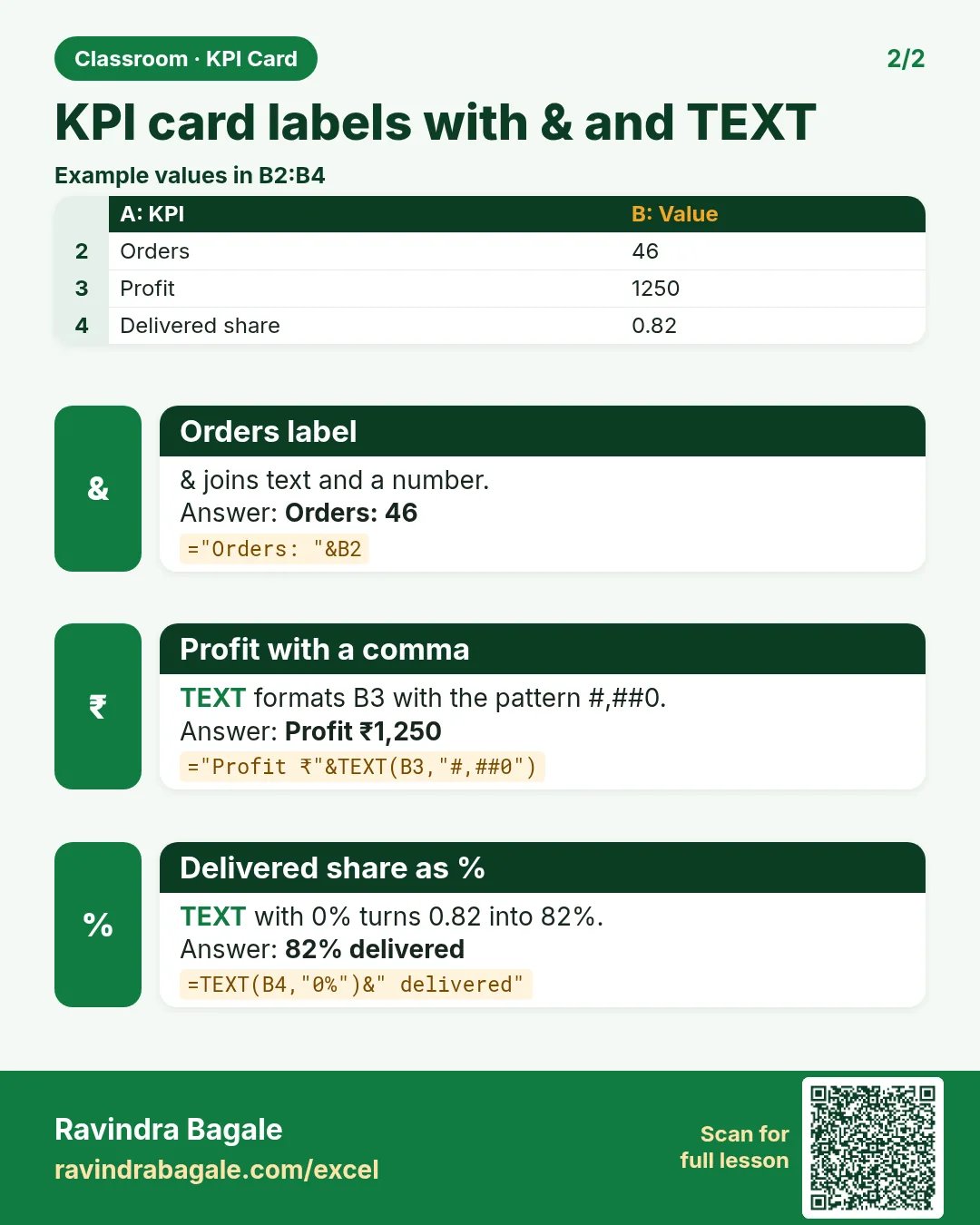
- In C4 type
="Total Profit: ₹"&TEXT(B4,"#,##0")→ Total Profit: ₹327. - In C5 type
="Delivered: "&TEXT(B5,"0%")→ Delivered: 75%. - Link the cards to column C instead of column B.
TEXT turns the number into text with the format you want, and & joins it to the label. Another way is a small text box above each card for the label.
Classroom line
There are two or three ways to do one thing. But it should look readable. There's no need to trouble the person looking at it.
Class मधलं वाक्य
"Ekach ghosti karnyache don teen way ahet. But jaast readable vatayla pahije. Tya bagnarya mansala traas denyachi garaj nahi."
एकाच गोष्टी करण्याचे दोन तीन way आहेत. पण जास्त readable वाटायला पाहिजे. त्या बघणाऱ्या माणसाला त्रास देण्याची गरज नाही.
Classroom line
There are two or three ways to do one thing. But it should look readable. There's no need to trouble the person looking at it.
Ravindra Bagale's Tip
Keep all helper cells on one KPI sheet, in one column, with a label beside each. Six months later you (or a colleague) will know exactly where every card gets its number.
Ravindra Bagale's Tip – मराठी
सगळे helper cells एकाच KPI sheet वर, एकाच column मध्ये, प्रत्येकाच्या बाजूला label ठेवून ठेवा. सहा महिन्यांनी तुम्हाला (किंवा colleague ला) नेमकं कळेल की प्रत्येक card ला number कुठून मिळतो.
Ravindra Bagale's Tip – हिंदी
सारे helper cells एक ही KPI sheet पर, एक ही column में, हर एक के बगल में label के साथ रखो. छह महीने बाद आपको (या colleague को) ठीक-ठीक पता होगा कि हर card को number कहाँ से मिलता है.
7. Cards in the dashboard flow
The dashboard chapter showed the pipeline. With cleaning in front it reads:
- Raw data (CSV, export).
- Power Query cleans it (importing a CSV).
- An Excel Table.
- PivotTables, one per question.
- Pivot Charts and KPI cards.
- The dashboard sheet.
For a quick chart beside the cards, click inside a pivot or table and choose Insert > Recommended Charts. Excel suggests chart types that suit the data; pick one and click OK.
Figure 3. A row of four KPI cards (Total Orders 24, Total Profit ₹327, Delivered 75%, On time 71.4%), each linked to a helper cell on the KPI sheet, above the charts of the dashboard.
8. More examples
Example 1: average profit per order. Helper cell =AVERAGE(Orders[Profit]) → 13.63. Format it with two decimals, link a card: "Avg profit per order".
Example 2: a city card. Helper cell =SUMIFS(Orders[Profit],Orders[City],"Nagpur") → 154. A card linked to it shows the profit of the strongest city.
Example 3: one pivot, one card. A pivot of Sum of Profit with Status in Filters. Helper cell with = and a click on its Grand Total gives a GETPIVOTDATA formula. Filter the pivot to Delivered and the card shows 227; clear the filter and it shows 327 again.
9. The whole chapter on one page
| Step | How |
|---|---|
| Value | Helper cell with a formula on the table or GETPIVOTDATA |
| Card | Insert > Shapes > Rectangle |
| Link | Select the shape, formula bar: =$B$3 (or =KPI!$B$3) |
| Format | Shape Fill; font size, Bold, Center, Middle Align |
| Label | ="Label: "&TEXT(cell,"format") in a helper cell |
- A KPI card shows one headline number.
- The helper cell calculates; the shape only shows it.
- A shape accepts only a cell reference, never a formula.
- GETPIVOTDATA follows a pivot total that moves.
- Cards and charts together make the dashboard.
10. Try at home
Try at home
Task 1
- Add a helper cell for the number of cancelled orders and link a card to it. What does it show? (3.)
Task 2
- Make a card with the text "Late: " and the number of late orders. Which formula goes in the helper cell? (="Late: "&COUNTIFS(Orders[Delivery_Status],"Late"), showing Late: 6.)
Recap
In short
- One card, one number: total orders, profit, delivered share.
- Put the formula in a helper cell.
- Select the shape and type =$B$3 in the formula bar.
- Shapes take a cell reference only; use GETPIVOTDATA in the helper cell for pivots.
- Add labels with TEXT and &, and keep helper cells on one sheet.
Quick revision cards
Quick revision
Revise this chapter in two minutes. Save the cards on your phone or download them as PNG files. All names and numbers are made up for practice.
झटपट उजळणी
हा chapter दोन मिनिटांत revise करा. Cards phone वर save करा किंवा PNG म्हणून download करा. सगळी नावं आणि आकडे सरावासाठी काल्पनिक आहेत.
झटपट दोहराई
यह chapter दो मिनट में revise करें. Cards phone पर save करें या PNG के रूप में download करें. सभी नाम और आंकड़े अभ्यास के लिए काल्पनिक हैं.


More cards for every chapter: Ravi Sir's Cards.