Shopping Offer Comparison in Excel: Buy 2 Get 1 Free vs % Off vs Flat ₹ Off
Zoya in Nagpur sees five offers on the same ₹250 shampoo: 20% off, buy 2 get 1 free, ₹150 off on 3, 30% off on 3, and second pack at half price. Every board says "big saving". Which one really is? Turn each offer into one number, the price per pack, and Excel ranks them in a second.
What you'll learn on this page
- Describe any offer with packs paid, packs received, % off and flat ₹ off
- What you pay with one formula
- Real price per pack and real discount %
- Rank the offers with RANK
- Best offer with INDEX and MATCH
- Extra packs you buy beyond your need
Download the template: shopping-offer-comparison-template.xlsx: example data with real formulas. Yellow cells are inputs you can type over; green cells hold formulas; blue rows are headers and totals. Replace the example data with your own and everything recalculates.
Made-up data: every name, amount, shop and date on this page is made up for practice. Cities are used only to make the examples feel real.
1. The example
Five offers on a ₹250 pack (made-up values):
| Offer | Pay for | Get | You pay | Price per pack | Real discount | Rank |
|---|---|---|---|---|---|---|
| 20% off | 1 | 1 | ₹200 | ₹200.00 | 20.0% | 4 |
| Buy 2 get 1 free | 2 | 3 | ₹500 | ₹166.67 | 33.3% | 1 |
| ₹150 off on 3 packs | 3 | 3 | ₹600 | ₹200.00 | 20.0% | 4 |
| 30% off on 3 packs | 3 | 3 | ₹525 | ₹175.00 | 30.0% | 2 |
| Second pack at half price | 1.5 | 2 | ₹375 | ₹187.50 | 25.0% | 3 |
Buy 2 get 1 free is really 33.3% off. "Second pack at half price" sounds like 50% but is only 25%. But Zoya needs only 2 packs, so the best offer makes her buy 1 extra. That is fine for shampoo, not for something that expires.
Figure 1. Each offer is packs paid, packs received, % off and flat ₹ off; what you pay ÷ packs received gives the real price per pack; RANK puts the cheapest first.
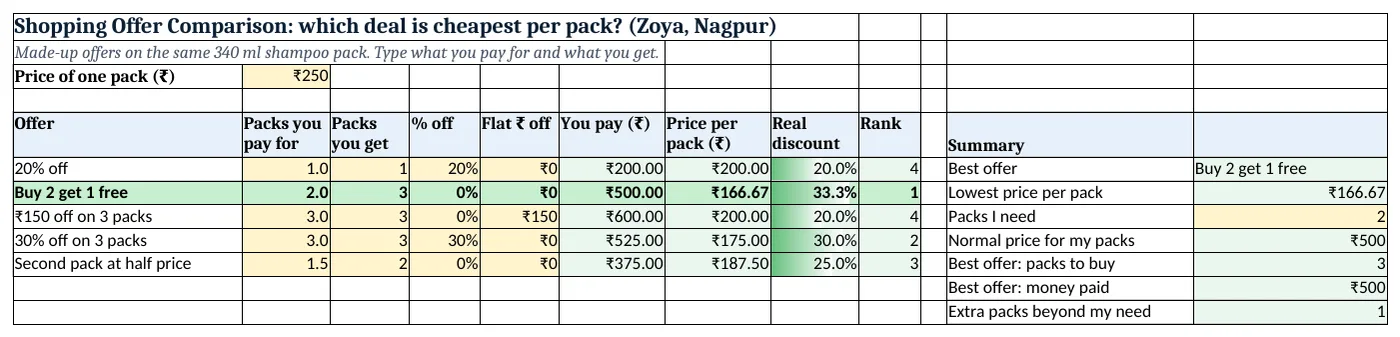
Figure 2. The template sheet, recalculated with its example data. Download it above and replace the yellow cells with your own numbers.
2. Build it step by step
Step 1. Describe each offer
- In B3 type the normal price of one pack (₹250).
- In A5:I5 type Offer, Packs you pay for, Packs you get, % off, Flat ₹ off, You pay, Price per pack, Real discount, Rank.
- Buy 2 get 1: pay 2, get 3. Second at half price: pay 1.5, get 2. Flat ₹150 off on 3: pay 3, get 3, flat 150.
Step 2. What you pay
- In F6 type
=$B$3*B6*(1-D6)-E6. One formula covers all offer types; unused parts are 0.
Step 3. Price per pack and real discount
- In G6 type
=F6/C6: what each pack really costs. - In H6 type
=1-G6/$B$3as %: the real discount. Copy F6:H6 down.
Step 4. Rank
- In I6 type
=RANK(G6,$G$6:$G$10,1). The last argument 1 ranks the smallest price as 1 (RANK). - Equal prices get the same rank, so two offers can both be 4.
Step 5. Best offer
- In L6 type
=INDEX(A6:A10,MATCH(MIN(G6:G10),G6:G10,0)): Buy 2 get 1 free (INDEX and MATCH). - In L8 type how many packs you need, and in L12
=MAX(0,L10-L8)for the extra packs the best offer makes you buy.
Step 6. Colours
- Select A6:I10 > New Rule > Use a formula
=$I6=1, green and bold (formula rules). Add data bars on H6:H10 (data bars).
Ravindra Bagale's Tip
Before the shop, decide how many packs you really need. The best offer for 3 packs may be the worst for 1.
Ravindra Bagale's Tip – मराठी
दुकानात जायच्या आधी खरंच किती packs लागणार ते ठरवा. 3 packs साठी best offer, 1 साठी worst असू शकते.
Ravindra Bagale's Tip – हिंदी
दुकान जाने से पहले तय करो कि सच में कितने packs चाहिए. 3 packs के लिए best offer, 1 के लिए worst हो सकता है.
3. Formulas used
| Cell | Formula | What it does |
|---|---|---|
| F6 | =$B$3*B6*(1-D6)-E6 |
You pay |
| G7 | =F7/C7 |
Price per pack |
| H7 | =1-G7/$B$3 |
Real discount |
| I6 | =RANK(G6,$G$6:$G$10,1) |
Rank |
| F10 | =$B$3*B10*(1-D10)-E10 |
Second pack at half price |
| L6 | =INDEX(A6:A10,MATCH(MIN(G6:G10),G6:G10,0)) |
Best offer |
| L7 | =MIN(G6:G10) |
Lowest price per pack |
| L12 | =MAX(0,L10-L8) |
Extra packs beyond my need |
Every formula above is written in the template, so you can click a cell and see it in the formula bar. All values on this page were recalculated in the file.
4. Common mistakes
- Comparing the total paid. ₹200 for one pack vs ₹500 for three is not a fair comparison. Compare the price per pack.
- Reading "half price" as 50% off. Half price on the second pack is 25% off across two packs.
- Ignoring what you actually need. Three packs at the best price is a waste if one expires before you use it.
- Forgetting the sort order in RANK. Without the 1 at the end, RANK gives rank 1 to the most expensive offer.
- Different pack sizes. If sizes differ, compare price per ml or gram instead (see the unit price comparison).
Ravindra Bagale's Tip
Check the normal price too. A discount on a raised price is not a discount.
Ravindra Bagale's Tip – मराठी
Normal price पण बघा. आधी price वाढवून दिलेला discount खरा discount नसतो.
Ravindra Bagale's Tip – हिंदी
Normal price भी देखो. पहले price बढ़ाकर दिया discount असली discount नहीं होता.
5. More real examples
Example 1: Clothes sale. "Buy 3 for ₹999" vs "40% off": type each as packs paid, packs received and flat or % off.
Example 2: Mobile recharge. Compare plans by price per day: amount ÷ validity days.
Example 3: Bulk rice from a wholesaler. Add a delivery charge column to You pay before dividing by kg.
Quick revision cards
Quick revision
Each card shows formulas from this page, each with an example and its answer from the template. Scan the QR code on a card to open this lesson. All names and numbers are made up for practice.
झटपट उजळणी
प्रत्येक card वर या page मधले formulas, त्यांचं example आणि template मधलं उत्तर आहे. Card वरचा QR code scan केला की हा lesson उघडतो. सगळी नावं आणि आकडे सरावासाठी काल्पनिक आहेत.
झटपट दोहराई
हर card पर इस page के formulas, उनका example और template का उत्तर है. Card का QR code scan करें तो यह lesson खुलेगा. सभी नाम और आंकड़े अभ्यास के लिए काल्पनिक हैं.
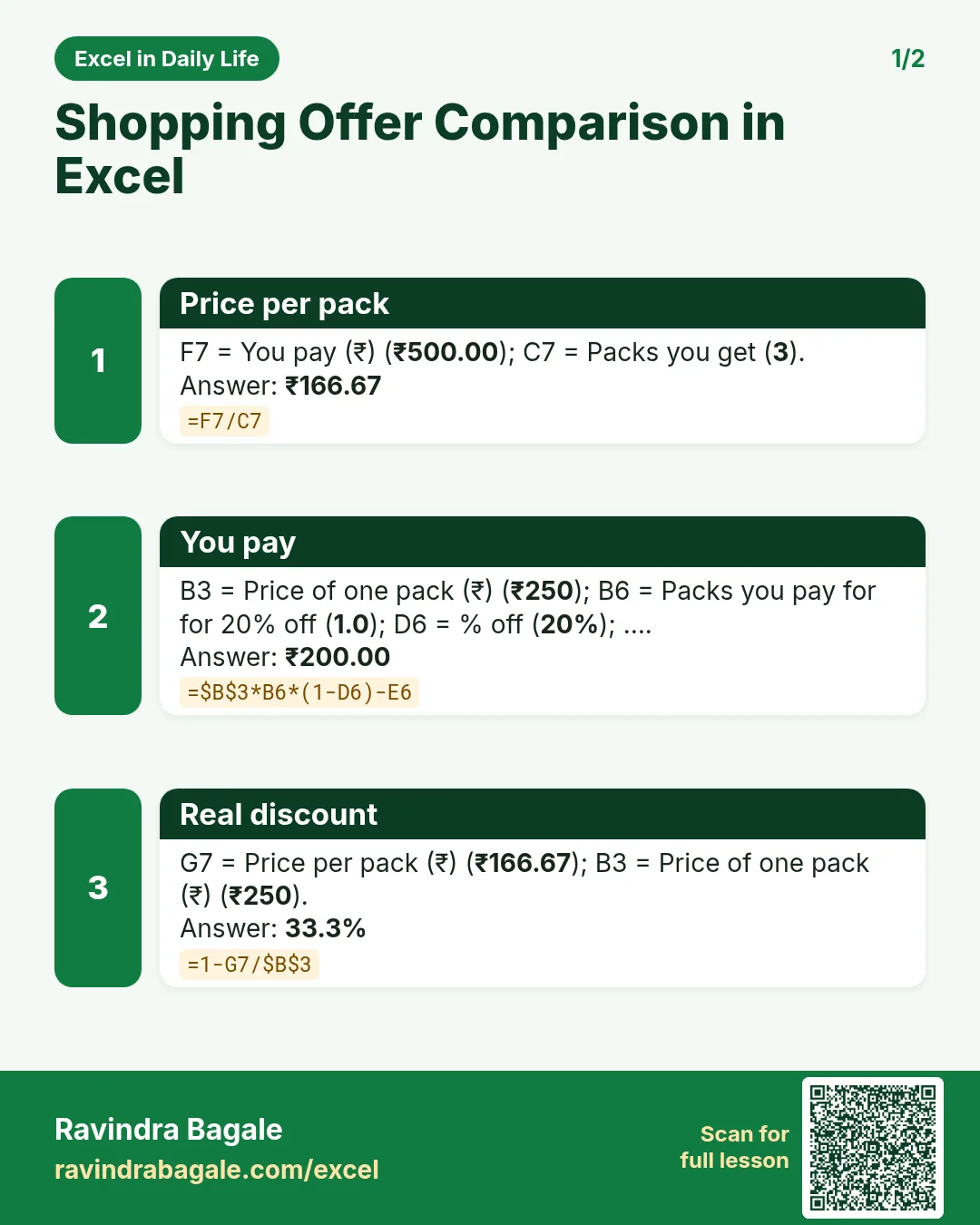

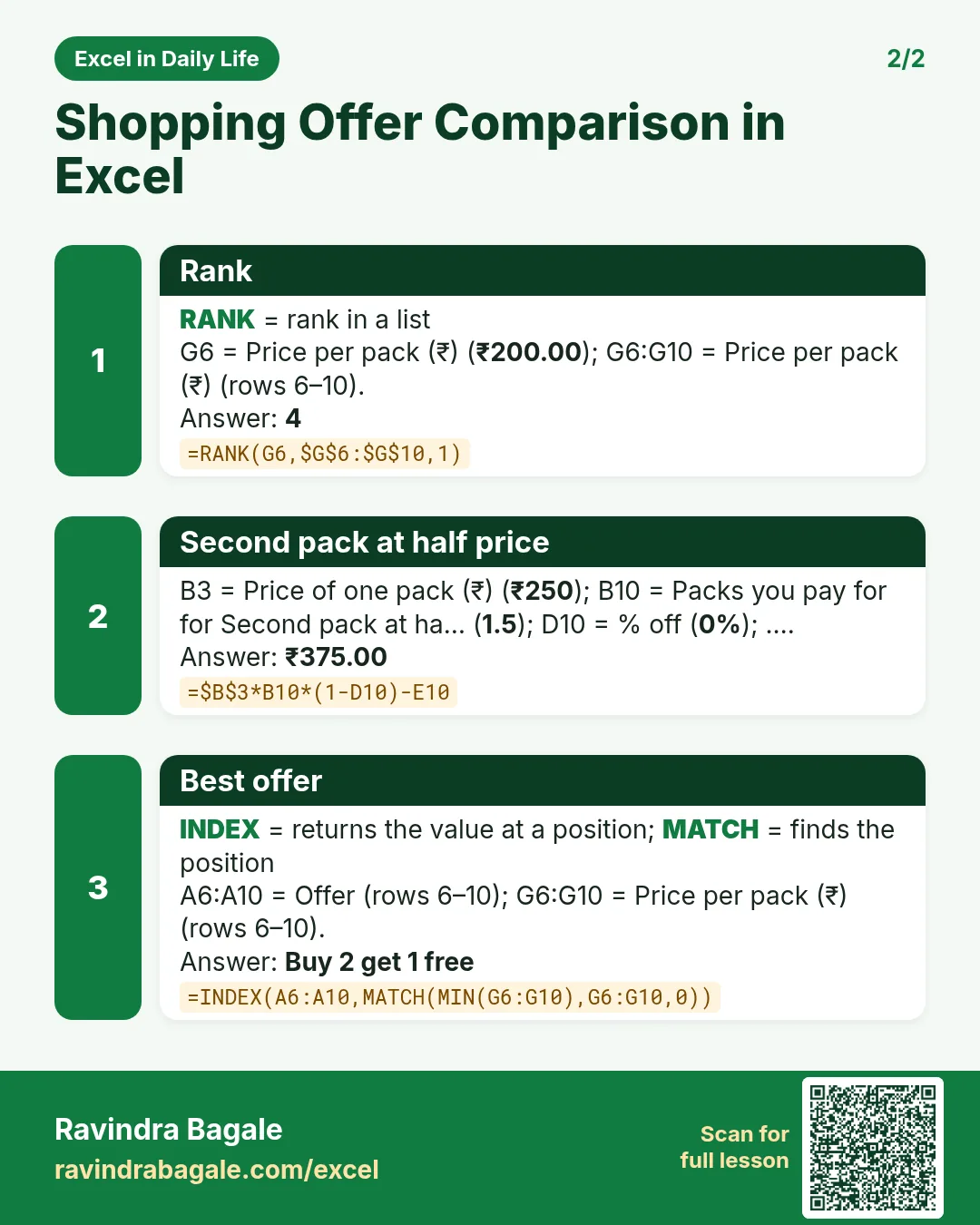

More cards: Ravi Sir's Cards.
6. Frequently asked questions
Is buy 2 get 1 free a 33% discount?
Yes: you pay for 2 and get 3, so each pack costs 2/3 of the price, which is 33.3% off.
How do I compare offers in Excel?
Work out what you pay and divide by packs received to get a price per pack, then rank the prices.
How does RANK work for cheapest first?
=RANK(G6,$G$6:$G$10,1); the 1 means ascending, so the lowest price is rank 1.
Is "second at half price" 50% off?
No. You pay 1.5 for 2, so it is 25% off each pack.
How do I find the best offer name?
=INDEX(A6:A10,MATCH(MIN(G6:G10),G6:G10,0)).
7. Quick quiz
Ten questions on this page. Sign in to save your score.
Loading practice tasks...
- Total seats (Easy): Add up Seats in D2:D11.
- Average price per seat (Easy): Average of E2:E11, rounded to 2 decimals.
- Rows in Basic (Easy): How many rows have Plan "Basic"?
- Largest seats (Easy): The largest value in D2:D11.
- Seats for Basic (Medium): Total of D2:D11 where B is "Basic".
- Basic in Denver (Medium): Total of D2:D11 where B is "Basic" and C is "Denver".
- Best in Basic (Medium): Largest E2:E11 value where B is "Basic".
- Value of row 2 (Medium): D2 times E2.
- Look up Arjun Mehta (Medium): The Seats for "Arjun Mehta" (use a lookup on column A).
- Total value (Hard): Sum of D times E for all rows.
- Share of Basic (Hard): Share of D2:D11 that is "Basic", rounded to 3 decimals.
- Rank of row 2 (Hard): Rank of D2 among D2:D11 (largest = 1).
- Above average? (Hard): "Above" if E2 is above the average of E2:E11, else "Below".