5. Data Cleaning A–Z
Come friends, today we learn the most important job of all: data cleaning. In a real job an analyst spends a lot of time cleaning data: duplicates, blanks, extra spaces, "pune/PUNE/Pune", numbers stored as text, mixed-up dates, phone numbers… For every problem there is a BEFORE (messy) and an AFTER (clean) table, with steps and formulas. At the end we clean a full Blinkit export from start to finish. Do not worry – one problem at a time.
चला मित्रांनो, आज आपण सगळ्यात important काम शिकूया – data cleaning. खऱ्या job मध्ये analyst चा मोठा वेळ data स्वच्छ करण्यात जातो: duplicates, blanks, extra spaces, "pune/PUNE/Pune", text मधले numbers, गोंधळलेल्या dates, phone numbers… प्रत्येक problem साठी इथे BEFORE (messy) आणि AFTER (clean) table आहे, steps आहेत आणि formulas आहेत. शेवटी एक पूर्ण Blinkit export आपण सुरुवातीपासून शेवटपर्यंत clean करू. घाबरू नका – एक-एक problem घ्यायचा.
चलो दोस्तों, आज हम सबसे important काम सीखते हैं – data cleaning. असली job में analyst का बहुत समय data साफ़ करने में जाता है: duplicates, blanks, extra spaces, "pune/PUNE/Pune", text में रखे numbers, उलझी हुई dates, phone numbers… हर problem के लिए यहाँ BEFORE (messy) और AFTER (clean) table है, steps हैं और formulas हैं. आख़िर में एक पूरा Blinkit export हम शुरू से आख़िर तक clean करेंगे. घबराइए मत – एक-एक problem लेंगे.
What you will learn in this module
- Finding and removing duplicates, blanks, extra spaces and non-printable characters
- Fixing case, inconsistent city names (pune / PUNE / Aurangabad → Sambhaji Nagar) with Find & Replace and a mapping table
- Converting numbers stored as text and text dates into real numbers and dates
- Splitting and merging columns; cleaning phone numbers, e-mails, pincodes and codes
- Extracting parts of text, removing unwanted characters, handling outliers and error values
- The unpivot idea, and a full end-to-end cleaning of one messy Blinkit export
Live story: The export that adds up wrong
Suppose the October Blinkit export lands at 9 am and the total says ₹5,980, but the city managers' total is ₹4,730. The file has one order twice, " pune" with a space, ₹ signs inside numbers and dates typed as text. Nobody can trust the report until it is clean. This chapter fixes every problem with a BEFORE and AFTER table, and ends with one full clean-up.
All numbers in this story are fictional practice data.
Live story: चुकीची बेरीज देणारा export
समजा October चा Blinkit export सकाळी 9 वाजता येतो आणि त्याचा total ₹5,980 दाखवतो, पण city managers चा total ₹4,730 आहे. File मध्ये एक order दोनदा आहे, space सोबत " pune" आहे, numbers मध्ये ₹ चिन्ह आहे आणि dates text म्हणून type केल्यात. Data clean होईपर्यंत report वर कोणी विश्वास ठेवू शकत नाही. हा chapter प्रत्येक problem BEFORE आणि AFTER table सोबत fix करतो, आणि शेवटी एक पूर्ण clean-up करतो.
या story मधले सगळे आकडे काल्पनिक practice data आहेत.
Live story: ग़लत जोड़ देने वाला export
मान लीजिए October का Blinkit export सुबह 9 बजे आता है और उसका total ₹5,980 दिखाता है, पर city managers का total ₹4,730 है. File में एक order दो बार है, space के साथ " pune" है, numbers में ₹ का निशान है और dates text के रूप में type हैं. Data clean होने तक report पर कोई भरोसा नहीं कर सकता. यह chapter हर problem को BEFORE और AFTER table के साथ fix करता है, और आख़िर में एक पूरा clean-up करता है.
इस story के सारे आँकड़े काल्पनिक practice data हैं.
Golden rules before cleaning
1) Keep the original export untouched on a sheet called Raw and clean a copy. 2) Clean with helper columns and formulas first, check, then Copy › Paste Special › Values and delete the helpers. 3) Count rows and total amount before and after – they must reconcile. 4) If you will receive the same messy file every week, record the steps in Power Query (Module 10) instead of repeating them by hand.
Concepts in this chapter
- 5.1Duplicates
- 5.2Blank Cells
- 5.3Extra Spaces and Non-printable Characters
- 5.4Inconsistent Case
- 5.5Inconsistent City Spellings
- 5.6Numbers Stored as Text
- 5.7Text Dates and Mixed Date Formats
- 5.8Splitting Columns
- 5.9Merging Columns
- 5.10Phone Numbers
- 5.11E-mail Addresses
- 5.12Pincodes and Codes with Leading Zeros
- 5.13Extracting Parts of Text
- 5.14Removing Unwanted Characters
- 5.15Outliers
- 5.16Error Values in Data
- 5.17Unpivot: Wide to Long (Concept)
- 5.18End-to-End: Cleaning a Messy Blinkit Export
Review and practice
The chapter recap is at the end of the last concept page.
Quick revision cards
Quick revision
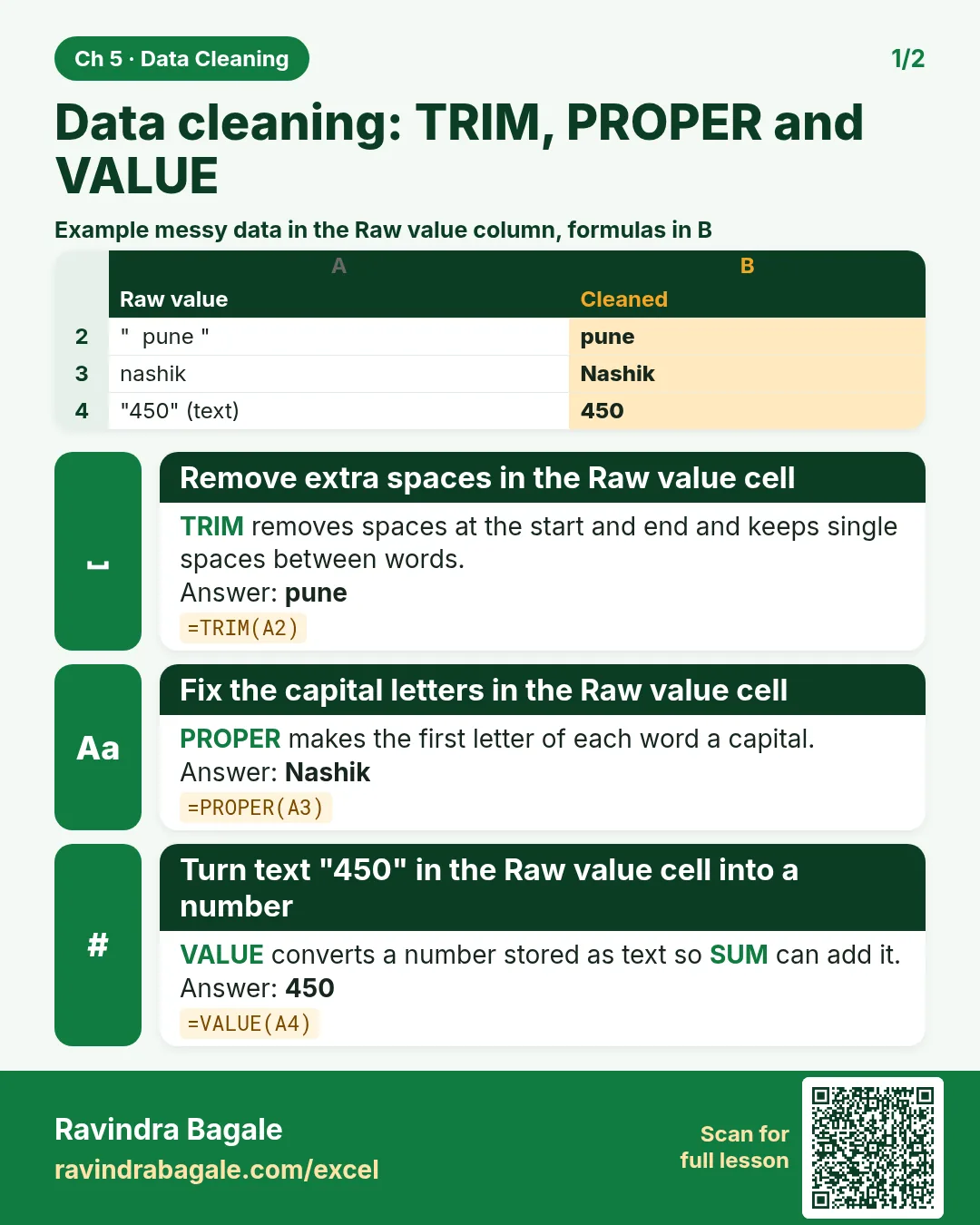
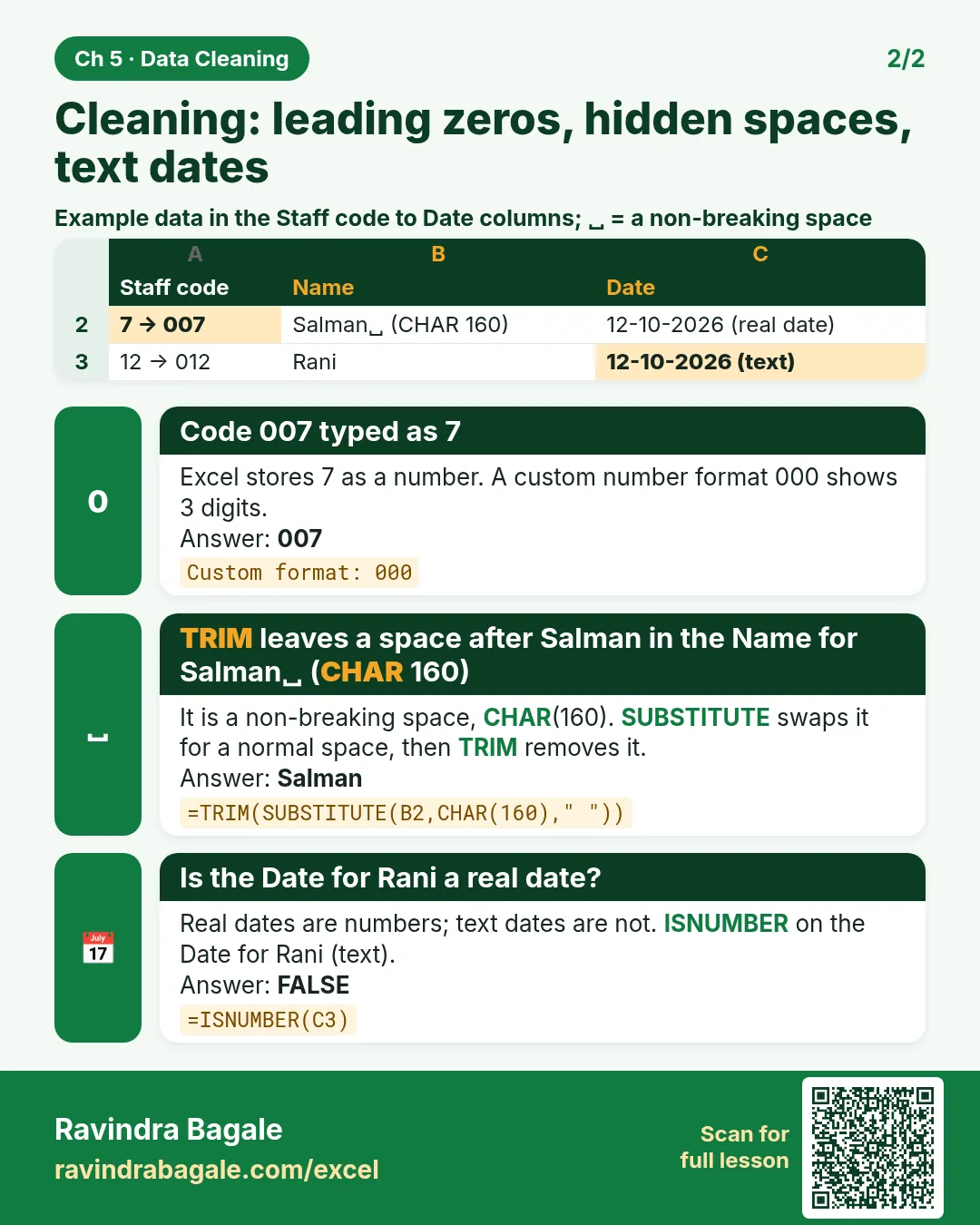
Revise this chapter in two minutes. Save the cards on your phone or download them as PNG files. All names and numbers are made up for practice.
झटपट उजळणी
हा chapter दोन मिनिटांत revise करा. Cards phone वर save करा किंवा PNG म्हणून download करा. सगळी नावं आणि आकडे सरावासाठी काल्पनिक आहेत.
झटपट दोहराई
यह chapter दो मिनट में revise करें. Cards phone पर save करें या PNG के रूप में download करें. सभी नाम और आंकड़े अभ्यास के लिए काल्पनिक हैं.


More cards for every chapter: Ravi Sir's Cards.