How to Use Slicers in Excel Tables: Insert, Multi-Select, Clear Filter and Arrange Buttons in Columns (with UNIQUE and COUNTIFS)
Filter buttons work, but they hide behind small arrows, and nobody else looking at your sheet can see what is filtered. A slicer is a panel of big buttons, one per value, that filters a table with one click and shows the current filter at a glance. In this chapter you add slicers for City, Payment_Mode and Status to the orders table, then build the same answers with formulas, so you know both ways.
What you'll learn in this chapter
- What a slicer is, and why it only works on a table (or PivotTable)
- Insert Slicer for City, Payment_Mode and Status
- Multi-Select, Clear Filter, and the Slicer tab (Columns, size, style)
- Which columns deserve a slicer
- The formula way: UNIQUE and COUNTIFS on the table
Practice file: excel-slicers-unique-countifs-practice.xlsx: Orders (the table named Orders, ready for slicers) and Summary (UNIQUE and COUNTIFS).
Made-up data: the 24 orders are made up for practice. They imitate a quick-commerce app such as Blinkit or Amazon Now in Pune, Nashik, Solapur, Kolhapur, Nagpur and Sambhaji Nagar.
1. The data
The table Orders (A1:M25) is the same as in the SUBTOTAL vs SUM chapter: 24 orders with City, Payment_Mode, Status and Profit among its 13 columns. Turn on Table Design > Total Row and set Order_ID to Count, so you can watch the numbers change as you click slicers.
2. Insert slicers
- Click any cell inside the table.
- Table Design > Insert Slicer.
- Tick City, Payment_Mode and Status.
- Click OK.
Three slicer panels appear on the sheet, one per column, each with a button for every value: six cities, COD and Online, Cancelled, Delivered and Returned.
Slicers need an Excel Table (or a PivotTable). On a plain range the Insert Slicer button is grey: press Ctrl+T first, as in the Table vs Range chapter.
Classroom line
Excel Tables have one more advantage: we can use slicers here.
Class मधलं वाक्य
Excel table चा आणखी एक फायदा आहे: इथे आपण Slicers वापरू शकतो.
Classroom line – हिंदी
"Excel table ka aur ek fayda hai, hum yaha pe na Slicers use kar sakte hai."
3. Filter with a click
- Click Pune in the City slicer: only Pune rows stay, and the Total Row shows 6 orders.
- Click Online in the Payment_Mode slicer: 5 orders.
- Click Delivered in the Status slicer: 4 orders, profit 26.
Slicers on different columns combine: each one narrows down what the others left, just like filters on several columns.
Several values in one slicer:
- Click the Multi-Select button at the top of the slicer (the icon with ticks), or hold Ctrl while clicking.
- Click Nagpur, then Kolhapur.
- Both cities stay: 8 orders, profit 218 (with the other slicers cleared).
Clear a slicer: click the Clear Filter button (the funnel with a red cross) at the top right of that slicer. It removes only that slicer's filter.
Figure 1. Three slicers on the Orders table. Pune selected in City, Online in Payment_Mode and Delivered in Status: the Total Row shows 4 orders and 26 profit.
4. Arrange the buttons
A new slicer shows its buttons one under the other. To lay them side by side:
- Click the slicer to select it. The Slicer tab appears on the ribbon.
- In Buttons > Columns, change 1 to 3.
- Drag the slicer's edges to resize it so all buttons fit.
The six cities now sit in two rows of three. On the same tab you can pick a Slicer Style (colour) and change the button height and width. To remove a slicer, select it and press Delete: the table and its data are not affected.
Classroom line
Before this they showed one below the other; now they show side by side.
Class मधलं वाक्य
आधी ते एकाखाली एक दिसत होते, आता एकाशेजारी एक दिसत आहेत.
Classroom line – हिंदी
"Iske pehle ek ke niche ek dikh raha tha, abhi ek ke baju me ek dikh raha hai."
Figure 2. Slicer > Buttons > Columns. With 1 column the six cities stand in one tall list; with 3 columns they fit in two rows of three.
5. Which columns deserve a slicer?
Slicers are for categories: columns with a few repeated text values, such as City (6 values), Payment_Mode (2) and Status (3).
They are not useful for numbers like Profit or Delivery_Time_mins. Profit has a different value on almost every row, so its slicer would be a long list of single numbers. To filter numbers, use the filter button's Number Filters (Greater Than, Between...).
Classroom line
A slicer on the Profit column just doesn't make sense.
Class मधलं वाक्य
"Profit cha column slicer sathi meaning ch vatat nahi na."
Profit च्या column साठी slicer ला काही अर्थच वाटत नाही ना.
Classroom line
A slicer on the Profit column just doesn't make sense.
Ravindra Bagale's Tip
Before you make slicers, ask what your boss will want to filter by. Usually it is two or three category columns (city, payment mode, status). A screen with ten slicers is harder to read than the table itself.
Ravindra Bagale's Tip – मराठी
Slicers बनवण्याआधी विचारा: boss ला कशावरून filter करायचं असेल? साधारण दोन-तीन category columns (city, payment mode, status). दहा slicers असलेली screen table पेक्षा वाचायला अवघड होते.
Ravindra Bagale's Tip – हिंदी
Slicers बनाने से पहले सोचो: boss को किस चीज़ से filter करना होगा? आम तौर पर दो-तीन category columns (city, payment mode, status). दस slicers वाली screen table से भी पढ़ने में मुश्किल होती है.
6. The formula way: UNIQUE and COUNTIFS
Slicers answer one question at a time. Formulas answer all of them at once and stay on the sheet. On the Summary sheet:
- In A3:
=UNIQUE(Orders[City]). The six cities spill into A3:A8, in the order they first appear: Pune, Nashik, Solapur, Kolhapur, Nagpur, Sambhaji Nagar. - In B1, type Online: the payment mode to count.
- In B3:
=COUNTIFS(Orders[City],A3,Orders[Payment_Mode],$B$1), then copy it down to B8.
| City | Online orders |
|---|---|
| Pune | 5 |
| Nashik | 1 |
| Solapur | 1 |
| Kolhapur | 2 |
| Nagpur | 4 |
| Sambhaji Nagar | 2 |
| Total | 15 |
- $B$1 is locked. Without the $ signs the reference would move to B2, B3... while copying down and the counts would go wrong. (Typing "Online" directly in the formula also works, but a cell lets you switch to COD in one place.)
- Orders[City] does not move when you copy down, because it is a whole table column.
- Change B1 to COD: the counts change to 1, 3, 2, 2, 0, 1 (total 9).
Column C of the practice file adds the profit of delivered orders per city with =SUMIFS(Orders[Profit],Orders[City],A3,Orders[Status],"Delivered"), which adds up to 227.
UNIQUE needs Microsoft 365 or Excel 2021 and later.
Figure 3. =UNIQUE(Orders[City]) spills six cities. =COUNTIFS(Orders[City],A3,Orders[Payment_Mode],$B$1) counts Online orders per city: 5, 1, 1, 2, 4, 2, total 15.
7. The whole chapter on one page
| Task | How |
|---|---|
| Insert slicers | Click in the table > Table Design > Insert Slicer > tick columns > OK |
| Pick several values | Multi-Select button, or Ctrl+click |
| Clear one slicer | Clear Filter button on that slicer |
| Buttons side by side | Slicer tab > Columns > 3, then resize |
| Delete a slicer | Select it > Delete |
| Same answers by formula | UNIQUE for the list, COUNTIFS with a locked criteria cell |
- Slicers are visible, one-click filters for tables and PivotTables.
- Slicers on different columns combine.
- Make slicers for category columns only.
- The Total Row follows slicers, because slicers are filters.
- UNIQUE + COUNTIFS give the whole summary at once.
8. Try at home
Try at home
Task 1
- With slicers, how many Cancelled orders are there in all cities? (3.)
Task 2
- Change B1 on the Summary sheet to COD. How many COD orders does Nashik have? (3.)
Task 3
- Using slicers, find the profit of delivered Online orders in Nagpur. (54: ORD1011 30, ORD1016 20 and ORD1023 4.)
Recap
In short
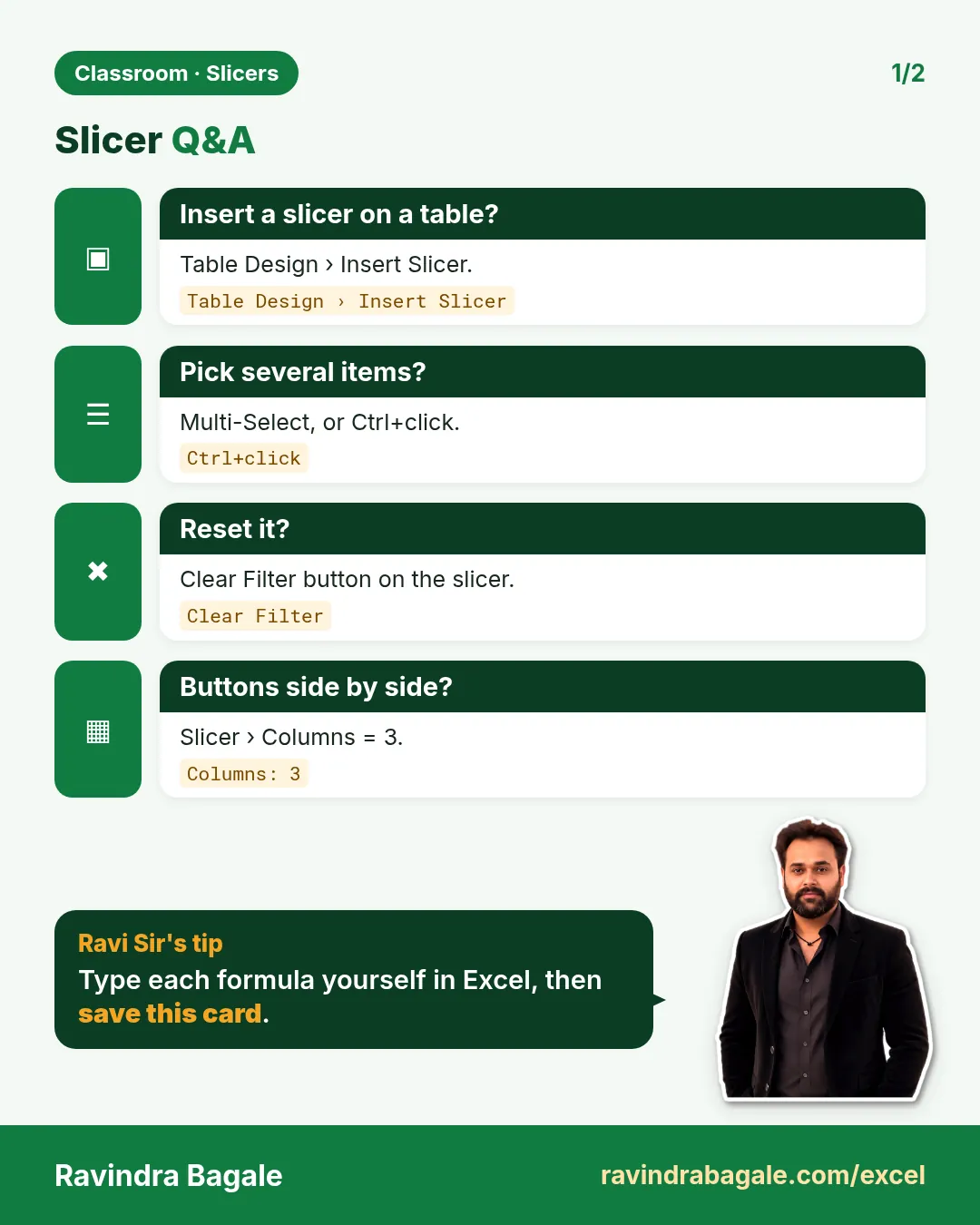
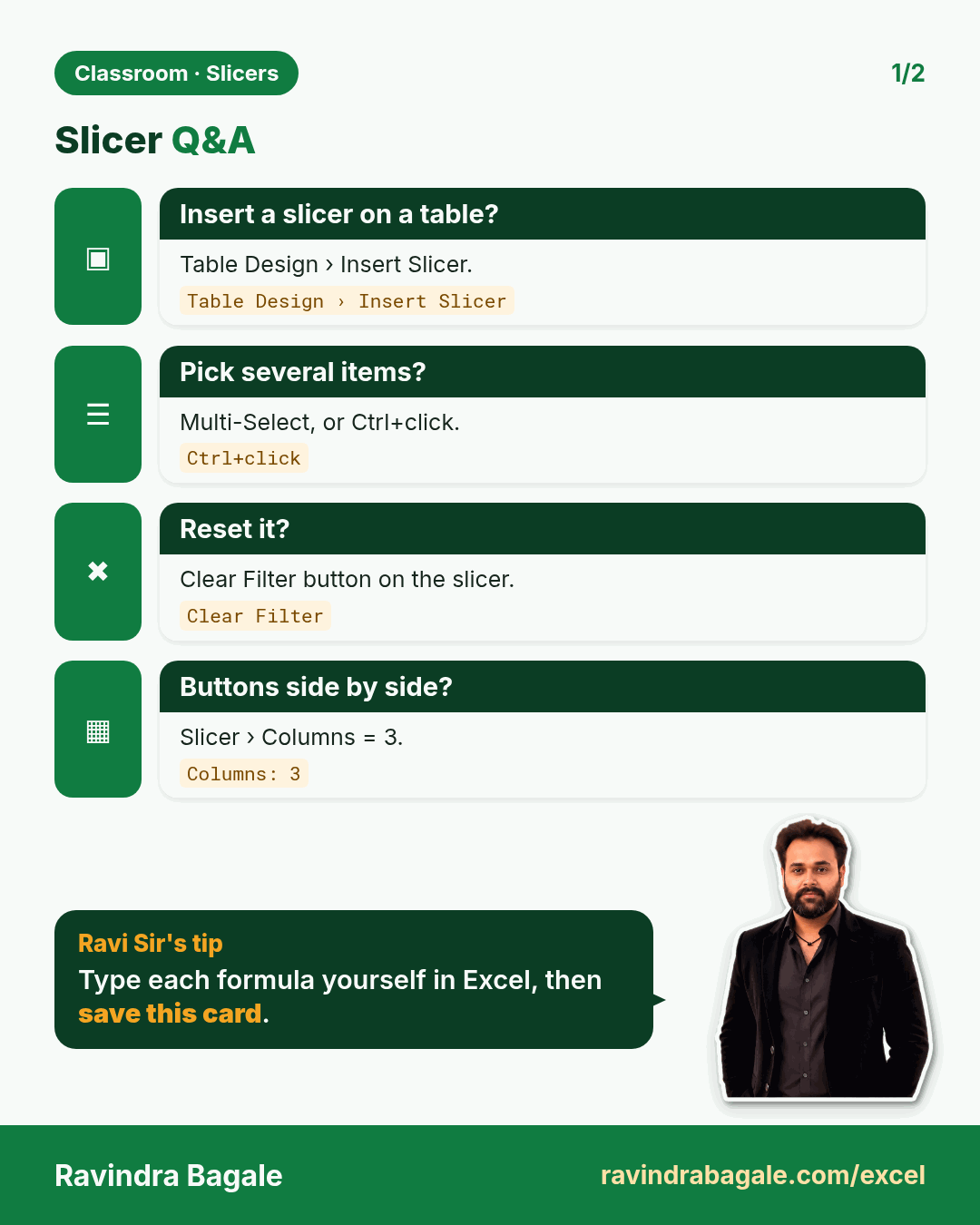
- Table Design > Insert Slicer gives one-click filter buttons.
- Multi-Select or Ctrl+click picks several values.
- Clear Filter resets one slicer; Columns = 3 lays buttons side by side.
- Slicers suit category columns, not numbers.
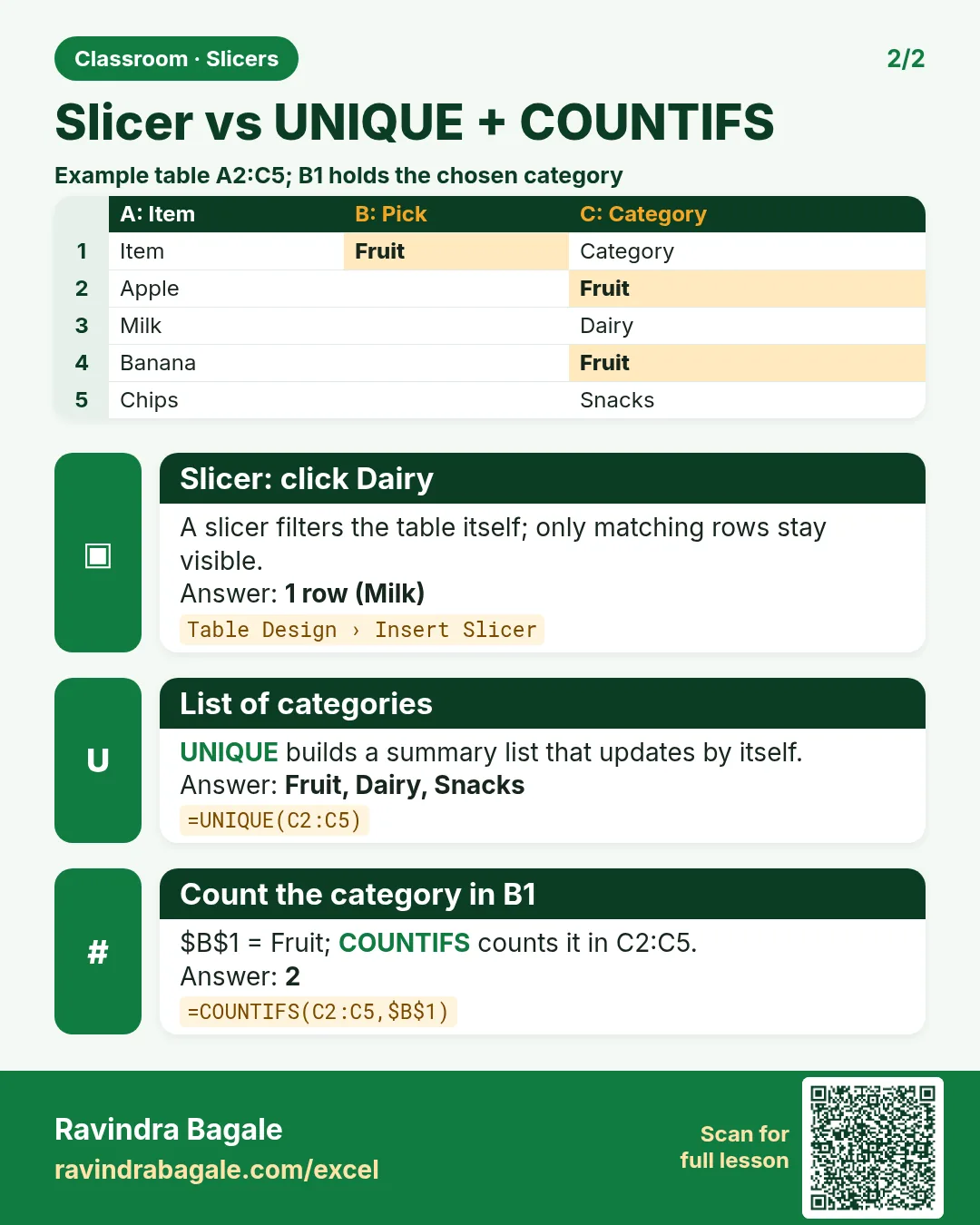
- UNIQUE + COUNTIFS with $B$1 build the same summary with formulas.
Quick revision cards
Quick revision
Revise this chapter in two minutes. Save the cards on your phone or download them as PNG files. All names and numbers are made up for practice.
झटपट उजळणी
हा chapter दोन मिनिटांत revise करा. Cards phone वर save करा किंवा PNG म्हणून download करा. सगळी नावं आणि आकडे सरावासाठी काल्पनिक आहेत.
झटपट दोहराई
यह chapter दो मिनट में revise करें. Cards phone पर save करें या PNG के रूप में download करें. सभी नाम और आंकड़े अभ्यास के लिए काल्पनिक हैं.

More cards for every chapter: Ravi Sir's Cards.