Split Quantity and Unit in Excel (2 kg, 500 gram) with TEXTBEFORE, TEXTAFTER and NUMBERVALUE: Convert Grams to Kg
The custom number format chapter showed how to avoid typing "2 kg" into a cell. But often the data arrives that way: an order export with quantities like "2 kg", "1.5 kg" and "500 gram", and the boss wants the bill amount. In this chapter you split each quantity into its number and its unit with TEXTBEFORE and TEXTAFTER, make the number a real number with NUMBERVALUE, convert grams to kg with IF, and work out the amount.
What you'll learn in this chapter
- Why SUM of "2 kg", "500 gram" returns 0, and ISNUMBER
- TEXTBEFORE: the part before the space
- NUMBERVALUE: text "2" to the number 2
- TEXTAFTER: the unit after the space
- IF: grams to kg, then amount = kg × price
- Nesting in one formula, and the no-space trap
- The same with LEFT, MID and FIND for older Excel
Practice file: excel-split-quantity-unit-practice.xlsx: the Grocery sheet with every step in its own column, the older-Excel version below the table, and the no-space example.
Made-up data: the items, quantities and prices are made up for practice, in the style of a quick-commerce order (think Blinkit or Amazon Now).
Which Excel has these functions? TEXTBEFORE and TEXTAFTER: Microsoft 365 and Excel for the web. NUMBERVALUE: Excel 2013 and later. Section 7 shows formulas that work in every version.
1. The raw data
| A Item | B Quantity | C Price per kg | |
|---|---|---|---|
| 2 | Tomato | 2 kg | 40 |
| 3 | Potato | 1.5 kg | 30 |
| 4 | Dal | 500 gram | 120 |
| 5 | Apple | 750 gram | 160 |
| 6 | Kiwi | 250 gram | 240 |
The quantities are text: they sit on the left of the cells. =SUM(B2:B6) returns 0, a favourite interview question. =ISNUMBER(B2) returns FALSE.
The plan for each row:
- Take the number before the space.
- Make it a real number.
- Take the unit after the space.
- If the unit is gram, divide by 1000 to get kg.
- Amount = kg × price per kg.
Classroom line
This is a favourite question of interviewers... do the SUM... what will the answer be? Zero.
Class मधलं वाक्य
हा interview घेणाऱ्यांचा एक आवडता प्रश्न असतो... sum करा... उत्तर काय येईल? शून्य.
Classroom line – हिंदी
"Yeh interview lene walon ka ek favorite question rehta hai... sum karo... answer kya aayega? Zero."
2. TEXTBEFORE: the number part
=TEXTBEFORE(text, delimiter)
The delimiter is the character that separates the parts, here a space. In D2:
=TEXTBEFORE(B2," ")
→ 2. But it is the text "2": it sits on the left, and =ISNUMBER(D2) returns FALSE. TEXTBEFORE always returns text.
3. NUMBERVALUE: text to number
In E2:
=NUMBERVALUE(D2)
→ 2, now a real number on the right; =ISNUMBER(E2) returns TRUE. For "1.5 kg" it gives 1.5, for "500 gram" 500. (=VALUE(D2) does the same for these quantities.)
You can do both steps in one formula:
=NUMBERVALUE(TEXTBEFORE(B2," "))
The rule for nesting: the step that happens first goes inside, the step that happens last goes outside. TEXTBEFORE runs first, so it sits inside NUMBERVALUE.
Classroom line
Whatever happens first goes inside; whatever happens last goes on the very outside.
Class मधलं वाक्य
जे सगळ्यात आधी होतं ते आत, जे शेवटी होतं ते सगळ्यात बाहेर.
Classroom line – हिंदी
"Jo sabse pehle milta hai woh andar, jo last mein woh sabse bahar."
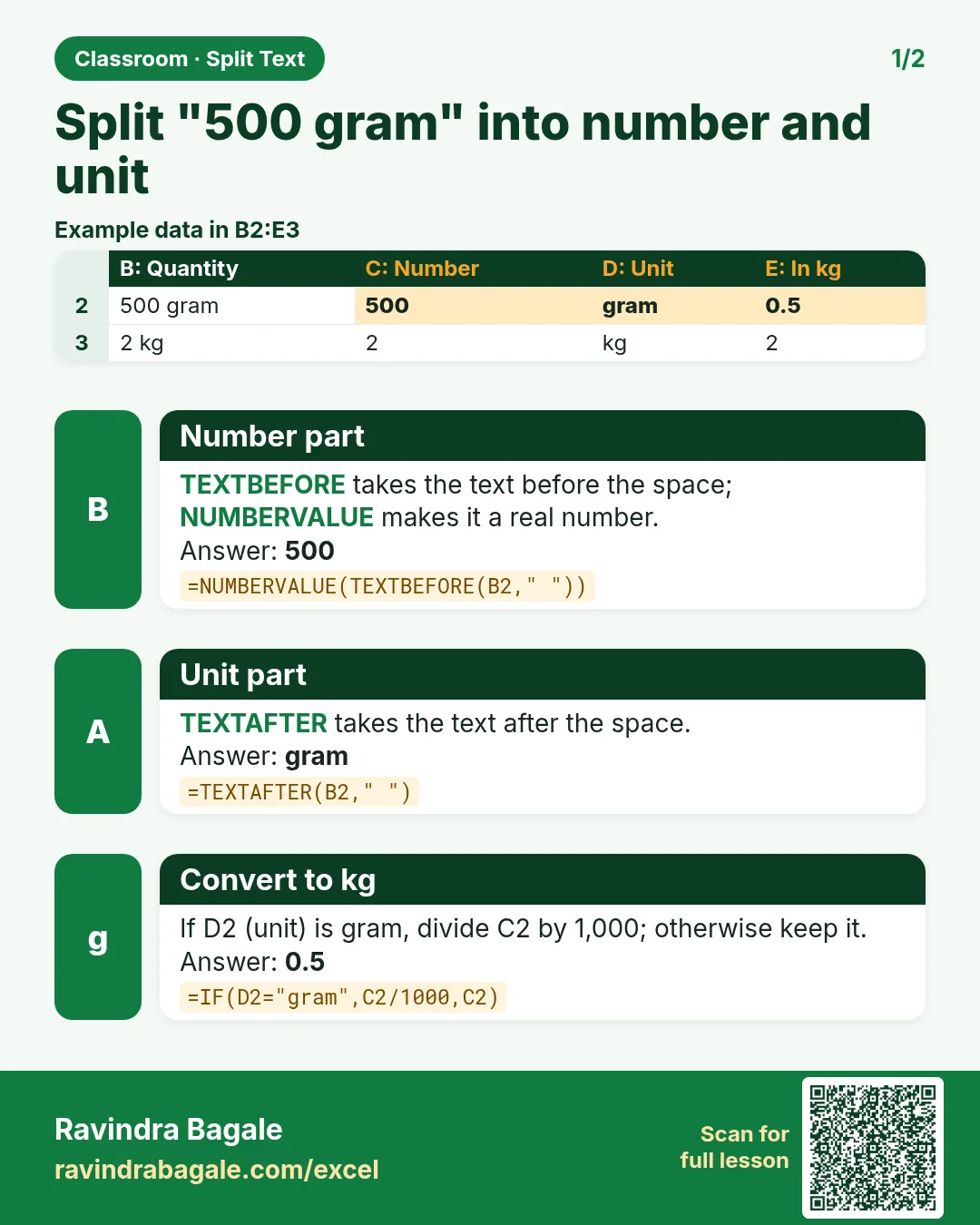
Figure 1. "500 gram" split at the space: TEXTBEFORE gives the text "500", NUMBERVALUE turns it into the number 500, TEXTAFTER gives "gram".
4. TEXTAFTER: the unit
In F2:
=TEXTAFTER(B2," ")
→ kg. For row 4 it gives gram.
5. Grams to kg, and the amount
The prices are per kg, so every quantity must be in kg. In G2:
=IF(F2="kg",E2,E2/1000)
If the unit is kg, keep the number; otherwise it is grams, so divide by 1000. Then the amount in H2:
=G2*C2
| Item | Quantity | Number | Unit | Qty in kg | Amount |
|---|---|---|---|---|---|
| Tomato | 2 kg | 2 | kg | 2 | 80 |
| Potato | 1.5 kg | 1.5 | kg | 1.5 | 45 |
| Dal | 500 gram | 500 | gram | 0.5 | 60 |
| Apple | 750 gram | 750 | gram | 0.75 | 120 |
| Kiwi | 250 gram | 250 | gram | 0.25 | 60 |
| Total | 365 |
=SUM(H2:H6) → 365, the bill.
Classroom line
We have to convert grams into kg.
Class मधलं वाक्य
"Gram la kg madhe convert karaycha."
Gram ला kg मध्ये convert करायचं.
Classroom line
We have to convert grams into kg.
Figure 2. IF(F2="kg",E2,E2/1000): 500 gram becomes 0.5 kg; amount = 0.5 × 120 = 60. The five amounts add up to 365.
Ravindra Bagale's Tip
Build a formula like this in separate helper columns first (number, unit, kg, amount) and check each column with your own eyes. Only when every column is right, combine them into one formula if you want to. A wrong answer in a nested formula is much harder to find.
Ravindra Bagale's Tip – मराठी
असा formula आधी वेगवेगळ्या helper columns मध्ये बनवा (number, unit, kg, amount) आणि प्रत्येक column स्वतः तपासा. सगळे columns बरोबर आले की हवं तर ते एका formula मध्ये जोडा. Nested formula मधली चूक शोधणं खूप अवघड असतं.
Ravindra Bagale's Tip – हिंदी
ऐसा formula पहले अलग-अलग helper columns में बनाओ (number, unit, kg, amount) और हर column खुद check करो. सारे columns सही आ जाएँ तो चाहो तो उन्हें एक formula में जोड़ो. Nested formula की गलती ढूँढना बहुत मुश्किल होता है.
6. The no-space trap
TEXTBEFORE and TEXTAFTER look for the delimiter. If a quantity is typed as "2kg" without a space, there is nothing to split at, and both return #N/A.
- Clean the data first, so that every quantity has one space between the number and the unit. Find & Replace (Ctrl+H) helps when the same mistake repeats, for example replacing
kgwithkgin cells that have no space yet. - Or catch the error:
=IFERROR(TEXTBEFORE(B2," "),"no space found")shows a clear message instead of #N/A, so you can fix those rows by hand.
Classroom line
It will work only if there is a space between them, remember.
Class मधलं वाक्य
"Yanchya madhe space asel tarach kaam karel bar ka."
यांच्यामध्ये space असेल तरच काम करेल बरं का.
Classroom line
It will work only if there is a space between them, remember.
7. Older Excel: LEFT, MID and FIND
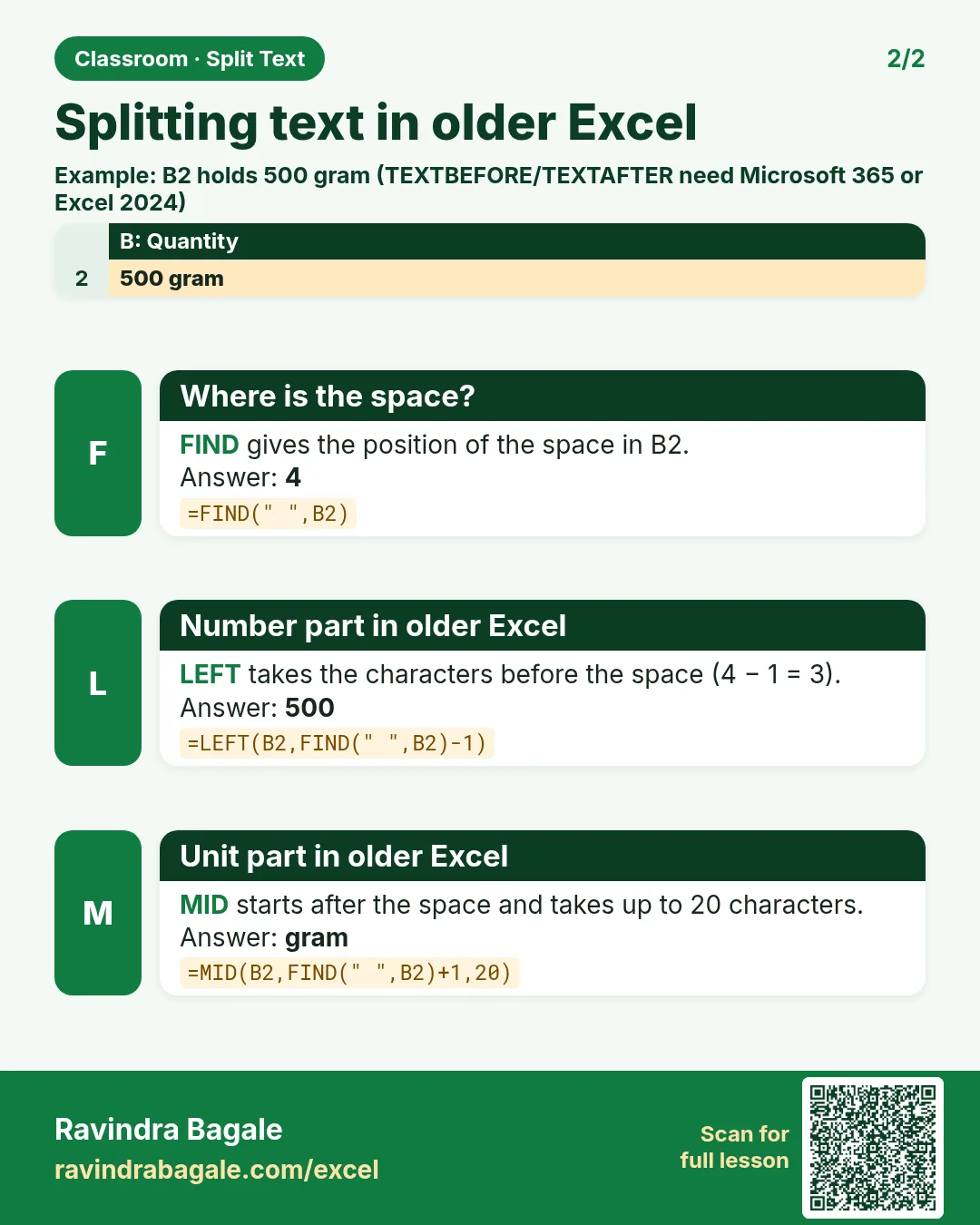
Without TEXTBEFORE and TEXTAFTER (Excel 2019, 2021 and older), FIND gives the position of the space and LEFT and MID cut around it:
- Number:
=VALUE(LEFT(B2,FIND(" ",B2)-1)). For "500 gram" the space is the 4th character, so LEFT takes 3 characters: "500". - Unit:
=MID(B2,FIND(" ",B2)+1,99). MID starts after the space and takes up to 99 characters: "gram". - Kg and amount: the same IF and multiplication as above.
The practice file shows these formulas below the table, with the same results.
8. The whole chapter on one page
| Step | Microsoft 365 / web | Any version | Row 4 (500 gram) |
|---|---|---|---|
| Number as text | =TEXTBEFORE(B4," ") |
=LEFT(B4,FIND(" ",B4)-1) |
"500" |
| Real number | =NUMBERVALUE(D4) |
=VALUE(...) |
500 |
| Unit | =TEXTAFTER(B4," ") |
=MID(B4,FIND(" ",B4)+1,99) |
gram |
| Kg | =IF(F4="kg",E4,E4/1000) |
same | 0.5 |
| Amount | =G4*C4 |
same | 60 |
- Text quantities cannot be added: SUM returns 0.
- TEXTBEFORE and TEXTAFTER split at a delimiter and return text.
- NUMBERVALUE (or VALUE) turns the text into a number.
- IF converts grams to kg; then multiply by the price per kg.
- No delimiter means #N/A: clean the data or use IFERROR.
9. Try at home
Try at home
Task 1
- Add Onion, "3 kg", price 25. What is its amount, and the new total? (75; total 440.)
Task 2
- Add Paneer, "200 gram", price 400 per kg. What is its amount? (80.)
Task 3
- Type "2kg" for Tomato and see what TEXTBEFORE returns. (#N/A.)
Recap
In short
- "2 kg" is text; numbers must be pulled out first.
- TEXTBEFORE(B2," ") gives the number as text.
- NUMBERVALUE makes it a real number.
- TEXTAFTER(B2," ") gives the unit; IF converts grams to kg.
- Older Excel: LEFT, MID and FIND do the same job.
Quick revision cards
Quick revision
Revise this chapter in two minutes. Save the cards on your phone or download them as PNG files. All names and numbers are made up for practice.
झटपट उजळणी
हा chapter दोन मिनिटांत revise करा. Cards phone वर save करा किंवा PNG म्हणून download करा. सगळी नावं आणि आकडे सरावासाठी काल्पनिक आहेत.
झटपट दोहराई
यह chapter दो मिनट में revise करें. Cards phone पर save करें या PNG के रूप में download करें. सभी नाम और आंकड़े अभ्यास के लिए काल्पनिक हैं.


More cards for every chapter: Ravi Sir's Cards.
Loading practice tasks...
- Total units sold (Easy): Add up Units sold in D2:D11. (sheet "Data")
- Average price (Easy): Average of E2:E11, rounded to 2 decimals. (sheet "Data")
- Rows in Snacks (Easy): How many rows have Category "Snacks"? (sheet "Data")
- Largest units sold (Easy): The largest value in D2:D11. (sheet "Data")
- Clean name (Easy): Trim A2. (sheet "Text")
- Proper case (Easy): A2 trimmed and in proper case. (sheet "Text")
- Code prefix (Easy): First 3 characters of B2. (sheet "Text")
- Code number (Easy): Last 4 characters of B3. (sheet "Text")
- Units sold for Snacks (Medium): Total of D2:D11 where B is "Snacks". (sheet "Data")
- Snacks in Mumbai (Medium): Total of D2:D11 where B is "Snacks" and C is "Mumbai". (sheet "Data")
- City part (Medium): Characters 5 to 7 of B4. (sheet "Text")
- Name length (Medium): Length of A3. (sheet "Text")