Excel IF, Nested IF and AND Function: Pass or Fail in All Subjects
A student passes only if he or she scores 35 or more in every subject. One subject below 35, and the result is Fail, however high the other marks are. That one rule is the best way to learn Excel's most-used decision function, IF. We start with one subject, see why adding the marks gives the wrong answer, then solve it twice: with an IF inside an IF (nested IF) and with the AND function. Both come up again and again in Excel interviews.
What you'll learn in this chapter
- IF syntax: test, value if true, value if false
- Pass/Fail for one subject, dragged down
- Why the total of marks is the wrong test
- Nested IF: an IF inside an IF
- How Excel reads a nested IF, step by step
- AND: TRUE only when every condition is true
- IF with AND: the short, readable version
- Absent students: a third result
- Count passes and the pass percentage
Practice file: excel-if-and-practice.xlsx has every formula from this chapter on the Marks sheet, and the same data without formulas on Your turn.
1. The marks sheet
We use the same 10 students as the COUNT and COUNTIF chapter. Columns: A id, B name, C maths, D science, E english, rows 5 to 14. The pass mark is 35 in each subject. Amir was absent for maths (blank) and Raja scored 0 in maths.
| id | name | maths | science | english |
|---|---|---|---|---|
| 1 | Ravindra | 78 | 85 | 66 |
| 2 | Shraddha | 92 | 88 | 90 |
| 3 | Ruhi | 34 | 71 | 58 |
| 4 | Shahrukh | 56 | 49 | 30 |
| 5 | Amir | (blank) | 62 | 47 |
| 6 | Salman | 88 | 35 | 72 |
| 7 | Zoya | 67 | 90 | 84 |
| 8 | Ravina | 45 | 28 | 52 |
| 9 | Raja | 0 | 40 | 38 |
| 10 | Rani | 81 | 76 | 89 |
2. IF: one decision
Syntax: =IF(logical_test, value_if_true, value_if_false)
- logical_test: a question with a yes/no answer, such as
C5>=35. - value_if_true: what to show when the answer is yes.
- value_if_false: what to show when the answer is no.
How (maths only):
- In F5 type
=IF(C5>=35,"Pass","Fail")and press Enter. - Ravindra has 78 in maths, so F5 shows Pass.
- Drag the fill handle down to F14. Each row checks its own marks (F6 uses C6, F7 uses C7 …).
- Change C5 to
22: F5 turns to Fail at once. Change it back to78.
Comparison signs you can use: >= (at least), > (more than), <=, <, = (equal), <> (not equal). Text results go inside "double quotes"; numbers and cell addresses don't.
Figure 1. IF asks one question. Yes gives the first value, no gives the second.
3. Pass in all subjects: why adding marks is wrong
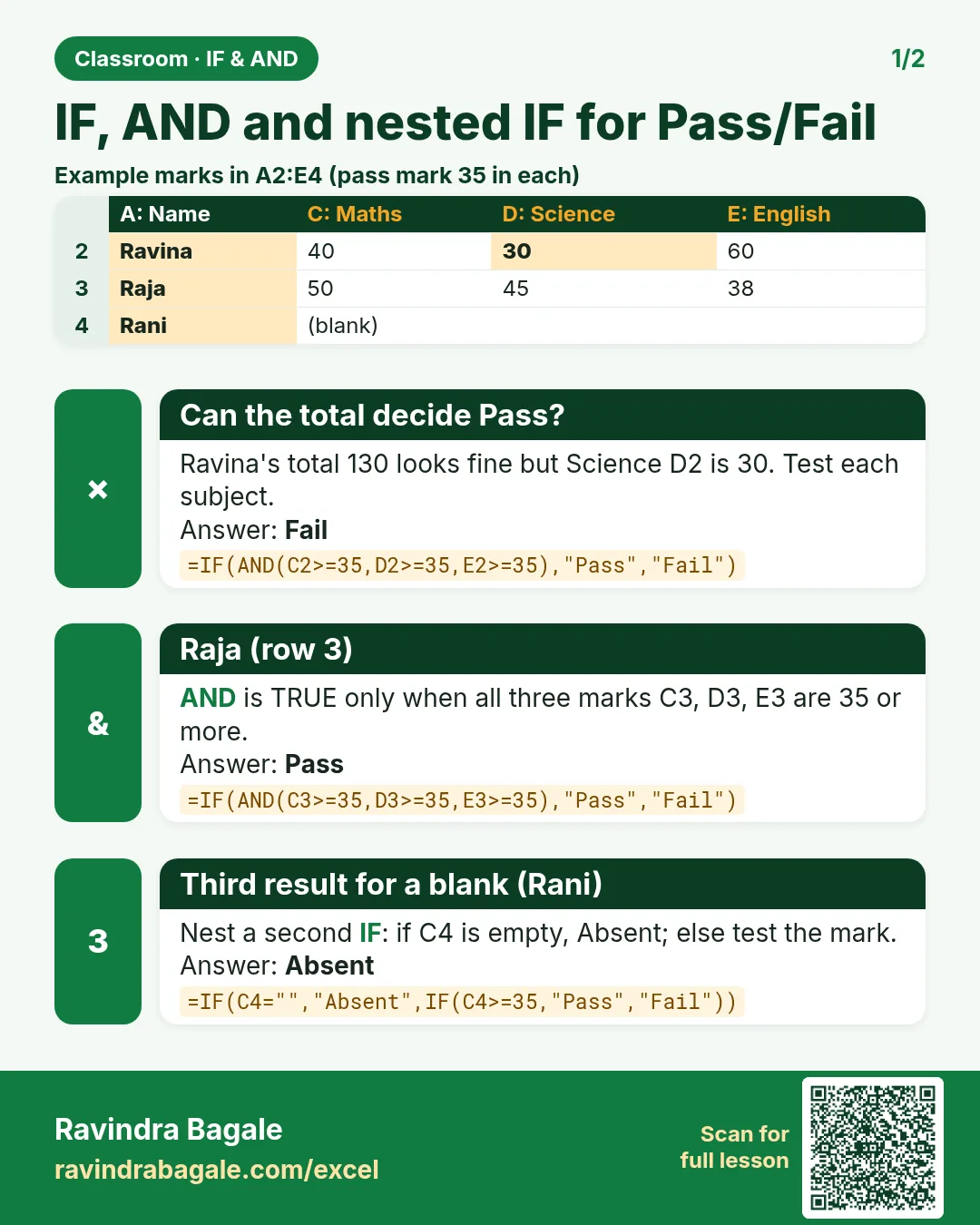
The real rule is "35 or more in each of the three subjects". A tempting shortcut is to add the three marks and check if the total is at least 105 (3 × 35). It gives wrong answers:
| Student | maths | science | english | Total | Total ≥ 105? | Real result |
|---|---|---|---|---|---|---|
| Ruhi | 34 | 71 | 58 | 163 | yes | Fail (maths 34) |
| Shahrukh | 56 | 49 | 30 | 135 | yes | Fail (English 30) |
| Ravina | 45 | 28 | 52 | 125 | yes | Fail (science 28) |
| Amir | (blank) | 62 | 47 | 109 | yes | Fail (absent in maths) |
Four students cross 105 and still fail. A high mark in one subject hides a low mark in another, so every subject has to be checked on its own.
Classroom line
Only if all three are pass will we call the student pass; otherwise we call it fail.
Class मधलं वाक्य
तिन्ही pass असतील तरच आपण त्याला pass म्हणू, नाहीतर fail म्हणू.
Classroom line – हिंदी
"Agar teeno bhi pass hai to hi hum usko pass kahenge, otherwise fail kahenge."
Figure 2. The total-marks trap: Shahrukh's total is 135, well above 105, but his English mark is 30, so he fails.
4. Nested IF: an IF inside an IF
Idea: check maths first. Only if maths is a pass do we check science. Only if science is also a pass do we check English.
The formula (in H5):
=IF(C5>=35,IF(D5>=35,IF(E5>=35,"Pass","Fail"),"Fail"),"Fail")
Build it in three steps:
- Start with English only:
IF(E5>=35,"Pass","Fail"). - Wrap it with science:
IF(D5>=35, IF(E5>=35,"Pass","Fail"), "Fail"). If science is a pass, go and check English; if not, Fail. - Wrap that with maths:
=IF(C5>=35, IF(D5>=35, IF(E5>=35,"Pass","Fail"),"Fail"), "Fail").
Then drag H5 down to H14.
Classroom line
Put an IF inside an IF; this is what we call a nested IF.
Class मधलं वाक्य
IF च्या आत IF ठेवा, याला आपण Nested IF म्हणतो.
Classroom line – हिंदी
"IF ke andar IF rahne do, isko hum kahenge Nested IF."
5. How Excel reads a nested IF
- Excel checks
C5>=35first. - If it is false, Excel jumps straight to the last
"Fail". It does not even look at science or English. - If it is true, it moves inside to
D5>=35. False → the middle"Fail". - If that is also true, it checks
E5>=35: true →"Pass", false →"Fail".
Each IF needs its own closing bracket, so the formula ends with ),"Fail"),"Fail"). Excel colours each pair of brackets differently while you type, which helps you see which bracket closes which IF.
Figure 3. A nested IF is a chain of questions. A No at any step gives Fail; Pass needs a Yes at all three.
Classroom line
It is a little hard to understand because they sit inside one another.
Class मधलं वाक्य
"Samjhun ghyayala thodasa avghad padtay karan ek mekacha aat madhe aahet."
समजून घ्यायला थोडंसं अवघड पडतंय कारण एकमेकांच्या आत मध्ये आहेत.
Classroom line
It is a little hard to understand because they sit inside one another.
The results (H5:H14): Pass for Ravindra, Shraddha, Salman, Zoya and Rani; Fail for Ruhi, Shahrukh, Amir, Ravina and Raja. Salman's 35 in science is a pass, because >= includes 35 itself.
Ravindra Bagale's Tip
To see a long formula next to its result, use =FORMULATEXT(H5) in a spare column. It prints the formula as text, which is the easiest way to compare two versions or to explain your sheet to someone else.
Ravindra Bagale's Tip – मराठी
मोठा formula त्याच्या result शेजारी बघायचा असेल तर रिकाम्या column मध्ये =FORMULATEXT(H5) वापरा. तो formula text म्हणून दाखवतो; दोन versions compare करायला किंवा तुमची sheet दुसऱ्याला समजावायला हा सगळ्यात सोपा मार्ग आहे.
Ravindra Bagale's Tip – हिंदी
लंबा formula उसके result के बगल में देखना हो तो खाली column में =FORMULATEXT(H5) लगाओ. ये formula को text की तरह दिखाता है; दो versions compare करने या अपनी sheet किसी और को समझाने का ये सबसे आसान तरीका है.
6. The AND function
What: AND checks several conditions together and gives TRUE only if all of them are true. If even one is false, it gives FALSE. It always returns TRUE or FALSE, nothing else.
How:
- In I5 type
=AND(C5>=35,D5>=35,E5>=35). - Ravindra (78, 85, 66) gives TRUE.
- Drag down to I14. Shahrukh (56, 49, 30) gives FALSE, because English is below 35.
Classroom line
The AND function always gives TRUE or FALSE as its result.
Class मधलं वाक्य
AND function नेहमी TRUE किंवा FALSE हाच result देतो.
Classroom line – हिंदी
"AND function hamesha true aur false yahi result karta hai."
Figure 4. AND gives TRUE only when every condition is TRUE. One FALSE anywhere makes the whole AND FALSE.
7. IF with AND: the short version
AND gives TRUE or FALSE, and IF needs exactly that as its test. Put them together:
=IF(AND(C5>=35,D5>=35,E5>=35),"Pass","Fail")
- Type it in J5 and drag down to J14.
- Compare column J with column H (the nested IF): all 10 results are the same.
- Change Ravindra's maths (C5) to
22: both H5 and J5 turn to Fail. Change it back to78.
Figure 5. The nested IF (column H) and IF with AND (column J) give the same ten results. IF with AND is shorter and easier to read.
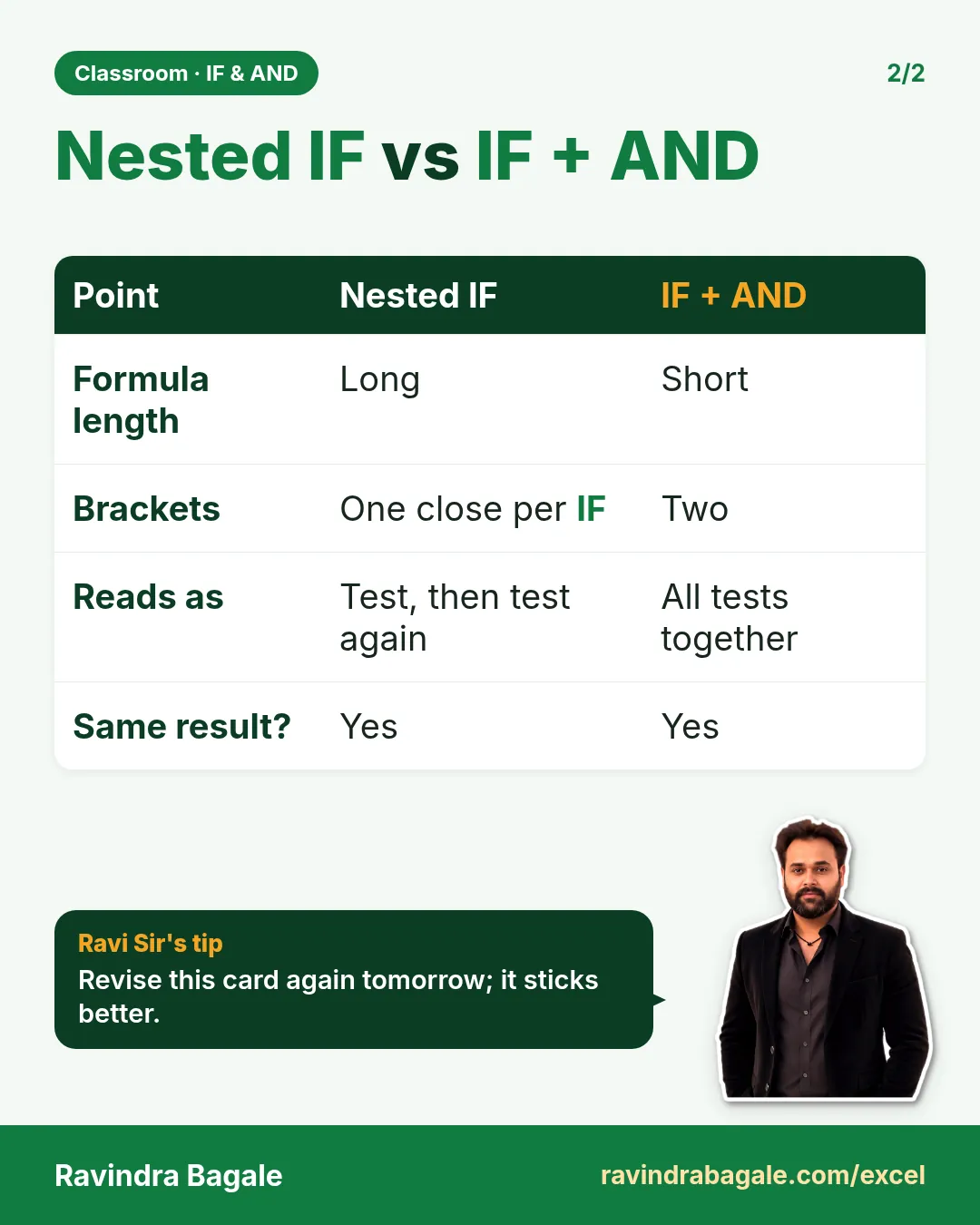
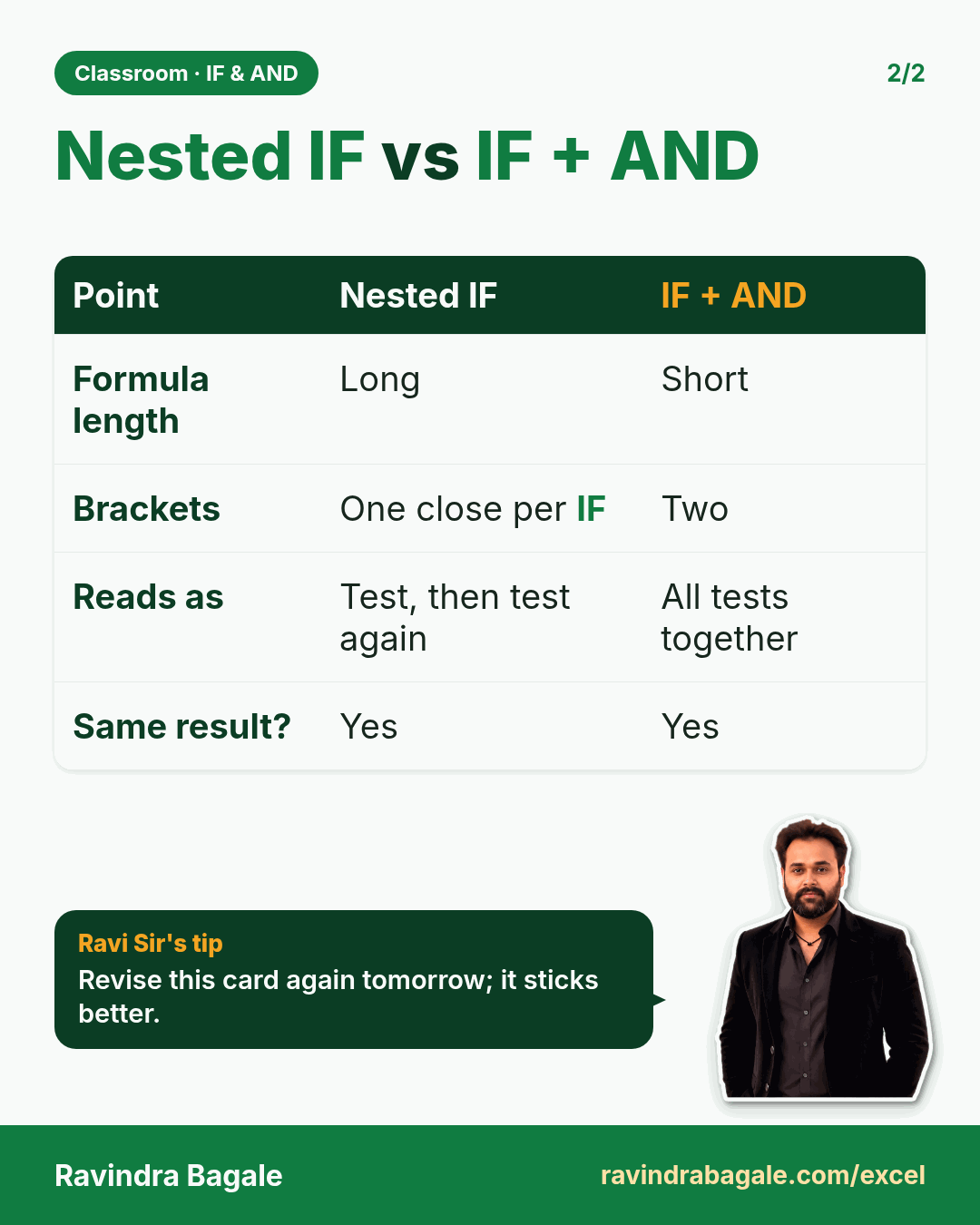
Which one to use? For "all conditions must be true", IF with AND is shorter, has one pair of results, and is easy to extend: a fourth subject is just one more condition inside AND. Nested IF is the tool when each step has its own result, as in the next section. Interviewers often ask for both.
Ravindra Bagale's Tip
While you type a function, read the tooltip. The bold argument is the one you are on now. If the bold part is not where you expect, you have missed a comma or a bracket. It is the quickest way to catch a mistake in a long formula before you press Enter.
Ravindra Bagale's Tip – मराठी
Function type करताना tooltip वाचा. Bold argument म्हणजे तुम्ही आत्ता जो type करताय तो. Bold भाग अपेक्षित ठिकाणी नसेल तर एखादा comma किंवा bracket सुटला आहे. Enter दाबण्याआधी मोठ्या formula मधली चूक पकडायचा हा सगळ्यात जलद मार्ग आहे.
Ravindra Bagale's Tip – हिंदी
Function type करते समय tooltip पढ़ो. Bold argument वो है जो आप अभी type कर रहे हो. Bold हिस्सा उम्मीद की जगह पर नहीं है तो कोई comma या bracket छूट गया है. Enter दबाने से पहले लंबे formula की गलती पकड़ने का ये सबसे तेज़ तरीका है.
8. A third result: Absent
A blank cell counts as 0 in a comparison, so Amir gets "Fail" in maths even though he never wrote the exam. A nested IF can give him a different result:
=IF(C5="","Absent",IF(C5>=35,"Pass","Fail"))
C5=""asks: is the cell empty?- If yes → Absent. If no → the normal Pass/Fail check.
Down the column: Pass, Pass, Fail, Pass, Absent (Amir), Pass, Pass, Pass, Fail (Raja, who did appear and scored 0), Pass.
9. Count the results
With the all-subject result in column J:
| What | Formula | Result |
|---|---|---|
| Total students | =COUNT(A5:A14) |
10 |
| Passed in all subjects | =COUNTIF(J5:J14,"Pass") |
5 |
| Failed | =COUNTIF(J5:J14,"Fail") |
5 |
| Pass % | =N18/N17 with % format |
50% |
In the practice file the totals sit in N17 (students) and N18 (passed). With maths only, the pass percentage was 70%. With the real "all subjects" rule it is 50%. The rule you choose changes the answer, so always write it down next to the result.
10. The whole chapter on one page
=IF(test, value_if_true, value_if_false); text in quotes.=IF(C5>=35,"Pass","Fail")for one subject; drag down.- Adding marks hides a failed subject: four students cross 105 and still fail.
- Nested IF:
=IF(C5>=35,IF(D5>=35,IF(E5>=35,"Pass","Fail"),"Fail"),"Fail"). - Excel stops at the first false test and jumps to its "Fail".
AND(...)= TRUE only if every condition is true.=IF(AND(C5>=35,D5>=35,E5>=35),"Pass","Fail")gives the same results, shorter.=IF(C5="","Absent",…)gives absent students their own result.- COUNTIF on the result column gives passes; passes ÷ total = pass %.
11. Try at home
Try at home
Task 1: one subject
- Make Pass/Fail columns for science and for English, each with its own IF.
- Count the passes in each subject with COUNTIF.
Task 2: all subjects, two ways
- Write the nested IF in one column and IF with AND in the next.
- Use FORMULATEXT to show both formulas.
- Change Salman's science from 35 to 34. Which results change?
Task 3: four subjects
- Add a fourth subject,
computers, with your own marks. - Extend the IF with AND to four conditions. How many students pass now?
Task 4: grades
- Using nested IF, show "Distinction" for 75 or more in maths, "Pass" for 35 to 74, and "Fail" below 35. Hint: test the highest band first.
Recap
In short
- IF = one test, two results.
- Never use the total to decide "pass in all subjects".
- Nested IF = IF inside IF; one closing bracket per IF.
- Excel checks the outer test first and stops at the first false.
- AND returns TRUE only when all conditions are TRUE.
- IF + AND gives the same result as the nested IF, shorter.
- A nested IF can add a third result such as Absent.
- Same data, different rule, different pass percentage: 70% vs 50%.
Quick revision cards
Quick revision
Revise this chapter in two minutes. Save the cards on your phone or download them as PNG files. All names and numbers are made up for practice.
झटपट उजळणी
हा chapter दोन मिनिटांत revise करा. Cards phone वर save करा किंवा PNG म्हणून download करा. सगळी नावं आणि आकडे सरावासाठी काल्पनिक आहेत.
झटपट दोहराई
यह chapter दो मिनट में revise करें. Cards phone पर save करें या PNG के रूप में download करें. सभी नाम और आंकड़े अभ्यास के लिए काल्पनिक हैं.

More cards for every chapter: Ravi Sir's Cards.
Loading practice tasks...
- Pass or fail (Easy): "Pass" if B2 is at least 40, else "Fail".
- Total (Easy): B2 plus C2.
- Passed score 1 (Easy): How many in B2:B11 are 40 or more?
- Passed both (Medium): TRUE if B3 and C3 are both at least 40.
- Passed either (Medium): TRUE if B4 or C4 is at least 75.
- Grade (Medium): Grade for the average of B2:C2: "A" 75+, "B" 60+, "C" 40+, else "F".
- Eligible (Medium): "Eligible" if D5 is at least 75 and B5 at least 40, else "Not eligible".
- Count passed both (Hard): How many have both scores at least 40?
- Pass percentage (Hard): Share passing score 1, rounded to 2 decimals.
- Nested IF band (Hard): "High" if C6 ≥ 75, "Mid" if ≥ 50, else "Low", using nested IF.
- Top scorer (Hard): Name with the highest score 1.