22. KPI in All Industries
Friends, in this module we look at KPIs (Key Performance Indicators: the numbers that actually change a decision) in many industries. In an interview nobody asks only "what is AOV". They ask where the number came from, who uses it, and what to do next. For each industry you get fictional rows, the KPI table, the Excel formulas, and the result you should see.
मित्रांनो, या module मध्ये आपण अनेक industries मधले KPI (Key Performance Indicator: खरोखर निर्णय बदलणारे आकडे) बघणार आहोत. Interview मध्ये कोणी फक्त "AOV काय आहे" विचारत नाही. आकडा कुठून आला, तो कोण वापरतो, आणि पुढे काय करायचं, हे विचारतात. प्रत्येक industry साठी काल्पनिक rows, KPI table, Excel formulas आणि तुम्हाला दिसायला हवा तो result मिळेल.
दोस्तों, इस module में हम कई industries के KPI (Key Performance Indicator: वे आँकड़े जो सच में फ़ैसला बदलते हैं) देखेंगे. Interview में कोई सिर्फ़ "AOV क्या है" नहीं पूछता. वे पूछते हैं कि आँकड़ा कहाँ से आया, कौन उसे इस्तेमाल करता है, और आगे क्या करना है. हर industry के लिए काल्पनिक rows, KPI table, Excel formulas और आपको दिखने वाला result मिलेगा.
What you will learn in this module
- What a KPI is, and how it differs from a vanity metric
- The KPIs students meet in interviews and on the job, industry by industry
- The Excel way to calculate them: a Table, SUM ÷ SUM totals, calculated columns and SUMIFS
- What a manager in Pune or Nashik would do after seeing the number
Live story: Same Excel, new industry
Suppose your next client is a hospital, a bank or a school, not a grocery app. The KPI names change. The Excel method does not: put the rows in a Table, divide total by total, add calculated columns for each row, and use SUMIFS for one city. Every section below follows that pattern on six fictional rows.
All numbers in this story are fictional practice data.
Live story: तोच Excel, नवी industry
समजा तुमचा पुढचा client grocery app नाही, तर hospital, bank किंवा school आहे. KPI ची नावं बदलतात. Excel ची पद्धत बदलत नाही: rows Table मध्ये टाका, total ला total ने भागा, प्रत्येक row साठी calculated columns टाका, आणि एका शहरासाठी SUMIFS वापरा. खालचा प्रत्येक section सहा काल्पनिक rows वर हाच pattern वापरतो.
या story मधले सगळे आकडे काल्पनिक practice data आहेत.
Live story: वही Excel, नई industry
मान लीजिए आपका अगला client grocery app नहीं, बल्कि hospital, bank या school है. KPI के नाम बदलते हैं. Excel का तरीका नहीं बदलता: rows को Table में डालें, total को total से भाग दें, हर row के लिए calculated columns जोड़ें, और एक शहर के लिए SUMIFS इस्तेमाल करें. नीचे का हर section छह काल्पनिक rows पर यही pattern अपनाता है.
इस story के सारे आँकड़े काल्पनिक practice data हैं.
Fictional sample data
Every number in this module is fictional sample data for class. It is not a result of Blinkit, Amazon, any bank, hospital, college, factory or government office. Do not quote these figures as a real company result in an interview. Say "in my practice file".
Concepts in this chapter
- 22.1How to Read a KPI
- 22.2Retail and Quick Commerce
- 22.3E-commerce
- 22.4Sales
- 22.5Finance and Accounting
- 22.6Banking
- 22.7Insurance
- 22.8Healthcare
- 22.9Pharma
- 22.10Manufacturing
- 22.11Inventory and Supply Chain
- 22.12Logistics
- 22.13HR
- 22.14Marketing and Digital Ads
- 22.15Education
- 22.16Hospitality
- 22.17Real Estate
- 22.18Telecom
- 22.19IT Services
- 22.20Government and NGO
The chapter recap is at the end of the last concept page.
Quick revision cards
Quick revision
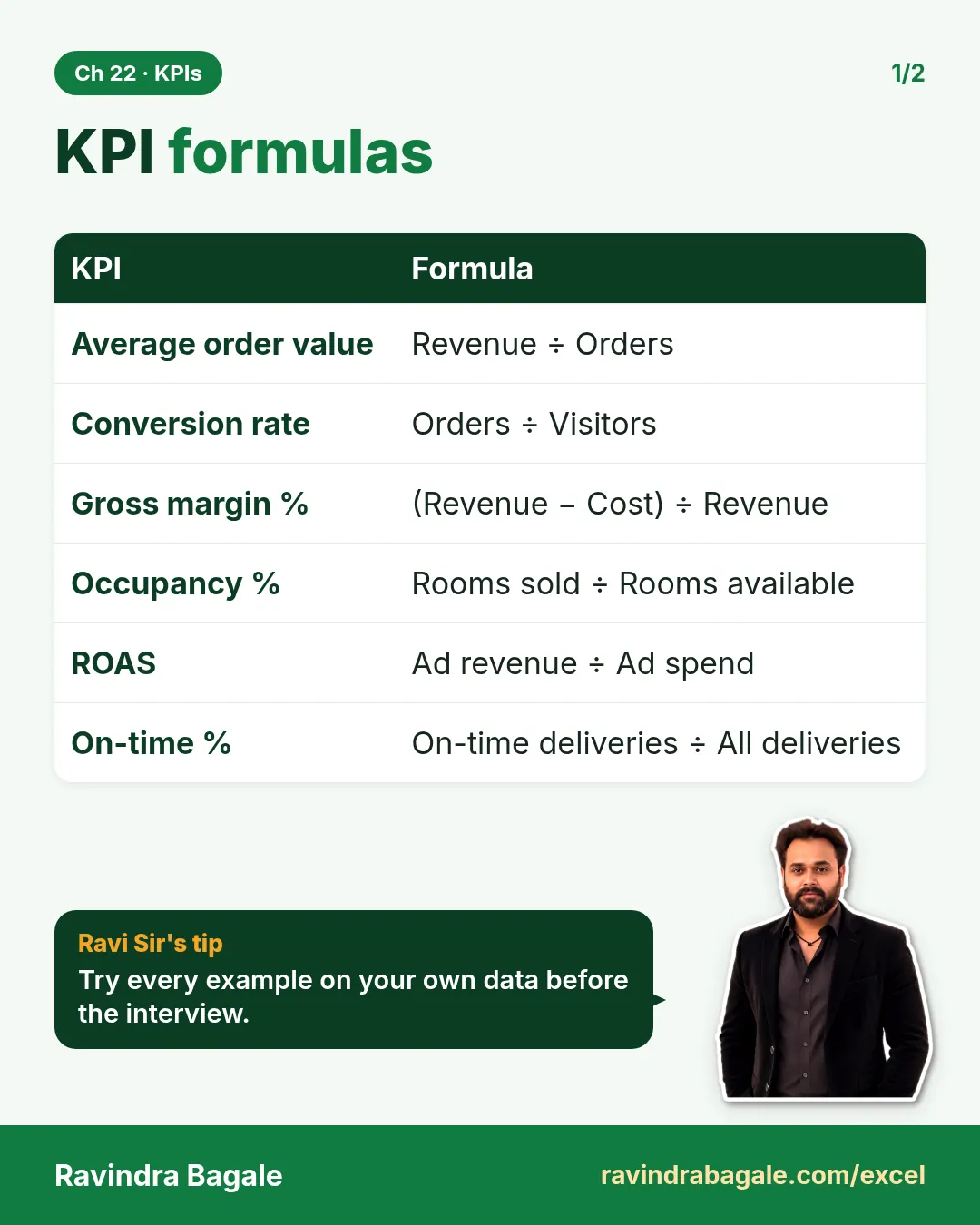
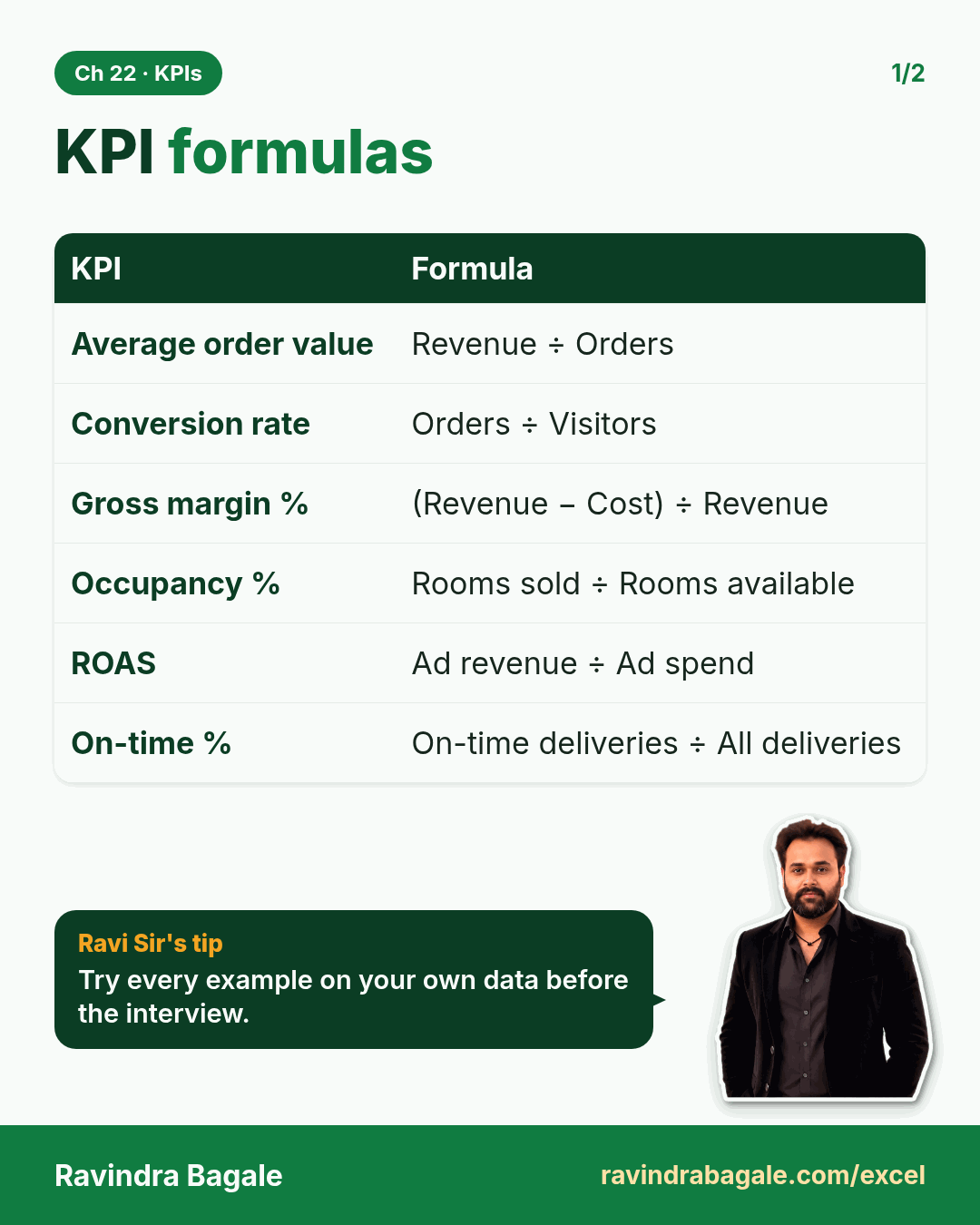
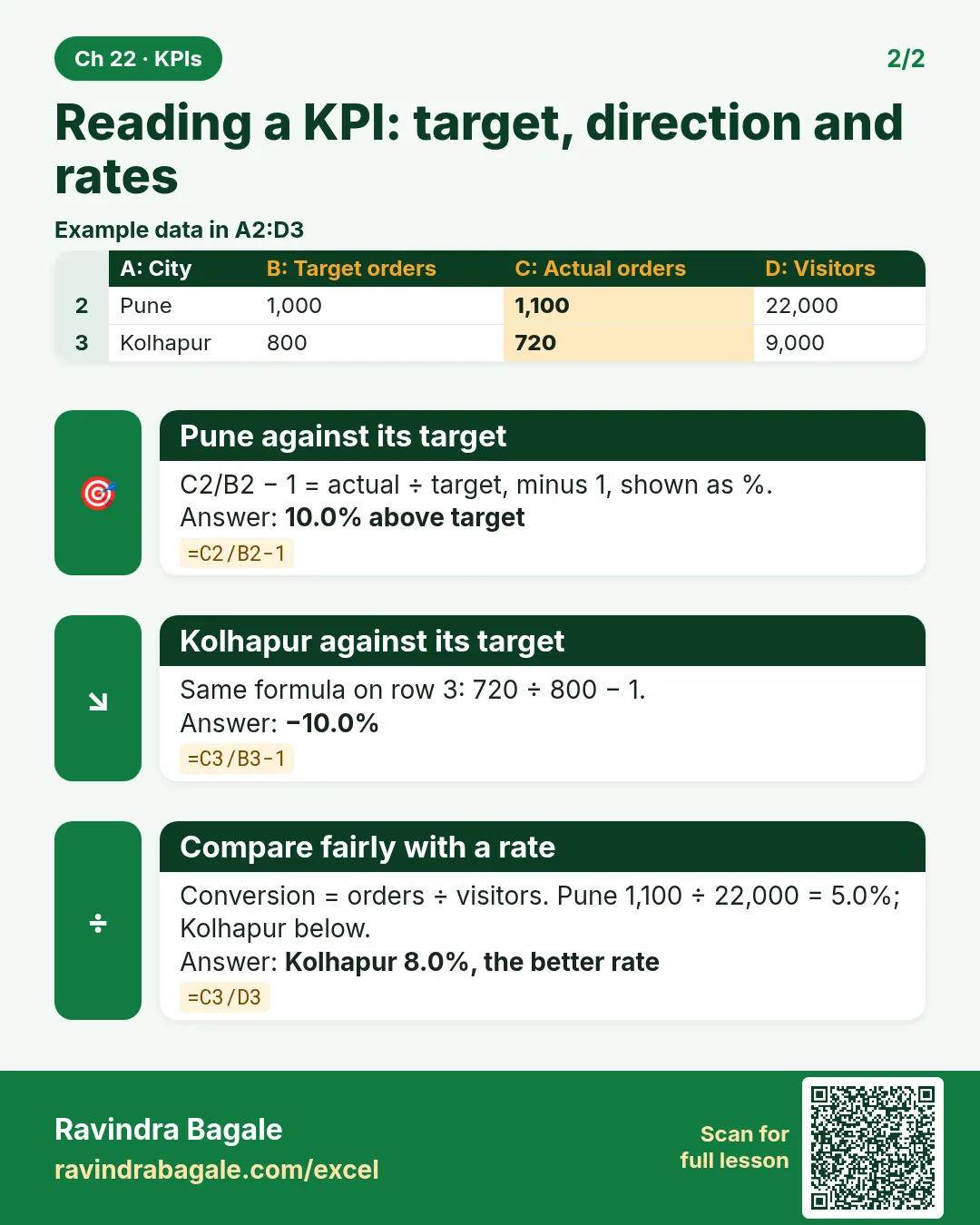
Revise this chapter in two minutes. Save the cards on your phone or download them as PNG files. All names and numbers are made up for practice.
झटपट उजळणी
हा chapter दोन मिनिटांत revise करा. Cards phone वर save करा किंवा PNG म्हणून download करा. सगळी नावं आणि आकडे सरावासाठी काल्पनिक आहेत.
झटपट दोहराई
यह chapter दो मिनट में revise करें. Cards phone पर save करें या PNG के रूप में download करें. सभी नाम और आंकड़े अभ्यास के लिए काल्पनिक हैं.

More cards for every chapter: Ravi Sir's Cards.