Boutique and Tailoring Management System in Excel: Measurements, Orders, Delivery Dates, Job Cards and Dashboard
Rani Boutique in Solapur stitches blouses, kurtis, suits and lehengas with three tailors. Measurements lived in a notebook, and customers called asking whether their blouse was ready before anyone knew it was late. This page builds a 7-sheet Excel system: measurements are saved once per customer, each order works out its promised date and status, and the job card carries the measurements to the tailor.
What you'll learn on this page
- Save customer measurements once and reuse them
- Price an order from the garment rate plus extras
- Work out the promised date from standard days
- Show Delivered, Overdue, Due soon or In work
- Count days late and on-time delivery
- Print a job card with measurements
- Report work and value per tailor with COUNTIFS and SUMIFS
Download the template: boutique-tailoring-management-system-template.xlsx: a 7-sheet system with example data and real formulas (Read me, Setup, Measurements, Orders, Job card, Report, Dashboard). Yellow cells are inputs you can type over; green cells hold formulas; blue rows are headers and totals. Replace the example data with your own and every report and the dashboard recalculate.
Made-up data: every name, amount, business and date on this page is made up for practice. Cities are used only to make the examples feel real.
1. The business story
Rani Boutique, Solapur, as of 17 October 2026 (made-up data). Five garment types with rates and standard days; tailors Rani, Zoya and Shahrukh.
| Question | Where the system answers it |
|---|---|
| Which orders are late? | Orders: O-006 (5 days), O-009 (2 days) and O-008 (1 day) |
| What is due in the next 2 days? | Status Due soon: O-003, O-011 and O-012 |
| Are we on time? | Dashboard: 5 of 6 delivered orders were on time |
| How much is still to collect? | ₹4,250 on open orders |
13 orders worth ₹13,600; 7 are still open. Shahrukh has 2 of the 3 overdue orders, so the Report shows where to help first.
Figure 1. Setup holds rates and days; Measurements and Orders are the entry sheets; Job card, Report and Dashboard only read.
2. Build it sheet by sheet
Step 1. Setup and Measurements
- Setup B3 as-of date, B4 the due soon window (2 days), A7:C11 Garment, Stitching rate, Standard days and E7:E9 tailors.
- Measurements: one row per customer with Customer ID, Name, Phone, Bust, Waist, Hip, Shoulder, Sleeve, Blouse length. Update the row when a customer's size changes.
Step 2. Orders: price and promised date
- A5 numbers the order
="O-"&TEXT(ROW()-4,"000"); D5 fills the name from the customer ID with XLOOKUP. - G5 rate from Setup, I5 total
=F5*G5+H5(extras such as lining or piping in H), K5 balance=IF(N5<>"",0,I5-J5). - M5 promised date:
=B5+XLOOKUP(E5,Setup!$A$7:$A$11,Setup!$C$7:$C$11,0). A blouse taken on 10 October is promised for 15 October.
Step 3. Orders: status and days late
- O5:
=IF(N5<>"","Delivered",IF(M5<Setup!$B$3,"Overdue",IF(M5-Setup!$B$3<=Setup!$B$4,"Due soon","In work")))(nested IF). - P5 days late:
=IF(N5<>"",MAX(0,N5-M5),MAX(0,Setup!$B$3-M5)). For delivered orders it compares delivery with the promise; for open ones, today. - Colour Overdue red and Due soon amber with conditional formatting.
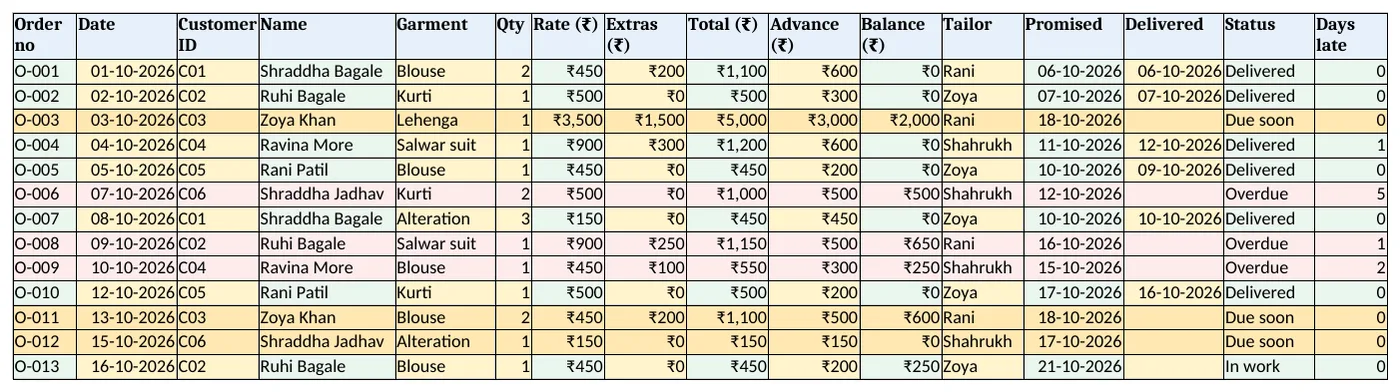
Figure 2. Orders: total, balance, promised date, status and days late
Step 4. Job card: for the tailor
- Type an order no in B4. Rows 6 to 12 bring customer, garment, qty, tailor, promised date and balance with XLOOKUP; rows 15 to 20 bring the measurements from the customer ID.
- O-009 shows Ravina More's blouse for Shahrukh: bust 32, waist 27, blouse length 14.5. Set the print area to A1:B20.
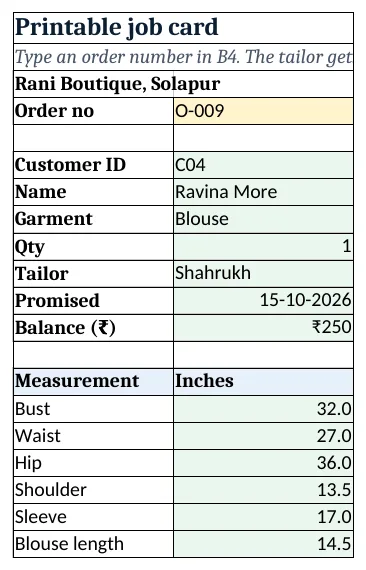
Figure 3. Job card: order details and the customer's measurements for the tailor
Step 5. Report and Dashboard
- Report per tailor: B5 orders, C5 pending and D5 overdue with COUNTIFS, E5 delivered on time and F5 value.
- Rows 11 to 15 count pieces and value per garment.
- Dashboard KPI cards: orders, open
=COUNTA(Orders!$C$5:$C$500)-COUNTIF(Orders!$O$5:$O$500,"Delivered"), overdue, on-time %, value and balance. Charts: orders per tailor and value per garment.
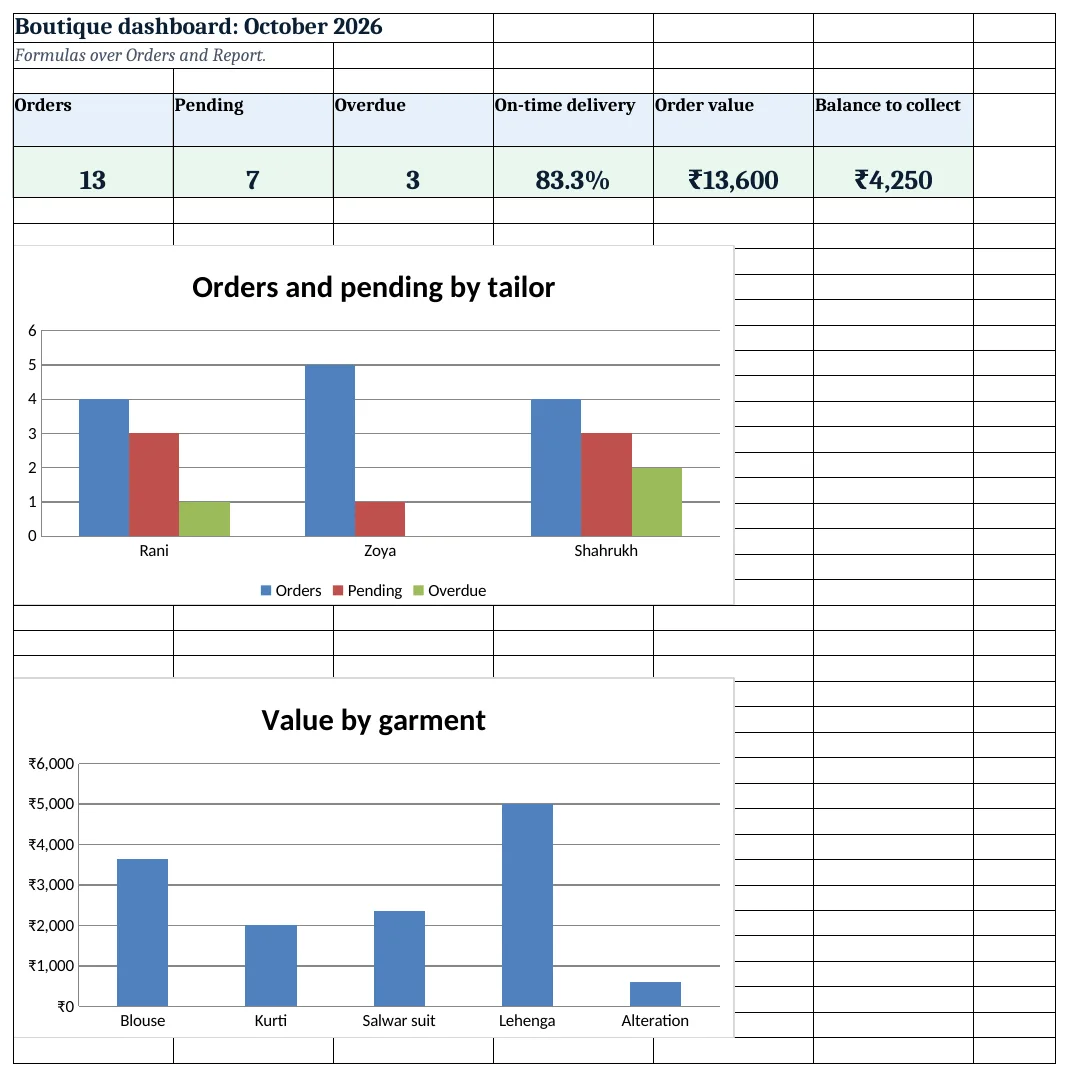
Figure 4. Boutique dashboard: open, overdue, on-time % and balance
Ravindra Bagale's Tip
Read the Due soon list every morning and hand those job cards out first. Most late orders were "due soon" two days earlier.
Ravindra Bagale's Tip – मराठी
रोज सकाळी Due soon यादी वाचा आणि त्या job cards आधी द्या. उशीर झालेली बहुतेक orders दोन दिवस आधी "due soon" होती.
Ravindra Bagale's Tip – हिंदी
हर सुबह Due soon सूची पढ़ें और वे job cards पहले दें. ज़्यादातर late orders दो दिन पहले "due soon" थे.
3. Formulas used
| Cell | Formula | What it does |
|---|---|---|
| Orders!A5 | ="O-"&TEXT(ROW()-4,"000") |
Automatic order number |
| Orders!D5 | =XLOOKUP(C5,Measurements!$A$5:$A$200,Measurements!$B$5:$B$200,"Check ID") |
Customer name from the ID |
| Orders!I5 | =F5*G5+H5 |
Order total |
| Orders!K5 | =IF(N5<>"",0,I5-J5) |
Balance to collect |
| Orders!M5 | =B5+XLOOKUP(E5,Setup!$A$7:$A$11,Setup!$C$7:$C$11,0) |
Promised date |
| Orders!O5 | =IF(N5<>"","Delivered",IF(M5<Setup!$B$3,"Overdue",IF(M5-Setup!$B$3<=Setup!$B$4,"Due soon","In work"))) |
Delivered, Overdue, Due soon or In work |
| Orders!P5 | =IF(N5<>"",MAX(0,N5-M5),MAX(0,Setup!$B$3-M5)) |
Days late |
| Job card!B6 | =XLOOKUP($B$4,Orders!$A$5:$A$500,Orders!$C$5:$C$500,"Not found") |
Customer ID for the job card |
| Report!C5 | =COUNTIFS(Orders!$L$5:$L$500,A5,Orders!$O$5:$O$500,"<>Delivered") |
Pending orders per tailor |
| Report!E5 | =COUNTIFS(Orders!$L$5:$L$500,A5,Orders!$O$5:$O$500,"Delivered",Orders!$P$5:$P$500,0) |
Delivered on time per tailor |
| Dashboard!B5 | =COUNTA(Orders!$C$5:$C$500)-COUNTIF(Orders!$O$5:$O$500,"Delivered") |
Open orders |
| Dashboard!D5 | =COUNTIFS(Orders!$O$5:$O$500,"Delivered",Orders!$P$5:$P$500,0)/COUNTIF(Orders!$O$5:$O$500,"Delivered") |
On-time delivery % |
Every formula above is written in the template, so you can click a cell and see it in the formula bar. All values on this page were recalculated in LibreOffice with zero errors.
4. Common mistakes
- Counting open orders with COUNTIF "<>Delivered". Over a long range that counts empty rows too. Use COUNTA of the customer column minus the Delivered count.
- Promising dates by guess. Standard days on Setup keep promises realistic. Change them in wedding season rather than overpromising.
- New measurement row for every order. One row per customer. Update it when sizes change so every job card uses the latest.
- Leaving Delivered blank after handing over. Type the delivery date the same day; otherwise the order turns Overdue.
- Balance still showing on delivered orders. K5 sets the balance to 0 once delivered, so collect it at the counter before typing the date.
Ravindra Bagale's Tip
Take at least half the total as advance on lehengas and other big orders. The Balance column shows where you are exposed.
Ravindra Bagale's Tip – मराठी
lehenga सारख्या मोठ्या orders वर किमान अर्धी रक्कम advance घ्या. Balance column धोका कुठे आहे ते दाखवतो.
Ravindra Bagale's Tip – हिंदी
lehenga जैसे बड़े orders पर कम से कम आधी रकम advance लें. Balance column जोखिम कहां है दिखाता है.
5. More real examples
Example 1: Men's tailoring. Change the measurement columns to chest, waist, seat, shirt length and the garments to shirt, trouser and suit.
Example 2: Alteration counter. Use only Alteration with 1 or 2 standard days and track same-day work with Due soon set to 0.
Example 3: Bridal orders. Add a Trial date column and a second status for the trial, using the same IF pattern.
Quick revision cards
Quick revision
Each card shows formulas from this page, each with an example and its answer from the template. Scan the QR code on a card to open this lesson. All names and numbers are made up for practice.
झटपट उजळणी
प्रत्येक card वर या page मधले formulas, त्यांचं example आणि template मधलं उत्तर आहे. Card वरचा QR code scan केला की हा lesson उघडतो. सगळी नावं आणि आकडे सरावासाठी काल्पनिक आहेत.
झटपट दोहराई
हर card पर इस page के formulas, उनका example और template का उत्तर है. Card का QR code scan करें तो यह lesson खुलेगा. सभी नाम और आंकड़े अभ्यास के लिए काल्पनिक हैं.
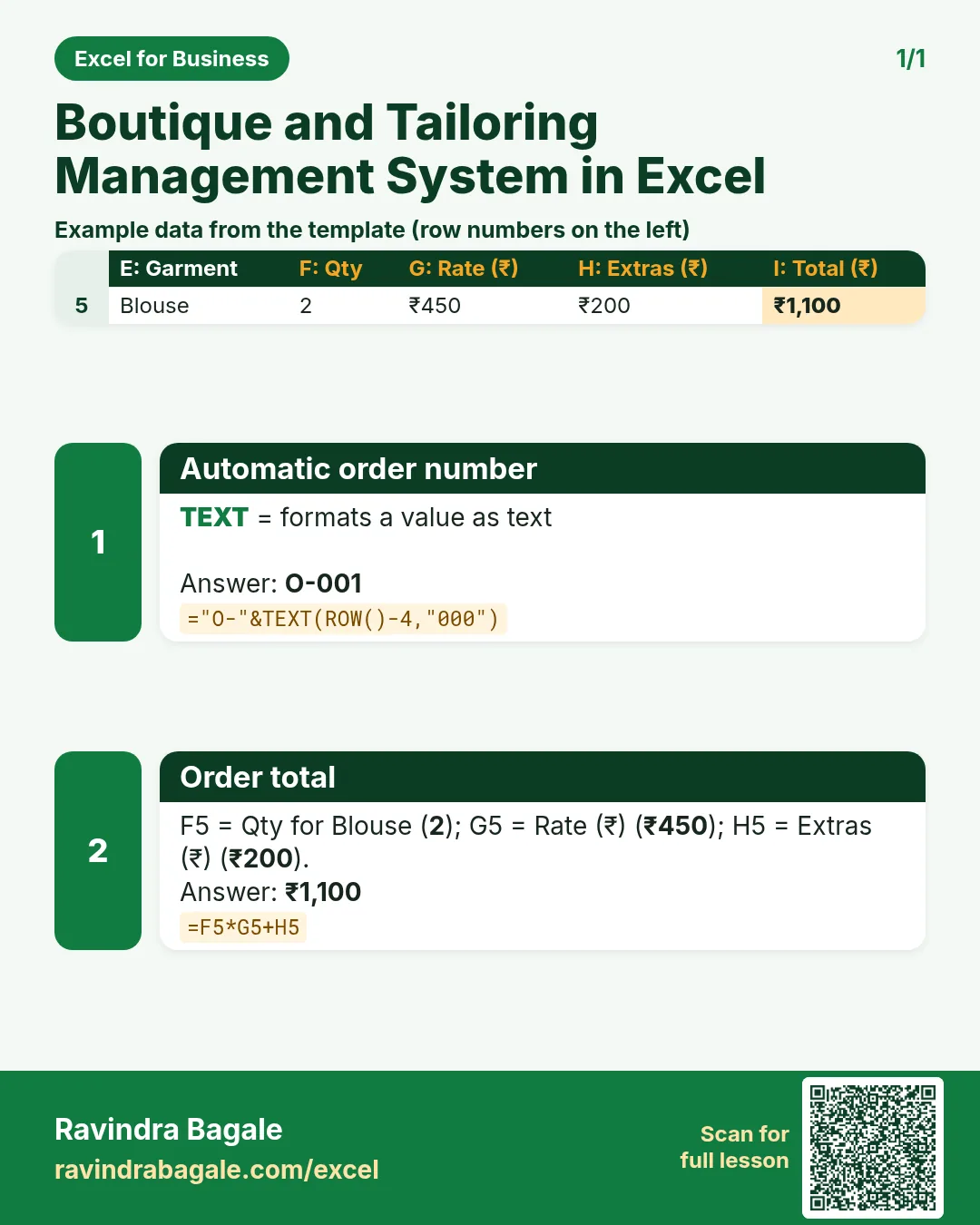

More cards: Ravi Sir's Cards.
6. Frequently asked questions
How do I calculate a delivery date in Excel?
Add the standard days for the garment to the order date: =B5+XLOOKUP(E5,garments,days,0). Use WORKDAY to skip Sundays.
How do I show overdue tailoring orders?
Compare the promised date with today when no delivery date is typed, as in Orders O5.
How do I work out on-time delivery %?
Delivered orders with 0 days late ÷ all delivered orders. Here 5 of 6.
Where should measurements go?
On their own sheet, one row per customer, looked up by customer ID on the job card.
Should I charge GST on stitching?
That depends on your registration and the rate for the service. The template shows charges as quoted; confirm with your accountant.
7. Quick quiz
Ten questions on this page. Sign in to save your score.
Loading practice tasks...
- Total parcels (Easy): Add up Parcels in D2:D11. (sheet "Data")
- Average cost (Easy): Average of E2:E11, rounded to 2 decimals. (sheet "Data")
- Rows in Royal Mail (Easy): How many rows have Carrier "Royal Mail"? (sheet "Data")
- Largest parcels (Easy): The largest value in D2:D11. (sheet "Data")
- Days taken (Easy): C2 minus B2. (sheet "Dates")
- Start year (Easy): Year of B3. (sheet "Dates")
- Due month (Easy): Month number of C3. (sheet "Dates")
- Earliest start (Easy): Earliest date in B2:B9 (as a date number). (sheet "Dates")
- Parcels for Royal Mail (Medium): Total of D2:D11 where B is "Royal Mail". (sheet "Data")
- Royal Mail in Bristol (Medium): Total of D2:D11 where B is "Royal Mail" and C is "Bristol". (sheet "Data")
- Working days (Medium): Working days from B2 to C2. (sheet "Dates")
- Weekday of due (Medium): Weekday number of C4 (Sunday = 1). (sheet "Dates")