4.6 XLOOKUP Basics and if_not_found
Quick answer: the short, self-contained version of this lesson is the guide Excel XLOOKUP Basics for Beginners.
XLOOKUP with if_not_found with example — in 30 seconds
What: XLOOKUP looks for a value in one column and returns the matching value from another column. The 4th argument is the message when nothing is found.
Why: A new store missing from the master shows a clear message instead of #N/A, so you know to add it.
Tiny example: BLK-PUN-09 is not in the Stores sheet. XLOOKUP shows "Not in master" instead of #N/A.
XLOOKUP with if_not_found with example — 30 सेकंदात
काय: XLOOKUP एका column मध्ये value शोधतो आणि दुसऱ्या column मधली जुळणारी value देतो. चौथा argument म्हणजे काहीच न सापडल्यास दाखवायचा message.
का: Master मध्ये नसलेलं नवं store #N/A ऐवजी स्पष्ट message दाखवतं, म्हणजे ते add करायचं आहे हे कळतं.
छोटं उदाहरण: BLK-PUN-09 Stores sheet मध्ये नाही. XLOOKUP #N/A ऐवजी "Not in master" दाखवतो.
XLOOKUP with if_not_found with example — 30 सेकंड में
क्या: XLOOKUP एक column में value ढूँढता है और दूसरे column से मेल खाती value देता है. चौथा argument वह message है जो कुछ न मिलने पर दिखे.
क्यों: Master में न होने वाला नया store #N/A की जगह साफ़ message दिखाता है, तो पता चलता है कि उसे add करना है.
छोटा उदाहरण: BLK-PUN-09 Stores sheet में नहीं है. XLOOKUP #N/A की जगह "Not in master" दिखाता है.
First look at the data (before → after):
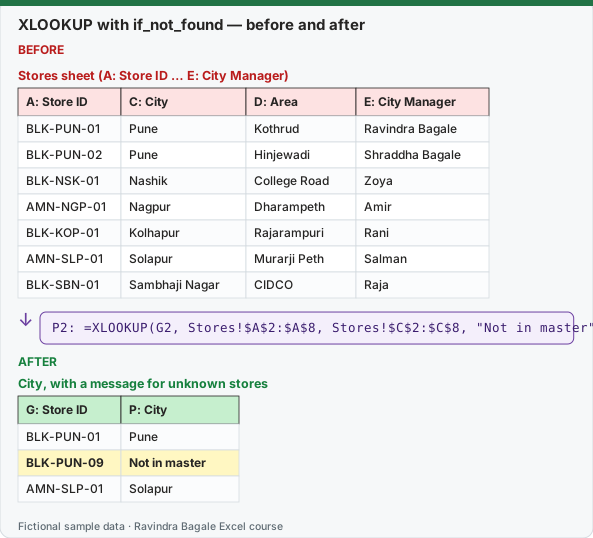
Expected result — City, with a message for unknown stores
| G: Store ID | P: City |
|---|---|
| BLK-PUN-01 | Pune |
| BLK-PUN-09 | Not in master |
| AMN-SLP-01 | Solapur |
About this data: Teaching sample for a fictional shop “CityBasket Retail”. Figures and names (e.g. Vikram Rao) are made up for this lesson on xlookup basics and if not found.
Before table and formula as text
Before — Stores sheet (A: Store ID … E: City Manager)
| A: Store ID | C: City | D: Area | E: City Manager |
|---|---|---|---|
| BLK-PUN-01 | Pune | Kothrud | Ravindra Bagale |
| BLK-PUN-02 | Pune | Hinjewadi | Shraddha Bagale |
| BLK-NSK-01 | Nashik | College Road | Zoya |
| AMN-NGP-01 | Nagpur | Dharampeth | Amir |
| BLK-KOP-01 | Kolhapur | Rajarampuri | Rani |
| AMN-SLP-01 | Solapur | Murarji Peth | Salman |
| BLK-SBN-01 | Sambhaji Nagar | CIDCO | Raja |
About this data: Demo table only — not real customer or company data. Built to practise xlookup basics and if not found.
Formula / click path
P2: =XLOOKUP(G2, Stores!$A$2:$A$8, Stores!$C$2:$C$8, "Not in master")
Do it step by step:
- Click P2.
- Type
=XLOOKUP(G2, Stores!$A$2:$A$8, Stores!$C$2:$C$8, "Not in master"). - Press Enter and copy down.
- Filter column P for "Not in master".
- Add the missing store to the Stores sheet. The message changes to the city.
स्टेप बाय स्टेप करून बघा:
- P2 वर click करा.
=XLOOKUP(G2, Stores!$A$2:$A$8, Stores!$C$2:$C$8, "Not in master")type करा.- Enter दाबा आणि खाली copy करा.
- Column P मध्ये "Not in master" filter करा.
- राहिलेलं store Stores sheet मध्ये add करा. Message बदलून city दिसायला लागते.
स्टेप बाय स्टेप करके देखें:
- P2 पर click करें.
=XLOOKUP(G2, Stores!$A$2:$A$8, Stores!$C$2:$C$8, "Not in master")type करें.- Enter दबाएँ और नीचे copy करें.
- Column P में "Not in master" filter करें.
- छूटा हुआ store Stores sheet में add करें. Message बदलकर city दिखने लगती है.
Microsoft 365 / Excel 2021+.
=XLOOKUP(lookup_value, lookup_array, return_array, [if_not_found], [match_mode], [search_mode])
| Formula | Result |
|---|---|
=XLOOKUP(G2, Stores!$A$2:$A$8, Stores!$C$2:$C$8) |
City of the store |
=XLOOKUP("Dharampeth", Stores!$D$2:$D$8, Stores!$A$2:$A$8) |
AMN-NGP-01 (left lookup, no trick needed) |
=XLOOKUP("BLK-PUN-09", Stores!$A$2:$A$8, Stores!$C$2:$C$8, "Not in master") |
Not in master |
About this data: Made-up rows so you can copy the pattern for xlookup basics and if not found. Currencies may use ₹, £, € or $.
Why XLOOKUP is better than VLOOKUP: exact match by default; separate lookup and return columns (no column counting, safe when columns move); looks left; built-in if_not_found; can search from the bottom; returns several columns at once; works vertically and horizontally.
Ravindra Bagale's Tip
In XLOOKUP, lookup_array and return_array must be the same length – if you give A2:A8 and C2:C9, you get #VALUE!. Many students take one range from row 1 and the other from row 2. Both ranges should cover the same rows. And if you are sending the file to someone else, first ask whether their Excel supports XLOOKUP.
Ravindra Bagale's Tip – मराठी
XLOOKUP मध्ये lookup_array आणि return_array ची length same पाहिजे – A2:A8 आणि C2:C9 दिलं तर #VALUE! येतो. बरेच students एक range row 1 पासून आणि दुसरी row 2 पासून घेतात. दोन्ही ranges same rows च्या असाव्यात. आणि file दुसऱ्याला पाठवायची असेल तर त्याचा Excel XLOOKUP support करतो का ते आधी विचारा.
Ravindra Bagale's Tip – हिंदी
XLOOKUP में lookup_array और return_array की length same होनी चाहिए – A2:A8 और C2:C9 दिया तो #VALUE! आता है. बहुत से students एक range row 1 से और दूसरी row 2 से ले लेते हैं. दोनों ranges same rows की होनी चाहिए. और file किसी और को भेजनी हो तो पहले पूछ लो कि उनका Excel XLOOKUP support करता है या नहीं.
Practice task
Replace your VLOOKUPs from 4.1 with XLOOKUP. Use if_not_found to show "Add to master" for unknown stores.
Loading practice tasks...
- City of a store (Easy): Find the City of BLK-NSK-01.
- Manager from a cell (Easy): Find the City Manager of the store in H2.
- Staff: team of E-1003 (Easy): Find the Team of E-1003.
- Not in master (Medium): Find the manager of H3. If not found show "Not in master".
- Area of a store (Medium): Find the Area of AMN-SLP-01.
- Staff: laptop of E-1002 (Medium): Find the Laptop of E-1002.
- Staff: unknown ID (Medium): Find the Name of E-1009. Show "Not found" if missing.
- Look to the left (Hard): Find the Store ID of manager "Rani".
- Year opened (Hard): Find the year opened of BLK-SBN-01.
- Staff: ID of Shahrukh (Hard): Find the Emp ID of "Shahrukh".
Quick revision cards
Three standalone cards. Each one explains the idea with its own example. Scan the QR to open this lesson.