12.21 VBA vs Office Scripts: Which One When?
Example first. Amir has a VBA macro that tags late orders on his laptop. His company is moving the team to Excel on the web and Teams. Should he rewrite everything as Office Scripts? Not always. VBA is still the right tool for some jobs, and Office Scripts for others. This lesson puts Microsoft's comparison into one table and gives a simple rule.
VBA vs Office Scripts — in 30 seconds
What: VBA macros live inside a desktop workbook (.xlsm) and can control the whole computer. Office Scripts live in your OneDrive, are written in TypeScript, can only touch the workbook, and run on the web and from Power Automate.
Why: Choosing the right tool avoids rewriting work twice: desktop-only, file and Outlook automation stays in VBA; shared, cloud and scheduled automation fits Office Scripts.
Tiny example: The same "find late orders" job is a For loop in VBA (the TagLateOrders macro in this chapter's answer key) and a for loop in TypeScript (lesson 12.19). Only the Office Script can run from a Power Automate flow.
VBA vs Office Scripts — 30 सेकंदात
काय: VBA macros desktop workbook (.xlsm) मध्ये राहतात आणि पूर्ण computer control करू शकतात. Office Scripts तुमच्या OneDrive मध्ये राहतात, TypeScript मध्ये लिहिले जातात, फक्त workbook ला हात लावू शकतात, आणि web वर व Power Automate मधून चालतात.
का: योग्य tool निवडल्याने काम दोनदा लिहावं लागत नाही: desktop-only, files आणि Outlook चं automation VBA मध्ये; shared, cloud आणि scheduled automation Office Scripts मध्ये.
छोटं उदाहरण: तेच "late orders शोधा" काम VBA मध्ये For loop आहे (या chapter च्या answer key मधला TagLateOrders macro) आणि TypeScript मध्ये for loop (lesson 12.19). फक्त Office Script च Power Automate flow मधून चालू शकतो.
VBA vs Office Scripts — 30 सेकंड में
क्या: VBA macros desktop workbook (.xlsm) के अंदर रहते हैं और पूरा computer control कर सकते हैं. Office Scripts आपके OneDrive में रहते हैं, TypeScript में लिखे जाते हैं, सिर्फ़ workbook को छू सकते हैं, और web पर व Power Automate से चलते हैं.
क्यों: सही tool चुनने से काम दो बार नहीं लिखना पड़ता: desktop-only, files और Outlook का automation VBA में; shared, cloud और scheduled automation Office Scripts में.
छोटा उदाहरण: वही "late orders ढूँढो" काम VBA में For loop है (इस chapter की answer key वाला TagLateOrders macro) और TypeScript में for loop (lesson 12.19). सिर्फ़ Office Script ही Power Automate flow से चल सकता है.
First look at the data (before → after):
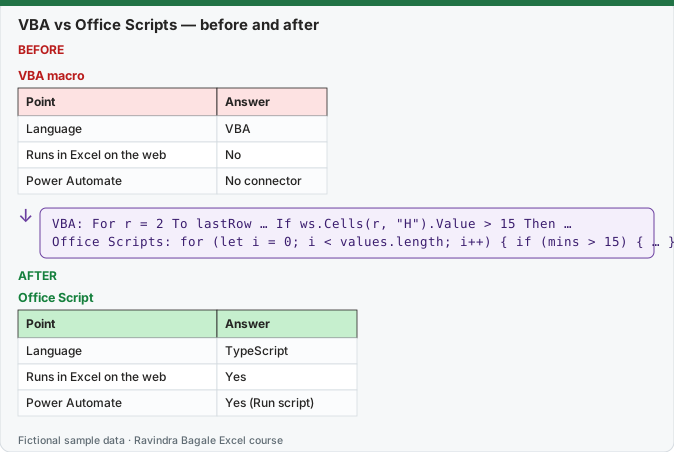
Expected result — Office Script
| Point | Answer |
|---|---|
| Language | TypeScript |
| Runs in Excel on the web | Yes |
| Power Automate | Yes (Run script) |
About this data: Teaching sample for a fictional shop “Summit Schools”. Figures and names (e.g. Aarti Kulkarni) are made up for this lesson on vba vs office scripts which one when.
Before table and formula as text
Before — VBA macro
| Point | Answer |
|---|---|
| Language | VBA |
| Runs in Excel on the web | No |
| Power Automate | No connector |
About this data: Demo table only — not real customer or company data. Built to practise vba vs office scripts which one when.
Formula / click path
VBA:            For r = 2 To lastRow … If ws.Cells(r, "H").Value > 15 Then …
Office Scripts: for (let i = 0; i < values.length; i++) { if (mins > 15) { … } }
Do it step by step:
- List the macros you use every week and write next to each one where it must run: desktop only, or also the web.
- Mark the macros that open other files, use Outlook, or react to events such as opening the workbook or changing a cell.
- Keep those in VBA: Office Scripts cannot reach other files or apps, and they have no workbook events.
- Mark the jobs that colleagues run in the browser, or that should run on a timetable.
- Rebuild those as Office Scripts: record them first (lesson 12.18), then tidy the code (lesson 12.19).
- Test each script on a copy of the workbook before you switch off the old macro.
स्टेप बाय स्टेप करून बघा:
- दर आठवड्याला वापरता ते macros list करा आणि प्रत्येकासमोर ते कुठे चालायला हवं ते लिहा: फक्त desktop, की web वरही.
- जे macros इतर files उघडतात, Outlook वापरतात, किंवा workbook उघडणं, cell बदलणं अशा events वर चालतात त्यांना mark करा.
- ते VBA मध्येच ठेवा: Office Scripts इतर files किंवा apps पर्यंत पोहोचू शकत नाहीत, आणि त्यांना workbook events नाहीत.
- सहकारी browser मध्ये चालवतात किंवा ठराविक वेळेला चालायला हवीत अशी कामं mark करा.
- ती Office Scripts म्हणून परत बनवा: आधी record करा (lesson 12.18), मग code नीट करा (lesson 12.19).
- जुना macro बंद करण्याआधी प्रत्येक script workbook च्या copy वर test करा.
स्टेप बाय स्टेप करके देखें:
- हर हफ्ते इस्तेमाल होने वाले macros की list बनाएँ और हर एक के सामने लिखें कि उसे कहाँ चलना है: सिर्फ़ desktop, या web पर भी.
- जो macros दूसरी files खोलते हैं, Outlook इस्तेमाल करते हैं, या workbook खोलने, cell बदलने जैसे events पर चलते हैं, उन्हें mark करें.
- उन्हें VBA में ही रखें: Office Scripts दूसरी files या apps तक नहीं पहुँच सकते, और उनमें workbook events नहीं हैं.
- जो काम साथी browser में चलाते हैं, या जिन्हें तय समय पर चलना है, उन्हें mark करें.
- उन्हें Office Scripts के रूप में दोबारा बनाएँ: पहले record करें (lesson 12.18), फिर code साफ़ करें (lesson 12.19).
- पुराना macro बंद करने से पहले हर script को workbook की copy पर test करें.
Microsoft's comparison, in one table
| Point | VBA macros | Office Scripts |
|---|---|---|
| Excel on the web | No | Yes |
| Excel for Windows | Yes | Yes |
| Excel for Mac | Yes | Yes |
| Excel for iPhone / iPad | No | No |
| Power Automate | No connector | Yes (Run script) |
| Language | Visual Basic for Applications | TypeScript |
| What it can reach | The whole desktop: other files, folders, Outlook, Word | Only the workbook it runs on |
| Workbook events (on open, on change) | Yes | No |
| Where it is stored | Inside the .xlsm workbook | In your OneDrive, shared separately |
| Licence | No special licence | Work or school Microsoft 365 licence |
| Security model | Macro security settings, Trust Center (lesson 12.1) | Admin controls in Microsoft 365; scripts cannot touch your computer |
About this data: Made-up rows so you can copy the pattern for vba vs office scripts which one when. Currencies may use ₹, £, € or $.
The same job in both languages (VBA from the TagLateOrders answer key earlier in this chapter)
| Step | VBA (TagLateOrders) | Office Scripts (lesson 12.19) |
|---|---|---|
| Start | Sub TagLateOrders() |
function main(workbook: ExcelScript.Workbook) |
| Find the data | ws.Cells(ws.Rows.Count, "A").End(xlUp).Row for the last row |
workbook.getTable("tblOrders") |
| Loop | For r = 2 To lastRow |
for (let i = 0; i < values.length; i++) |
| Test | If ws.Cells(r, "H").Value > 15 Then |
if (mins > 15) |
| Mark the row | ws.Cells(r, "J").Value = "Late" |
getFill().setColor("#FFE699") (colour instead of text) |
| Message | MsgBox |
console.log (or return a value to Power Automate) |
About this data: Fictional worksheet used in class. Safe to edit; nothing here is live production data.
A simple rule
- Must it run in the browser, in Teams, or on a schedule with nobody at the desk? Choose Office Scripts.
- Must it open other files, send Outlook mail from your PC, or react when a cell changes? Choose VBA.
- Both? Keep the VBA for the desktop part, and use Power Automate for the email or schedule part with an Office Script for the Excel part.
- No work or school licence? Office Scripts are not available (except an Insider preview for Personal and Family plans), so VBA it is.
Microsoft sources: Differences between Office Scripts and VBA macros; Platform limits, requirements and error messages for Office Scripts.
Practice task (try it before you open the answer):
- Sort these jobs into VBA or Office Scripts: (a) every night, count late orders in a shared OneDrive workbook; (b) when a cell in column H changes, colour the row; (c) combine 30 workbooks from a folder on your laptop; (d) a button colleagues press in Excel on the web.
- Explain your answer for (b) in one sentence.
Answer
- (a) Office Scripts with a scheduled Power Automate flow. (b) VBA, because it needs a worksheet change event. (c) VBA (or Power Query, chapter 15), because it opens files on your computer. (d) Office Scripts, because VBA does not run in Excel on the web.
- Office Scripts have no workbook events, so "when a cell changes" needs a VBA Worksheet_Change macro (or conditional formatting, which needs no code at all).
Ravindra Bagale's Tip
Before automating anything, ask whether a formula, conditional formatting or Power Query can do it. The best macro is often the one you did not need to write.
Ravindra Bagale's Tip – मराठी
काहीही automate करण्याआधी विचारा: formula, conditional formatting किंवा Power Query ने हे होईल का? सर्वात चांगला macro अनेकदा तो असतो जो लिहावाच लागला नाही.
Ravindra Bagale's Tip – हिंदी
कुछ भी automate करने से पहले पूछें: क्या formula, conditional formatting या Power Query से यह हो जाएगा? सबसे अच्छा macro अक्सर वही होता है जो लिखना ही नहीं पड़ा.
Worked example — vba vs office scripts which one when
Why
Sana Sheikh in Pune and James O'Neill abroad both need a clear, repeatable way to use vba vs office scripts which one when on a QuickCart Delivery sheet without breaking totals.
What
Vba Vs Office Scripts Which One When is the Excel idea this page teaches. We will walk one tiny example end to end.
How
- Open a blank sheet. In A1 type a short label for vba vs office scripts which one when.
- Enter a small made-up value for Sana Sheikh using € where money appears.
- Add a second value for James O'Neill using $ so you see mixed currencies stay numeric.
- Apply the method from this lesson step by step (menu or formula as shown above).
- Check the result still works inside SUM or a simple check cell.
Formula / action
Follow the formula or ribbon steps shown in this lesson (keep values numeric).Meaning: Once vba vs office scripts which one when is correct on one row, copy the same pattern down the column.
Practice tasks (10+)
Try these on a blank sheet. Open a hint only if you are stuck. No quiz — just practice.
1. Rebuild the smallest example of vba vs office scripts which one when on a blank sheet for BrightLedger Finance.
Hint: Use only the steps on this page. Keep numbers numeric.
2. Change one input for Neha Shah and confirm the result updates.
Hint: If the result is stuck, check absolute vs relative references.
3. Repeat the same steps with a £ or € value for Emma Clarke.
Hint: Formatting must not break SUM.
4. Write the result meaning in one plain sentence next to the cell.
Hint: Imagine explaining it to a new joiners.
5. Add a second row and fill the method down.
Hint: Double-click the fill handle if the pattern is consistent.
6. Break the example on purpose, then fix it using this lesson.
Hint: Common break: text instead of a number.
7. Apply vba vs office scripts which one when to a 5-row made-up BrightLedger Finance table.
Hint: Keep column headers clear.
8. Check your answer with a simple total or COUNT.
Hint: A wrong total usually means a format or key mismatch.
9. Swap ₹ and $ on one column and re-check totals.
Hint: Stored values stay the same; only the display changes.
10. List two mistakes beginners make with vba vs office scripts which one when.
Hint: Look back at the tip box on this page.
11. Teach the steps out loud in under one minute.
Hint: Why → What → How.
12. Save the sheet as BrightLedger_practice.xlsx.
Hint: Use a clear file name for class.
Loading practice tasks...
- Last used row (Easy): Which row number is the last filled row? The headings are in row 1.
- Late orders (Easy): How many rows have Status "Late"?
- Total amount (Easy): Add up the Amount column.
- Worst delay (Easy): What is the largest number in the Days late column?
- Late orders in Pune (Medium): How many orders are Late and in City "Pune"?
- Customer for an order (Medium): Find the Customer for Order ID "DL-704".
- Money stuck in late orders (Medium): Add up the Amount column for rows where Status is "Late".
- Big orders (Medium): How many rows have an Amount of 2000 or more?
- Message text (Medium): Build the text "N late orders", where N is the count of Late rows.
- Average delay of late orders (Hard): What is the average Days late for rows with Status "Late"? Round to 1 decimal.
- Tag for the first row (Hard): For the first row, return "Chase" if Days late is 3 or more, else "OK".
- Warning or all clear (Hard): Return "Warning" if any order is 3 or more days late, else "All clear".
Quick revision cards
Three standalone cards. Each one explains the idea with its own example. Scan the QR to open this lesson.