24. Power Pivot and the Data Model
24.2 Load Tables into the Data Model
Example first. The three Tables are on three sheets. One click per Table puts them into the Data Model. After that, the Power Pivot window shows three tabs at the bottom: Orders, Stores and Products.
Add to Data Model — in 30 seconds
What: Loading a Table into the Data Model copies its rows into the model. The sheet Table stays where it is and stays linked: change the sheet and refresh, and the model changes too.
Why: Only Tables that are in the model can be related to each other and used in DAX measures.
Tiny example: Click inside Orders › Power Pivot › Tables › Add to Data Model. The Power Pivot window opens with an Orders tab of 12 rows.
Add to Data Model — 30 सेकंदात
काय: Table Data Model मध्ये load केली की तिच्या rows model मध्ये copy होतात. Sheet वरची Table तिथेच राहते आणि linked राहते: sheet बदला, refresh करा, model पण बदलतं.
का: फक्त model मधल्या Tables च एकमेकांशी relate करता येतात आणि DAX measures मध्ये वापरता येतात.
छोटं उदाहरण: Orders मध्ये click करा › Power Pivot › Tables › Add to Data Model. Power Pivot window 12 rows च्या Orders tab सह उघडते.
Add to Data Model — 30 सेकंड में
क्या: Table को Data Model में load करने पर उसकी rows model में copy हो जाती हैं. Sheet वाली Table वहीं रहती है और linked रहती है: sheet बदलें, refresh करें, model भी बदल जाता है.
क्यों: सिर्फ़ model में मौजूद Tables ही आपस में relate हो सकती हैं और DAX measures में इस्तेमाल हो सकती हैं.
छोटा उदाहरण: Orders में click करें › Power Pivot › Tables › Add to Data Model. Power Pivot window 12 rows वाले Orders tab के साथ खुलती है.
First look at the data (before → after):
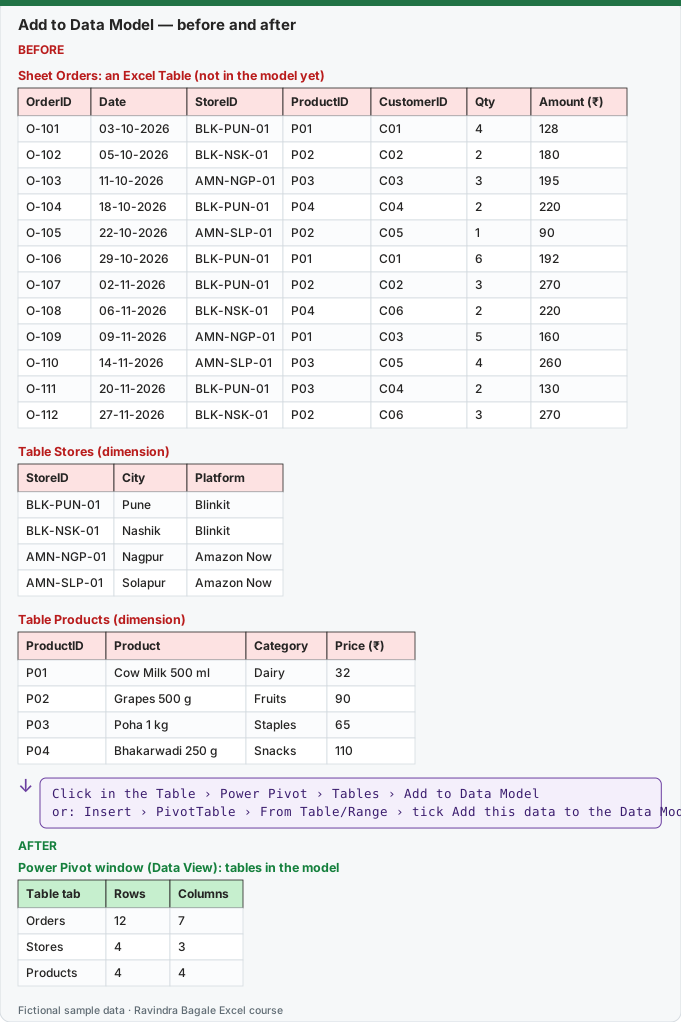
Expected result — Power Pivot window (Data View): tables in the model
| Table tab | Rows | Columns |
|---|---|---|
| Orders | 12 | 7 |
| Stores | 4 | 3 |
| Products | 4 | 4 |
Before table and formula as text
Before — Sheet Orders: an Excel Table (not in the model yet)
| OrderID | Date | StoreID | ProductID | CustomerID | Qty | Amount (₹) |
|---|---|---|---|---|---|---|
| O-101 | 03-10-2026 | BLK-PUN-01 | P01 | C01 | 4 | 128 |
| O-102 | 05-10-2026 | BLK-NSK-01 | P02 | C02 | 2 | 180 |
| O-103 | 11-10-2026 | AMN-NGP-01 | P03 | C03 | 3 | 195 |
| O-104 | 18-10-2026 | BLK-PUN-01 | P04 | C04 | 2 | 220 |
| O-105 | 22-10-2026 | AMN-SLP-01 | P02 | C05 | 1 | 90 |
| O-106 | 29-10-2026 | BLK-PUN-01 | P01 | C01 | 6 | 192 |
| O-107 | 02-11-2026 | BLK-PUN-01 | P02 | C02 | 3 | 270 |
| O-108 | 06-11-2026 | BLK-NSK-01 | P04 | C06 | 2 | 220 |
| O-109 | 09-11-2026 | AMN-NGP-01 | P01 | C03 | 5 | 160 |
| O-110 | 14-11-2026 | AMN-SLP-01 | P03 | C05 | 4 | 260 |
| O-111 | 20-11-2026 | BLK-PUN-01 | P03 | C04 | 2 | 130 |
| O-112 | 27-11-2026 | BLK-NSK-01 | P02 | C06 | 3 | 270 |
Before — Table Stores (dimension)
| StoreID | City | Platform |
|---|---|---|
| BLK-PUN-01 | Pune | Blinkit |
| BLK-NSK-01 | Nashik | Blinkit |
| AMN-NGP-01 | Nagpur | Amazon Now |
| AMN-SLP-01 | Solapur | Amazon Now |
Before — Table Products (dimension)
| ProductID | Product | Category | Price (₹) |
|---|---|---|---|
| P01 | Cow Milk 500 ml | Dairy | 32 |
| P02 | Grapes 500 g | Fruits | 90 |
| P03 | Poha 1 kg | Staples | 65 |
| P04 | Bhakarwadi 250 g | Snacks | 110 |
Formula / click path
Click in the Table › Power Pivot › Tables › Add to Data Model
or: Insert › PivotTable › From Table/Range › tick Add this data to the Data Model
Do it step by step:
- Click any cell in the Orders Table.
- Click Power Pivot › Tables › Add to Data Model. The Power Pivot window opens.
- Go back to Excel, click inside Stores and click Add to Data Model again.
- Do the same for Products.
- In the Power Pivot window, click each tab at the bottom and check the row counts.
- Change one Qty on the Orders sheet, then click Home › Refresh in the Power Pivot window and see the new Amount.
स्टेप बाय स्टेप करून बघा:
- Orders Table मधल्या कोणत्याही cell वर click करा.
- Power Pivot › Tables › Add to Data Model वर click करा. Power Pivot window उघडते.
- परत Excel मध्ये जा, Stores मध्ये click करा आणि पुन्हा Add to Data Model करा.
- Products साठी असंच करा.
- Power Pivot window मध्ये खालचा प्रत्येक tab click करून row counts check करा.
- Orders sheet वर एक Qty बदला, मग Power Pivot window मध्ये Home › Refresh करा आणि नवीन Amount बघा.
स्टेप बाय स्टेप करके देखें:
- Orders Table की किसी भी cell पर click करें.
- Power Pivot › Tables › Add to Data Model पर click करें. Power Pivot window खुलती है.
- वापस Excel में जाएँ, Stores में click करें और फिर से Add to Data Model करें.
- Products के लिए भी ऐसा ही करें.
- Power Pivot window में नीचे का हर tab click करके row counts check करें.
- Orders sheet पर एक Qty बदलें, फिर Power Pivot window में Home › Refresh करें और नया Amount देखें.
Other ways data reaches the model
| From | How |
|---|---|
| An Excel Table in this workbook | Power Pivot › Add to Data Model (as above) |
| A Table, while making a PivotTable | Insert › PivotTable › From Table/Range, tick Add this data to the Data Model |
| Power Query (files, folders, databases, web) | In the editor: Home › Close & Load › Close & Load To…, choose Only Create Connection and tick Add this data to the Data Model (lesson 24.6) |
Keep raw data out of the sheet when it is big. A query loaded with "Only Create Connection" lives only in the model, so a 5-lakh-row file does not have to sit on a sheet.
Practice task (try it before you open the answer):
- Load Orders, Stores and Products into the Data Model.
- In the Power Pivot window, switch to each table and note the rows.
- Change O-101 Qty from 4 to 5 on the sheet and refresh the model.
Answer
Orders 12 rows, Stores 4, Products 4. After the change O-101 shows Amount ₹160 instead of ₹128, and total sales become ₹2,347. (Set it back to 4 before the next lesson.)
Ravindra Bagale's Tip
Do not type data inside the Power Pivot window. Change the source Table or file and refresh. The model is a copy, and edits made only in the copy are lost.
Ravindra Bagale's Tip – मराठी
Power Pivot window मध्ये data type करू नका. Source Table किंवा file बदला आणि refresh करा. Model ही copy आहे, फक्त copy मध्ये केलेले बदल हरवतात.
Ravindra Bagale's Tip – हिंदी
Power Pivot window में data type न करें. Source Table या file बदलें और refresh करें. Model एक copy है, सिर्फ़ copy में किए बदलाव खो जाते हैं.