24. Power Pivot and the Data Model
24.7 DAX Measures: SUM, COUNTROWS, DISTINCTCOUNT and CALCULATE
Example first. In the model, a measure is a named formula that works in any PivotTable layout. Ravindra Bagale writes four: Total Sales = ₹2,315, Order Count = 12, Customers = 6, and Pune Sales = ₹940. Drop them into a PivotTable by City and they recalculate for every row.
DAX measures — in 30 seconds
What: A DAX measure is a formula stored in the Data Model, such as Total Sales := SUM(Orders[Amount]). It has no fixed cell; it calculates for whatever filters the PivotTable row, column or slicer gives it.
Why: Write the logic once and reuse it everywhere. Distinct counts and "this city only" figures are hard with normal formulas but take one line in DAX.
Tiny example: Customers := DISTINCTCOUNT(Orders[CustomerID]) gives 6. By City the rows add up to 7, because one customer bought in two cities.
DAX measures — 30 सेकंदात
काय: DAX measure म्हणजे Data Model मध्ये साठवलेला formula, जसं Total Sales := SUM(Orders[Amount]). त्याला ठरलेली cell नसते; PivotTable ची row, column किंवा slicer जे filters देतात त्यासाठी तो calculate करतो.
का: Logic एकदा लिहा आणि सगळीकडे वापरा. Distinct counts आणि "फक्त ही city" चे आकडे साध्या formulas ने कठीण असतात, DAX मध्ये एका line चे.
छोटं उदाहरण: Customers := DISTINCTCOUNT(Orders[CustomerID]) 6 देतो. City प्रमाणे rows ची बेरीज 7 येते, कारण एका customer ने दोन cities मध्ये खरेदी केली.
DAX measures — 30 सेकंड में
क्या: DAX measure यानी Data Model में रखा formula, जैसे Total Sales := SUM(Orders[Amount]). इसकी कोई तय cell नहीं होती; PivotTable की row, column या slicer जो filters देते हैं, उसके लिए यह calculate करता है.
क्यों: Logic एक बार लिखें और हर जगह इस्तेमाल करें. Distinct counts और "सिर्फ़ यह city" वाले आँकड़े आम formulas से मुश्किल हैं, DAX में एक line के.
छोटा उदाहरण: Customers := DISTINCTCOUNT(Orders[CustomerID]) 6 देता है. City के हिसाब से rows का जोड़ 7 आता है, क्योंकि एक customer ने दो cities में खरीदारी की.
First look at the data (before → after):
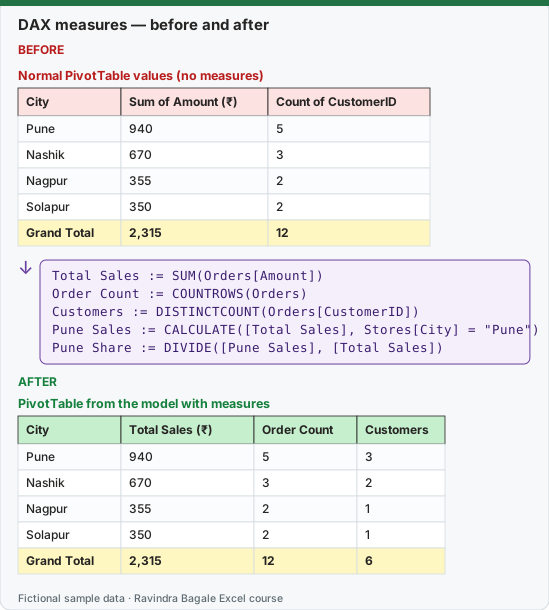
Expected result — PivotTable from the model with measures
| City | Total Sales (₹) | Order Count | Customers |
|---|---|---|---|
| Pune | 940 | 5 | 3 |
| Nashik | 670 | 3 | 2 |
| Nagpur | 355 | 2 | 1 |
| Solapur | 350 | 2 | 1 |
| Grand Total | 2,315 | 12 | 6 |
Before table and formula as text
Before — Normal PivotTable values (no measures)
| City | Sum of Amount (₹) | Count of CustomerID |
|---|---|---|
| Pune | 940 | 5 |
| Nashik | 670 | 3 |
| Nagpur | 355 | 2 |
| Solapur | 350 | 2 |
| Grand Total | 2,315 | 12 |
Formula / click path
Total Sales  := SUM(Orders[Amount])
Order Count  := COUNTROWS(Orders)
Customers    := DISTINCTCOUNT(Orders[CustomerID])
Pune Sales   := CALCULATE([Total Sales], Stores[City] = "Pune")
Pune Share   := DIVIDE([Pune Sales], [Total Sales])
Do it step by step:
- Click Power Pivot › Calculations › Measures › New Measure….
- Set Table name to
Ordersand Measure name toTotal Sales. - In Formula type
=SUM(Orders[Amount]), set Category to Currency, and click OK. - Repeat for
Order Countwith=COUNTROWS(Orders)andCustomerswith=DISTINCTCOUNT(Orders[CustomerID]). - Create
Pune Saleswith=CALCULATE([Total Sales], Stores[City] = "Pune"). - Click Insert › PivotTable › From Data Model, put Stores[City] in Rows and the three measures in Values.
- Put
Pune Salesalone in a cell-sized PivotTable: it shows the Pune total.
स्टेप बाय स्टेप करून बघा:
- Power Pivot › Calculations › Measures › New Measure… वर click करा.
- Table name
Ordersआणि Measure nameTotal Salesठेवा. - Formula मध्ये
=SUM(Orders[Amount])type करा, Category Currency ठेवा, आणि OK करा. Order Countसाठी=COUNTROWS(Orders)आणिCustomersसाठी=DISTINCTCOUNT(Orders[CustomerID])असं पुन्हा करा.Pune Salesहा=CALCULATE([Total Sales], Stores[City] = "Pune")ने बनवा.- Insert › PivotTable › From Data Model वर click करा, Rows मध्ये Stores[City] आणि Values मध्ये तीन measures ठेवा.
Pune Salesएकटा एका छोट्या PivotTable मध्ये ठेवा: तो Pune चा total दाखवतो.
स्टेप बाय स्टेप करके देखें:
- Power Pivot › Calculations › Measures › New Measure… पर click करें.
- Table name
Ordersऔर Measure nameTotal Salesरखें. - Formula में
=SUM(Orders[Amount])type करें, Category Currency रखें, और OK करें. Order Countके लिए=COUNTROWS(Orders)औरCustomersके लिए=DISTINCTCOUNT(Orders[CustomerID])से दोहराएँ.Pune Salesको=CALCULATE([Total Sales], Stores[City] = "Pune")से बनाएँ.- Insert › PivotTable › From Data Model पर click करें, Rows में Stores[City] और Values में तीनों measures रखें.
Pune Salesको अकेले एक छोटी PivotTable में रखें: यह Pune का total दिखाता है.
What each function does (with this data)
| Measure | Formula | Result |
|---|---|---|
| Total Sales | =SUM(Orders[Amount]) |
₹2,315 |
| Order Count | =COUNTROWS(Orders) |
12 |
| Customers | =DISTINCTCOUNT(Orders[CustomerID]) |
6 |
| Pune Sales | =CALCULATE([Total Sales], Stores[City] = "Pune") |
₹940 |
| Blinkit Sales | =CALCULATE([Total Sales], Stores[Platform] = "Blinkit") |
₹1,610 |
| Pune Share | =DIVIDE([Pune Sales], [Total Sales]) |
40.6% |
CALCULATE changes the filter. In a PivotTable by City, Pune Sales shows ₹940 on every city row, because CALCULATE replaces the City filter with "Pune". That is useful for "share of Pune" style measures and confusing if you expect it to follow the row.
Measure or calculated column? Use a calculated column (typed in a new column of the table in the Power Pivot window, such as =Orders[Qty]*RELATED(Products[Price])) only when you need a value per row to slice by. For totals, counts and ratios, always use a measure. DAX is explained further in the Power BI course: DAX: Data Analysis Expressions.
Practice task (try it before you open the answer):
- Create Total Sales, Order Count and Customers.
- Create Blinkit Sales with CALCULATE.
- Build a PivotTable by Stores[Platform] with Total Sales and Customers.
Answer
Blinkit Sales = ₹1,610. By Platform: Blinkit ₹1,610, Amazon Now ₹705, Grand Total ₹2,315. Customers by Platform: Amazon Now 2, Blinkit 4; Grand Total 6.
Ravindra Bagale's Tip
Name measures the way a manager would say them: "Total Sales", "Customers", "Pune Share". Avoid "Sum of Amount 2". Good names make the PivotTable read like a report.
Ravindra Bagale's Tip – मराठी
Measures ना manager जसं बोलेल तशी नावं द्या: "Total Sales", "Customers", "Pune Share". "Sum of Amount 2" टाळा. चांगल्या नावांमुळे PivotTable report सारखा वाचता येतो.
Ravindra Bagale's Tip – हिंदी
Measures के नाम वैसे रखें जैसे manager बोलेगा: "Total Sales", "Customers", "Pune Share". "Sum of Amount 2" से बचें. अच्छे नामों से PivotTable report जैसी पढ़ी जाती है.