24. Power Pivot and the Data Model
24.8 A Simple Time-Intelligence Measure
Example first. Total Sales by month: Oct ₹1,005, Nov ₹1,310. Ravindra Bagale wants a "Last Month" column and a "MoM %" column next to it. Two short measures with DATEADD and DIVIDE give Nov: last month ₹1,005, change 30.3%.
Time intelligence — in 30 seconds
What: Time-intelligence functions shift or extend the date filter: DATEADD(Calendar[Date],-1,MONTH) means "the same days, one month earlier". TOTALYTD adds from 1 January to the current date.
Why: Month-on-month and year-to-date numbers are the most asked-for figures in any report. With the Calendar table and two measures they work in every PivotTable, for every city.
Tiny example: Sales LM := CALCULATE([Total Sales], DATEADD(Calendar[Date], -1, MONTH)). For Nov it returns ₹1,005; MoM % = 30.3%.
Time intelligence — 30 सेकंदात
काय: Time-intelligence functions date filter हलवतात किंवा वाढवतात: DATEADD(Calendar[Date],-1,MONTH) म्हणजे "तेच दिवस, एक महिना आधी". TOTALYTD 1 जानेवारीपासून चालू date पर्यंत बेरीज करतो.
का: Month-on-month आणि year-to-date हे कोणत्याही report मध्ये सगळ्यात जास्त मागितले जाणारे आकडे आहेत. Calendar table आणि दोन measures असले की ते प्रत्येक PivotTable मध्ये, प्रत्येक city साठी चालतात.
छोटं उदाहरण: Sales LM := CALCULATE([Total Sales], DATEADD(Calendar[Date], -1, MONTH)). Nov साठी तो ₹1,005 देतो; MoM % = 30.3%.
Time intelligence — 30 सेकंड में
क्या: Time-intelligence functions date filter को खिसकाते या बढ़ाते हैं: DATEADD(Calendar[Date],-1,MONTH) यानी "वही दिन, एक महीना पहले". TOTALYTD 1 जनवरी से मौजूदा date तक जोड़ता है.
क्यों: Month-on-month और year-to-date किसी भी report में सबसे ज़्यादा माँगे जाने वाले आँकड़े हैं. Calendar table और दो measures हों तो ये हर PivotTable में, हर city के लिए चलते हैं.
छोटा उदाहरण: Sales LM := CALCULATE([Total Sales], DATEADD(Calendar[Date], -1, MONTH)). Nov के लिए यह ₹1,005 देता है; MoM % = 30.3%.
First look at the data (before → after):
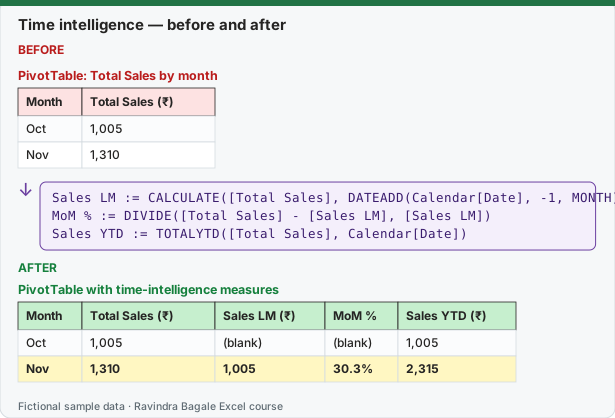
Expected result — PivotTable with time-intelligence measures
| Month | Total Sales (₹) | Sales LM (₹) | MoM % | Sales YTD (₹) |
|---|---|---|---|---|
| Oct | 1,005 | (blank) | (blank) | 1,005 |
| Nov | 1,310 | 1,005 | 30.3% | 2,315 |
Before table and formula as text
Before — PivotTable: Total Sales by month
| Month | Total Sales (₹) |
|---|---|
| Oct | 1,005 |
| Nov | 1,310 |
Formula / click path
Sales LM := CALCULATE([Total Sales], DATEADD(Calendar[Date], -1, MONTH))
MoM %    := DIVIDE([Total Sales] - [Sales LM], [Sales LM])
Sales YTD := TOTALYTD([Total Sales], Calendar[Date])
Do it step by step:
- Make sure the Calendar table is related to Orders[Date] and marked as the date table (lesson 24.5).
- Click Power Pivot › Calculations › Measures › New Measure… and create
Sales LMwith=CALCULATE([Total Sales], DATEADD(Calendar[Date], -1, MONTH)). - Create
MoM %with=DIVIDE([Total Sales] - [Sales LM], [Sales LM])and set its format to Percentage. - Create
Sales YTDwith=TOTALYTD([Total Sales], Calendar[Date]). - In the PivotTable put Calendar[Month] in Rows and the four measures in Values.
- Add Stores[City] as a slicer and click Pune to see Pune month-on-month.
स्टेप बाय स्टेप करून बघा:
- Calendar table Orders[Date] शी जोडलेली आणि date table म्हणून marked आहे याची खात्री करा (lesson 24.5).
- Power Pivot › Calculations › Measures › New Measure… वर click करा आणि
Sales LMहा measure=CALCULATE([Total Sales], DATEADD(Calendar[Date], -1, MONTH))ने बनवा. MoM %हा=DIVIDE([Total Sales] - [Sales LM], [Sales LM])ने बनवा आणि format Percentage ठेवा.Sales YTDहा=TOTALYTD([Total Sales], Calendar[Date])ने बनवा.- PivotTable मध्ये Rows ला Calendar[Month] आणि Values मध्ये चार measures ठेवा.
- Stores[City] slicer म्हणून add करा आणि Pune वर click करून Pune चं month-on-month बघा.
स्टेप बाय स्टेप करके देखें:
- पक्का करें कि Calendar table Orders[Date] से जुड़ी है और date table के रूप में marked है (lesson 24.5).
- Power Pivot › Calculations › Measures › New Measure… पर click करें और
Sales LMmeasure को=CALCULATE([Total Sales], DATEADD(Calendar[Date], -1, MONTH))से बनाएँ. MoM %को=DIVIDE([Total Sales] - [Sales LM], [Sales LM])से बनाएँ और format Percentage रखें.Sales YTDको=TOTALYTD([Total Sales], Calendar[Date])से बनाएँ.- PivotTable में Rows में Calendar[Month] और Values में चारों measures रखें.
- Stores[City] को slicer के रूप में add करें और Pune पर click करके Pune का month-on-month देखें.
Nov vs Oct by city (slicer on each city)
| City | Oct (₹) | Nov = Total Sales (₹) | Sales LM (₹) | MoM % |
|---|---|---|---|---|
| Pune | 540 | 400 | 540 | -25.9% |
| Nashik | 180 | 490 | 180 | 172.2% |
| Nagpur | 195 | 160 | 195 | -17.9% |
| Solapur | 90 | 260 | 90 | 188.9% |
Why DIVIDE and not "/"? For October, Sales LM is blank (there is no September in the data). [Total Sales]/[Sales LM] would give an error; DIVIDE returns blank instead. The Calendar here covers only October and November to keep the example small; in real work use whole years (see the tip in 24.5). The same pattern is taught in the Power BI course: Power BI course.
Practice task (try it before you open the answer):
- Create Sales LM and MoM %.
- Use a City slicer and find the city with the biggest fall from Oct to Nov.
- Find the city with the biggest rise.
Answer
Biggest fall: Pune, ₹540 → ₹400 (-25.9%). Biggest rise: Solapur, ₹90 → ₹260 (188.9%). Nashik is close behind at 172.2%.
Ravindra Bagale's Tip
Always show the money next to a percentage. "+188.9%" for Solapur sounds huge, but it is ₹90 to ₹260 in this practice data. Percentages on small bases mislead.
Ravindra Bagale's Tip – मराठी
Percentage शेजारी नेहमी रुपये पण दाखवा. Solapur चं "+188.9%" खूप मोठं वाटतं, पण या practice data मध्ये ते ₹90 ते ₹260 आहे. लहान आधारावरचे percentages फसवतात.
Ravindra Bagale's Tip – हिंदी
Percentage के पास हमेशा रुपये भी दिखाएँ. Solapur का "+188.9%" बहुत बड़ा लगता है, पर इस practice data में यह ₹90 से ₹260 है. छोटे आधार पर percentages गुमराह करते हैं.