24. Power Pivot and the Data Model
24.9 PivotTables from the Data Model, and CUBE Functions
Example first. A PivotTable from the Data Model shows City in rows and Month in columns: Pune Oct ₹540, Nov ₹400. For a dashboard with a fixed layout, Convert to Formulas turns each value into a CUBEVALUE formula you can move anywhere. =CUBEVALUE("ThisWorkbookDataModel","[Measures].[Total Sales]","[Stores].[City].&[Pune]") returns ₹940.
PivotTable from the model and CUBEVALUE — in 30 seconds
What: Insert › PivotTable › From Data Model builds a PivotTable on all related tables at once. CUBEVALUE reads one number from the model with a formula, using the same measure and members.
Why: The PivotTable is fastest for exploring. CUBE formulas let you place model numbers in any cell of a designed report, and they still refresh with the model.
Tiny example: =CUBEVALUE("ThisWorkbookDataModel","[Measures].[Total Sales]","[Stores].[City].&[Pune]") → ₹940. Change "Pune" to "Nashik" → ₹670.
PivotTable from the model and CUBEVALUE — 30 सेकंदात
काय: Insert › PivotTable › From Data Model सगळ्या जोडलेल्या tables वर एकदम PivotTable बनवतो. CUBEVALUE त्याच measure आणि members वापरून model मधला एक आकडा formula ने वाचतो.
का: Data शोधायला PivotTable सगळ्यात जलद. CUBE formulas model चे आकडे designed report च्या कोणत्याही cell मध्ये ठेवू देतात, आणि ते model सोबत refresh होत राहतात.
छोटं उदाहरण: =CUBEVALUE("ThisWorkbookDataModel","[Measures].[Total Sales]","[Stores].[City].&[Pune]") → ₹940. "Pune" ऐवजी "Nashik" लिहा → ₹670.
PivotTable from the model and CUBEVALUE — 30 सेकंड में
क्या: Insert › PivotTable › From Data Model सारी जुड़ी tables पर एक साथ PivotTable बनाता है. CUBEVALUE उसी measure और members से model का एक आँकड़ा formula से पढ़ता है.
क्यों: Data खोजने के लिए PivotTable सबसे तेज़ है. CUBE formulas model के आँकड़े designed report की किसी भी cell में रखने देते हैं, और वे model के साथ refresh होते रहते हैं.
छोटा उदाहरण: =CUBEVALUE("ThisWorkbookDataModel","[Measures].[Total Sales]","[Stores].[City].&[Pune]") → ₹940. "Pune" की जगह "Nashik" लिखें → ₹670.
First look at the data (before → after):
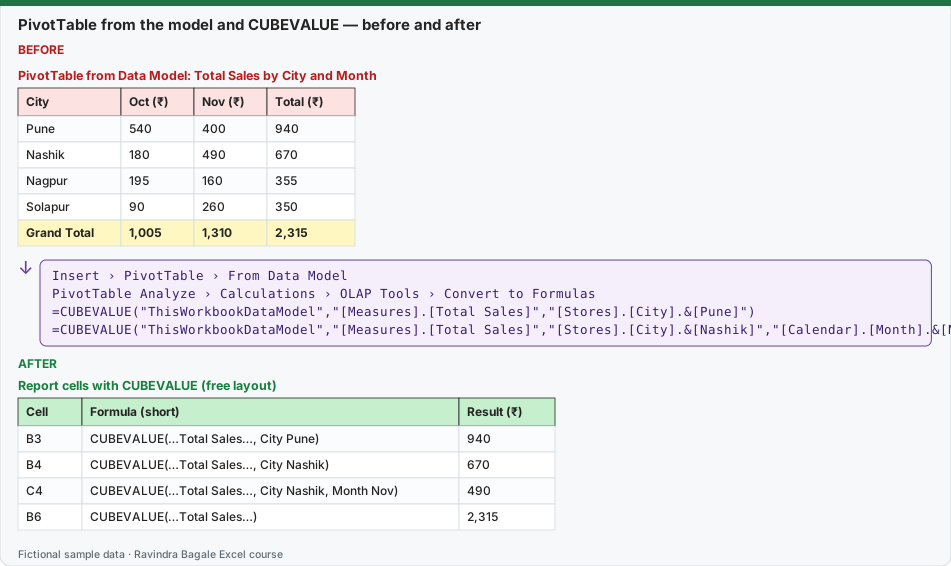
Expected result — Report cells with CUBEVALUE (free layout)
| Cell | Formula (short) | Result (₹) |
|---|---|---|
| B3 | CUBEVALUE(…Total Sales…, City Pune) | 940 |
| B4 | CUBEVALUE(…Total Sales…, City Nashik) | 670 |
| C4 | CUBEVALUE(…Total Sales…, City Nashik, Month Nov) | 490 |
| B6 | CUBEVALUE(…Total Sales…) | 2,315 |
Before table and formula as text
Before — PivotTable from Data Model: Total Sales by City and Month
| City | Oct (₹) | Nov (₹) | Total (₹) |
|---|---|---|---|
| Pune | 540 | 400 | 940 |
| Nashik | 180 | 490 | 670 |
| Nagpur | 195 | 160 | 355 |
| Solapur | 90 | 260 | 350 |
| Grand Total | 1,005 | 1,310 | 2,315 |
Formula / click path
Insert › PivotTable › From Data Model
PivotTable Analyze › Calculations › OLAP Tools › Convert to Formulas
=CUBEVALUE("ThisWorkbookDataModel","[Measures].[Total Sales]","[Stores].[City].&[Pune]")
=CUBEVALUE("ThisWorkbookDataModel","[Measures].[Total Sales]","[Stores].[City].&[Nashik]","[Calendar].[Month].&[Nov]")
Do it step by step:
- Click Insert › PivotTable › From Data Model and choose New Worksheet.
- In the PivotTable Fields list click All to see every table; put Stores[City] in Rows, Calendar[Month] in Columns and Total Sales in Values.
- Click inside the PivotTable, then PivotTable Analyze › Calculations › OLAP Tools › Convert to Formulas.
- Click any value cell: the formula bar shows a CUBEVALUE formula.
- Cut and paste those cells into your own report layout; they keep working.
- Change a number on the Orders sheet and click Data › Refresh All: the CUBE cells update.
स्टेप बाय स्टेप करून बघा:
- Insert › PivotTable › From Data Model वर click करा आणि New Worksheet निवडा.
- PivotTable Fields list मध्ये सगळ्या tables बघायला All वर click करा; Rows मध्ये Stores[City], Columns मध्ये Calendar[Month] आणि Values मध्ये Total Sales ठेवा.
- PivotTable मध्ये click करा, मग PivotTable Analyze › Calculations › OLAP Tools › Convert to Formulas.
- कोणत्याही value cell वर click करा: formula bar मध्ये CUBEVALUE formula दिसतो.
- त्या cells cut करून तुमच्या report layout मध्ये paste करा; त्या चालू राहतात.
- Orders sheet वर एक आकडा बदला आणि Data › Refresh All करा: CUBE cells update होतात.
स्टेप बाय स्टेप करके देखें:
- Insert › PivotTable › From Data Model पर click करें और New Worksheet चुनें.
- PivotTable Fields list में सारी tables देखने के लिए All पर click करें; Rows में Stores[City], Columns में Calendar[Month] और Values में Total Sales रखें.
- PivotTable में click करें, फिर PivotTable Analyze › Calculations › OLAP Tools › Convert to Formulas.
- किसी भी value cell पर click करें: formula bar में CUBEVALUE formula दिखता है.
- उन cells को cut करके अपने report layout में paste करें; वे चलते रहते हैं.
- Orders sheet पर एक आँकड़ा बदलें और Data › Refresh All करें: CUBE cells update हो जाते हैं.
Other CUBE functions you will meet
| Function | What it returns | Example |
|---|---|---|
| CUBEMEMBER | One member (a label) from the model | =CUBEMEMBER("ThisWorkbookDataModel","[Stores].[City].&[Pune]") shows Pune |
| CUBEVALUE | A number for a measure and members | =CUBEVALUE("ThisWorkbookDataModel","[Measures].[Total Sales]",A3) where A3 holds a CUBEMEMBER |
| CUBESET + CUBERANKEDMEMBER | A list, for top-N reports | Top city by Total Sales |
Tip for typing: after =CUBEVALUE(" Excel offers ThisWorkbookDataModel, then measures and members in a list. Pick from the list instead of typing names by hand.
Practice task (try it before you open the answer):
- Build the City × Month PivotTable from the Data Model.
- Convert it to formulas.
- Write a CUBEVALUE for Nagpur in November.
Answer
=CUBEVALUE("ThisWorkbookDataModel","[Measures].[Total Sales]","[Stores].[City].&[Nagpur]","[Calendar].[Month].&[Nov]") returns ₹160. Nagpur for both months is ₹355.
Ravindra Bagale's Tip
Convert to Formulas only when the layout is final. After converting, new cities or months do not appear by themselves; a PivotTable would show them automatically.
Ravindra Bagale's Tip – मराठी
Layout पक्का झाल्यावरच Convert to Formulas करा. Convert केल्यानंतर नवीन cities किंवा months आपोआप येत नाहीत; PivotTable मध्ये त्या आपोआप दिसल्या असत्या.
Ravindra Bagale's Tip – हिंदी
Layout पक्का होने पर ही Convert to Formulas करें. Convert करने के बाद नई cities या months अपने आप नहीं आते; PivotTable में वे अपने आप दिखते.