29.3 xl() References and DataFrames: Reading a Whole Table into Python
Example first. Shahrukh wants the whole Orders table in Python, not two cells. In A13 he writes df = xl("tblOrders[#All]", headers=True) and on the next line df.shape. The cell shows (10, 9): 10 rows and 9 columns. From now on, every Python cell below or to the right can use df. This lesson shows how xl() reads cells, ranges, Table columns and whole Tables, and what a DataFrame is.
xl() and DataFrames — in 30 seconds
What: xl() is the bridge from the grid to Python. It accepts cells, ranges, Tables, names and Power Query connections. A two-dimensional range or Table arrives as a pandas DataFrame, which is like an Excel Table in memory.
Why: Once the Table is a DataFrame you can filter, group, describe and chart it with a few lines, and the code keeps working when new rows are added to the Table.
Tiny example: df = xl("tblOrders[#All]", headers=True) then df["Amount"].sum() returns 2870. [#All] includes the headers; headers=True tells Python the first row is column names.
xl() and DataFrames — 30 सेकंदात
काय: xl() हा grid कडून Python कडे जाणारा पूल आहे. तो cells, ranges, Tables, names आणि Power Query connections घेतो. दोन-मितीय range किंवा Table pandas DataFrame म्हणून येते, जी memory मधल्या Excel Table सारखी असते.
का: Table एकदा DataFrame झाली की काही lines मध्ये filter, group, describe आणि chart करता येतं, आणि Table मध्ये नवीन rows आल्या तरी code चालत राहतो.
छोटं उदाहरण: df = xl("tblOrders[#All]", headers=True) मग df["Amount"].sum() 2870 देतो. [#All] headers सह सगळं घेतो; headers=True Python ला सांगतो की पहिली row column names आहे.
xl() and DataFrames — 30 सेकंड में
क्या: xl() grid से Python तक का पुल है. यह cells, ranges, Tables, names और Power Query connections लेता है. दो-आयामी range या Table pandas DataFrame के रूप में आती है, जो memory में Excel Table जैसी होती है.
क्यों: Table एक बार DataFrame बन जाए तो कुछ lines में filter, group, describe और chart किया जा सकता है, और Table में नई rows आने पर भी code चलता रहता है.
छोटा उदाहरण: df = xl("tblOrders[#All]", headers=True) फिर df["Amount"].sum() 2870 देता है. [#All] headers समेत सब लेता है; headers=True Python को बताता है कि पहली row column names है.
First look at the data (before → after):
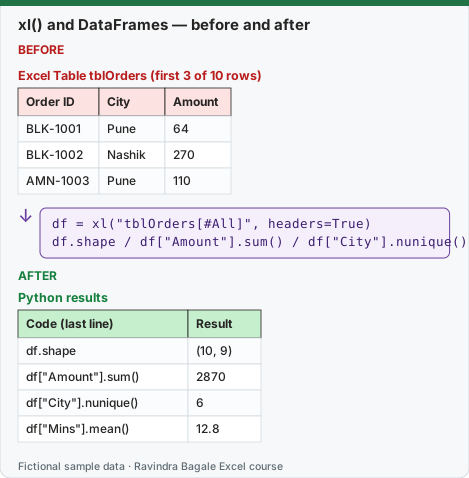
Expected result — Python results
| Code (last line) | Result |
|---|---|
| df.shape | (10, 9) |
| df["Amount"].sum() | 2870 |
| df["City"].nunique() | 6 |
| df["Mins"].mean() | 12.8 |
Before table and formula as text
Before — Excel Table tblOrders (first 3 of 10 rows)
| Order ID | City | Amount |
|---|---|---|
| BLK-1001 | Pune | 64 |
| BLK-1002 | Nashik | 270 |
| AMN-1003 | Pune | 110 |
Formula / click path
df = xl("tblOrders[#All]", headers=True)
df.shape / df["Amount"].sum() / df["City"].nunique()
Do it step by step:
- Make sure the orders are an Excel Table named tblOrders (Module 6).
- Select an empty cell to the right of or below the Table, for example A13, and press Ctrl+Alt+Shift+P.
- Type
df = xl("tblOrders[#All]", headers=True), press Enter for a new line, typedf.shape, then press Ctrl+Enter. - The cell shows (10, 9). Select the card icon (or press Ctrl+Shift+F5) to preview the data.
- In B13 start a new Python cell and type
df["Amount"].sum(). Commit: 2870. - Add one order to the Table and watch both cells update: the Table reference grows with the data.
स्टेप बाय स्टेप करून बघा:
- Orders tblOrders नावाच्या Excel Table मध्ये आहेत ना ते बघा (Module 6).
- Table च्या उजवीकडे किंवा खाली रिकामी cell निवडा, उदा. A13, आणि Ctrl+Alt+Shift+P दाबा.
df = xl("tblOrders[#All]", headers=True)type करा, नवीन line साठी Enter दाबा,df.shapetype करा, मग Ctrl+Enter दाबा.- Cell (10, 9) दाखवते. Data preview साठी card icon निवडा (किंवा Ctrl+Shift+F5 दाबा).
- B13 मध्ये नवीन Python cell सुरू करून
df["Amount"].sum()type करा. Commit: 2870. - Table मध्ये एक order जोडा आणि दोन्ही cells update होताना बघा: Table reference data सोबत वाढतो.
स्टेप बाय स्टेप करके देखें:
- देखें कि orders tblOrders नाम की Excel Table में हैं (Module 6).
- Table के दाईं ओर या नीचे खाली cell चुनें, जैसे A13, और Ctrl+Alt+Shift+P दबाएँ.
df = xl("tblOrders[#All]", headers=True)type करें, नई line के लिए Enter दबाएँ,df.shapetype करें, फिर Ctrl+Enter दबाएँ.- Cell (10, 9) दिखाती है. Data preview के लिए card icon चुनें (या Ctrl+Shift+F5 दबाएँ).
- B13 में नई Python cell शुरू करके
df["Amount"].sum()type करें. Commit: 2870. - Table में एक order जोड़ें और दोनों cells update होते देखें: Table reference data के साथ बढ़ता है.
Everything xl() can read
| You write | What Python gets |
|---|---|
xl("G2") |
One value: 64 |
xl("G2:G11") |
A DataFrame with one column of 10 numbers, no header |
xl("A1:I11", headers=True) |
A DataFrame with the 9 headers as column names |
xl("tblOrders[#All]", headers=True) |
The whole Table with headers (Microsoft's recommended form) |
xl("tblOrders[Amount]") |
Only the Amount column of the Table (no header) |
xl("TaxRate") |
The value of a defined name |
xl("Orders_Query") |
The output of a Power Query connection with that name |
Load once, use everywhere. Put the load line in one cell near the top-left of the first sheet that uses it, and use df everywhere after it. Every cell that comes later in the calculation order can use df (lesson 29.7 explains "later").
Exploring the DataFrame
| Code | Result on the 10 orders | Excel equivalent |
|---|---|---|
df.shape |
(10, 9) | =ROWS(tblOrders) and =COLUMNS(tblOrders) |
df["Amount"].sum() |
2870 | =SUM(tblOrders[Amount]) |
df["City"].nunique() |
6 | =COUNTA(UNIQUE(tblOrders[City])) |
df["Mins"].mean() |
12.8 | =AVERAGE(tblOrders[Mins]) |
df["Mins"].max() |
18 | =MAX(tblOrders[Mins]) |
(df["Mins"] > 15).sum() |
3 | =COUNTIFS(tblOrders[Mins],">15") |
df.columns.tolist() |
Order ID, Date, City, Platform, Category, Qty, Amount, Mins, Status | the header row |
Expected output computed by running this exact code locally with pandas on the same fictional data (Python in Excel runs it in the Microsoft Cloud; numbers are the same, the look of the card may differ).
Pick columns and rows
df[["Order ID", "City", "Amount"]].head(3)
| Order ID | City | Amount | |
|---|---|---|---|
| 0 | BLK-1001 | Pune | 64 |
| 1 | BLK-1002 | Nashik | 270 |
| 2 | AMN-1003 | Pune | 110 |
The first column (0, 1, 2) is the DataFrame index, the row labels pandas adds. Filtering rows uses a condition in square brackets:
df[df["City"] == "Pune"]["Amount"].sum()
returns 544, the same as =SUMIFS(tblOrders[Amount],tblOrders[City],"Pune").
Dates come in as real dates. The Date column arrives as pandas datetime values, so df["Date"].dt.day_name() gives Monday, Monday, Tuesday… for 2, 2 and 3 November 2026.
Microsoft sources (checked 7 October 2026): Get started with Python in Excel; Python in Excel DataFrames.
Practice task (try it before you open the answer):
- Write one Python cell that loads tblOrders and returns the total Qty.
- Write a cell that returns the number of Blinkit orders.
- Give both results and the Excel formulas that check them.
Answer
df = xl("tblOrders[#All]", headers=True)on the first line,df["Qty"].sum()on the last line → 24. Check:=SUM(tblOrders[Qty]).(df["Platform"] == "Blinkit").sum()→ 7. Check:=COUNTIFS(tblOrders[Platform],"Blinkit").- 24 and 7.
Ravindra Bagale's Tip
Always read Tables with [#All] and headers=True. A plain range like A1:I11 stops at row 11; a Table reference grows when next week's orders arrive.
Ravindra Bagale's Tip – मराठी
Tables नेहमी [#All] आणि headers=True ने वाचा. A1:I11 सारखी साधी range row 11 ला थांबते; पुढच्या आठवड्याच्या orders आल्या की Table reference वाढतो.
Ravindra Bagale's Tip – हिंदी
Tables हमेशा [#All] और headers=True से पढ़ें. A1:I11 जैसी सादी range row 11 पर रुक जाती है; अगले हफ़्ते के orders आने पर Table reference बढ़ता है.