29.4 Python Object or Excel Value: Choosing the Output Type
Example first. Zoya runs df[["Qty", "Amount", "Mins"]].describe() and the cell shows just the word DataFrame with a small card icon. Her manager wants the numbers on the sheet. She presses Ctrl+Alt+Shift+M and the same result spills into 9 rows and 4 columns of normal Excel values that she can format, chart and reference. Same code, two output types. Choosing the right one is the skill.
Python output types — in 30 seconds
What: A Python cell can return its result as a Python object (the cell shows a card icon and a type name such as DataFrame) or as Excel values (the result spills into the grid like a dynamic array).
Why: Python objects are best for results you will reuse in more Python cells; Excel values are needed for charts, formulas and conditional formatting. Large spills can also hit #SPILL! if cells are not empty.
Tiny example: df[["Qty", "Amount", "Mins"]].describe() as an object shows DataFrame; as Excel values it spills 9 rows × 4 columns, for example mean Amount 287 and max 1299.
Python output types — 30 सेकंदात
काय: Python cell result Python object म्हणून (cell मध्ये card icon आणि DataFrame सारखं type नाव दिसतं) किंवा Excel values म्हणून (result dynamic array सारखा grid मध्ये spill होतो) देऊ शकते.
का: पुढच्या Python cells मध्ये पुन्हा वापरायच्या results साठी Python objects चांगले; charts, formulas आणि conditional formatting साठी Excel values लागतात. Cells रिकाम्या नसतील तर मोठा spill #SPILL! देऊ शकतो.
छोटं उदाहरण: df[["Qty", "Amount", "Mins"]].describe() object म्हणून DataFrame दाखवतो; Excel values म्हणून 9 rows × 4 columns spill करतो, उदा. mean Amount 287 आणि max 1299.
Python output types — 30 सेकंड में
क्या: Python cell result को Python object के रूप में (cell में card icon और DataFrame जैसा type नाम दिखता है) या Excel values के रूप में (result dynamic array की तरह grid में spill होता है) दे सकती है.
क्यों: आगे की Python cells में दोबारा इस्तेमाल होने वाले results के लिए Python objects अच्छे हैं; charts, formulas और conditional formatting के लिए Excel values चाहिए. Cells खाली न हों तो बड़ा spill #SPILL! दे सकता है.
छोटा उदाहरण: df[["Qty", "Amount", "Mins"]].describe() object के रूप में DataFrame दिखाता है; Excel values के रूप में 9 rows × 4 columns spill करता है, जैसे mean Amount 287 और max 1299.
First look at the data (before → after):
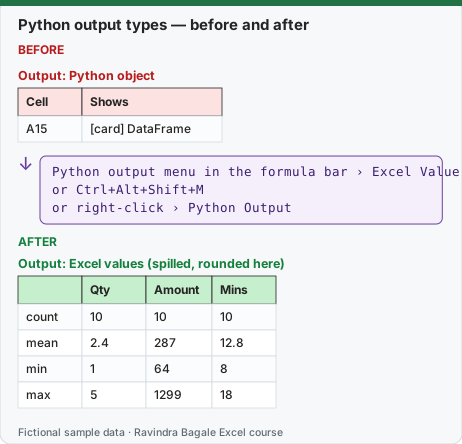
Expected result — Output: Excel values (spilled, rounded here)
| — | Qty | Amount | Mins |
|---|---|---|---|
| count | 10 | 10 | 10 |
| mean | 2.4 | 287 | 12.8 |
| min | 1 | 64 | 8 |
| max | 5 | 1299 | 18 |
Before table and formula as text
Before — Output: Python object
| Cell | Shows |
|---|---|
| A15 | [card] DataFrame |
Formula / click path
Python output menu in the formula bar › Excel Value
or Ctrl+Alt+Shift+M
or right-click › Python Output
Do it step by step:
- In A15 write the describe code from the box below and commit with Ctrl+Enter. The cell shows a card icon and DataFrame.
- Select the card icon (or press Ctrl+Shift+F5) to preview the table without changing the output.
- Make sure the 9 × 4 area from A15 down and right is empty, so the spill has room.
- Press Ctrl+Alt+Shift+M, or open the Python output menu in the formula bar and choose Excel Value.
- The numbers spill into A15:D23. Format them with 2 decimals and refer to them with normal formulas, for example
=C17for the mean Amount. - Press Ctrl+Alt+Shift+M again to switch back to a Python object.
स्टेप बाय स्टेप करून बघा:
- A15 मध्ये खालच्या box मधला describe code लिहा आणि Ctrl+Enter ने commit करा. Cell card icon आणि DataFrame दाखवते.
- Output न बदलता table preview करायला card icon निवडा (किंवा Ctrl+Shift+F5 दाबा).
- A15 पासून खाली आणि उजवीकडचा 9 × 4 भाग रिकामा आहे ना ते बघा, म्हणजे spill ला जागा मिळेल.
- Ctrl+Alt+Shift+M दाबा, किंवा formula bar मधला Python output menu उघडून Excel Value निवडा.
- आकडे A15:D23 मध्ये spill होतात. त्यांना 2 decimals format द्या आणि नेहमीच्या formulas ने वापरा, उदा. mean Amount साठी
=C17. - परत Python object करायला पुन्हा Ctrl+Alt+Shift+M दाबा.
स्टेप बाय स्टेप करके देखें:
- A15 में नीचे के box वाला describe code लिखें और Ctrl+Enter से commit करें. Cell card icon और DataFrame दिखाती है.
- Output बदले बिना table preview करने के लिए card icon चुनें (या Ctrl+Shift+F5 दबाएँ).
- देखें कि A15 से नीचे और दाईं ओर का 9 × 4 हिस्सा खाली है, ताकि spill को जगह मिले.
- Ctrl+Alt+Shift+M दबाएँ, या formula bar का Python output menu खोलकर Excel Value चुनें.
- आँकड़े A15:D23 में spill होते हैं. उन्हें 2 decimals format दें और आम formulas से इस्तेमाल करें, जैसे mean Amount के लिए
=C17. - वापस Python object करने के लिए फिर Ctrl+Alt+Shift+M दबाएँ.
The describe() result in full
df[["Qty", "Amount", "Mins"]].describe()
| Qty | Amount | Mins | |
|---|---|---|---|
| count | 10 | 10 | 10 |
| mean | 2.4 | 287 | 12.8 |
| std | 1.35 | 362.29 | 3.43 |
| min | 1 | 64 | 8 |
| 25% | 1.25 | 120 | 10.25 |
| 50% | 2 | 207.5 | 12.5 |
| 75% | 3 | 238 | 15.5 |
| max | 5 | 1299 | 18 |
Expected output computed by running this exact code locally with pandas on the same fictional data (Python in Excel runs it in the Microsoft Cloud; numbers are the same, the look of the card may differ). Values are rounded to 2 decimals here; Excel shows more digits until you format them. std is the sample standard deviation (the same as Excel's STDEV.S), and 25%/50%/75% are quartiles calculated the same way as Excel's QUARTILE.INC.
Why does the first column show count, mean, std…? Microsoft explains that when a DataFrame is returned as Excel values, the index column is included only if its values are not numbers (like the result of describe() or a groupby) or if the index has a name. For a plain df.head(3) the 0, 1, 2 index is left out.
Which output when?
| Situation | Choose | Reason |
|---|---|---|
| The result feeds another Python cell (a cleaned df, a model) | Python object | Keeps the full object; Microsoft recommends objects for reuse |
| You want an Excel chart, conditional formatting or a formula on it | Excel value | Excel tools need values in cells |
| A single number such as a total | Either | A number always shows as a number |
| A chart (Matplotlib or seaborn) | Object, then Display Plot over Cells, or Excel Value for an in-cell picture | Lesson 29.6 |
| A very large DataFrame | Python object | A huge spill slows the workbook and blocks cells |
#SPILL! with Python. When the output is Excel values and any cell in the spill area already has something in it, the Python cell returns #SPILL! instead of the result, exactly like a FILTER formula would. Clear the cells or move the Python cell.
Check the spilled numbers with Excel
| Spilled value | Excel check | Result |
|---|---|---|
| mean Amount | =AVERAGE(tblOrders[Amount]) |
287 |
| std Amount | =STDEV.S(tblOrders[Amount]) |
362.29 |
| 50% Mins (median) | =MEDIAN(tblOrders[Mins]) |
12.5 |
| 75% Mins | =QUARTILE.INC(tblOrders[Mins],3) |
15.5 |
Microsoft sources (checked 7 October 2026): Get started with Python in Excel; Python in Excel DataFrames; Python in Excel keyboard shortcuts.
Practice task (try it before you open the answer):
- Return
df["Amount"].describe()(one column) as Excel values. - Which value is the median and what is it?
- Write the Excel formula that checks the 25% value.
Answer
- It spills 8 rows (count, mean, std, min, 25%, 50%, 75%, max) with the labels in the first column.
- The 50% row is the median: 207.5.
=QUARTILE.INC(tblOrders[Amount],1)returns 120.
Ravindra Bagale's Tip
Keep working results as Python objects and turn only the final table into Excel values. Your sheet stays light and the numbers your manager sees are real cells.
Ravindra Bagale's Tip – मराठी
काम चालू असलेले results Python objects म्हणून ठेवा आणि फक्त शेवटची table Excel values करा. Sheet हलकी राहते आणि manager पाहतो ते आकडे खऱ्या cells असतात.
Ravindra Bagale's Tip – हिंदी
काम के बीच के results Python objects के रूप में रखें और सिर्फ़ आख़िरी table को Excel values बनाएँ. Sheet हल्की रहती है और manager जो आँकड़े देखता है वे असली cells होते हैं.