29.6 Charts with Matplotlib and seaborn in Python in Excel
Example first. Raja wants a horizontal bar chart of Amount by City, smallest at the bottom, and a histogram of delivery minutes. Both are a few lines of Python. The chart comes back as an image object in the cell; one right-click puts it over the grid where he can resize it next to his Excel table.
Python charts — in 30 seconds
What: Matplotlib (plt) and seaborn (sns) are imported for you. A plotting call in a Python cell returns the chart as an image object that you can preview, display over cells, or show inside the cell as an Excel value.
Why: Python charts give types Excel does not have built in (histograms with exact bins, pair plots, regression plots) and they are made from the same DataFrame, so they refresh with the data.
Tiny example: sns.histplot(df["Mins"], bins=[5, 10, 15, 20]) draws 3 bars: 2 orders took 5–9 minutes, 5 took 10–14, 3 took 15–20.
Python charts — 30 सेकंदात
काय: Matplotlib (plt) आणि seaborn (sns) तुमच्यासाठी import केलेले असतात. Python cell मधला plotting call chart image object म्हणून परत देतो, जो preview करता येतो, cells वर दाखवता येतो, किंवा Excel value म्हणून cell मध्ये दाखवता येतो.
का: Python charts मध्ये Excel मध्ये built in नसलेले प्रकार मिळतात (अचूक bins चे histograms, pair plots, regression plots) आणि ते त्याच DataFrame पासून बनतात, त्यामुळे data सोबत refresh होतात.
छोटं उदाहरण: sns.histplot(df["Mins"], bins=[5, 10, 15, 20]) 3 bars काढतो: 2 orders ना 5–9 मिनिटं लागली, 5 ना 10–14, 3 ना 15–20.
Python charts — 30 सेकंड में
क्या: Matplotlib (plt) और seaborn (sns) आपके लिए import किए हुए होते हैं. Python cell का plotting call chart को image object के रूप में लौटाता है, जिसे preview किया जा सकता है, cells के ऊपर दिखाया जा सकता है, या Excel value के रूप में cell के अंदर दिखाया जा सकता है.
क्यों: Python charts में वे प्रकार मिलते हैं जो Excel में built in नहीं हैं (सटीक bins वाले histograms, pair plots, regression plots) और वे उसी DataFrame से बनते हैं, इसलिए data के साथ refresh होते हैं.
छोटा उदाहरण: sns.histplot(df["Mins"], bins=[5, 10, 15, 20]) 3 bars बनाता है: 2 orders को 5–9 मिनट लगे, 5 को 10–14, 3 को 15–20.
First look at the data (before → after):
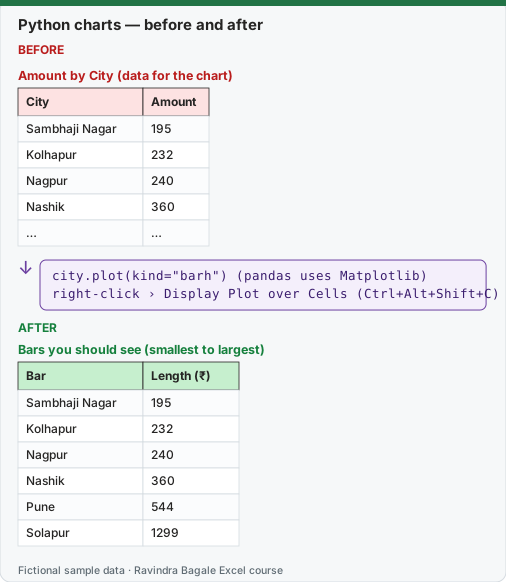
Expected result — Bars you should see (smallest to largest)
| Bar | Length (₹) |
|---|---|
| Sambhaji Nagar | 195 |
| Kolhapur | 232 |
| Nagpur | 240 |
| Nashik | 360 |
| Pune | 544 |
| Solapur | 1299 |
Before table and formula as text
Before — Amount by City (data for the chart)
| City | Amount |
|---|---|
| Sambhaji Nagar | 195 |
| Kolhapur | 232 |
| Nagpur | 240 |
| Nashik | 360 |
| … | … |
Formula / click path
city.plot(kind="barh")  (pandas uses Matplotlib)
right-click › Display Plot over Cells  (Ctrl+Alt+Shift+C)
Do it step by step:
- In a cell after df, type the bar chart code from the box below and commit with Ctrl+Enter. The cell shows an image card.
- Select the card icon to preview the chart.
- Right-click the cell and choose Display Plot over Cells (or press Ctrl+Alt+Shift+C). A copy floats over the grid; drag its corners to resize it.
- To show the picture inside the cell instead, switch the output to Excel Value; make the cell bigger to make the picture bigger.
- In another cell, type the histogram code and commit. Check the bar heights: 2, 5 and 3.
- Add axis labels and a title in the same cell with
plt.xlabel,plt.ylabelandplt.title.
स्टेप बाय स्टेप करून बघा:
- df नंतरच्या cell मध्ये खालच्या box मधला bar chart code type करा आणि Ctrl+Enter ने commit करा. Cell image card दाखवते.
- Chart preview करायला card icon निवडा.
- Cell वर right-click करून Display Plot over Cells निवडा (किंवा Ctrl+Alt+Shift+C दाबा). एक copy grid वर तरंगते; कोपरे ओढून size बदला.
- त्याऐवजी picture cell च्या आत दाखवायचं असेल तर output Excel Value करा; picture मोठं करायला cell मोठी करा.
- दुसऱ्या cell मध्ये histogram code type करून commit करा. Bars ची उंची तपासा: 2, 5 आणि 3.
- त्याच cell मध्ये
plt.xlabel,plt.ylabelआणिplt.titleने axis labels आणि title जोडा.
स्टेप बाय स्टेप करके देखें:
- df के बाद वाली cell में नीचे के box का bar chart code type करें और Ctrl+Enter से commit करें. Cell image card दिखाती है.
- Chart preview करने के लिए card icon चुनें.
- Cell पर right-click करके Display Plot over Cells चुनें (या Ctrl+Alt+Shift+C दबाएँ). एक copy grid के ऊपर तैरती है; कोने खींचकर size बदलें.
- इसके बजाय picture को cell के अंदर दिखाना हो तो output Excel Value करें; picture बड़ी करने के लिए cell बड़ी करें.
- दूसरी cell में histogram code type करके commit करें. Bars की ऊँचाई जाँचें: 2, 5 और 3.
- उसी cell में
plt.xlabel,plt.ylabelऔरplt.titleसे axis labels और title जोड़ें.
1. Horizontal bar chart with pandas + Matplotlib
city = df.groupby("City")["Amount"].sum().sort_values()
city.plot(kind="barh")
plt.xlabel("Amount (Rs)")
plt.title("Amount by City (fictional data)")
sort_values() puts the smallest total first, and a horizontal bar chart draws the first item at the bottom, so Solapur (₹1,299) ends up as the longest bar at the top. Bar lengths: Sambhaji Nagar 195, Kolhapur 232, Nagpur 240, Nashik 360, Pune 544, Solapur 1299.
2. seaborn bar chart straight from the DataFrame
sns.barplot(data=df, x="City", y="Amount", estimator="sum", errorbar=None)
plt.xticks(rotation=30)
plt.title("Amount by City")
estimator="sum" makes each bar the total Amount of the city (seaborn's default would be the average), and errorbar=None removes the black error lines that seaborn adds by default. Bars appear in the order the cities first appear in the data: Pune, Nashik, Nagpur, Kolhapur, Solapur, Sambhaji Nagar.
3. Histogram of delivery minutes with exact bins
sns.histplot(df["Mins"], bins=[5, 10, 15, 20])
plt.title("Delivery minutes")
| Bin (minutes) | Orders | Which orders |
|---|---|---|
| 5 to under 10 | 2 | BLK-1001, BLK-1006 |
| 10 to under 15 | 5 | BLK-1002, AMN-1003, BLK-1004, AMN-1008, BLK-1009 |
| 15 to 20 | 3 | AMN-1005, BLK-1007, BLK-1010 |
Expected output computed by running this exact code locally with pandas on the same fictional data (Python in Excel runs it in the Microsoft Cloud; numbers are the same, the look of the card may differ). The last bin includes its right edge (20); the others do not, which is how NumPy and seaborn define bins. Excel's own histogram chart and the FREQUENCY function use different edge rules, so always say which bins you used.
Getting the chart onto the sheet
| Option | How | Best for |
|---|---|---|
| Preview only | Select the card icon in the cell | Quick look while you work |
| Display Plot over Cells | Right-click › Display Plot over Cells, or Ctrl+Alt+Shift+C | A chart you resize and place next to tables (the original stays in the cell) |
| Picture in the cell | Python output menu › Excel Value (or Ctrl+Alt+Shift+M) | A small chart per row or a compact dashboard; size follows the cell |
Python chart or Excel chart? If the chart must be formatted by colleagues who do not know Python, or must react to slicers, make an Excel chart from the spilled Excel values. Choose a Python chart when you need something Excel cannot draw easily (exact-bin histograms, box plots, pair plots, regression lines) or when the chart is part of an analysis already written in Python.
Indian-language labels. Microsoft's plotting page lists excel.FontPath.HINDI (Mangal font) for chart labels in Devanagari; without it non-Latin characters show as empty boxes. In this course we keep chart labels in English.
Microsoft sources (checked 7 October 2026): Create plots and charts with Python in Excel; Open-source libraries and Python in Excel; Python in Excel keyboard shortcuts.
Practice task (try it before you open the answer):
- Draw a bar chart of the number of orders per Platform.
- Say the bar heights.
- Display it over cells.
Answer
df["Platform"].value_counts().plot(kind="bar")thenplt.title("Orders by platform").- Blinkit 7, Amazon Now 3 (value_counts sorts largest first).
- Right-click the cell › Display Plot over Cells, or press Ctrl+Alt+Shift+C.
Ravindra Bagale's Tip
Put the numbers next to every Python chart, as a small Excel-value table. A picture cannot be checked; the table behind it can.
Ravindra Bagale's Tip – मराठी
प्रत्येक Python chart शेजारी आकडे Excel-value table म्हणून ठेवा. Picture तपासता येत नाही; त्यामागची table तपासता येते.
Ravindra Bagale's Tip – हिंदी
हर Python chart के बगल में आँकड़े छोटी Excel-value table के रूप में रखें. Picture जाँची नहीं जा सकती; उसके पीछे की table जाँची जा सकती है.