9.18 Named LAMBDA Functions in Name Manager, with Optional Arguments (ISOMITTED)
Example first. In lesson 9.7 you met LAMBDA briefly. Now Ruhi wants a real, reusable function for the team: LATEFLAG should say "Late" when a delivery took more than 15 minutes. But the Kolhapur store uses a 12-minute promise. So the limit must be optional: if you give it, use it; if you leave it out, use 15. We will build LATEFLAG step by step, save it in Name Manager and call it like a built-in function: =LATEFLAG(H2) or =LATEFLAG(H2,12).
Named LAMBDA with optional argument — in 30 seconds
What: A LAMBDA saved in Name Manager becomes your own function with a friendly name. ISOMITTED tells you whether the user skipped an argument, so you can use a default value.
Why: One tested formula, used everywhere by name, is safer than the same long formula copied into 50 cells. Optional arguments keep simple calls simple.
Tiny example: After saving it, =LATEFLAG(H2:H11) marks 3 orders as Late, and =LATEFLAG(H2:H11,12) marks 5.
Named LAMBDA with optional argument — 30 सेकंदात
काय: Name Manager मध्ये save केलेला LAMBDA मैत्रीपूर्ण नाव असलेलं तुमचं स्वतःचं function बनतो. User ने argument सोडला का ते ISOMITTED सांगतो, म्हणून default value वापरता येते.
का: एकच tested formula नावाने सगळीकडे वापरणं, तोच लांब formula 50 cells मध्ये copy करण्यापेक्षा जास्त सुरक्षित. Optional arguments मुळे साधे calls साधेच राहतात.
छोटं उदाहरण: Save केल्यानंतर =LATEFLAG(H2:H11) 3 orders ना Late दाखवतो, आणि =LATEFLAG(H2:H11,12) 5 ना.
Named LAMBDA with optional argument — 30 सेकंड में
क्या: Name Manager में save किया LAMBDA दोस्ताना नाम वाला आपका अपना function बन जाता है. User ने argument छोड़ा या नहीं, यह ISOMITTED बताता है, इसलिए default value ली जा सकती है.
क्यों: एक tested formula को नाम से हर जगह इस्तेमाल करना, वही लंबा formula 50 cells में copy करने से ज़्यादा सुरक्षित है. Optional arguments से सादे calls सादे ही रहते हैं.
छोटा उदाहरण: Save करने के बाद =LATEFLAG(H2:H11) 3 orders को Late दिखाता है, और =LATEFLAG(H2:H11,12) 5 को.
First look at the data (before → after):
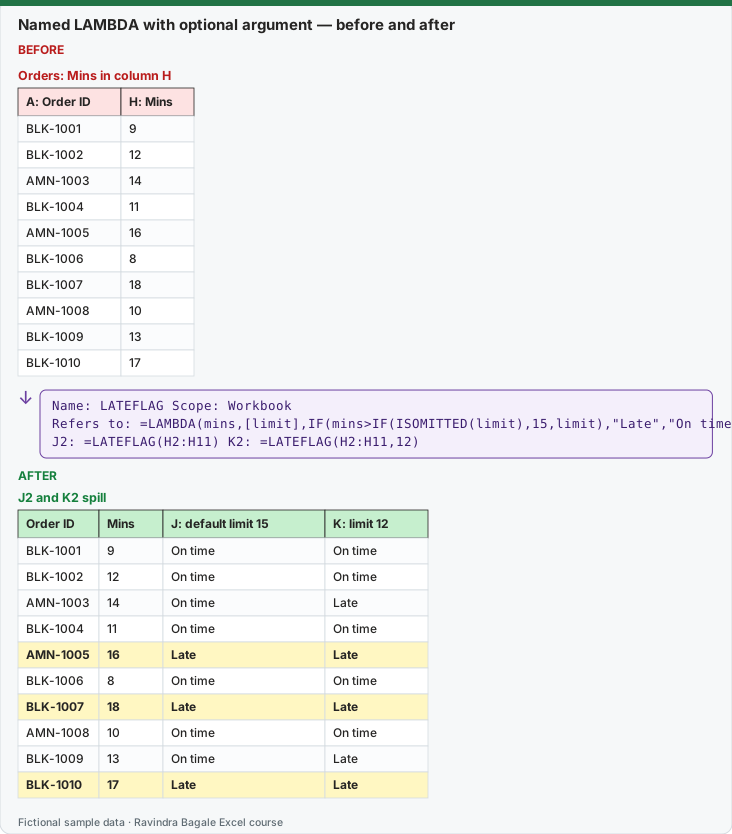
Expected result — J2 and K2 spill
| Order ID | Mins | J: default limit 15 | K: limit 12 |
|---|---|---|---|
| BLK-1001 | 9 | On time | On time |
| BLK-1002 | 12 | On time | On time |
| AMN-1003 | 14 | On time | Late |
| BLK-1004 | 11 | On time | On time |
| AMN-1005 | 16 | Late | Late |
| BLK-1006 | 8 | On time | On time |
| BLK-1007 | 18 | Late | Late |
| AMN-1008 | 10 | On time | On time |
| BLK-1009 | 13 | On time | Late |
| BLK-1010 | 17 | Late | Late |
Before table and formula as text
Before — Orders: Mins in column H
| A: Order ID | H: Mins |
|---|---|
| BLK-1001 | 9 |
| BLK-1002 | 12 |
| AMN-1003 | 14 |
| BLK-1004 | 11 |
| AMN-1005 | 16 |
| BLK-1006 | 8 |
| BLK-1007 | 18 |
| AMN-1008 | 10 |
| BLK-1009 | 13 |
| BLK-1010 | 17 |
Formula / click path
Name: LATEFLAG     Scope: Workbook
Refers to: =LAMBDA(mins,[limit],IF(mins>IF(ISOMITTED(limit),15,limit),"Late","On time"))
J2: =LATEFLAG(H2:H11)      K2: =LATEFLAG(H2:H11,12)
Do it step by step:
- Test the logic in a spare cell first:
=LAMBDA(mins,limit,IF(mins>limit,"Late","On time"))(16,15)returns Late. - Open Formulas › Defined Names › Name Manager and click New….
- In Name type LATEFLAG, keep Scope: Workbook, and in Comment write what it does and its arguments.
- In Refers to paste
=LAMBDA(mins,[limit],IF(mins>IF(ISOMITTED(limit),15,limit),"Late","On time"))and click OK, then Close. - In J2 type
=LATEFLAG(H2:H11). Three orders show Late. - In K2 type
=LATEFLAG(H2:H11,12). Now five orders show Late.
स्टेप बाय स्टेप करून बघा:
- आधी एका रिकाम्या cell मध्ये logic test करा:
=LAMBDA(mins,limit,IF(mins>limit,"Late","On time"))(16,15)Late देतो. - Formulas › Defined Names › Name Manager उघडा आणि New… वर click करा.
- Name मध्ये LATEFLAG type करा, Scope: Workbook ठेवा, आणि Comment मध्ये ते काय करतं आणि त्याचे arguments लिहा.
- Refers to मध्ये
=LAMBDA(mins,[limit],IF(mins>IF(ISOMITTED(limit),15,limit),"Late","On time"))paste करा आणि OK, मग Close करा. - J2 मध्ये
=LATEFLAG(H2:H11)type करा. तीन orders Late दाखवतात. - K2 मध्ये
=LATEFLAG(H2:H11,12)type करा. आता पाच orders Late दाखवतात.
स्टेप बाय स्टेप करके देखें:
- पहले किसी खाली cell में logic test करें:
=LAMBDA(mins,limit,IF(mins>limit,"Late","On time"))(16,15)Late देता है. - Formulas › Defined Names › Name Manager खोलें और New… पर click करें.
- Name में LATEFLAG type करें, Scope: Workbook रखें, और Comment में लिखें कि यह क्या करता है और इसके arguments क्या हैं.
- Refers to में
=LAMBDA(mins,[limit],IF(mins>IF(ISOMITTED(limit),15,limit),"Late","On time"))paste करें और OK, फिर Close करें. - J2 में
=LATEFLAG(H2:H11)type करें. तीन orders Late दिखाती हैं. - K2 में
=LATEFLAG(H2:H11,12)type करें. अब पाँच orders Late दिखाती हैं.
Version note
LAMBDA and ISOMITTED are listed for Excel for Microsoft 365 (Windows and Mac) and Excel 2024 (Windows and Mac). The square-bracket style for optional parameters, [limit], was announced on Microsoft's Insider blog; if your Excel does not accept the brackets, write limit without brackets and call the function with an empty last argument, for example =LATEFLAG(H2,). ISOMITTED then still sees the missing value. In Excel for the web you can create names, but Microsoft notes that sheet-level scope is not available there.
How a LAMBDA is built
=LAMBDA([parameter1, parameter2, …,] calculation)
- The parameters are names for the inputs (mins, limit). Up to 253. No full stop (period) in a name, and do not use names that look like cell addresses (A1, H2).
- The calculation is the last argument. It uses the parameter names like variables, the same way LET does (lesson 9.6).
- A LAMBDA typed in a cell without values after it, like
=LAMBDA(x,x*2), shows #CALC!. Either call it straight away,=LAMBDA(x,x*2)(5)gives 10, or save it with a name.
The Name Manager fields (Windows)
| Field | What to type | Our example |
|---|---|---|
| Name | The function name. Use capitals and no spaces. | LATEFLAG |
| Scope | Workbook (default) so every sheet can use it. | Workbook |
| Comment | Up to 255 characters. Excel shows it as a tooltip when you type the function, so explain the arguments here. | Late if mins > limit. limit is optional (default 15). |
| Refers to | The LAMBDA, starting with = | =LAMBDA(mins,[limit],…) |
On a Mac use Formulas › Define Name.
How the optional argument works, piece by piece
[limit]in square brackets tells Excel that limit may be left out. Optional parameters must come after the required ones.ISOMITTED(limit)returns TRUE when the user did not give a limit.IF(ISOMITTED(limit),15,limit)therefore means "15 if missing, otherwise what the user typed".- Microsoft's own ISOMITTED example:
=LAMBDA(x,y,IF(ISOMITTED(y),"Missing second argument",x+y))(1,)returns "Missing second argument".
Two more useful functions with optional arguments
| Name | Refers to | Call | Result |
|---|---|---|---|
| WITHGST | =LAMBDA(amount,[rate],amount*(1+IF(ISOMITTED(rate),18%,rate))) |
=WITHGST(1000) |
1180 |
| WITHGST | same | =WITHGST(1000,5%) |
1050 |
| PCTCHANGE | =LAMBDA(old,new,IF(old=0,"",(new-old)/old)) |
=PCTCHANGE(520,610) |
17.31% (format as %) |
| PCTCHANGE | same | =PCTCHANGE(0,610) |
(blank, avoids #DIV/0!) |
The 18% default in WITHGST is only a sample rate for practice. Check the correct GST rate for your item with your accountant; this course does not give tax advice.
Editing and testing
- To change a function, open Name Manager, select it and click Edit…. Every cell that uses it updates.
- Keep a sheet called Tests with a few calls and the answers you expect (for example
=LATEFLAG(16)should be Late,=LATEFLAG(15)should be On time). After every edit, glance at that sheet. - A named LAMBDA lives in the workbook. To use it in another file, copy a sheet that uses it into the new workbook (the names come along) or keep a template workbook.
Common problems
| What you see | Why | Fix |
|---|---|---|
| #CALC! | A LAMBDA in a cell with no values after it. | Add the test values in brackets, or save it in Name Manager. |
| #NAME? | Typo in the function name, or the workbook is opened in a version without LAMBDA. | Check Name Manager; use Microsoft 365 or Excel 2024. |
| #VALUE! | Wrong number of arguments (too many, or a required one missing). | Count the parameters in Refers to. |
| The brackets [limit] are rejected | Your build does not have the optional-parameter syntax yet. | Remove the brackets and call with an empty last argument. |
How these results were checked: LAMBDA helper functions do not run in LibreOffice, so each expected value was computed in Python and the totals were cross-checked in LibreOffice with classic formulas (SUMIF, running SUM, SUMPRODUCT). Microsoft reference: LAMBDA function, ISOMITTED function. Optional parameters: Microsoft 365 Insider blog.
Practice task (try it before you open the answer):
- Create a named function DELIVERYSLA(mins,[promise]) that returns "Within SLA" when mins ≤ promise, and "Missed" otherwise. The default promise is 15.
- Use it on H2:H11 with the default and with a promise of 10.
- How many orders miss a 10-minute promise?
Answer
- Refers to:
=LAMBDA(mins,[promise],IF(mins<=IF(ISOMITTED(promise),15,promise),"Within SLA","Missed")) =DELIVERYSLA(H2:H11)gives Missed for AMN-1005, BLK-1007, BLK-1010;=DELIVERYSLA(H2:H11,10)gives Missed for BLK-1002, AMN-1003, BLK-1004, AMN-1005, BLK-1007, BLK-1009, BLK-1010.- 7 orders:
=SUM(--(DELIVERYSLA(H2:H11,10)="Missed")).
Ravindra Bagale's Tip
Always test a LAMBDA in a cell with sample values before you save it. A wrong function saved in Name Manager is hard to find, because the cells only show its name.
Ravindra Bagale's Tip – मराठी
LAMBDA save करण्याआधी नेहमी cell मध्ये sample values देऊन test करा. Name Manager मध्ये save झालेलं चुकीचं function शोधणं कठीण, कारण cells मध्ये फक्त त्याचं नाव दिसतं.
Ravindra Bagale's Tip – हिंदी
LAMBDA save करने से पहले हमेशा cell में sample values देकर test करें. Name Manager में save हुआ गलत function ढूँढना मुश्किल है, क्योंकि cells में सिर्फ़ उसका नाम दिखता है.