9.10 GROUPBY: A Summary Table with One Formula
Example first. Shraddha has the 10 fictional orders in Orders!A1:I11 (City in column C, Amount in column G). Her manager asks: "How much did each city sell?" Before GROUPBY she would build a PivotTable or write UNIQUE plus SUMIFS. Now she types one formula in K2 and Excel spills a sorted list of cities, their totals and a Total row. When an order changes, the summary changes by itself. No Refresh button.
GROUPBY — in 30 seconds
What: GROUPBY groups the rows by one column (for example City) and adds up, averages or counts another column (for example Amount). The answer spills as a small table.
Why: It replaces a PivotTable or a UNIQUE + SUMIFS pair for everyday summaries, and it recalculates instantly when the data changes.
Tiny example: =GROUPBY(C2:C11,G2:G11,SUM) returns 6 cities with their sales and a Total of ₹2,870. Pune shows ₹544.
GROUPBY — 30 सेकंदात
काय: GROUPBY rows ना एका column नुसार (उदा. City) group करतो आणि दुसऱ्या column ची (उदा. Amount) बेरीज, सरासरी किंवा count करतो. उत्तर एका छोट्या table सारखं spill होतं.
का: रोजच्या summary साठी PivotTable किंवा UNIQUE + SUMIFS ची जोडी याने बदलता येते, आणि data बदलला की लगेच recalculate होतं.
छोटं उदाहरण: =GROUPBY(C2:C11,G2:G11,SUM) 6 cities, त्यांची sales आणि ₹2,870 चा Total देतो. Pune समोर ₹544 दिसतात.
GROUPBY — 30 सेकंड में
क्या: GROUPBY rows को एक column के हिसाब से (जैसे City) group करता है और दूसरे column का (जैसे Amount) जोड़, औसत या count निकालता है. जवाब एक छोटी table की तरह spill होता है.
क्यों: रोज़ की summary के लिए PivotTable या UNIQUE + SUMIFS की जोड़ी की जगह यह काम आता है, और data बदलते ही तुरंत recalculate होता है.
छोटा उदाहरण: =GROUPBY(C2:C11,G2:G11,SUM) 6 cities, उनकी sales और ₹2,870 का Total देता है. Pune के सामने ₹544 दिखते हैं.
First look at the data (before → after):
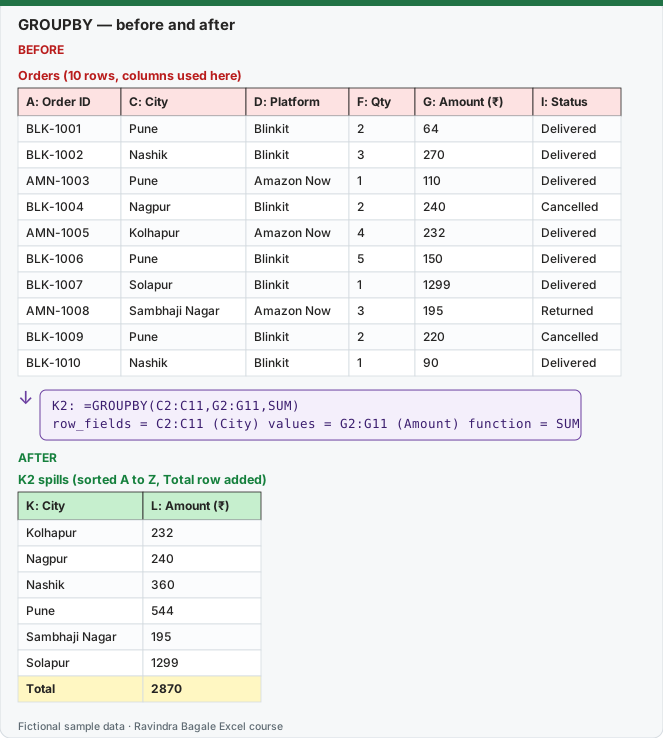
Expected result — K2 spills (sorted A to Z, Total row added)
| K: City | L: Amount (₹) |
|---|---|
| Kolhapur | 232 |
| Nagpur | 240 |
| Nashik | 360 |
| Pune | 544 |
| Sambhaji Nagar | 195 |
| Solapur | 1299 |
| Total | 2870 |
Before table and formula as text
Before — Orders (10 rows, columns used here)
| A: Order ID | C: City | D: Platform | F: Qty | G: Amount (₹) | I: Status |
|---|---|---|---|---|---|
| BLK-1001 | Pune | Blinkit | 2 | 64 | Delivered |
| BLK-1002 | Nashik | Blinkit | 3 | 270 | Delivered |
| AMN-1003 | Pune | Amazon Now | 1 | 110 | Delivered |
| BLK-1004 | Nagpur | Blinkit | 2 | 240 | Cancelled |
| AMN-1005 | Kolhapur | Amazon Now | 4 | 232 | Delivered |
| BLK-1006 | Pune | Blinkit | 5 | 150 | Delivered |
| BLK-1007 | Solapur | Blinkit | 1 | 1299 | Delivered |
| AMN-1008 | Sambhaji Nagar | Amazon Now | 3 | 195 | Returned |
| BLK-1009 | Pune | Blinkit | 2 | 220 | Cancelled |
| BLK-1010 | Nashik | Blinkit | 1 | 90 | Delivered |
Formula / click path
K2: =GROUPBY(C2:C11,G2:G11,SUM)
row_fields = C2:C11 (City)   values = G2:G11 (Amount)   function = SUM
Do it step by step:
- Open the Orders sheet with the 10 orders in A1:I11.
- Click an empty cell with free space below and to the right, for example K2.
- Type
=GROUPBY(C2:C11,G2:G11,SUM)and press Enter. - Check the spill: 6 cities sorted A to Z and a Total row at the bottom.
- Change the Amount of BLK-1001 from 64 to 100 and watch the Pune total and the Total change at once.
- Press Ctrl + Z to undo the change.
स्टेप बाय स्टेप करून बघा:
- 10 orders A1:I11 मध्ये असलेली Orders sheet उघडा.
- खाली आणि उजवीकडे जागा असलेल्या रिकाम्या cell वर click करा, उदा. K2.
=GROUPBY(C2:C11,G2:G11,SUM)type करा आणि Enter दाबा.- Spill तपासा: A ते Z sort झालेली 6 cities आणि खाली Total row.
- BLK-1001 ची Amount 64 वरून 100 करा आणि Pune total व Total लगेच बदलतात ते बघा.
- बदल undo करण्यासाठी Ctrl + Z दाबा.
स्टेप बाय स्टेप करके देखें:
- 10 orders A1:I11 में रखी Orders sheet खोलें.
- नीचे और दाईं ओर खाली जगह वाली cell पर click करें, जैसे K2.
=GROUPBY(C2:C11,G2:G11,SUM)type करें और Enter दबाएँ.- Spill जाँचें: A से Z sort हुई 6 cities और नीचे Total row.
- BLK-1001 की Amount 64 से 100 करें और देखें Pune total और Total तुरंत बदलते हैं.
- बदलाव undo करने के लिए Ctrl + Z दबाएँ.
Version note
GROUPBY is listed by Microsoft for Excel for Microsoft 365 only. It is not in Excel 2021 or Excel 2024 (one-time purchase). If you type it in an older version you get #NAME?. In those versions use a PivotTable, or UNIQUE + SUMIFS (shown at the end of this lesson).
The syntax in plain English
GROUPBY(row_fields, values, function, [field_headers], [total_depth], [sort_order], [filter_array], [field_relationship])
| Argument | What you give it | Our example |
|---|---|---|
| row_fields (required) | The column(s) you want to group by. One column = one level, two columns = two levels. | C2:C11 (City) |
| values (required) | The column(s) you want to add up, count or average. | G2:G11 (Amount) |
| function (required) | How to combine the values: SUM, AVERAGE, COUNT, MAX, MIN, PERCENTOF and so on. You can also give your own LAMBDA. | SUM |
| field_headers | Do your ranges include a header row? 0 = no, 1 = yes but do not show, 2 = no but make headers, 3 = yes and show. Left empty, Excel guesses. | 3 when you select C1:C11 |
| total_depth | 0 = no totals, 1 = grand total, 2 = grand total and subtotals. Negative numbers (-1, -2) put the totals at the top. | 0 to hide the Total row |
| sort_order | Which column to sort by. Numbers count the row_fields columns first, then the values columns. A minus sign sorts in descending order. | -2 = sort by Amount (row field 1, value 2), largest first |
| filter_array | A TRUE/FALSE column of the same height that decides which rows are used. | I2:I11="Delivered" |
| field_relationship | Only for two or more row fields: 0 = hierarchy (default), 1 = table (each column sorted on its own, no subtotals). | rarely needed |
Here are six more real examples on the same 10 orders. Type each one in an empty cell with space around it.
Example 2: show the header row. Select the headers too and set field_headers to 3.
=GROUPBY(C1:C11,G1:G11,SUM,3)
| City | Amount |
|---|---|
| Kolhapur | 232 |
| Nagpur | 240 |
| Nashik | 360 |
| Pune | 544 |
| Sambhaji Nagar | 195 |
| Solapur | 1299 |
| Total | 2870 |
Example 3: biggest city first. City is column 1 and Amount is column 2, so -2 sorts by Amount, largest first.
=GROUPBY(C2:C11,G2:G11,SUM,,,-2)
| City | Amount (₹) |
|---|---|
| Solapur | 1299 |
| Pune | 544 |
| Nashik | 360 |
| Nagpur | 240 |
| Kolhapur | 232 |
| Sambhaji Nagar | 195 |
| Total | 2870 |
The two empty commas skip field_headers and total_depth. The Total row stays at the bottom.
Example 4: only Delivered orders. The filter_array keeps only rows where Status is Delivered.
=GROUPBY(C2:C11,G2:G11,SUM,,,,I2:I11="Delivered")
| City | Delivered amount (₹) |
|---|---|
| Kolhapur | 232 |
| Nashik | 360 |
| Pune | 324 |
| Solapur | 1299 |
| Total | 2215 |
Nagpur (only a cancelled order) and Sambhaji Nagar (only a returned order) disappear because none of their rows pass the filter.
Example 5: count orders per city. Use COUNT on the Amount column (COUNT counts numbers).
=GROUPBY(C2:C11,G2:G11,COUNT)
| City | Orders |
|---|---|
| Kolhapur | 1 |
| Nagpur | 1 |
| Nashik | 2 |
| Pune | 4 |
| Sambhaji Nagar | 1 |
| Solapur | 1 |
| Total | 10 |
Example 6: two value columns at once. Qty (F) and Amount (G) sit next to each other, so give F2:G11 as values.
=GROUPBY(C2:C11,F2:G11,SUM)
| City | Qty | Amount (₹) |
|---|---|---|
| Kolhapur | 4 | 232 |
| Nagpur | 2 | 240 |
| Nashik | 4 | 360 |
| Pune | 10 | 544 |
| Sambhaji Nagar | 3 | 195 |
| Solapur | 1 | 1299 |
| Total | 24 | 2870 |
Example 7: share of sales with PERCENTOF. Format the result column as Percentage (Home › Number › %).
=GROUPBY(C2:C11,G2:G11,PERCENTOF)
| City | Share of sales |
|---|---|
| Kolhapur | 8.08% |
| Nagpur | 8.36% |
| Nashik | 12.54% |
| Pune | 18.95% |
| Sambhaji Nagar | 6.79% |
| Solapur | 45.26% |
| Total | 100.00% |
Example 8: two levels (City, then Platform), grand total only. C and D are next to each other, so C2:D11 gives two row fields. total_depth 1 shows only the grand total.
=GROUPBY(C2:D11,G2:G11,SUM,,1)
| City | Platform | Amount (₹) |
|---|---|---|
| Kolhapur | Amazon Now | 232 |
| Nagpur | Blinkit | 240 |
| Nashik | Blinkit | 360 |
| Pune | Amazon Now | 110 |
| Pune | Blinkit | 434 |
| Sambhaji Nagar | Amazon Now | 195 |
| Solapur | Blinkit | 1299 |
| Total | — | 2870 |
With total_depth 2 (or left empty) Excel also adds a subtotal row under each city that has more than one platform.
The old way (works in every version)
| Cell | Formula | What it does |
|---|---|---|
| K2 | =SORT(UNIQUE(C2:C11)) |
list of cities, A to Z (Excel 2021 and later) |
| L2 | =SUMIFS(G2:G11,C2:C11,K2#) |
total for each city in the spill |
| L8 | =SUM(G2:G11) |
grand total |
Common problems
| What you see | Why | Fix |
|---|---|---|
| #SPILL! | Cells where the result wants to go are not empty. | Clear the cells below and to the right, or move the formula. |
| #VALUE! | row_fields and values have different heights (C2:C11 vs G2:G10). | Make every range the same rows. |
| A blank group at the top or bottom | Your range includes empty rows (for example C2:C100). | Use exact ranges, a Table column, or a trim ref like C2:.C100 (lesson 9.16). |
| A city appears twice | Extra spaces, for example "Pune " and "Pune". | Clean with TRIM first (chapter 8). |
| #NAME? | Your Excel does not have GROUPBY. | Use the old way shown above. |
How these results were checked: this function is not available in LibreOffice, so every expected value on this page was computed in Python and cross-checked in LibreOffice with classic formulas that give the same numbers. The layout of the spill follows Microsoft's documentation. Microsoft reference: GROUPBY function.
Practice task (try it before you open the answer):
- Use GROUPBY to show the total Amount per Category (column E) on the 10 orders.
- Sort the result so the category with the largest Amount is first.
- Then show only Blinkit orders (Platform in column D) in the same summary.
Answer
=GROUPBY(E2:E11,G2:G11,SUM)gives Bakery 150, Dairy 296, Fruits 600, Home 1299, Snacks 330, Staples 195, Total 2870.=GROUPBY(E2:E11,G2:G11,SUM,,,-2)puts Home first.=GROUPBY(E2:E11,G2:G11,SUM,,,-2,D2:D11="Blinkit")gives Home 1299, Fruits 600, Snacks 220, Bakery 150, Dairy 64, Total 2333.
Ravindra Bagale's Tip
GROUPBY is perfect for a summary that must always be current. Keep a PivotTable when your manager wants to drag fields around, use slicers or double-click to see the detail rows.
Ravindra Bagale's Tip – मराठी
जी summary नेहमी ताजी हवी तिथे GROUPBY उत्तम. Manager ला fields drag करायचे असतील, slicers वापरायचे असतील किंवा double-click करून detail rows बघायच्या असतील तर PivotTable ठेवा.
Ravindra Bagale's Tip – हिंदी
जो summary हमेशा ताज़ा चाहिए वहाँ GROUPBY बढ़िया है. Manager को fields drag करने हों, slicers चलाने हों या double-click करके detail rows देखनी हों तो PivotTable रखें.