9.12 REGEXTEST, REGEXEXTRACT and REGEXREPLACE: Pattern Matching for Messy Text
Example first. Zoya gets delivery notes typed by riders and support staff. They are messy: some have an order ID, some have a PIN code, some have an amount written as "Rs. 1,299", one has a phone number that must be hidden. With LEFT, MID and FIND this takes long, fragile formulas. With the three REGEX functions she describes the pattern of what she wants ("three letters, a dash, four digits") and Excel finds it anywhere in the text.
REGEX functions — in 30 seconds
What: A regular expression (regex) is a short pattern that describes text, such as "6 digits in a row". REGEXTEST checks if the pattern is there, REGEXEXTRACT pulls it out and REGEXREPLACE swaps it for something else.
Why: Real data is messy. One regex formula can find an order ID, a PIN code or an amount wherever it sits in the sentence, where LEFT/MID/FIND would break.
Tiny example: In the note "Order BLK-1001 delivered to Pune 411038", =REGEXEXTRACT(A2,"\b\d{6}\b") returns 411038 (as text).
REGEX functions — 30 सेकंदात
काय: Regular expression (regex) म्हणजे text चं वर्णन करणारा छोटा pattern, जसं "सलग 6 अंक". REGEXTEST pattern आहे का ते तपासतो, REGEXEXTRACT तो बाहेर काढतो आणि REGEXREPLACE त्याच्या जागी दुसरं काही ठेवतो.
का: खरा data अस्ताव्यस्त असतो. एक regex formula order ID, PIN code किंवा amount वाक्यात कुठेही असला तरी शोधतो, जिथे LEFT/MID/FIND तुटतात.
छोटं उदाहरण: "Order BLK-1001 delivered to Pune 411038" या note मध्ये =REGEXEXTRACT(A2,"\b\d{6}\b") 411038 देतो (text म्हणून).
REGEX functions — 30 सेकंड में
क्या: Regular expression (regex) text का वर्णन करने वाला छोटा pattern है, जैसे "लगातार 6 अंक". REGEXTEST देखता है कि pattern है या नहीं, REGEXEXTRACT उसे बाहर निकालता है और REGEXREPLACE उसकी जगह कुछ और रख देता है.
क्यों: असली data बिखरा होता है. एक regex formula order ID, PIN code या amount को वाक्य में कहीं भी ढूँढ लेता है, जहाँ LEFT/MID/FIND टूट जाते हैं.
छोटा उदाहरण: "Order BLK-1001 delivered to Pune 411038" note में =REGEXEXTRACT(A2,"\b\d{6}\b") 411038 देता है (text के रूप में).
First look at the data (before → after):
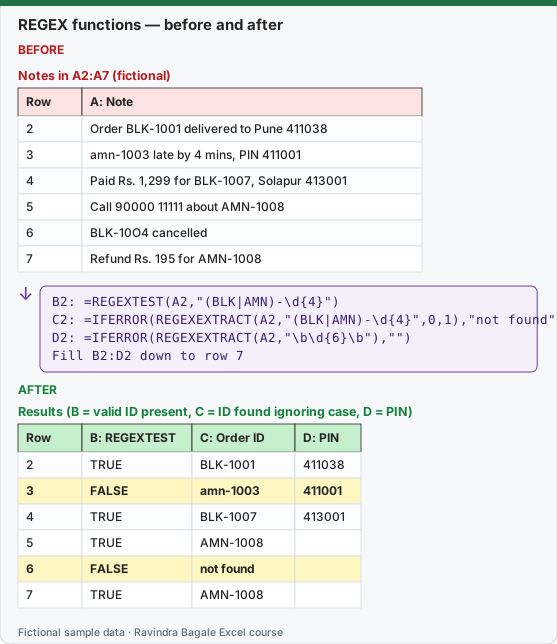
Expected result — Results (B = valid ID present, C = ID found ignoring case, D = PIN)
| Row | B: REGEXTEST | C: Order ID | D: PIN |
|---|---|---|---|
| 2 | TRUE | BLK-1001 | 411038 |
| 3 | FALSE | amn-1003 | 411001 |
| 4 | TRUE | BLK-1007 | 413001 |
| 5 | TRUE | AMN-1008 | — |
| 6 | FALSE | not found | — |
| 7 | TRUE | AMN-1008 | — |
Before table and formula as text
Before — Notes in A2:A7 (fictional)
| Row | A: Note |
|---|---|
| 2 | Order BLK-1001 delivered to Pune 411038 |
| 3 | amn-1003 late by 4 mins, PIN 411001 |
| 4 | Paid Rs. 1,299 for BLK-1007, Solapur 413001 |
| 5 | Call 90000 11111 about AMN-1008 |
| 6 | BLK-10O4 cancelled |
| 7 | Refund Rs. 195 for AMN-1008 |
Formula / click path
B2: =REGEXTEST(A2,"(BLK|AMN)-\d{4}")
C2: =IFERROR(REGEXEXTRACT(A2,"(BLK|AMN)-\d{4}",0,1),"not found")
D2: =IFERROR(REGEXEXTRACT(A2,"\b\d{6}\b"),"")
Fill B2:D2 down to row 7
Do it step by step:
- Type the six notes in A2:A7.
- In B2 type
=REGEXTEST(A2,"(BLK|AMN)-\d{4}")and fill down. Row 3 shows FALSE because "amn" is lower case. - In C2 type
=IFERROR(REGEXEXTRACT(A2,"(BLK|AMN)-\d{4}",0,1),"not found")and fill down. The last argument 1 ignores case, so row 3 now gives amn-1003. - Row 6 shows "not found": BLK-10O4 has the letter O instead of a zero, so it is not four digits.
- In D2 type
=IFERROR(REGEXEXTRACT(A2,"\b\d{6}\b"),"")and fill down to get the PIN codes. - Remember the results are text. Wrap them in
VALUEif you need numbers.
स्टेप बाय स्टेप करून बघा:
- सहा notes A2:A7 मध्ये type करा.
- B2 मध्ये
=REGEXTEST(A2,"(BLK|AMN)-\d{4}")type करून खाली fill करा. Row 3 मध्ये FALSE येतं कारण "amn" small letters मध्ये आहे. - C2 मध्ये
=IFERROR(REGEXEXTRACT(A2,"(BLK|AMN)-\d{4}",0,1),"not found")type करून खाली fill करा. शेवटचा argument 1 case ignore करतो, म्हणून row 3 आता amn-1003 देतं. - Row 6 मध्ये "not found" येतं: BLK-10O4 मध्ये शून्याऐवजी O अक्षर आहे, म्हणून ते चार अंक नाहीत.
- D2 मध्ये
=IFERROR(REGEXEXTRACT(A2,"\b\d{6}\b"),"")type करून PIN codes साठी खाली fill करा. - लक्षात ठेवा results text असतात. Numbers हवे असतील तर
VALUEमध्ये wrap करा.
स्टेप बाय स्टेप करके देखें:
- छह notes A2:A7 में type करें.
- B2 में
=REGEXTEST(A2,"(BLK|AMN)-\d{4}")type करके नीचे fill करें. Row 3 में FALSE आता है क्योंकि "amn" small letters में है. - C2 में
=IFERROR(REGEXEXTRACT(A2,"(BLK|AMN)-\d{4}",0,1),"not found")type करके नीचे fill करें. आखिरी argument 1 case ignore करता है, इसलिए row 3 अब amn-1003 देती है. - Row 6 में "not found" आता है: BLK-10O4 में शून्य की जगह O अक्षर है, इसलिए वह चार अंक नहीं हैं.
- D2 में
=IFERROR(REGEXEXTRACT(A2,"\b\d{6}\b"),"")type करके PIN codes के लिए नीचे fill करें. - याद रखें results text होते हैं. Numbers चाहिए तो
VALUEमें wrap करें.
Version note
REGEXTEST, REGEXEXTRACT and REGEXREPLACE are listed for Excel for Microsoft 365 (Windows and Mac) only. All three use the PCRE2 flavour of regex. Older versions show #NAME?. (LibreOffice has its own single REGEX function, which we used to cross-check the results on this page.)
The three syntaxes
| Function | Syntax | Returns |
|---|---|---|
| REGEXTEST | REGEXTEST(text, pattern, [case_sensitivity]) |
TRUE or FALSE |
| REGEXEXTRACT | REGEXEXTRACT(text, pattern, [return_mode], [case_sensitivity]) |
the matching text (always text, never a number) |
| REGEXREPLACE | REGEXREPLACE(text, pattern, replacement, [occurrence], [case_sensitivity]) |
the text after replacing |
- case_sensitivity: 0 = case-sensitive (the default), 1 = ignore case.
- return_mode (REGEXEXTRACT): 0 = first match (default), 1 = all matches (spills into several cells), 2 = the capture groups of the first match (each group in its own cell).
- occurrence (REGEXREPLACE): 0 = replace every match (default), 2 = only the 2nd match, -1 = only the last match.
- In the replacement text, $1, $2 mean "what capture group 1 / 2 matched".
A pattern cheat sheet (enough for 90% of office work)
| Pattern | Means | Matches in our notes |
|---|---|---|
\d |
one digit 0-9 | 4 in "late by 4 mins" |
\d{6} |
exactly six digits | 411038 |
[A-Z] |
one capital letter | B, L, K … |
[^0-9] |
any character that is NOT a digit | "Rs. " and the comma in "Rs. 1,299" |
\s |
a space, tab or line break | the gaps between words |
+ |
one or more of the thing before it | \d+ matches 1299 |
? |
zero or one (optional) | Rs\.? matches "Rs" and "Rs." |
(BLK|AMN) |
either BLK or AMN, and remember it as group 1 | BLK |
\b |
a word boundary (start or end of a word) | stops \d{6} matching inside a longer number |
^ and $ |
start and end of the whole text | ^BLK only if the note starts with BLK |
\. |
a real full stop (a plain . means any character) |
the dot in "Rs." |
More real examples on the same notes
| Goal | Formula | Result |
|---|---|---|
| Get the amount as a number (row 4) | =VALUE(REGEXREPLACE(REGEXEXTRACT(A4,"Rs\. [\d,]+"),"[^0-9]","")) |
1299 |
| Same for row 7 | =VALUE(REGEXREPLACE(REGEXEXTRACT(A7,"Rs\. [\d,]+"),"[^0-9]","")) |
195 |
| Hide the first five digits of the phone number (row 5) | =REGEXREPLACE(A5,"\d{5} (\d{5})","***** $1") |
Call ***** 11111 about AMN-1008 |
| Fix lower-case IDs (row 3) | =REGEXREPLACE(A3,"amn","AMN",0,1) |
AMN-1003 late by 4 mins, PIN 411001 |
| Split an ID into prefix and number | =REGEXEXTRACT("BLK-1007","([A-Z]+)-(\d+)",2) |
BLK and 1007 in two cells |
| All IDs in one note | =REGEXEXTRACT("Swap BLK-1002 with AMN-1003","(BLK|AMN)-\d{4}",1) |
BLK-1002 and AMN-1003 in two cells |
| Is the whole cell a valid ID? | =REGEXTEST("BLK-1007","^(BLK|AMN)-\d{4}$") |
TRUE |
| Squash repeated spaces | =REGEXREPLACE("Pune 411038","\s+"," ") |
Pune 411038 |
How to read the masking pattern \d{5} (\d{5}): five digits, a space, then five digits that we keep in group 1. The replacement ***** $1 writes five stars, a space and group 1 back. So only the first half is hidden.
Data validation with REGEXTEST. To stop wrong order IDs at entry: select the Order ID column, go to Data › Data Validation › Allow: Custom and type =REGEXTEST(A2,"^(BLK|AMN)-\d{4}$"). Now BLK-10O4 is rejected while you type.
Common problems
| What you see | Why | Fix |
|---|---|---|
| #N/A or another error from REGEXEXTRACT | The pattern was not found in that cell. | Wrap in IFERROR(…, "not found"). |
| SUM of extracted amounts is 0 | REGEXEXTRACT returns text. | Wrap in VALUE, or multiply by 1. |
| A dot matches everything | In regex . means "any character". |
Write \. for a real full stop. |
| FALSE for "amn-1003" | Matching is case-sensitive by default. | Add case_sensitivity 1 as the last argument. |
| PIN pattern grabs part of a phone number | No word boundaries. | Use \b\d{6}\b. |
How these results were checked: the notes were run through Python's re module (same meaning for these simple patterns) and through LibreOffice's REGEX function. Excel's REGEX functions are Microsoft 365 only. Microsoft reference: REGEXTEST function, REGEXEXTRACT function, REGEXREPLACE function.
Practice task (try it before you open the answer):
- Type the note "Rider Raja, AMN-1005, Kolhapur 416003, paid Rs. 232" in a cell.
- Extract the order ID, the PIN code and the amount (as a number) with three formulas.
- Write one REGEXTEST that returns TRUE only when the cell contains both an order ID and a 6-digit PIN (hint: use AND).
Answer
=REGEXEXTRACT(A2,"(BLK|AMN)-\d{4}")returns AMN-1005.=REGEXEXTRACT(A2,"\b\d{6}\b")returns 416003.=VALUE(REGEXREPLACE(REGEXEXTRACT(A2,"Rs\. [\d,]+"),"[^0-9]",""))returns 232.=AND(REGEXTEST(A2,"(BLK|AMN)-\d{4}"),REGEXTEST(A2,"\b\d{6}\b"))returns TRUE.
Ravindra Bagale's Tip
Build a regex in small pieces. Start with \d{6}, check it, then add \b on both sides. A pattern that you understand piece by piece is a pattern you can fix later.
Ravindra Bagale's Tip – मराठी
Regex छोट्या तुकड्यांत बनवा. आधी \d{6} लिहा, तपासा, मग दोन्ही बाजूंना \b जोडा. जो pattern तुकड्या-तुकड्याने समजतो, तोच नंतर दुरुस्त करता येतो.
Ravindra Bagale's Tip – हिंदी
Regex छोटे टुकड़ों में बनाएँ. पहले \d{6} लिखें, जाँचें, फिर दोनों तरफ \b जोड़ें. जो pattern टुकड़ा-टुकड़ा समझ आता है, वही बाद में ठीक किया जा सकता है.