9.15 EXPAND: Make an Array a Fixed Size
Example first. Rani has a small dashboard. One block shows the "Top 5 cities by delivered sales". This week only 4 cities have delivered orders, so the spill is one row short and the chart title below it jumps up. She wants the block to be always 5 rows, with a dash in the empty row. EXPAND pads an array to the size you ask for.
EXPAND — in 30 seconds
What: EXPAND makes an array bigger, to a number of rows and columns you choose, and fills the new cells with a value you choose (or #N/A if you choose nothing).
Why: Dashboards, print layouts and stacked reports need blocks of a fixed size. EXPAND keeps the layout stable when the data has fewer rows.
Tiny example: =EXPAND(GROUPBY(C2:C11,G2:G11,SUM,,0,-2,I2:I11="Delivered"),5,,"-") returns the 4 delivered cities plus one row of dashes, always 5 rows.
EXPAND — 30 सेकंदात
काय: EXPAND array ला तुम्ही ठरवलेल्या rows आणि columns इतका मोठा करतो, आणि नवीन cells तुम्ही दिलेल्या value ने भरतो (काही दिलं नाही तर #N/A).
का: Dashboards, print layouts आणि stacked reports ना ठराविक आकाराचे blocks लागतात. Data च्या rows कमी असल्या तरी EXPAND layout स्थिर ठेवतो.
छोटं उदाहरण: =EXPAND(GROUPBY(C2:C11,G2:G11,SUM,,0,-2,I2:I11="Delivered"),5,,"-") 4 delivered cities आणि dashes ची एक row देतो, नेहमी 5 rows.
EXPAND — 30 सेकंड में
क्या: EXPAND array को आपकी चुनी rows और columns जितना बड़ा करता है, और नई cells को आपकी दी value से भरता है (कुछ न दें तो #N/A).
क्यों: Dashboards, print layouts और stacked reports को तय आकार के blocks चाहिए. Data की rows कम हों तब भी EXPAND layout स्थिर रखता है.
छोटा उदाहरण: =EXPAND(GROUPBY(C2:C11,G2:G11,SUM,,0,-2,I2:I11="Delivered"),5,,"-") 4 delivered cities और dashes की एक row देता है, हमेशा 5 rows.
First look at the data (before → after):
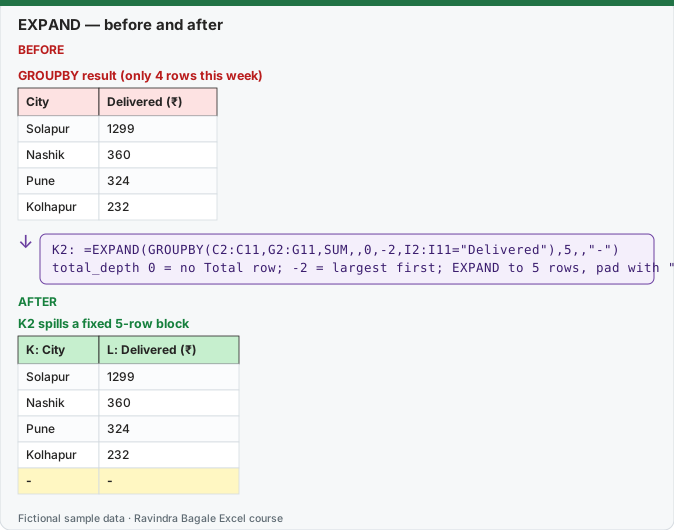
Expected result — K2 spills a fixed 5-row block
| K: City | L: Delivered (₹) |
|---|---|
| Solapur | 1299 |
| Nashik | 360 |
| Pune | 324 |
| Kolhapur | 232 |
| - | - |
Before table and formula as text
Before — GROUPBY result (only 4 rows this week)
| City | Delivered (₹) |
|---|---|
| Solapur | 1299 |
| Nashik | 360 |
| Pune | 324 |
| Kolhapur | 232 |
Formula / click path
K2: =EXPAND(GROUPBY(C2:C11,G2:G11,SUM,,0,-2,I2:I11="Delivered"),5,,"-")
total_depth 0 = no Total row; -2 = largest first; EXPAND to 5 rows, pad with "-"
Do it step by step:
- Use the Orders sheet with the 10 orders in A1:I11.
- In K2 type
=GROUPBY(C2:C11,G2:G11,SUM,,0,-2,I2:I11="Delivered"). You get 4 rows and no Total row. - Wrap it:
=EXPAND(GROUPBY(C2:C11,G2:G11,SUM,,0,-2,I2:I11="Delivered"),5,,"-")and press Enter. - Check that row 5 of the block shows dashes and the block is now always 5 rows tall.
- Remove the pad argument to see the default:
=EXPAND(GROUPBY(C2:C11,G2:G11,SUM,,0,-2,I2:I11="Delivered"),5)shows #N/A in the extra row. - Put the pad "-" back.
स्टेप बाय स्टेप करून बघा:
- 10 orders A1:I11 मध्ये असलेली Orders sheet वापरा.
- K2 मध्ये
=GROUPBY(C2:C11,G2:G11,SUM,,0,-2,I2:I11="Delivered")type करा. 4 rows मिळतात, Total row नाही. - त्याला wrap करा:
=EXPAND(GROUPBY(C2:C11,G2:G11,SUM,,0,-2,I2:I11="Delivered"),5,,"-")आणि Enter दाबा. - Block ची 5 वी row dashes दाखवते आणि block आता नेहमी 5 rows उंच आहे ते तपासा.
- Default बघण्यासाठी pad argument काढा:
=EXPAND(GROUPBY(C2:C11,G2:G11,SUM,,0,-2,I2:I11="Delivered"),5)जास्तीच्या row मध्ये #N/A दाखवतो. - Pad "-" परत लावा.
स्टेप बाय स्टेप करके देखें:
- 10 orders A1:I11 वाली Orders sheet लें.
- K2 में
=GROUPBY(C2:C11,G2:G11,SUM,,0,-2,I2:I11="Delivered")type करें. 4 rows मिलती हैं, Total row नहीं. - इसे wrap करें:
=EXPAND(GROUPBY(C2:C11,G2:G11,SUM,,0,-2,I2:I11="Delivered"),5,,"-")और Enter दबाएँ. - जाँचें कि block की 5वीं row dashes दिखाती है और block अब हमेशा 5 rows ऊँचा है.
- Default देखने के लिए pad argument हटाएँ:
=EXPAND(GROUPBY(C2:C11,G2:G11,SUM,,0,-2,I2:I11="Delivered"),5)अतिरिक्त row में #N/A दिखाता है. - Pad "-" वापस लगाएँ.
Version note
EXPAND is listed for Excel for Microsoft 365 (Windows and Mac) and Excel 2024 (Windows and Mac). The example above also uses GROUPBY, which is Microsoft 365 only; EXPAND works the same on any array, for example SORT or FILTER results.
Syntax
EXPAND(array, rows, [columns], [pad_with])
- rows: the total number of rows you want. Leave it empty to keep the current number.
- columns: the total number of columns you want. Leave it empty to keep the current number.
- pad_with: the value for the new cells. Default is #N/A. Use "" for blanks, 0 for zeros or "-" for dashes.
- If rows or columns is smaller than the array, you get #VALUE! (EXPAND never cuts; use TAKE for that).
Example 2: see the padding. A2:B3 holds Pune 544 and Nashik 360.
| Formula | Result |
|---|---|
=EXPAND(A2:B3,3,3) |
Pune / 544 / #N/A ; Nashik / 360 / #N/A ; #N/A / #N/A / #N/A |
=EXPAND(A2:B3,3,3,"") |
Pune / 544 / (blank) ; Nashik / 360 / (blank) ; (blank) / (blank) / (blank) |
=EXPAND(A2:B3,,3,0) |
Pune / 544 / 0 ; Nashik / 360 / 0 |
=EXPAND(A2:B3,1) |
#VALUE! (1 row is smaller than 2) |
Example 3: add an empty "Remarks" column to a report. =HSTACK(GROUPBY(C2:C11,G2:G11,SUM,,0),EXPAND(Remarks,6,,"")) puts the word Remarks next to the first city and blanks below it, a ready column for notes. The braces make a one-cell array that EXPAND pads to 6 rows.
Example 4: tidy a VSTACK of uneven tables. If one table has 3 columns and another has 2, VSTACK fills the gap with #N/A. Expand the smaller one first: =VSTACK(A2:C4,EXPAND(E2:F3,,3,"n/a")).
EXPAND vs TAKE vs IFNA
| You want to… | Use |
|---|---|
| make a block bigger (pad) | EXPAND |
| make a block smaller (cut) | TAKE or DROP (lesson 9.9) |
| replace #N/A that already exists | IFNA(array,"") |
How these results were checked: this function is not available in LibreOffice, so every expected value on this page was computed in Python and cross-checked in LibreOffice with classic formulas that give the same numbers. The layout of the spill follows Microsoft's documentation. Microsoft reference: EXPAND function.
Practice task (try it before you open the answer):
- Show the top 3 cities by total sales (all statuses) as a fixed 3-row block with no Total row.
- Change it to a fixed 8-row block that shows blanks in the empty rows.
- What happens if you ask EXPAND for 2 rows on the 6-row GROUPBY result?
Answer
=TAKE(GROUPBY(C2:C11,G2:G11,SUM,,0,-2),3)gives Solapur 1299; Pune 544; Nashik 360. (Here TAKE cuts; EXPAND is not needed.)=EXPAND(GROUPBY(C2:C11,G2:G11,SUM,,0,-2),8,,"")shows all 6 cities and 2 blank rows.=EXPAND(GROUPBY(C2:C11,G2:G11,SUM,,0,-2),2)returns #VALUE!, because EXPAND cannot shrink. Use TAKE to cut.
Ravindra Bagale's Tip
On dashboards, decide the size of every block first, then use EXPAND (to pad) and TAKE (to cut) so nothing below ever moves.
Ravindra Bagale's Tip – मराठी
Dashboard वर आधी प्रत्येक block चा आकार ठरवा, मग EXPAND (pad करायला) आणि TAKE (कापायला) वापरा, म्हणजे खालचं काहीच हलणार नाही.
Ravindra Bagale's Tip – हिंदी
Dashboard पर पहले हर block का आकार तय करें, फिर EXPAND (pad करने के लिए) और TAKE (काटने के लिए) लगाएँ, ताकि नीचे कुछ भी न खिसके.