9.17 IMAGE: Pictures Inside Cells
Example first. Shahrukh prepares a fictional product list for a Kolhapur dark store: product name, price and a picture link. He wants the picture inside the cell, so that when he sorts or filters the list, each picture stays with its product. A picture inserted with Insert › Pictures floats over the sheet and does not move with sorting. The IMAGE function puts the picture in the cell itself.
IMAGE — in 30 seconds
What: IMAGE shows a picture from an https web address inside a cell. The picture belongs to the cell, so it moves when you sort, filter or resize.
Why: Product lists, staff lists and catalogues are easier to check with pictures, and in-cell pictures survive sorting and filtering.
Tiny example: =IMAGE("https://ravindrabagale.com/apple-touch-icon.png","Course icon") shows this course's icon inside the cell.
IMAGE — 30 सेकंदात
काय: IMAGE एका https web address वरचं चित्र cell च्या आत दाखवतो. चित्र cell चंच असतं, म्हणून sort, filter किंवा resize केलं तरी ते सोबत हलतं.
का: Product lists, staff lists आणि catalogues चित्रांसह तपासायला सोपे जातात, आणि cell मधली चित्रं sorting आणि filtering नंतरही जागेवर राहतात.
छोटं उदाहरण: =IMAGE("https://ravindrabagale.com/apple-touch-icon.png","Course icon") या course चा icon cell च्या आत दाखवतो.
IMAGE — 30 सेकंड में
क्या: IMAGE एक https web address की तस्वीर cell के अंदर दिखाता है. तस्वीर cell की होती है, इसलिए sort, filter या resize करने पर साथ चलती है.
क्यों: Product lists, staff lists और catalogues तस्वीरों के साथ जाँचना आसान होता है, और cell की तस्वीरें sorting और filtering के बाद भी सही जगह रहती हैं.
छोटा उदाहरण: =IMAGE("https://ravindrabagale.com/apple-touch-icon.png","Course icon") इस course का icon cell के अंदर दिखाता है.
First look at the data (before → after):
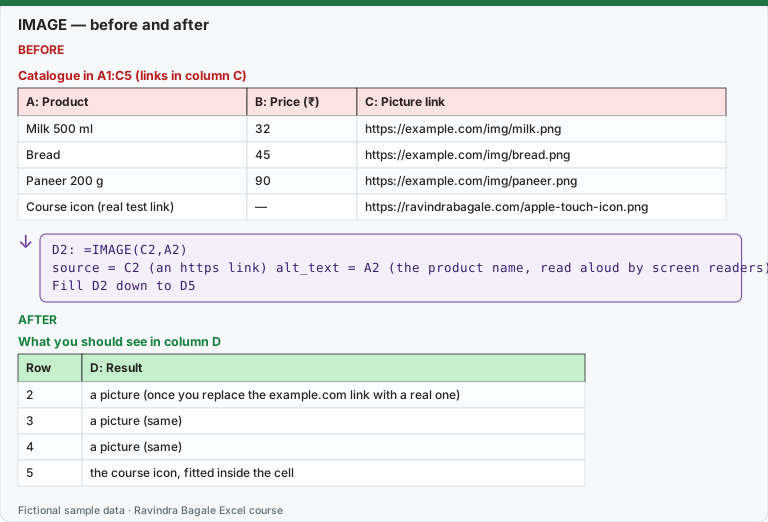
Expected result — What you should see in column D
| Row | D: Result |
|---|---|
| 2 | a picture (once you replace the example.com link with a real one) |
| 3 | a picture (same) |
| 4 | a picture (same) |
| 5 | the course icon, fitted inside the cell |
Before table and formula as text
Before — Catalogue in A1:C5 (links in column C)
| A: Product | B: Price (₹) | C: Picture link |
|---|---|---|
| Milk 500 ml | 32 | https://example.com/img/milk.png |
| Bread | 45 | https://example.com/img/bread.png |
| Paneer 200 g | 90 | https://example.com/img/paneer.png |
| Course icon (real test link) | — | https://ravindrabagale.com/apple-touch-icon.png |
Formula / click path
D2: =IMAGE(C2,A2)
source = C2 (an https link)   alt_text = A2 (the product name, read aloud by screen readers)
Fill D2 down to D5
Do it step by step:
- Type the catalogue in A1:C5. Rows 2 to 4 use placeholder links; row 5 uses the real course icon link.
- In D2 type
=IMAGE(C2,A2)and fill down to D5. - Row 5 shows the icon. Rows 2 to 4 show an error until you put real https picture links in C2:C4.
- Make row 5 taller with Home › Format › Row Height (for example 60) and watch the picture grow to fit.
- In E5 try a fixed size:
=IMAGE(C5,A5,3,40,40)shows a 40 by 40 pixel picture. - Sort the list by Price with Data › Sort and check that every picture stays with its product.
स्टेप बाय स्टेप करून बघा:
- Catalogue A1:C5 मध्ये type करा. Rows 2 ते 4 मध्ये placeholder links; row 5 मध्ये course icon ची खरी link.
- D2 मध्ये
=IMAGE(C2,A2)type करून D5 पर्यंत fill करा. - Row 5 मध्ये icon दिसतो. C2:C4 मध्ये खऱ्या https picture links टाकेपर्यंत rows 2 ते 4 error दाखवतात.
- Row 5 Home › Format › Row Height ने उंच करा (उदा. 60) आणि चित्र fit होण्यासाठी मोठं होतं ते बघा.
- E5 मध्ये fixed size करून बघा:
=IMAGE(C5,A5,3,40,40)40 by 40 pixel चित्र दाखवतो. - Data › Sort ने list Price नुसार sort करा आणि प्रत्येक चित्र आपल्या product सोबत राहतं ते तपासा.
स्टेप बाय स्टेप करके देखें:
- Catalogue A1:C5 में type करें. Rows 2 से 4 में placeholder links; row 5 में course icon की असली link.
- D2 में
=IMAGE(C2,A2)type करके D5 तक fill करें. - Row 5 में icon दिखता है. C2:C4 में असली https picture links डालने तक rows 2 से 4 error दिखाती हैं.
- Row 5 को Home › Format › Row Height से ऊँचा करें (जैसे 60) और देखें तस्वीर fit होने के लिए बड़ी होती है.
- E5 में fixed size आज़माएँ:
=IMAGE(C5,A5,3,40,40)40 by 40 pixel की तस्वीर दिखाता है. - Data › Sort से list को Price के हिसाब से sort करें और जाँचें कि हर तस्वीर अपने product के साथ रहती है.
Version note
Microsoft lists IMAGE for Excel for Microsoft 365 (Windows and Mac), Excel 2024 (Windows and Mac), Excel for iPhone and Excel for Android phones. Pictures are downloaded from the internet, so you need a connection, and your organisation's security settings can block them (#BLOCKED!).
Syntax
IMAGE(source, [alt_text], [sizing], [height], [width])
| Argument | Meaning |
|---|---|
| source (required) | The web address of the picture. It must start with **https**. Formats: BMP, JPG/JPEG, GIF, TIFF, PNG, ICO and WEBP (WEBP is not supported on the web and Android). |
| alt_text | A short description for screen readers. Always fill it; the product name is a good choice. |
| sizing | 0 = fit inside the cell and keep the shape (default), 1 = fill the cell and ignore the shape, 2 = original size (may spill over the cell edge), 3 = custom size with height and width |
| height, width | In pixels, only with sizing 3. If you give only one, Excel keeps the shape. |
Example 2: picture by lookup. Put a product name in G2 and show its picture:
=IMAGE(XLOOKUP(G2,A2:A5,C2:C5),G2)
Change G2 and the picture changes. This is how a "product card" on a dashboard works.
Example 3: a picture column in a Table. Convert the catalogue to a Table (Ctrl + T) and type =IMAGE([@[Picture link]],[@Product]) in a new column. Every new product row gets its picture automatically.
Rules from Microsoft's page (why a picture may not show)
| Problem | What Excel does | Fix |
|---|---|---|
| The link starts with http (not https) | The picture does not load | Use an https link |
| The site needs a login (for example a private SharePoint or Google Drive link) | The picture does not render | Use a public https link |
| The link redirects to another address | Blocked for security reasons | Open the link in a browser and copy the final address (right-click the picture › Copy image link) |
| The link is longer than 255 characters | Too long to type in the formula | Put the link in a cell and use =IMAGE(C2) |
| Unsupported format, wrong sizing value, or height/width with sizing 0–2 | #VALUE! | Check the format and the arguments |
| No internet or server problem | #CONNECT! | Check the connection and try again |
| Security settings block linked images | #BLOCKED! | Check the settings for Linked Data Types (or enable images in the bar at the top on the web) |
IMAGE vs Insert › Pictures
| IMAGE function | Insert › Pictures | |
|---|---|---|
| Lives | inside one cell | floats over the cells |
| Sort and filter | moves with its row | stays where it is |
| Source | an https link | a file on your computer or online |
| Changes by formula | yes (XLOOKUP, IF, etc.) | no |
The example.com links on this page are placeholders: replace them with your own public https picture links. The course icon link is real and was checked to load directly (no redirect). The result of IMAGE is a picture, so there are no numbers to compute for this lesson. Microsoft reference: IMAGE function.
Practice task (try it before you open the answer):
- Add a column Stock in column F with values 12, 0, 5, 20 to the catalogue.
- Show the picture only when Stock is more than 0; otherwise show the text "Out of stock".
- Make every picture exactly 50 pixels high and keep its shape.
Answer
- In F2:F5 type the stock numbers 12, 0, 5, 20.
=IF(F2>0,IMAGE(C2,A2),"Out of stock")filled down; row 3 (Bread) shows Out of stock.=IMAGE(C2,A2,3,50): sizing 3 with only the height given keeps the shape.
Ravindra Bagale's Tip
Keep picture links in their own column, never typed inside the formula. Links change; a column is easy to fix, a formula on 500 rows is not.
Ravindra Bagale's Tip – मराठी
Picture links नेहमी वेगळ्या column मध्ये ठेवा, formula मध्ये type करू नका. Links बदलतात; column दुरुस्त करणं सोपं, 500 rows वरचा formula नाही.
Ravindra Bagale's Tip – हिंदी
Picture links हमेशा अलग column में रखें, formula के अंदर type न करें. Links बदलते हैं; column ठीक करना आसान है, 500 rows का formula नहीं.