9.16 TRIMRANGE and the Trim Ref (Dot) Operator
Example first. Raja knows new orders will be added every day, so he writes his formulas on C2:C1000 instead of C2:C11. That is a good habit for SUM, but a bad one for dynamic arrays: =UNIQUE(C2:C1000) returns the 6 cities plus a 0 for the 989 empty rows, and ROWS says 999. TRIMRANGE, or its short form with a dot, cuts the empty rows off the end so the formula sees only the real data, and it still grows when new rows arrive.
TRIMRANGE and trim refs — in 30 seconds
What: TRIMRANGE removes empty rows and columns from the outer edges of a range. A trim ref does the same with a dot in the range address, for example C2:.C1000.
Why: You can point formulas at a big range that leaves room to grow, without empty rows turning into zeros, blank groups or slow calculations.
Tiny example: =ROWS(C2:C1000) returns 999, but =ROWS(C2:.C1000) returns 10, the rows that really have data.
TRIMRANGE and trim refs — 30 सेकंदात
काय: TRIMRANGE range च्या बाहेरच्या कडांवरच्या रिकाम्या rows आणि columns काढून टाकतो. Trim ref हेच range address मध्ये एक dot टाकून करतो, उदा. C2:.C1000.
का: Formulas वाढायला जागा असलेल्या मोठ्या range वर लिहिता येतात, आणि रिकाम्या rows चे शून्य, blank groups किंवा हळू calculations होत नाहीत.
छोटं उदाहरण: =ROWS(C2:C1000) 999 देतो, पण =ROWS(C2:.C1000) 10 देतो, ज्या rows मध्ये खरंच data आहे.
TRIMRANGE and trim refs — 30 सेकंड में
क्या: TRIMRANGE range के बाहरी किनारों की खाली rows और columns हटा देता है. Trim ref यही काम range address में एक dot डालकर करता है, जैसे C2:.C1000.
क्यों: Formulas बढ़ने की जगह वाली बड़ी range पर लिखे जा सकते हैं, और खाली rows से शून्य, blank groups या धीमी calculations नहीं बनतीं.
छोटा उदाहरण: =ROWS(C2:C1000) 999 देता है, पर =ROWS(C2:.C1000) 10 देता है, जिन rows में सच में data है.
First look at the data (before → after):
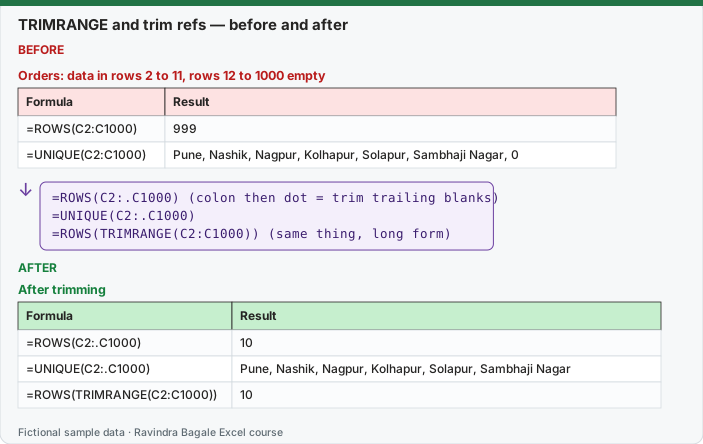
Expected result — After trimming
| Formula | Result |
|---|---|
| =ROWS(C2:.C1000) | 10 |
| =UNIQUE(C2:.C1000) | Pune, Nashik, Nagpur, Kolhapur, Solapur, Sambhaji Nagar |
| =ROWS(TRIMRANGE(C2:C1000)) | 10 |
Before table and formula as text
Before — Orders: data in rows 2 to 11, rows 12 to 1000 empty
| Formula | Result |
|---|---|
| =ROWS(C2:C1000) | 999 |
| =UNIQUE(C2:C1000) | Pune, Nashik, Nagpur, Kolhapur, Solapur, Sambhaji Nagar, 0 |
Formula / click path
=ROWS(C2:.C1000)   (colon then dot = trim trailing blanks)
=UNIQUE(C2:.C1000)
=ROWS(TRIMRANGE(C2:C1000))   (same thing, long form)
Do it step by step:
- Use the Orders sheet with data in A1:I11 and nothing below row 11.
- In K2 type
=ROWS(C2:C1000). It shows 999. - In K3 type
=ROWS(C2:.C1000): a colon followed by a dot. It shows 10. - In M2 type
=UNIQUE(C2:.C1000). You get the 6 cities and no 0 at the end. - Add an 11th order in row 12 (any city) and watch K3 change to 11 and M2 update by itself.
- Undo with Ctrl + Z. Compare with the long form
=ROWS(TRIMRANGE(C2:C1000)).
स्टेप बाय स्टेप करून बघा:
- A1:I11 मध्ये data आणि row 11 खाली काहीच नाही अशी Orders sheet वापरा.
- K2 मध्ये
=ROWS(C2:C1000)type करा. 999 दिसतं. - K3 मध्ये
=ROWS(C2:.C1000)type करा: colon नंतर dot. 10 दिसतं. - M2 मध्ये
=UNIQUE(C2:.C1000)type करा. 6 cities मिळतात आणि शेवटी 0 नाही. - Row 12 मध्ये 11 वी order (कोणतीही city) टाका आणि K3 11 होतो आणि M2 आपोआप update होतो ते बघा.
- Ctrl + Z ने undo करा. Long form
=ROWS(TRIMRANGE(C2:C1000))शी तुलना करा.
स्टेप बाय स्टेप करके देखें:
- A1:I11 में data और row 11 के नीचे कुछ नहीं, ऐसी Orders sheet लें.
- K2 में
=ROWS(C2:C1000)type करें. 999 दिखता है. - K3 में
=ROWS(C2:.C1000)type करें: colon के बाद dot. 10 दिखता है. - M2 में
=UNIQUE(C2:.C1000)type करें. 6 cities मिलती हैं और आखिर में 0 नहीं. - Row 12 में 11वीं order (कोई भी city) डालें और देखें K3 11 हो जाता है और M2 अपने-आप update होता है.
- Ctrl + Z से undo करें. Long form
=ROWS(TRIMRANGE(C2:C1000))से तुलना करें.
Version note
TRIMRANGE and trim refs are listed for Excel for Microsoft 365 only. In other versions the dot gives an error and TRIMRANGE gives #NAME?.
Syntax
TRIMRANGE(range, [trim_rows], [trim_cols])
| Value of trim_rows / trim_cols | Meaning |
|---|---|
| 0 | do not trim |
| 1 | trim leading blanks (at the top / left) |
| 2 | trim trailing blanks (at the bottom / right) |
| 3 | trim both (default) |
The three trim refs (type the dot yourself; selecting with the mouse gives a normal colon)
| Trim ref | Example | Same as | Trims |
|---|---|---|---|
Dot on both sides .:. |
A1.:.E10 |
TRIMRANGE(A1:E10,3,3) |
leading and trailing blanks |
Dot after the colon :. |
A1:.E10 |
TRIMRANGE(A1:E10,2,2) |
trailing blanks (the most useful one) |
Dot before the colon .: |
A1.:E10 |
TRIMRANGE(A1:E10,1,1) |
leading blanks |
It also works on whole columns: A:.A is column A without the empty rows below the last value.
More real examples
| Goal | Formula | Result on our 10 orders |
|---|---|---|
| City list from the whole column, without the header | =UNIQUE(DROP(C:.C,1)) |
Pune, Nashik, Nagpur, Kolhapur, Solapur, Sambhaji Nagar |
| Sales by city on a range that leaves room to grow | =LET(t,A2:.I1000,GROUPBY(CHOOSECOLS(t,3),CHOOSECOLS(t,7),SUM)) |
the same table as lesson 9.10 (Total 2,870) |
| Count of orders even if more rows come | =ROWS(A2:.A1000) |
10 |
| Last order ID in the list | =TAKE(A2:.A1000,-1) |
BLK-1010 |
Why the LET example trims the whole block A2:.I1000 once: if you trim C and G separately and one column has an empty last cell, the two trimmed ranges can end up with different heights and GROUPBY returns #VALUE!. Trimming the block keeps all columns the same height.
What trimming does not do
- It removes empty rows only at the edges. A blank row in the middle of the data stays.
- A cell that only looks empty (it holds a space or a formula returning "") is not empty, so trimming stops there.
- SUM, COUNTIF and SUMIFS already ignore empty cells, so for them trimming changes nothing in the answer (it can still save calculation time on very large ranges).
How these results were checked: this function is not available in LibreOffice, so every expected value on this page was computed in Python and cross-checked in LibreOffice with classic formulas that give the same numbers. The layout of the spill follows Microsoft's documentation. Microsoft reference: TRIMRANGE function.
Practice task (try it before you open the answer):
- Type the formula
=COUNTA(C2:C1000)and=ROWS(C2:C1000)and explain why they differ. - Write a formula that returns the average Amount using a trim ref on G2:G1000.
- Write a formula that returns the last 3 order IDs, even after new orders are added below.
Answer
- COUNTA counts non-empty cells (10); ROWS counts every row in the range (999). Trimming makes ROWS also return 10.
=AVERAGE(G2:.G1000)returns 287. (Plain AVERAGE also ignores blanks, so the answer is the same; the trim ref simply makes the intent clear.)=TAKE(A2:.A1000,-3)returns AMN-1008, BLK-1009, BLK-1010, and it moves down automatically when new orders are added.
Ravindra Bagale's Tip
Use C2:.C1000 style references with dynamic arrays (UNIQUE, SORT, FILTER, GROUPBY). Use an Excel Table when you can; trim refs are for sheets where a Table is not possible.
Ravindra Bagale's Tip – मराठी
Dynamic arrays (UNIQUE, SORT, FILTER, GROUPBY) सोबत C2:.C1000 सारखे references वापरा. शक्य असेल तिथे Excel Table वापरा; जिथे Table शक्य नाही तिथे trim refs.
Ravindra Bagale's Tip – हिंदी
Dynamic arrays (UNIQUE, SORT, FILTER, GROUPBY) के साथ C2:.C1000 जैसे references लें. जहाँ हो सके Excel Table लें; जहाँ Table संभव नहीं, वहाँ trim refs.