9.11 PIVOTBY, and PIVOTBY vs PivotTable
Example first. Ravina wants a cross-table: cities down the side, platforms across the top, sales in the middle, and totals on both edges. That is exactly what a PivotTable does, but Ravina wants it as a formula so it updates by itself and can feed other formulas. PIVOTBY is GROUPBY with a second grouping across the columns.
PIVOTBY — in 30 seconds
What: PIVOTBY groups rows by one field and columns by another field, then aggregates a value in every crossing cell. It spills a full cross-table with row and column totals.
Why: You get a PivotTable-style report that recalculates instantly, needs no Refresh, and can be used inside other formulas.
Tiny example: =PIVOTBY(C2:C11,D2:D11,G2:G11,SUM) shows Pune split into Amazon Now ₹110 and Blinkit ₹434, with a grand total of ₹2,870.
PIVOTBY — 30 सेकंदात
काय: PIVOTBY rows ना एका field नुसार आणि columns ना दुसऱ्या field नुसार group करतो, आणि प्रत्येक crossing cell मध्ये value aggregate करतो. Row आणि column totals सह पूर्ण cross-table spill होतं.
का: PivotTable सारखा report मिळतो जो लगेच recalculate होतो, Refresh लागत नाही, आणि इतर formulas मध्ये वापरता येतो.
छोटं उदाहरण: =PIVOTBY(C2:C11,D2:D11,G2:G11,SUM) मध्ये Pune चे Amazon Now ₹110 आणि Blinkit ₹434 असे भाग दिसतात, grand total ₹2,870.
PIVOTBY — 30 सेकंड में
क्या: PIVOTBY rows को एक field से और columns को दूसरे field से group करता है, और हर crossing cell में value aggregate करता है. Row और column totals के साथ पूरी cross-table spill होती है.
क्यों: PivotTable जैसी report मिलती है जो तुरंत recalculate होती है, Refresh नहीं चाहिए, और दूसरे formulas में इस्तेमाल हो सकती है.
छोटा उदाहरण: =PIVOTBY(C2:C11,D2:D11,G2:G11,SUM) में Pune के हिस्से Amazon Now ₹110 और Blinkit ₹434 दिखते हैं, grand total ₹2,870.
First look at the data (before → after):
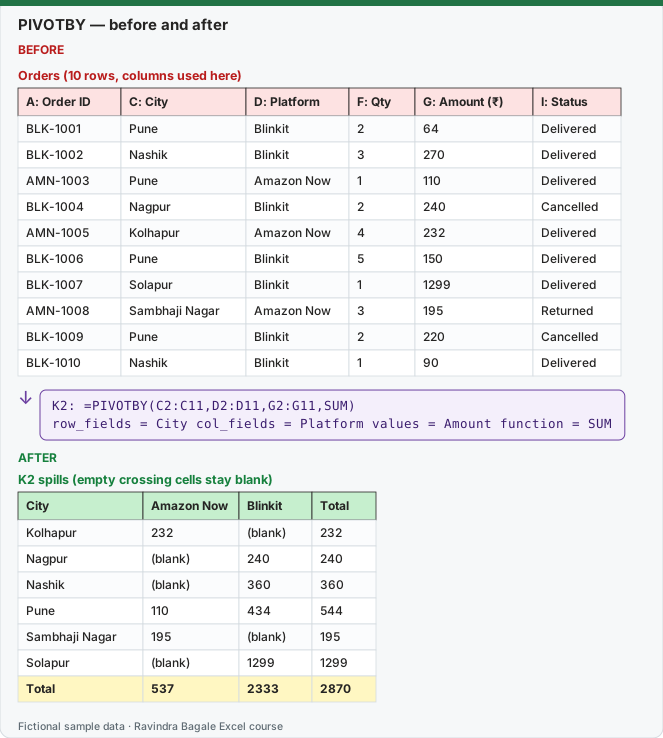
Expected result — K2 spills (empty crossing cells stay blank)
| City | Amazon Now | Blinkit | Total |
|---|---|---|---|
| Kolhapur | 232 | (blank) | 232 |
| Nagpur | (blank) | 240 | 240 |
| Nashik | (blank) | 360 | 360 |
| Pune | 110 | 434 | 544 |
| Sambhaji Nagar | 195 | (blank) | 195 |
| Solapur | (blank) | 1299 | 1299 |
| Total | 537 | 2333 | 2870 |
Before table and formula as text
Before — Orders (10 rows, columns used here)
| A: Order ID | C: City | D: Platform | F: Qty | G: Amount (₹) | I: Status |
|---|---|---|---|---|---|
| BLK-1001 | Pune | Blinkit | 2 | 64 | Delivered |
| BLK-1002 | Nashik | Blinkit | 3 | 270 | Delivered |
| AMN-1003 | Pune | Amazon Now | 1 | 110 | Delivered |
| BLK-1004 | Nagpur | Blinkit | 2 | 240 | Cancelled |
| AMN-1005 | Kolhapur | Amazon Now | 4 | 232 | Delivered |
| BLK-1006 | Pune | Blinkit | 5 | 150 | Delivered |
| BLK-1007 | Solapur | Blinkit | 1 | 1299 | Delivered |
| AMN-1008 | Sambhaji Nagar | Amazon Now | 3 | 195 | Returned |
| BLK-1009 | Pune | Blinkit | 2 | 220 | Cancelled |
| BLK-1010 | Nashik | Blinkit | 1 | 90 | Delivered |
Formula / click path
K2: =PIVOTBY(C2:C11,D2:D11,G2:G11,SUM)
row_fields = City   col_fields = Platform   values = Amount   function = SUM
Do it step by step:
- Open the Orders sheet with the 10 orders in A1:I11.
- Click K2 (make sure about 4 columns and 8 rows are empty).
- Type
=PIVOTBY(C2:C11,D2:D11,G2:G11,SUM)and press Enter. - Read across the Pune row: Amazon Now 110, Blinkit 434, Total 544.
- Read the bottom row: the platform totals and the grand total 2870.
- Apply a currency format to the spill with Home › Number Format › Currency.
स्टेप बाय स्टेप करून बघा:
- 10 orders A1:I11 मध्ये असलेली Orders sheet उघडा.
- K2 वर click करा (साधारण 4 columns आणि 8 rows रिकाम्या आहेत याची खात्री करा).
=PIVOTBY(C2:C11,D2:D11,G2:G11,SUM)type करा आणि Enter दाबा.- Pune row आडवी वाचा: Amazon Now 110, Blinkit 434, Total 544.
- खालची row वाचा: platform totals आणि grand total 2870.
- Spill ला Home › Number Format › Currency ने currency format लावा.
स्टेप बाय स्टेप करके देखें:
- 10 orders A1:I11 में रखी Orders sheet खोलें.
- K2 पर click करें (लगभग 4 columns और 8 rows खाली हों, यह देख लें).
=PIVOTBY(C2:C11,D2:D11,G2:G11,SUM)type करें और Enter दबाएँ.- Pune row आड़ी पढ़ें: Amazon Now 110, Blinkit 434, Total 544.
- नीचे की row पढ़ें: platform totals और grand total 2870.
- Spill पर Home › Number Format › Currency से currency format लगाएँ.
Version note
Microsoft's PIVOTBY page lists Excel for Microsoft 365 (Windows and Mac) and its 'Applies to' list also names Excel 2024 and Excel 2021, while the GROUPBY page lists only Microsoft 365. The two functions arrived together in Microsoft 365, so if you own a one-time-purchase version, type the formula once: if you see #NAME?, your copy does not have it and you should use a PivotTable.
The syntax in plain English
PIVOTBY(row_fields, col_fields, values, function, [field_headers], [row_total_depth], [row_sort_order], [col_total_depth], [col_sort_order], [filter_array], [relative_to])
The first four arguments are the same idea as GROUPBY plus col_fields, the field that goes across the top. The optional ones work in pairs: one for rows and one for columns (total depth and sort order). relative_to is only used with PERCENTOF: 0 = share of the column total (default), 1 = share of the row total, 2 = share of the grand total, 3 = parent column total, 4 = parent row total.
Example 2: count orders by Category and Status.
=PIVOTBY(E2:E11,I2:I11,G2:G11,COUNT)
| Cancelled | Delivered | Returned | Total | |
|---|---|---|---|---|
| Bakery | — | 1 | — | 1 |
| Dairy | — | 2 | — | 2 |
| Fruits | 1 | 2 | — | 3 |
| Home | — | 1 | — | 1 |
| Snacks | 1 | 1 | — | 2 |
| Staples | — | — | 1 | 1 |
| Total | 2 | 7 | 1 | 10 |
Example 3: only Delivered orders. filter_array is the 10th argument, so there are six commas after SUM.
=PIVOTBY(C2:C11,D2:D11,G2:G11,SUM,,,,,,I2:I11="Delivered")
| Amazon Now | Blinkit | Total | |
|---|---|---|---|
| Kolhapur | 232 | — | 232 |
| Nashik | — | 360 | 360 |
| Pune | 110 | 214 | 324 |
| Solapur | — | 1299 | 1299 |
| Total | 342 | 1873 | 2215 |
Example 4: platform mix inside each city (each row adds up to 100%). Use PERCENTOF with relative_to = 1 (row totals). Format the result as Percentage.
=PIVOTBY(C2:C11,D2:D11,G2:G11,PERCENTOF,,,,,,,1)
| Amazon Now | Blinkit | Total | |
|---|---|---|---|
| Kolhapur | 100.0% | — | 100.0% |
| Nagpur | — | 100.0% | 100.0% |
| Nashik | — | 100.0% | 100.0% |
| Pune | 20.2% | 79.8% | 100.0% |
| Sambhaji Nagar | 100.0% | — | 100.0% |
| Solapur | — | 100.0% | 100.0% |
| Total | 18.7% | 81.3% | 100.0% |
Read it like this: 81.3% of all sales came from Blinkit; Pune is the only city with both platforms (20.2% Amazon Now, 79.8% Blinkit).
Example 5: biggest city first, platforms in reverse order. Sort numbers count the row_fields columns first and then the values, so row_sort_order -2 means "sort by the values (each city's total), largest first". col_sort_order -1 sorts the platform names Z to A.
=PIVOTBY(C2:C11,D2:D11,G2:G11,SUM,,,-2,,-1)
The rows come out as Solapur, Pune, Nashik, Nagpur, Kolhapur, Sambhaji Nagar, and the columns as Blinkit, Amazon Now, Total.
PIVOTBY vs PivotTable: which one when?
| Point | PIVOTBY (formula) | PivotTable (Insert › PivotTable) |
|---|---|---|
| Updates when data changes | Instantly, like any formula | Only after **PivotTable Analyze › Refresh** (or Data › Refresh All) |
| How you change the layout | Edit the formula | Drag fields in the PivotTable Fields pane |
| Slicers and timelines | Not built in (use filter_array with a cell, or FILTER) | Yes |
| Double-click to see detail rows | No | Yes (opens a new sheet with the rows) |
| Source data | Any range or array, even the result of another formula | A range, Table or the Data Model |
| Use the result in other formulas | Yes, with the spill reference (K2#) | Only through GETPIVOTDATA or cell references |
| Data Model / DAX measures (chapter 25) | No | Yes |
| Grouping dates into months or quarters | Make a helper column first (for example TEXT(B2:B11,"mmm")) | Built in (right-click › Group) |
| Formatting | Normal cell formatting | PivotTable Styles and Design tab |
| Works in | Excel for Microsoft 365 (check your version) | Every Excel version |
Microsoft's own page notes that PIVOTBY is not directly related to the PivotTable feature: it is a separate formula that happens to make a similar report.
How these results were checked: this function is not available in LibreOffice, so every expected value on this page was computed in Python and cross-checked in LibreOffice with classic formulas that give the same numbers. The layout of the spill follows Microsoft's documentation. Microsoft reference: PIVOTBY function.
Practice task (try it before you open the answer):
- Make a PIVOTBY with Category down the side, Platform across the top and SUM of Qty in the middle.
- Which category sold the most units on Blinkit?
- Change the formula so the result shows each platform's share of the column total (PERCENTOF, default relative_to).
Answer
=PIVOTBY(E2:E11,D2:D11,F2:F11,SUM)gives: Bakery: Amazon Now —, Blinkit 5, Total 5; Dairy: Amazon Now 4, Blinkit 2, Total 6; Fruits: Amazon Now —, Blinkit 6, Total 6; Home: Amazon Now —, Blinkit 1, Total 1; Snacks: Amazon Now 1, Blinkit 2, Total 3; Staples: Amazon Now 3, Blinkit —, Total 3; Total: Amazon Now 8, Blinkit 16, Total 24.- Fruits, with 6 units on Blinkit.
=PIVOTBY(E2:E11,D2:D11,F2:F11,PERCENTOF): every column (Amazon Now, Blinkit, Total) adds up to 100%.
Ravindra Bagale's Tip
Build the PivotTable first to explore, then write the PIVOTBY for the version you will refresh every day. Exploring is easier with drag and drop; daily reports are safer as formulas.
Ravindra Bagale's Tip – मराठी
आधी PivotTable बनवून data explore करा, मग रोज वापरायच्या report साठी PIVOTBY लिहा. Explore करायला drag and drop सोपं; रोजचे reports formula मध्ये जास्त सुरक्षित.
Ravindra Bagale's Tip – हिंदी
पहले PivotTable बनाकर data explore करें, फिर रोज़ वाली report के लिए PIVOTBY लिखें. Explore करने में drag and drop आसान है; रोज़ की reports formula में ज़्यादा सुरक्षित हैं.