30.6 The ToolPak Regression Output Read Line by Line
Example first. Amir runs Data › Data Analysis › Regression with Orders as Y and AdSpend, Discount and Rain as X. Excel writes three tables and about 60 numbers. His manager wants three answers: "Is the model useful? Which levers matter? How much does each one add?" The answers are in five lines: Adjusted R Square 0.986, Significance F 1.13E-15, and the three coefficients with their P-values. This lesson reads every line so you can explain the output, not just paste it.
ToolPak Regression output — in 30 seconds
What: The ToolPak Regression tool runs least-squares regression (it uses LINEST) with one or more X columns and writes a labelled report: Regression Statistics, an ANOVA table, a coefficient table with P-values and confidence limits, and optional residuals.
Why: It is the standard regression report that managers, auditors and statistics courses expect, and every line can be traced back to a LINEST cell.
Tiny example: Y = E1:E21 (Orders), X = B1:D21 (AdSpend, Discount, Rain), Labels ticked. Result: Orders ≈ 229.27 + 11.32 × AdSpend + 2.97 × Discount − 2.14 × Rain, Adjusted R Square 0.986.
ToolPak Regression output — 30 सेकंदात
काय: ToolPak चं Regression tool एक किंवा अनेक X columns सह least-squares regression चालवतं (ते LINEST वापरतं) आणि labelled report लिहितं: Regression Statistics, ANOVA table, P-values आणि confidence limits सह coefficient table, आणि हवे असल्यास residuals.
का: Managers, auditors आणि statistics courses अपेक्षा करतात तो हा standard regression report आहे, आणि प्रत्येक line एका LINEST cell पर्यंत मागे नेता येते.
छोटं उदाहरण: Y = E1:E21 (Orders), X = B1:D21 (AdSpend, Discount, Rain), Labels tick. Result: Orders ≈ 229.27 + 11.32 × AdSpend + 2.97 × Discount − 2.14 × Rain, Adjusted R Square 0.986.
ToolPak Regression output — 30 सेकंड में
क्या: ToolPak का Regression tool एक या कई X columns के साथ least-squares regression चलाता है (यह LINEST इस्तेमाल करता है) और labelled report लिखता है: Regression Statistics, ANOVA table, P-values और confidence limits वाली coefficient table, और चाहें तो residuals.
क्यों: Managers, auditors और statistics courses जिसकी उम्मीद करते हैं वह यही standard regression report है, और हर line को एक LINEST cell तक वापस ले जाया जा सकता है.
छोटा उदाहरण: Y = E1:E21 (Orders), X = B1:D21 (AdSpend, Discount, Rain), Labels tick. Result: Orders ≈ 229.27 + 11.32 × AdSpend + 2.97 × Discount − 2.14 × Rain, Adjusted R Square 0.986.
First look at the data (before → after):
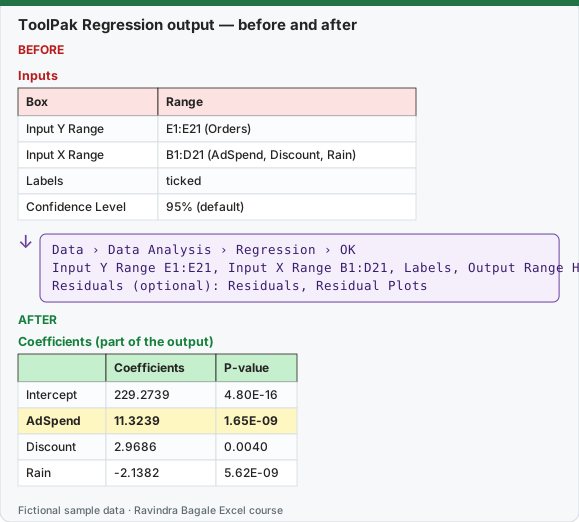
Expected result — Coefficients (part of the output)
| — | Coefficients | P-value |
|---|---|---|
| Intercept | 229.2739 | 4.80E-16 |
| AdSpend | 11.3239 | 1.65E-09 |
| Discount | 2.9686 | 0.0040 |
| Rain | -2.1382 | 5.62E-09 |
Before table and formula as text
Before — Inputs
| Box | Range |
|---|---|
| Input Y Range | E1:E21 (Orders) |
| Input X Range | B1:D21 (AdSpend, Discount, Rain) |
| Labels | ticked |
| Confidence Level | 95% (default) |
Formula / click path
Data › Data Analysis › Regression › OK
Input Y Range E1:E21, Input X Range B1:D21, Labels, Output Range H1
Residuals (optional): Residuals, Residual Plots
Do it step by step:
- Keep the X columns next to each other (B, C, D). The ToolPak needs one block for X, up to 16 columns.
- Select Data › Data Analysis › Regression and OK.
- Input Y Range E1:E21, Input X Range B1:D21, tick Labels. Leave Constant is Zero unticked.
- Choose Output Range H1, tick Residuals, and select OK.
- Read in this order: Significance F (is the model useful?), Adjusted R Square (how much it explains), then each P-value and coefficient.
- Check one number with a formula:
=INDEX(LINEST(E2:E21,B2:D21,TRUE,TRUE),1,3)must equal the AdSpend coefficient.
स्टेप बाय स्टेप करून बघा:
- X columns एकमेकांशेजारी ठेवा (B, C, D). ToolPak ला X साठी एक block लागतो, जास्तीत जास्त 16 columns.
- Data › Data Analysis › Regression निवडून OK करा.
- Input Y Range E1:E21, Input X Range B1:D21, Labels tick करा. Constant is Zero untick ठेवा.
- Output Range H1 निवडा, Residuals tick करा आणि OK निवडा.
- या क्रमाने वाचा: Significance F (model उपयोगी आहे का?), Adjusted R Square (किती समजावतो), मग प्रत्येक P-value आणि coefficient.
- एक आकडा formula ने तपासा:
=INDEX(LINEST(E2:E21,B2:D21,TRUE,TRUE),1,3)AdSpend coefficient एवढा हवा.
स्टेप बाय स्टेप करके देखें:
- X columns को एक-दूसरे के बगल में रखें (B, C, D). ToolPak को X के लिए एक block चाहिए, ज़्यादा से ज़्यादा 16 columns.
- Data › Data Analysis › Regression चुनकर OK करें.
- Input Y Range E1:E21, Input X Range B1:D21, Labels tick करें. Constant is Zero untick रखें.
- Output Range H1 चुनें, Residuals tick करें और OK चुनें.
- इस क्रम में पढ़ें: Significance F (model काम का है?), Adjusted R Square (कितना समझाता है), फिर हर P-value और coefficient.
- एक आँकड़ा formula से जाँचें:
=INDEX(LINEST(E2:E21,B2:D21,TRUE,TRUE),1,3)AdSpend coefficient के बराबर होना चाहिए.
Version note
The Analysis ToolPak is a free add-in for the Excel desktop apps: Excel for Windows (Microsoft 365, 2024, 2021 and older) and Excel for Mac. It is not available in Excel for the web, iPad, iPhone or Android. In the browser, Microsoft's add-in store offers the third-party "XLMiner Analysis ToolPak" (Frontline Systems), which copies the same tools; check with IT before installing it on a company account. ToolPak output is a static table of values: it does not recalculate when the data changes, so run the tool again (or use the matching functions) after an update.
The output has three blocks. Excel prints more decimals; the tables round to 4.
Block 1: Regression Statistics
| Line | Value | What it means | Same as |
|---|---|---|---|
| Multiple R | 0.9942 | Correlation between the actual orders and the model's predicted orders | =SQRT(R²) |
| R Square | 0.9883 | The model explains 98.8% of the variation in orders | LINEST row 3, column 1 |
| Adjusted R Square | 0.9862 | R Square with a penalty for each extra X column; use it to compare models with different numbers of X | =1-(1-R²)*(n-1)/(n-k-1), n = 20, k = 3 |
| Standard Error | 7.3466 | A typical prediction misses by about 7.35 orders (much better than 29.18 with AdSpend alone) | LINEST row 3, column 2 |
| Observations | 20 | Number of rows used | =COUNT(E2:E21) |
Block 2: ANOVA (analysis of variance): is the model better than the plain average?
| df | SS | MS | F | Significance F | |
|---|---|---|---|---|---|
| Regression | 3 | 73234.25 | 24411.42 | 452.30 | 1.13E-15 |
| Residual | 16 | 863.55 | 53.97 | — | — |
| Total | 19 | 74097.80 | — | — | — |
- df: Regression df = number of X columns (3). Residual df = n − k − 1 = 16. Total df = n − 1 = 19.
- SS (sum of squares): Total SS is the variation of orders around their mean. The model explains the Regression SS; the Residual SS is what is left. R Square = 73234.25 ÷ 74097.80.
- MS (mean square) = SS ÷ df. The Residual MS is the squared Standard Error (53.97 = 7.35²).
- F = Regression MS ÷ Residual MS = 452.30.
- Significance F is the p-value of the whole model:
=F.DIST.RT(452.30,3,16)= 1.13E-15. Below 0.05 means "the X columns together explain orders better than chance". Excel shows tiny values in scientific format, such as 1.13E-15.
Block 3: Coefficients: which levers matter and by how much
| Coefficients | Standard Error | t Stat | P-value | Lower 95% | Upper 95% | |
|---|---|---|---|---|---|---|
| Intercept | 229.2739 | 7.0492 | 32.5249 | 4.80E-16 | 214.3303 | 244.2175 |
| AdSpend | 11.3239 | 0.9293 | 12.1849 | 1.65E-09 | 9.3538 | 13.2940 |
| Discount | 2.9686 | 0.8852 | 3.3535 | 0.0040 | 1.0920 | 4.8453 |
| Rain | -2.1382 | 0.1911 | -11.1902 | 5.62E-09 | -2.5433 | -1.7332 |
The ToolPak also repeats the last two columns as Lower 95.0% and Upper 95.0%. If you change Confidence Level in the dialog (for example to 90%), those repeated columns show the 90% limits.
- Coefficients: holding the other X columns fixed, ₹1,000 more ad spend goes with 11.32 more orders; one discount point with 2.97 more orders; each mm of rain with 2.14 fewer orders.
- Standard Error: the uncertainty of each coefficient.
- t Stat = Coefficient ÷ Standard Error. Values beyond about ±2 are usually significant.
- P-value: the chance of seeing a coefficient this far from 0 if the true effect were 0. All three are below 0.05. Formula:
=T.DIST.2T(ABS(t),16). - Lower 95% / Upper 95%: the true AdSpend effect is likely between 9.35 and 13.29 orders per ₹1,000. If a range crosses 0, the effect is not proven.
Using the model. A day with AdSpend 12, Discount 10 and no rain: 229.27 + 11.32×12 + 2.97×10 − 2.14×0 = 394.85, about 395 orders. Do not use the model far outside the data (for example AdSpend 40 or 80 mm of rain).
Does delivery time matter once rain is in the model? This is the question from lesson 30.4. Add Mins as a fourth X column. The ToolPak needs the X columns side by side, so either copy Mins next to Rain, or in Microsoft 365 use =LINEST(E2:E21,HSTACK(B2:D21,F2:F21),TRUE,TRUE). The Mins coefficient is 0.30 with a P-value of 0.9381: once rain is in the model, delivery minutes add nothing. Alone, Mins looked important (P-value 0.0051) only because it stood in for rain.
Residual output (first 3 of 20 rows)
| Observation | Predicted Orders | Residuals |
|---|---|---|
| 1 | 300.74 | 0.26 |
| 2 | 345.28 | -10.28 |
| 3 | 279.99 | 3.01 |
Residual = actual − predicted. Tick Residual Plots to get a chart per X. The points should scatter randomly around 0. A curve or a funnel shape means a straight line is the wrong model.
ToolPak settings to know. Constant is Zero forces the intercept to 0 (rarely right). Labels must be ticked when the ranges include headers, or the headers are read as data and you get an error. The X block must not contain text or blank cells.
Every number on this page was computed with Excel's documented formulas and re-checked twice: in LibreOffice Calc 25.2 with the same formulas, and in Python with scipy and statsmodels.
Microsoft sources (checked 7 October 2026): Use the Analysis ToolPak to perform complex data analysis; LINEST function.
Practice task (try it before you open the answer):
- From the output, how many extra orders go with 5 more discount points, holding ads and rain fixed?
- Rain is 20 mm, AdSpend 10, Discount 5. Predict orders.
- Why is Adjusted R Square a little lower than R Square?
Answer
- 5 × 2.9686 = 14.84, about 15 orders.
- 229.27 + 11.32×10 + 2.97×5 − 2.14×20 = 314.59, about 315 orders.
- Adjusted R Square subtracts a penalty for each X column (0.9883 → 0.9862). Adding any column, even a useless one, never lowers R Square, so Adjusted R Square is the fair score for comparing models.
Ravindra Bagale's Tip
Read a regression report in three questions: Is it useful (Significance F)? How much does it explain (Adjusted R Square)? Which levers matter (P-values and Lower/Upper 95%)? Answer those three and you can present any regression.
Ravindra Bagale's Tip – मराठी
Regression report तीन प्रश्नांत वाचा: तो उपयोगी आहे का (Significance F)? किती समजावतो (Adjusted R Square)? कोणते levers महत्त्वाचे (P-values आणि Lower/Upper 95%)? ही तीन उत्तरं दिलीत की कोणतंही regression present करता येतं.
Ravindra Bagale's Tip – हिंदी
Regression report तीन सवालों में पढ़ें: क्या यह काम का है (Significance F)? कितना समझाता है (Adjusted R Square)? कौन से levers मायने रखते हैं (P-values और Lower/Upper 95%)? ये तीन जवाब दे दिए तो कोई भी regression present कर सकते हैं.
Loading practice tasks...
- Multiple R (Easy): Correlation of B2:B11 and C2:C11, rounded to 4 decimals.
- R Square (Easy): R squared of C2:C11 on B2:B11, rounded to 4 decimals.
- Observations (Easy): How many months of sales are there?
- X coefficient (Medium): Slope of C2:C11 on B2:B11, rounded to 4 decimals.
- Intercept coefficient (Medium): Intercept of C2:C11 on B2:B11, rounded to 4 decimals.
- Adjusted R Square (Medium): 1 − (1 − R²) × (n − 1) ÷ (n − 2), rounded to 4 decimals.
- Standard error of estimate (Hard): STEYX of C2:C11 on B2:B11, rounded to 3 decimals.
- Total sum of squares (Hard): DEVSQ of C2:C11, rounded to 1 decimal.
- Regression SS (Hard): R squared × DEVSQ of C2:C11, rounded to 1 decimal.
- Predict £20k month (Hard): Predicted sales for marketing of 20, rounded to 1 decimal.