30.2 The Analysis ToolPak: Load It and Read the Descriptive Statistics Output Line by Line
Example first. Shahrukh needs the same summary for five columns before a meeting. Typing 16 formulas per column is slow. With the Analysis ToolPak he selects the data, ticks Summary statistics, and Excel writes a 14-line table in one click. The table is full of terms like "Standard Error" and "Confidence Level(95.0%)". This lesson loads the ToolPak, runs Descriptive Statistics, and explains every line with the formula that gives the same number.
ToolPak Descriptive Statistics — in 30 seconds
What: The Analysis ToolPak is a free Excel add-in with 19 analysis tools (Descriptive Statistics, Histogram, Correlation, Regression, t-Tests and more). After you load it, the tools appear under Data › Analysis › Data Analysis.
Why: One dialog gives a complete, standard summary that every analyst recognises. Knowing the formula behind each line lets you explain it and check it.
Tiny example: Data › Data Analysis › Descriptive Statistics on B1:B21 with Labels in first row and Summary statistics ticked gives Mean 13.5, Standard Error 1.5398, Median 12 and 11 more lines.
ToolPak Descriptive Statistics — 30 सेकंदात
काय: Analysis ToolPak हा Excel चा मोफत add-in आहे, ज्यात 19 analysis tools आहेत (Descriptive Statistics, Histogram, Correlation, Regression, t-Tests आणि इतर). Load केल्यावर tools Data › Analysis › Data Analysis खाली दिसतात.
का: एकाच dialog मधून पूर्ण, standard सारांश मिळतो जो प्रत्येक analyst ओळखतो. प्रत्येक line मागचा formula माहीत असला की तुम्ही ती समजावू आणि तपासू शकता.
छोटं उदाहरण: B1:B21 वर Data › Data Analysis › Descriptive Statistics, Labels in first row आणि Summary statistics tick करून Mean 13.5, Standard Error 1.5398, Median 12 आणि आणखी 11 lines मिळतात.
ToolPak Descriptive Statistics — 30 सेकंड में
क्या: Analysis ToolPak Excel का मुफ़्त add-in है, जिसमें 19 analysis tools हैं (Descriptive Statistics, Histogram, Correlation, Regression, t-Tests और बाक़ी). Load करने पर tools Data › Analysis › Data Analysis के नीचे दिखते हैं.
क्यों: एक ही dialog से पूरा, standard सार मिलता है जिसे हर analyst पहचानता है. हर line के पीछे का formula पता हो तो आप उसे समझा और जाँच सकते हैं.
छोटा उदाहरण: B1:B21 पर Data › Data Analysis › Descriptive Statistics, Labels in first row और Summary statistics tick करके Mean 13.5, Standard Error 1.5398, Median 12 और 11 और lines मिलती हैं.
First look at the data (before → after):
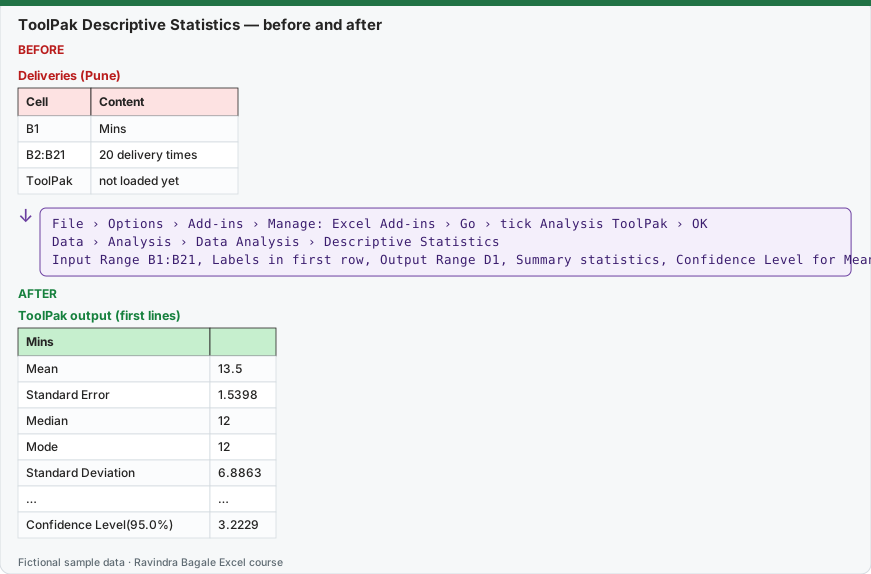
Expected result — ToolPak output (first lines)
| Mins | — |
|---|---|
| Mean | 13.5 |
| Standard Error | 1.5398 |
| Median | 12 |
| Mode | 12 |
| Standard Deviation | 6.8863 |
| … | … |
| Confidence Level(95.0%) | 3.2229 |
Before table and formula as text
Before — Deliveries (Pune)
| Cell | Content |
|---|---|
| B1 | Mins |
| B2:B21 | 20 delivery times |
| ToolPak | not loaded yet |
Formula / click path
File › Options › Add-ins › Manage: Excel Add-ins › Go › tick Analysis ToolPak › OK
Data › Analysis › Data Analysis › Descriptive Statistics
Input Range B1:B21, Labels in first row, Output Range D1, Summary statistics, Confidence Level for Mean 95%
Do it step by step:
- Select File › Options › Add-ins. At the bottom, in Manage, choose Excel Add-ins and select Go.
- Tick Analysis ToolPak and select OK. A Data Analysis button appears on the Data tab (group Analysis).
- Select Data › Data Analysis, choose Descriptive Statistics and select OK.
- Input Range: B1:B21. Tick Labels in first row. Output Range: D1.
- Tick Summary statistics and Confidence Level for Mean: 95%. Select OK.
- Check two lines with formulas:
=AVERAGE(B2:B21)must equal Mean and=STDEV.S(B2:B21)must equal Standard Deviation.
स्टेप बाय स्टेप करून बघा:
- File › Options › Add-ins निवडा. खाली Manage मध्ये Excel Add-ins निवडून Go निवडा.
- Analysis ToolPak tick करून OK निवडा. Data tab वर (group Analysis) Data Analysis button येतं.
- Data › Data Analysis निवडा, Descriptive Statistics निवडून OK करा.
- Input Range: B1:B21. Labels in first row tick करा. Output Range: D1.
- Summary statistics आणि Confidence Level for Mean: 95% tick करा. OK निवडा.
- दोन lines formulas ने तपासा:
=AVERAGE(B2:B21)Mean एवढा आणि=STDEV.S(B2:B21)Standard Deviation एवढा हवा.
स्टेप बाय स्टेप करके देखें:
- File › Options › Add-ins चुनें. नीचे Manage में Excel Add-ins चुनकर Go चुनें.
- Analysis ToolPak tick करके OK चुनें. Data tab पर (group Analysis) Data Analysis button आता है.
- Data › Data Analysis चुनें, Descriptive Statistics चुनकर OK करें.
- Input Range: B1:B21. Labels in first row tick करें. Output Range: D1.
- Summary statistics और Confidence Level for Mean: 95% tick करें. OK चुनें.
- दो lines formulas से जाँचें:
=AVERAGE(B2:B21)Mean के बराबर और=STDEV.S(B2:B21)Standard Deviation के बराबर होना चाहिए.
Version note
The Analysis ToolPak is a free add-in for the Excel desktop apps: Excel for Windows (Microsoft 365, 2024, 2021 and older) and Excel for Mac. It is not available in Excel for the web, iPad, iPhone or Android. In the browser, Microsoft's add-in store offers the third-party "XLMiner Analysis ToolPak" (Frontline Systems), which copies the same tools; check with IT before installing it on a company account. ToolPak output is a static table of values: it does not recalculate when the data changes, so run the tool again (or use the matching functions) after an update.
The full output, read line by line
Excel prints more decimals (for example 1.539830616); the table rounds to 4 decimals.
| ToolPak line | Value | Same number with a formula | What it means |
|---|---|---|---|
| Mean | 13.5 | =AVERAGE(B2:B21) |
The average. |
| Standard Error | 1.5398 | =STDEV.S(B2:B21)/SQRT(COUNT(B2:B21)) |
How much the mean itself would wobble from sample to sample. Smaller with more data. |
| Median | 12 | =MEDIAN(B2:B21) |
The middle value. |
| Mode | 12 | =MODE.SNGL(B2:B21) |
The most frequent value. Shows #N/A if no value repeats. |
| Standard Deviation | 6.8863 | =STDEV.S(B2:B21) |
Sample standard deviation (n − 1), not STDEV.P. |
| Sample Variance | 47.4211 | =VAR.S(B2:B21) |
Standard deviation squared. |
| Kurtosis | 14.9091 | =KURT(B2:B21) |
Excess kurtosis: about 0 for a normal curve. High here because of the outlier. |
| Skewness | 3.6468 | =SKEW(B2:B21) |
Positive: long right tail. |
| Range | 33 | =MAX(B2:B21)-MIN(B2:B21) |
Maximum minus minimum. |
| Minimum | 8 | =MIN(B2:B21) |
Smallest value. |
| Maximum | 41 | =MAX(B2:B21) |
Largest value. |
| Sum | 270 | =SUM(B2:B21) |
Total of all values. |
| Count | 20 | =COUNT(B2:B21) |
Number of numeric values. |
| Confidence Level(95.0%) | 3.2229 | =T.INV.2T(0.05,19)*STDEV.S(B2:B21)/SQRT(20) |
Half-width of a 95% confidence interval for the mean: 13.5 ± 3.22, so about 10.28 to 16.72 minutes. |
Every number on this page was computed with Excel's documented formulas and re-checked twice: in LibreOffice Calc 25.2 with the same formulas, and in Python with scipy and statsmodels.
The two lines people misread
- Standard Error is not Standard Deviation. Standard deviation (6.89) describes individual orders. Standard error (1.54) describes the mean: if you took another 20 orders, their average would typically differ from 13.5 by about 1.5 minutes. It shrinks as you collect more data (divide by the square root of the count).
- Confidence Level(95.0%) is a half-width, not a percentage. It is the "±" part. The 95% confidence interval for the true average delivery time is 13.5 ± 3.22, so 10.28 to 16.72 minutes. It uses the t distribution with n − 1 = 19 degrees of freedom (
=T.INV.2T(0.05,19)= 2.0930). The formula=CONFIDENCE.T(0.05,STDEV.S(B2:B21),20)gives the same 3.2229.
Options in the dialog
| Option | What it adds |
|---|---|
| Grouped By: Columns / Rows | Each column (or row) is one variable; select several columns to get one summary block per column |
| Labels in first row | Uses the header (Mins) as the title of the output |
| Kth Largest / Kth Smallest | Adds the k-th largest or smallest value, the same as =LARGE(B2:B21,k) and =SMALL(B2:B21,k) |
| Output Range / New Worksheet Ply / New Workbook | Where the static output table is written |
Several columns at once. Select a block such as B1:F21 (five measures with headers), keep Grouped By: Columns, and the ToolPak writes five summary blocks side by side, which is the fastest way to compare columns.
Microsoft sources (checked 7 October 2026): Use the Analysis ToolPak to perform complex data analysis.
Practice task (try it before you open the answer):
- Run Descriptive Statistics on the same data with Kth Largest: 2 ticked. What extra line appears and what is its value?
- Change the data: BLK-5020 becomes 17 minutes. Does the ToolPak output update by itself?
- What is the new mean and how do you get the new output?
Answer
- A line Largest(2) appears with the value 17, the same as
=LARGE(B2:B21,2). - No. ToolPak output is static values, not formulas. It still shows Mean 13.5.
- The new mean is 12.3 (
=AVERAGE(B2:B21)updates at once). Run Data › Data Analysis › Descriptive Statistics again to refresh the ToolPak table, or build the summary with formulas so it always updates.
Ravindra Bagale's Tip
Use the ToolPak to explore, then rebuild the key numbers with formulas for anything you share. A static table that does not update is the most common silent error in shared statistics files.
Ravindra Bagale's Tip – मराठी
Explore करायला ToolPak वापरा, पण share करायच्या गोष्टींसाठी मुख्य आकडे formulas ने परत बनवा. Update न होणारी static table ही shared statistics files मधली सर्वात सामान्य, न दिसणारी चूक आहे.
Ravindra Bagale's Tip – हिंदी
Explore करने के लिए ToolPak इस्तेमाल करें, पर share होने वाली चीज़ों के लिए मुख्य आँकड़े formulas से दोबारा बनाएँ. Update न होने वाली static table shared statistics files की सबसे आम, न दिखने वाली ग़लती है.
Loading practice tasks...
- Mean (Easy): Average spend in D2:D10, rounded to 2 decimals.
- Sum (Easy): Total spend in D2:D10.
- Count (Easy): How many spends are in D2:D10?
- Minimum (Easy): Smallest spend.
- Median (Medium): Median spend.
- Standard deviation (Medium): Sample SD of D2:D10, rounded to 2 decimals.
- Sample variance (Medium): Sample variance of D2:D10, rounded to 0 decimals.
- Standard error (Hard): Sample SD of D2:D10 ÷ square root of the count, rounded to 2 decimals.
- Range (Hard): Max spend minus min spend.
- Mean rating (Hard): Average rating in E2:E10, rounded to 2 decimals.