30.3 Distributions and Histograms: FREQUENCY, the Histogram Chart, NORM.DIST and Outliers
Example first. Zoya wants to see the shape of the 20 delivery times, not just the summary numbers. She makes bins of 2 minutes and counts how many orders fall in each: 3, 5, 6, 3, 2 and 1 order above 17 minutes. Drawn as columns, this is a histogram, and the lonely bar on the far right is the outlier. This lesson builds the counts with FREQUENCY, draws the histogram chart, compares the data with a normal curve and flags outliers with two standard rules.
Histograms and distributions — in 30 seconds
What: A distribution shows how often each range of values occurs. A histogram draws it as touching columns. FREQUENCY counts values per bin; the Histogram chart and the ToolPak Histogram tool draw it for you.
Why: The shape tells you which statistics to trust: a symmetric bell supports the mean and standard deviation; a long tail or a separate bar means use the median and look at the outliers.
Tiny example: With bin upper limits 9, 11, 13, 15, 17 in D2:D6, =FREQUENCY(B2:B21,D2:D6) spills 6 counts: 3, 5, 6, 3, 2 and 1 (the last one is everything above 17).
Histograms and distributions — 30 सेकंदात
काय: Distribution म्हणजे values चा प्रत्येक range किती वेळा येतो ते. Histogram ते एकमेकांना चिकटलेल्या columns ने दाखवतो. FREQUENCY प्रत्येक bin मधल्या values मोजतो; Histogram chart आणि ToolPak चं Histogram tool ते तुमच्यासाठी काढतात.
का: आकारावरून कळतं कोणत्या statistics वर विश्वास ठेवायचा: symmetric bell असेल तर mean आणि standard deviation; लांब शेपटी किंवा वेगळा bar असेल तर median वापरा आणि outliers बघा.
छोटं उदाहरण: D2:D6 मध्ये bin upper limits 9, 11, 13, 15, 17 असतील तर =FREQUENCY(B2:B21,D2:D6) 6 counts spill करतो: 3, 5, 6, 3, 2 आणि 1 (शेवटचा म्हणजे 17 पेक्षा जास्त सगळे).
Histograms and distributions — 30 सेकंड में
क्या: Distribution यानी values की हर range कितनी बार आती है. Histogram उसे एक-दूसरे से सटे columns से दिखाता है. FREQUENCY हर bin की values गिनता है; Histogram chart और ToolPak का Histogram tool उसे आपके लिए बनाते हैं.
क्यों: आकार से पता चलता है किन statistics पर भरोसा करें: symmetric bell हो तो mean और standard deviation; लंबी पूँछ या अलग bar हो तो median इस्तेमाल करें और outliers देखें.
छोटा उदाहरण: D2:D6 में bin upper limits 9, 11, 13, 15, 17 हों तो =FREQUENCY(B2:B21,D2:D6) 6 counts spill करता है: 3, 5, 6, 3, 2 और 1 (आख़िरी यानी 17 से ऊपर सब).
First look at the data (before → after):
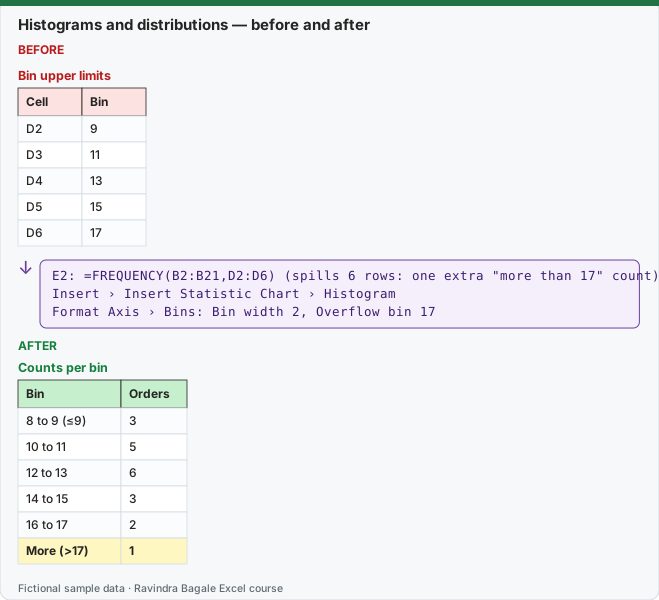
Expected result — Counts per bin
| Bin | Orders |
|---|---|
| 8 to 9 (≤9) | 3 |
| 10 to 11 | 5 |
| 12 to 13 | 6 |
| 14 to 15 | 3 |
| 16 to 17 | 2 |
| More (>17) | 1 |
Before table and formula as text
Before — Bin upper limits
| Cell | Bin |
|---|---|
| D2 | 9 |
| D3 | 11 |
| D4 | 13 |
| D5 | 15 |
| D6 | 17 |
Formula / click path
E2: =FREQUENCY(B2:B21,D2:D6)   (spills 6 rows: one extra "more than 17" count)
Insert › Insert Statistic Chart › Histogram
Format Axis › Bins: Bin width 2, Overflow bin 17
Do it step by step:
- Type the bin upper limits 9, 11, 13, 15, 17 in D2:D6.
- In E2 type
=FREQUENCY(B2:B21,D2:D6)and press Enter. Six counts spill down to E7. - Check the total:
=SUM(E2:E7)must be 20. - Select B1:B21 and choose Insert › Insert Statistic Chart › Histogram.
- Right-click the horizontal axis › Format Axis. Set Bin width to 2 and tick Overflow bin with 17.
- Flag outliers: in C2 type
=OR(B2>$H$3,B2<$H$2)with the fences from the steps below, and fill down. Only BLK-5020 shows TRUE.
स्टेप बाय स्टेप करून बघा:
- D2:D6 मध्ये bin upper limits 9, 11, 13, 15, 17 type करा.
- E2 मध्ये
=FREQUENCY(B2:B21,D2:D6)type करून Enter दाबा. सहा counts E7 पर्यंत spill होतात. - Total तपासा:
=SUM(E2:E7)20 हवा. - B1:B21 निवडा आणि Insert › Insert Statistic Chart › Histogram निवडा.
- Horizontal axis वर right-click › Format Axis. Bin width 2 करा आणि Overflow bin 17 सह tick करा.
- Outliers flag करा: C2 मध्ये खालच्या fences सह
=OR(B2>$H$3,B2<$H$2)type करून खाली fill करा. फक्त BLK-5020 TRUE दाखवते.
स्टेप बाय स्टेप करके देखें:
- D2:D6 में bin upper limits 9, 11, 13, 15, 17 type करें.
- E2 में
=FREQUENCY(B2:B21,D2:D6)type करके Enter दबाएँ. छह counts E7 तक spill होते हैं. - Total जाँचें:
=SUM(E2:E7)20 होना चाहिए. - B1:B21 चुनें और Insert › Insert Statistic Chart › Histogram चुनें.
- Horizontal axis पर right-click › Format Axis. Bin width 2 करें और Overflow bin 17 के साथ tick करें.
- Outliers flag करें: C2 में नीचे वाली fences के साथ
=OR(B2>$H$3,B2<$H$2)type करके नीचे fill करें. सिर्फ़ BLK-5020 TRUE दिखाता है.
How FREQUENCY and the ToolPak count. A value goes into a bin when it is greater than the previous limit and less than or equal to this limit. So 9 goes into the "≤9" bin and 10 into "10 to 11". FREQUENCY always returns one more count than the number of bins: the last count is everything above the top limit. In Microsoft 365 the result spills; in Excel 2019 and older select E2:E7 first and press Ctrl+Shift+Enter.
Three ways to draw the histogram
| Way | Where | Updates with the data? | Good for |
|---|---|---|---|
| FREQUENCY + a column chart | Formula + Insert › Column chart | Yes | Your own bin labels, any Excel version |
| Histogram chart | Insert › Insert Statistic Chart › Histogram | Yes | Fastest; bins set in Format Axis |
| ToolPak Histogram tool | Data › Data Analysis › Histogram | No (static table) | Adds Cumulative % and a Pareto (sorted) option |
Histogram chart bin options (Format Axis › Axis Options)
| Option | What it does |
|---|---|
| Automatic | Excel picks the bin width with Scott's normal reference rule (the default) |
| Bin width | Fixed width, for example 2 minutes |
| Number of bins | Fixed number of bins, including overflow and underflow bins |
| Overflow bin | One bar for all values above a limit (here 17), so one outlier does not stretch the axis |
| Underflow bin | One bar for all values below or equal to a limit |
| By Category | For text categories instead of numbers |
Compare with a normal curve. Without the outlier the 19 orders have mean 12.05 and standard deviation 2.41. If delivery time followed a normal curve with mean 12 and standard deviation 2.4, the share of orders within 15 minutes would be =NORM.DIST(15,12,2.4,TRUE) = 0.8944. In the data, 17 of 19 orders (0.8947) are within 15 minutes, so the normal model is a fair description of normal days. Use =NORM.DIST(x,mean,sd,FALSE) for the height of the curve when you want to draw it, and =NORM.INV(0.95,12,2.4) = 15.95 for "95% of orders within how many minutes?".
Two outlier rules
| Rule | Formula | Result on this data |
|---|---|---|
| IQR fences (Tukey) | Lower =QUARTILE.INC(B2:B21,1)-1.5*(QUARTILE.INC(B2:B21,3)-QUARTILE.INC(B2:B21,1)), upper the same with Q3 + 1.5 × IQR |
Fences 5.875 and 18.875: only 41 is outside |
| z-score above 3 | =STANDARDIZE(B21,AVERAGE(B2:B21),STDEV.S(B2:B21)) |
z = 3.99 for the 41-minute order |
Put the fences in H2 (lower) and H3 (upper) for the flag formula in step 6. The IQR rule is safer on small or skewed data, because the outlier itself inflates the mean and standard deviation that the z-score uses. An outlier is a question, not an error. BLK-5020 was a real order delayed by rain: keep it in the data, report it separately, and do not delete it just because a rule flags it.
Box and whisker chart. Insert › Insert Statistic Chart › Box and Whisker draws the quartiles as a box and shows the 41-minute order as a separate dot, which is the IQR rule in picture form.
Every number on this page was computed with Excel's documented formulas and re-checked twice: in LibreOffice Calc 25.2 with the same formulas, and in Python with scipy and statsmodels.
Microsoft sources (checked 7 October 2026): Create a histogram.
Practice task (try it before you open the answer):
- Change the bins to upper limits 10, 14 and 18. What does
=FREQUENCY(B2:B21,{10;14;18})return? - What share of orders is above 14 minutes?
- Using a normal curve with mean 12 and standard deviation 2.4, what share would be above 14 minutes?
Answer
- 5, 11, 3 and 1 (≤10, 11 to 14, 15 to 18, above 18).
- 4 of 20 = 20% (
=COUNTIFS(B2:B21,">14")/20). =1-NORM.DIST(14,12,2.4,TRUE)= 0.2023, about 20%.
Ravindra Bagale's Tip
Always use an overflow bin when one value is far away. Otherwise Excel stretches the axis to 41 minutes and squeezes the useful part of the picture into three thin bars.
Ravindra Bagale's Tip – मराठी
एखादी value खूप दूर असेल तर नेहमी overflow bin वापरा. नाहीतर Excel axis 41 मिनिटांपर्यंत ताणतो आणि picture चा उपयोगी भाग तीन बारीक bars मध्ये दाबला जातो.
Ravindra Bagale's Tip – हिंदी
कोई value बहुत दूर हो तो हमेशा overflow bin इस्तेमाल करें. वरना Excel axis को 41 मिनट तक खींच देता है और picture का काम का हिस्सा तीन पतले bars में दब जाता है.
Loading practice tasks...
- Parcels up to 12 hours (Easy): How many hours in C2:C13 are at most 12?
- Parcels 12 to 24 hours (Easy): How many hours are above 12 and at most 24?
- All bin counts (spill) (Medium): For each bin row 2 to 5, count hours above D and at most E.
- Over 48 hours (Medium): How many hours are above 48?
- Z-score of P11 (Medium): Z-score of C12 using the mean and sample SD of C2:C13, rounded to 2 decimals.
- Upper fence (Medium): Quartile 3 + 1.5 × (Q3 − Q1) of C2:C13.
- Outlier count (Hard): How many hours are above the upper fence?
- Chance under 24 hours (Hard): Normal probability of a value up to 24 with the mean and sample SD of C2:C13, rounded to 3 decimals.
- Chance over 36 hours (Hard): Normal probability of a value above 36 (same mean and SD), rounded to 3 decimals.
- 90th percentile (Hard): 90th percentile of C2:C13, rounded to 1 decimal.