25. All Excel Keyboard Shortcuts (Windows and Mac)
25.9 Ctrl+Shift Combinations
Example first. Ruhi Bagale has a column of numbers: 0.5, 46336, 1500 and 0.75. With four Ctrl+Shift combinations she formats them as 50%, a date, a number with separators and a time, without opening any dialog box. On Mac the number-format keys are exactly the same.
Ctrl+Shift combinations — in 30 seconds
What: Ctrl+Shift shortcuts are the "bigger" version of a key: they extend a selection, apply number formats with symbol keys, toggle filters and insert cells.
Why: Most of them use the symbol printed on the key (%, $, #, @, !), so they are easy to remember once you see the pattern.
Tiny example: Ctrl+Shift+% → 50%. Ctrl+Shift+# → 10-Nov-26. Ctrl+Shift+! → 1,500.00. Ctrl+Shift+@ on 0.75 → 6:00 PM.
Ctrl+Shift combinations — 30 सेकंदात
काय: Ctrl+Shift shortcuts म्हणजे key ची "मोठी" आवृत्ती: ते selection वाढवतात, symbol keys ने number formats लावतात, filters चालू-बंद करतात आणि cells insert करतात.
का: बहुतेक key वर छापलेलं symbol (%, $, #, @, !) वापरतात, त्यामुळे pattern दिसला की लक्षात ठेवायला सोपे.
छोटं उदाहरण: Ctrl+Shift+% → 50%. Ctrl+Shift+# → 10-Nov-26. Ctrl+Shift+! → 1,500.00. 0.75 वर Ctrl+Shift+@ → 6:00 PM.
Ctrl+Shift combinations — 30 सेकंड में
क्या: Ctrl+Shift shortcuts किसी key का "बड़ा" रूप हैं: ये selection बढ़ाते हैं, symbol keys से number formats लगाते हैं, filters चालू-बंद करते हैं और cells insert करते हैं.
क्यों: ज़्यादातर key पर छपा symbol (%, $, #, @, !) इस्तेमाल करते हैं, इसलिए pattern दिख जाए तो याद रखना आसान है.
छोटा उदाहरण: Ctrl+Shift+% → 50%. Ctrl+Shift+# → 10-Nov-26. Ctrl+Shift+! → 1,500.00. 0.75 पर Ctrl+Shift+@ → 6:00 PM.
First look at the data (before → after):
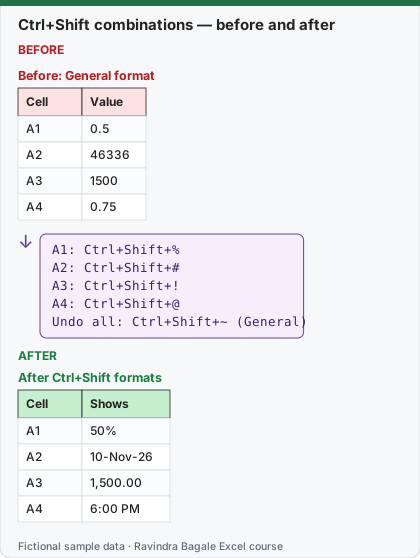
Expected result — After Ctrl+Shift formats
| Cell | Shows |
|---|---|
| A1 | 50% |
| A2 | 10-Nov-26 |
| A3 | 1,500.00 |
| A4 | 6:00 PM |
Before table and formula as text
Before — Before: General format
| Cell | Value |
|---|---|
| A1 | 0.5 |
| A2 | 46336 |
| A3 | 1500 |
| A4 | 0.75 |
Formula / click path
A1: Ctrl+Shift+%
A2: Ctrl+Shift+#
A3: Ctrl+Shift+!
A4: Ctrl+Shift+@
Undo all: Ctrl+Shift+~ (General)
Do it step by step:
- Select A1 and press Ctrl+Shift+%.
- Select A2 and press Ctrl+Shift+#.
- Select A3 and press Ctrl+Shift+!.
- Select A4 and press Ctrl+Shift+@.
- Select A1:A4 and press Ctrl+Shift+~ to return everything to General (same keys on Mac).
स्टेप बाय स्टेप करून बघा:
- A1 select करा आणि Ctrl+Shift+% दाबा.
- A2 select करा आणि Ctrl+Shift+# दाबा.
- A3 select करा आणि Ctrl+Shift+! दाबा.
- A4 select करा आणि Ctrl+Shift+@ दाबा.
- A1:A4 select करून सगळं परत General करायला Ctrl+Shift+~ दाबा (Mac वर याच keys).
स्टेप बाय स्टेप करके देखें:
- A1 select करें और Ctrl+Shift+% दबाएँ.
- A2 select करें और Ctrl+Shift+# दबाएँ.
- A3 select करें और Ctrl+Shift+! दबाएँ.
- A4 select करें और Ctrl+Shift+@ दबाएँ.
- A1:A4 select करके सब वापस General करने के लिए Ctrl+Shift+~ दबाएँ (Mac पर यही keys).
Ctrl+Shift combinations: Windows and Mac side by side
| To do this | Windows | Mac |
|---|---|---|
| Select to the last non-blank cell | Ctrl+Shift+Arrow key | Shift+Cmd+Arrow key |
| Select to the beginning / last used cell | Ctrl+Shift+Home / Ctrl+Shift+End | Ctrl+Shift+Home / Ctrl+Shift+End |
| Select the current region | Ctrl+Shift+Asterisk (*) | Cmd+A |
| Select the whole sheet | Ctrl+Shift+Spacebar | Cmd+Shift+Spacebar |
| Select the current and next / previous sheet | Ctrl+Shift+Page down / Ctrl+Shift+Page up | (menu: Shift+click sheet tabs) |
| Filter on / off | Ctrl+Shift+L | Ctrl+Shift+L or Cmd+Shift+F |
| Insert cells | Ctrl+Shift+Plus sign (+) | Ctrl+Shift+Equal sign (=) |
| Current time | Ctrl+Shift+Colon (:) | Cmd+Semicolon (;) |
| Copy the value from the cell above | Ctrl+Shift+Straight quotation mark (") | Ctrl+Shift+Straight quotation mark (") |
| General / Currency / Percentage format | Ctrl+Shift+~ / Ctrl+Shift+$ / Ctrl+Shift+% | Ctrl+Shift+~ / Ctrl+Shift+$ / Ctrl+Shift+% |
| Scientific / Date / Time / Number format | Ctrl+Shift+^ / Ctrl+Shift+# / Ctrl+Shift+@ / Ctrl+Shift+! | Ctrl+Shift+^ / Ctrl+Shift+# / Ctrl+Shift+@ / Ctrl+Shift+! |
| Outline border / remove border | Ctrl+Shift+& / Ctrl+Shift+_ | Cmd+Option+0 / Cmd+Option+Hyphen |
| Font tab of Format Cells | Ctrl+Shift+F | (menu: Cmd+1 › Font) |
| Insert argument names | Ctrl+Shift+A | (menu: Formula Builder) |
| Expand or collapse the formula bar | Ctrl+Shift+U | Ctrl+Shift+U |
| Insert or reply to a threaded comment | Ctrl+Shift+F2 | Cmd+Shift+F2 |
| Workbook Statistics | Ctrl+Shift+G | (menu: Review › Workbook Statistics) |
| Unhide rows / columns | (menu: Home › Format › Hide & Unhide) | Ctrl+Shift+Left parenthesis / Ctrl+Shift+Right parenthesis |
Why 0.75 shows 6:00 PM: Excel stores time as a fraction of a day. 0.75 of 24 hours is 18:00.
Practice task (try it before you open the answer):
- Select from the active cell to the last used cell with one combination.
- Format 0.125 as a percentage, then as General again.
- Insert a blank cell above C5, shifting cells down.
Answer
Ctrl+Shift+End (same on Mac). Ctrl+Shift+% shows 13% (Excel rounds 12.5 up); Ctrl+Shift+~ shows 0.125 again. Select C5, Ctrl+Shift+Plus sign (Mac: Ctrl+Shift+Equal sign) › Shift cells down › OK.
Ravindra Bagale's Tip
Learn the number-format row as one family: ~ General, $ Currency, % Percent, # Date, @ Time, ! Number. Six keys, one pattern, the same on Windows and Mac.
Ravindra Bagale's Tip – मराठी
Number-format ची row एक कुटुंब म्हणून शिका: ~ General, $ Currency, % Percent, # Date, @ Time, ! Number. सहा keys, एक pattern, Windows आणि Mac वर सारखाच.
Ravindra Bagale's Tip – हिंदी
Number-format वाली row को एक परिवार की तरह सीखें: ~ General, $ Currency, % Percent, # Date, @ Time, ! Number. छह keys, एक pattern, Windows और Mac पर एक जैसा.