25. All Excel Keyboard Shortcuts (Windows and Mac)
25.6 Tables, Filter and Data Shortcuts
Example first. Raja pastes the 10 orders and presses Ctrl+T (same on Mac): a Table with filter arrows. He selects the City header, presses Alt+Down arrow (Mac: Option+Down arrow), ticks only Pune and sees 4 rows totalling ₹544. Ctrl+Shift+L turns the arrows off and on.
Table and filter shortcuts — in 30 seconds
What: These shortcuts turn data into a Table, switch filters on and off, open a column's filter list, reapply a filter and open Power Query, all from the keyboard.
Why: Filtering is the most repeated action in daily reporting. Doing it from the keyboard keeps your hands on the data and makes checks quick.
Tiny example: Ctrl+T, then Alt+Down arrow on City › Pune: 4 rows, total ₹544. Ctrl+Alt+L reapplies the filter after you change data.
Table and filter shortcuts — 30 सेकंदात
काय: हे shortcuts data चं Table बनवतात, filters चालू-बंद करतात, column ची filter list उघडतात, filter पुन्हा लावतात आणि Power Query उघडतात, सगळं keyboard ने.
का: रोजच्या reporting मध्ये filter हीच सगळ्यात जास्त वेळा केली जाणारी गोष्ट आहे. Keyboard ने केल्यास हात data वरच राहतात आणि checks लवकर होतात.
छोटं उदाहरण: Ctrl+T, मग City वर Alt+Down arrow › Pune: 4 rows, total ₹544. Data बदलल्यावर Ctrl+Alt+L filter पुन्हा लावतो.
Table and filter shortcuts — 30 सेकंड में
क्या: ये shortcuts data को Table बनाते हैं, filters चालू-बंद करते हैं, column की filter list खोलते हैं, filter दोबारा लगाते हैं और Power Query खोलते हैं, सब keyboard से.
क्यों: रोज़ की reporting में filter सबसे ज़्यादा बार होने वाला काम है. Keyboard से करने पर हाथ data पर ही रहते हैं और checks जल्दी होते हैं.
छोटा उदाहरण: Ctrl+T, फिर City पर Alt+Down arrow › Pune: 4 rows, total ₹544. Data बदलने के बाद Ctrl+Alt+L filter दोबारा लगाता है.
First look at the data (before → after):
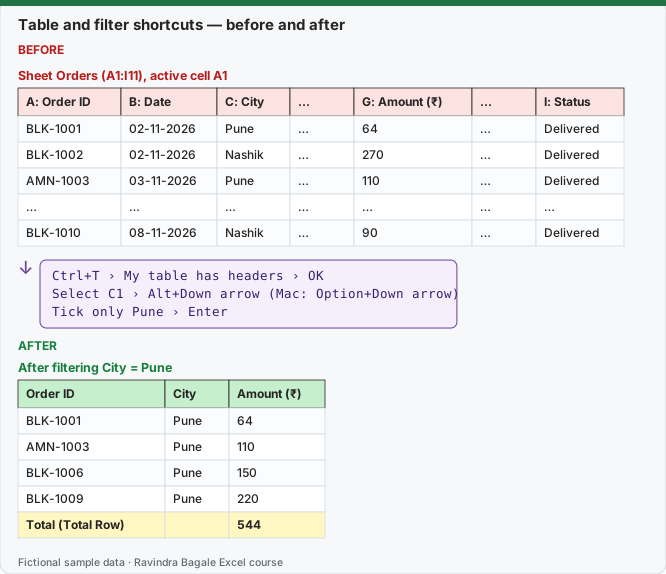
Expected result — After filtering City = Pune
| Order ID | City | Amount (₹) |
|---|---|---|
| BLK-1001 | Pune | 64 |
| AMN-1003 | Pune | 110 |
| BLK-1006 | Pune | 150 |
| BLK-1009 | Pune | 220 |
| Total (Total Row) | — | 544 |
Before table and formula as text
Before — Sheet Orders (A1:I11), active cell A1
| A: Order ID | B: Date | C: City | … | G: Amount (₹) | … | I: Status |
|---|---|---|---|---|---|---|
| BLK-1001 | 02-11-2026 | Pune | … | 64 | … | Delivered |
| BLK-1002 | 02-11-2026 | Nashik | … | 270 | … | Delivered |
| AMN-1003 | 03-11-2026 | Pune | … | 110 | … | Delivered |
| … | … | … | … | … | … | … |
| BLK-1010 | 08-11-2026 | Nashik | … | 90 | … | Delivered |
Formula / click path
Ctrl+T › My table has headers › OK
Select C1 › Alt+Down arrow   (Mac: Option+Down arrow)
Tick only Pune › Enter
Do it step by step:
- Click inside the data and press Ctrl+T (Mac: Cmd+T or Ctrl+T), then Enter.
- Click the City header and press Alt+Down arrow (Mac: Option+Down arrow).
- Untick (Select All), tick Pune, press Enter.
- Change one Pune amount, then press Ctrl+Alt+L (Windows) to reapply the filter.
- Press Ctrl+Shift+L to remove the filter arrows (Mac: Cmd+Shift+F).
स्टेप बाय स्टेप करून बघा:
- Data मध्ये click करून Ctrl+T (Mac: Cmd+T किंवा Ctrl+T) दाबा, मग Enter.
- City header वर click करून Alt+Down arrow (Mac: Option+Down arrow) दाबा.
- (Select All) untick करा, Pune tick करा, Enter दाबा.
- एक Pune amount बदला, मग filter पुन्हा लावायला Ctrl+Alt+L (Windows) दाबा.
- Filter arrows काढायला Ctrl+Shift+L (Mac: Cmd+Shift+F) दाबा.
स्टेप बाय स्टेप करके देखें:
- Data में click करके Ctrl+T (Mac: Cmd+T या Ctrl+T) दबाएँ, फिर Enter.
- City header पर click करके Alt+Down arrow (Mac: Option+Down arrow) दबाएँ.
- (Select All) untick करें, Pune tick करें, Enter दबाएँ.
- एक Pune amount बदलें, फिर filter दोबारा लगाने के लिए Ctrl+Alt+L (Windows) दबाएँ.
- Filter arrows हटाने के लिए Ctrl+Shift+L (Mac: Cmd+Shift+F) दबाएँ.
Table and filter shortcuts: Windows and Mac side by side
| To do this | Windows | Mac |
|---|---|---|
| Create a Table | Ctrl+T or Ctrl+L | Cmd+T or Ctrl+T |
| Turn filter arrows on or off (Microsoft lists Ctrl+Shift+L in its Mac and Excel for the web tables) | Ctrl+Shift+L | Cmd+Shift+F or Ctrl+Shift+L |
| Open the filter list of the selected header | Alt+Down arrow | Option+Down arrow |
| Reapply the filter after data changes (listed in Microsoft's Excel for the web table) | Ctrl+Alt+L | (menu: Data › Sort & Filter › Reapply) |
| Open the Sort dialog box | (menu: Data › Sort & Filter › Sort) | Cmd+Shift+R |
| Quick Analysis | Ctrl+Q | (menu: Control-click the selection › Quick Analysis) |
| Flash Fill | Ctrl+E | (menu: Data › Data Tools › Flash Fill) |
| Open the Power Query Editor | Alt+F12 | Option+F12 |
| Show or hide outline symbols | Ctrl+8 | Ctrl+8 |
| Group / ungroup selected cells | (menu: Data › Outline › Group / Ungroup) | Cmd+Shift+K / Cmd+Shift+J |
| Refresh data in the current worksheet | Ctrl+F5 | (menu: Data › Refresh All ▾ › Refresh) |
| Refresh all data in the workbook | Ctrl+Alt+F5 | (menu: Data › Refresh All) |
Tables, sorting and filtering are taught in Module 6; Power Query in Module 10.
Practice task (try it before you open the answer):
- Turn the orders into a Table with one shortcut.
- Filter Status to Delivered from the keyboard and read the Total Row.
- Remove the filter arrows.
Answer
Ctrl+T (Mac: Cmd+T). Alt+Down arrow on Status (Mac: Option+Down arrow), tick Delivered: 7 rows, total ₹2,215. Ctrl+Shift+L (Mac: Cmd+Shift+F).
Ravindra Bagale's Tip
Always look at the status bar after filtering: "4 of 10 records found" tells you a filter is on before you copy or total anything.
Ravindra Bagale's Tip – मराठी
Filter केल्यावर नेहमी status bar बघा: "4 of 10 records found" सांगतं की filter चालू आहे, काहीही copy किंवा total करण्याआधी.
Ravindra Bagale's Tip – हिंदी
Filter करने के बाद हमेशा status bar देखें: "4 of 10 records found" बताता है कि filter चालू है, कुछ भी copy या total करने से पहले.