25. All Excel Keyboard Shortcuts (Windows and Mac)
25.7 Charts and PivotTable Shortcuts
Example first. Salman selects the City and Amount columns of a city summary and presses Alt+F1: a column chart appears on the same sheet. Pressing F11 instead puts the chart on its own chart sheet (F11 also works on Mac). After new orders arrive, Ctrl+Alt+F5 refreshes every PivotTable in the file.
Chart and PivotTable shortcuts — in 30 seconds
What: These shortcuts insert a chart in one key press, open PivotTable field menus and refresh every PivotTable and query in the workbook.
Why: A quick chart helps you see the shape of data before you design anything. Refresh All prevents the classic mistake of presenting a PivotTable that does not include today's rows.
Tiny example: Select A1:B5 of the city summary and press Alt+F1: an embedded column chart. F11: a chart sheet named Chart1.
Chart and PivotTable shortcuts — 30 सेकंदात
काय: हे shortcuts एका key press मध्ये chart टाकतात, PivotTable field menus उघडतात आणि workbook मधले सगळे PivotTables आणि queries refresh करतात.
का: काहीही design करण्याआधी quick chart मुळे data चा आकार दिसतो. Refresh All मुळे आजच्या rows नसलेला PivotTable दाखवण्याची जुनी चूक टळते.
छोटं उदाहरण: City summary चं A1:B5 select करून Alt+F1 दाबा: embedded column chart. F11: Chart1 नावाची chart sheet.
Chart and PivotTable shortcuts — 30 सेकंड में
क्या: ये shortcuts एक key press में chart डालते हैं, PivotTable field menus खोलते हैं और workbook के सारे PivotTables और queries refresh करते हैं.
क्यों: कुछ भी design करने से पहले quick chart से data का आकार दिख जाता है. Refresh All से आज की rows के बिना PivotTable दिखाने की पुरानी गलती नहीं होती.
छोटा उदाहरण: City summary का A1:B5 select करके Alt+F1 दबाएँ: embedded column chart. F11: Chart1 नाम की chart sheet.
First look at the data (before → after):
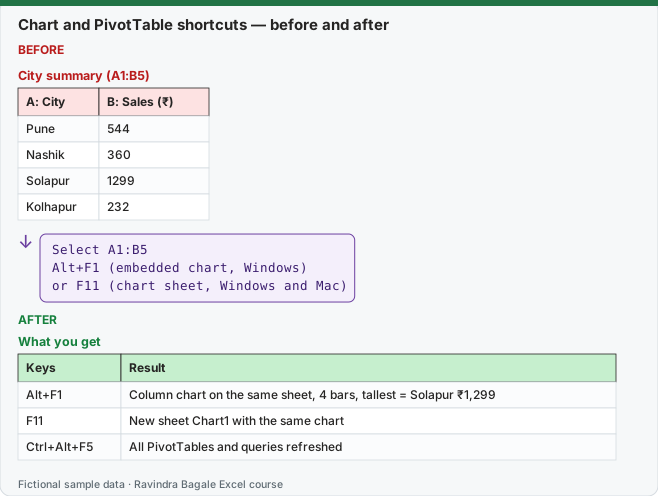
Expected result — What you get
| Keys | Result |
|---|---|
| Alt+F1 | Column chart on the same sheet, 4 bars, tallest = Solapur ₹1,299 |
| F11 | New sheet Chart1 with the same chart |
| Ctrl+Alt+F5 | All PivotTables and queries refreshed |
Before table and formula as text
Before — City summary (A1:B5)
| A: City | B: Sales (₹) |
|---|---|
| Pune | 544 |
| Nashik | 360 |
| Solapur | 1299 |
| Kolhapur | 232 |
Formula / click path
Select A1:B5
Alt+F1   (embedded chart, Windows)
or F11   (chart sheet, Windows and Mac)
Do it step by step:
- Select A1:B5.
- Press Alt+F1 (Windows). On Mac use Insert › Recommended Charts.
- Press Ctrl+Z, select A1:B5 again and press F11 (Windows and Mac) for a chart sheet.
- In a PivotTable, select a field header and press Alt+Down arrow (Mac: Option+Down arrow) to open its filter.
- After adding data, press Ctrl+Alt+F5 (Windows) or use PivotTable Analyze › Refresh › Refresh All.
स्टेप बाय स्टेप करून बघा:
- A1:B5 select करा.
- Alt+F1 (Windows) दाबा. Mac वर Insert › Recommended Charts वापरा.
- Ctrl+Z दाबा, A1:B5 पुन्हा select करा आणि chart sheet साठी F11 (Windows आणि Mac) दाबा.
- PivotTable मध्ये field header select करा आणि filter उघडायला Alt+Down arrow (Mac: Option+Down arrow) दाबा.
- Data जोडल्यानंतर Ctrl+Alt+F5 (Windows) दाबा किंवा PivotTable Analyze › Refresh › Refresh All वापरा.
स्टेप बाय स्टेप करके देखें:
- A1:B5 select करें.
- Alt+F1 (Windows) दबाएँ. Mac पर Insert › Recommended Charts इस्तेमाल करें.
- Ctrl+Z दबाएँ, A1:B5 फिर select करें और chart sheet के लिए F11 (Windows और Mac) दबाएँ.
- PivotTable में field header select करें और filter खोलने के लिए Alt+Down arrow (Mac: Option+Down arrow) दबाएँ.
- Data जोड़ने के बाद Ctrl+Alt+F5 (Windows) दबाएँ या PivotTable Analyze › Refresh › Refresh All इस्तेमाल करें.
Chart and PivotTable shortcuts: Windows and Mac side by side
| To do this | Windows | Mac |
|---|---|---|
| Insert an embedded chart of the selected data | Alt+F1 | (menu: Insert › Recommended Charts) |
| Insert a chart on a new chart sheet | F11 | F11 |
| Open the context (right-click) menu | Shift+F10 | Shift+F10 |
| Open a PivotTable field filter or page-field menu | Alt+Down arrow | Option+Down arrow |
| Refresh all PivotTables and queries | Ctrl+Alt+F5 | (menu: PivotTable Analyze › Refresh › Refresh All) |
| Go to the Insert tab to add a PivotTable or chart | Alt+N, then follow the KeyTips | (menu: Insert › PivotTable) |
| Show or hide the ribbon for more chart space | Ctrl+F1 | Cmd+Option+R |
| Insert a new worksheet for the report | Shift+F11 | Shift+F11 |
PivotTables are taught in Module 7 and charts in Module 8.
Practice task (try it before you open the answer):
- Make a chart sheet from the city summary with one key.
- Open the filter of the Rows field in a PivotTable from the keyboard.
- Refresh every PivotTable at once.
Answer
F11 (Windows and Mac). Select the Row Labels header, Alt+Down arrow (Mac: Option+Down arrow). Ctrl+Alt+F5 on Windows; on Mac PivotTable Analyze › Refresh › Refresh All.
Ravindra Bagale's Tip
Use Alt+F1 to look at data, not to present it. A one-key chart shows a spike or a missing city in seconds; then build the real chart with titles and labels.
Ravindra Bagale's Tip – मराठी
Data बघायला Alt+F1 वापरा, सादर करायला नाही. एका key चा chart काही सेकंदात spike किंवा missing city दाखवतो; मग titles आणि labels सह खरा chart बनवा.
Ravindra Bagale's Tip – हिंदी
Data देखने के लिए Alt+F1 इस्तेमाल करें, दिखाने के लिए नहीं. एक key वाला chart कुछ सेकंड में spike या missing city दिखाता है; फिर titles और labels के साथ असली chart बनाएँ.