25. All Excel Keyboard Shortcuts (Windows and Mac)
25.10 Function Keys F1 to F12
Example first. Ravina is checking a report. F2 opens a cell for editing, F4 fixes a reference, F5 jumps to a named cell, F7 checks spelling in the titles and F12 saves a copy with a new name. Five keys, five jobs, all on the top row of the keyboard.
Function keys — in 30 seconds
What: F1 to F12 each have a main job in Excel, and Shift, Ctrl or Alt (Option on Mac) with the same key give related jobs.
Why: They are the fastest way to edit, recalculate, check spelling and save. On many laptops and Macs you must also hold Fn, because the top row controls brightness and volume by default.
Tiny example: F2 edit · F4 $ references · F5 Go To · F7 spelling · F9 recalculate · F11 chart sheet · F12 Save As.
Function keys — 30 सेकंदात
काय: F1 ते F12 प्रत्येकाचं Excel मध्ये एक मुख्य काम आहे, आणि त्याच key सोबत Shift, Ctrl किंवा Alt (Mac वर Option) जोडलं की संबंधित कामं होतात.
का: Edit, recalculate, spelling check आणि save करायचा हा सगळ्यात जलद मार्ग आहे. अनेक laptops आणि Macs वर Fn पण धरावं लागतं, कारण top row default ने brightness आणि volume नियंत्रित करते.
छोटं उदाहरण: F2 edit · F4 $ references · F5 Go To · F7 spelling · F9 recalculate · F11 chart sheet · F12 Save As.
Function keys — 30 सेकंड में
क्या: F1 से F12 हर एक का Excel में एक मुख्य काम है, और उसी key के साथ Shift, Ctrl या Alt (Mac पर Option) जोड़ने से जुड़े काम होते हैं.
क्यों: Edit, recalculate, spelling check और save करने का यह सबसे तेज़ तरीका है. कई laptops और Macs पर Fn भी दबाना पड़ता है, क्योंकि top row default से brightness और volume चलाती है.
छोटा उदाहरण: F2 edit · F4 $ references · F5 Go To · F7 spelling · F9 recalculate · F11 chart sheet · F12 Save As.
First look at the data (before → after):
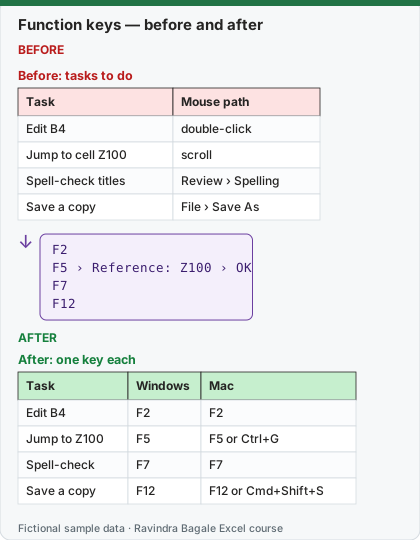
Expected result — After: one key each
| Task | Windows | Mac |
|---|---|---|
| Edit B4 | F2 | F2 |
| Jump to Z100 | F5 | F5 or Ctrl+G |
| Spell-check | F7 | F7 |
| Save a copy | F12 | F12 or Cmd+Shift+S |
Before table and formula as text
Before — Before: tasks to do
| Task | Mouse path |
|---|---|
| Edit B4 | double-click |
| Jump to cell Z100 | scroll |
| Spell-check titles | Review › Spelling |
| Save a copy | File › Save As |
Formula / click path
F2
F5 › Reference: Z100 › OK
F7
F12
Do it step by step:
- Click B4 and press F2; the cursor is at the end of the entry.
- Press F5, type
Z100, press Enter. - Select the title row and press F7.
- Press F12 for Save As.
- On a laptop or Mac, if a key changes brightness instead, hold Fn with it, or change the function-key setting in your system preferences.
स्टेप बाय स्टेप करून बघा:
- B4 वर click करा आणि F2 दाबा; cursor entry च्या शेवटी येतो.
- F5 दाबा,
Z100type करा, Enter दाबा. - Title row select करून F7 दाबा.
- Save As साठी F12 दाबा.
- Laptop किंवा Mac वर key ने brightness बदलत असेल तर सोबत Fn धरा, किंवा system preferences मध्ये function-key setting बदला.
स्टेप बाय स्टेप करके देखें:
- B4 पर click करें और F2 दबाएँ; cursor entry के आख़िर में आता है.
- F5 दबाएँ,
Z100type करें, Enter दबाएँ. - Title row select करके F7 दबाएँ.
- Save As के लिए F12 दबाएँ.
- Laptop या Mac पर key से brightness बदले तो साथ में Fn दबाएँ, या system preferences में function-key setting बदलें.
Function keys: Windows and Mac side by side
| Key | Windows (alone, then with Shift / Ctrl / Alt) | Mac |
|---|---|---|
| F1 | Help. Ctrl+F1: show/hide ribbon. Alt+F1: embedded chart. Alt+Shift+F1: new sheet | Help (or Cmd+Forward slash) |
| F2 | Edit the active cell. Shift+F2: note. Ctrl+F2: edit in the formula bar | Edit the cell. Shift+F2: note. Option+F2: Save |
| F3 | Paste Name. Shift+F3: Insert Function | Shift+F3: Formula Builder. Cmd+F3: Define Name |
| F4 | Cycle $ references or repeat the last action. Ctrl+F4: close the workbook window. Alt+F4: close Excel | Cycle $ references (or Cmd+T). Cmd+F4: close a window |
| F5 | Go To. Ctrl+F5: restore window size | Go To. Shift+F5: Find. Ctrl+F5: Search Sheet |
| F6 | Switch between sheet, ribbon, task pane, Zoom. Ctrl+F6: next Excel window | Switch focus between sheet, ribbon, task pane and status bar |
| F7 | Spelling | Spelling. Shift+F7: thesaurus |
| F8 | Extend mode. Shift+F8: add to selection. Alt+F8: Macro dialog | Extend mode. Shift+F8: add to selection. Option+F8: Macro dialog |
| F9 | Calculate all. Shift+F9: active sheet. Ctrl+Alt+F9: full calculation | Calculate all. Shift+F9: active sheet. Ctrl+F9: minimise |
| F10 | KeyTips on/off. Shift+F10: context menu. Alt+Shift+F10: Error Checking menu | Shift+F10: context menu. Ctrl+F10: maximise/restore |
| F11 | New chart sheet. Shift+F11: new sheet. Alt+F11: VBA Editor | New chart sheet. Shift+F11: new sheet. Option+F11: Visual Basic |
| F12 | Save As. (Alt+F12: Power Query Editor) | Save As. Cmd+F12: Open. Option+F12: Power Query Editor |
Mac note: Microsoft notes that Mac function keys may control system features first; hold Fn or change the function-key preference in macOS System Settings.
Practice task (try it before you open the answer):
- Recalculate only the active sheet.
- Open the context menu of a cell without the mouse.
- Insert a new worksheet.
Answer
Shift+F9 (both). Shift+F10 (both). Shift+F11 (both), or Alt+Shift+F1 on Windows.
Ravindra Bagale's Tip
Write F2, F4, F9 and F12 on a sticky note on your monitor for one week. These four cover most of what an analyst does with the top row.
Ravindra Bagale's Tip – मराठी
एका आठवड्यासाठी F2, F4, F9 आणि F12 एका sticky note वर लिहून monitor वर लावा. Analyst top row ने जे करतो त्यातलं बहुतेक या चार keys मध्ये येतं.
Ravindra Bagale's Tip – हिंदी
एक हफ़्ते के लिए F2, F4, F9 और F12 एक sticky note पर लिखकर monitor पर लगाएँ. Analyst top row से जो करता है, उसका ज़्यादातर इन चार keys में आ जाता है.