25. All Excel Keyboard Shortcuts (Windows and Mac)
25.4 Formatting Shortcuts
Example first. A KPI sheet shows 0.254 for conversion and 1234567.5 for sales. Rani selects the conversion cell and presses Ctrl+Shift+%: 25%. She selects the sales cell and presses Ctrl+Shift+!: 1,234,567.50. The same keys work on Mac.
Formatting shortcuts — in 30 seconds
What: Formatting shortcuts apply number formats, bold, borders and alignment instantly, and open the Format Cells dialog box.
Why: A report is read in seconds. Percentages, separators and bold totals make it readable, and these keys format a whole sheet in under a minute.
Tiny example: Ctrl+Shift+% turns 0.254 into 25%. Ctrl+Shift+! turns 1234567.5 into 1,234,567.50. Ctrl+1 (Mac: Cmd+1) opens Format Cells for anything else.
Formatting shortcuts — 30 सेकंदात
काय: Formatting shortcuts number formats, bold, borders आणि alignment लगेच लावतात, आणि Format Cells dialog box उघडतात.
का: Report काही सेकंदात वाचला जातो. Percentages, separators आणि bold totals मुळे तो वाचनीय होतो, आणि या keys पूर्ण sheet एका मिनिटात format करतात.
छोटं उदाहरण: Ctrl+Shift+% ने 0.254 चं 25% होतं. Ctrl+Shift+! ने 1234567.5 चं 1,234,567.50 होतं. बाकी सगळ्यासाठी Ctrl+1 (Mac: Cmd+1) Format Cells उघडतो.
Formatting shortcuts — 30 सेकंड में
क्या: Formatting shortcuts number formats, bold, borders और alignment तुरंत लगाते हैं, और Format Cells dialog box खोलते हैं.
क्यों: Report कुछ सेकंड में पढ़ी जाती है. Percentages, separators और bold totals से वह पढ़ने लायक बनती है, और ये keys पूरी sheet एक मिनट में format कर देती हैं.
छोटा उदाहरण: Ctrl+Shift+% से 0.254 का 25% होता है. Ctrl+Shift+! से 1234567.5 का 1,234,567.50 होता है. बाकी सबके लिए Ctrl+1 (Mac: Cmd+1) Format Cells खोलता है.
First look at the data (before → after):
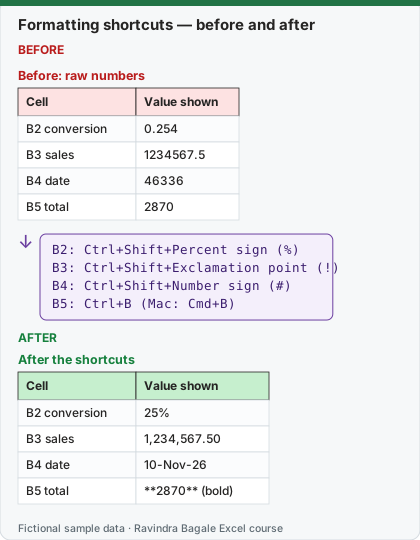
Expected result — After the shortcuts
| Cell | Value shown |
|---|---|
| B2 conversion | 25% |
| B3 sales | 1,234,567.50 |
| B4 date | 10-Nov-26 |
| B5 total | **2870** (bold) |
Before table and formula as text
Before — Before: raw numbers
| Cell | Value shown |
|---|---|
| B2 conversion | 0.254 |
| B3 sales | 1234567.5 |
| B4 date | 46336 |
| B5 total | 2870 |
Formula / click path
B2: Ctrl+Shift+Percent sign (%)
B3: Ctrl+Shift+Exclamation point (!)
B4: Ctrl+Shift+Number sign (#)
B5: Ctrl+B   (Mac: Cmd+B)
Do it step by step:
- Select B2 and press Ctrl+Shift+% (same on Mac).
- Select B3 and press Ctrl+Shift+!.
- Select B4 and press Ctrl+Shift+#: the serial number shows as a date.
- Select B5 and press Ctrl+B (Mac: Cmd+B).
- For Indian-style lakh separators, open Ctrl+1 (Mac: Cmd+1) › Number › Custom (see 1.6).
स्टेप बाय स्टेप करून बघा:
- B2 select करा आणि Ctrl+Shift+% दाबा (Mac वर पण तेच).
- B3 select करा आणि Ctrl+Shift+! दाबा.
- B4 select करा आणि Ctrl+Shift+# दाबा: serial number date म्हणून दिसतो.
- B5 select करा आणि Ctrl+B (Mac: Cmd+B) दाबा.
- भारतीय lakh separators साठी Ctrl+1 (Mac: Cmd+1) › Number › Custom उघडा (1.6 बघा).
स्टेप बाय स्टेप करके देखें:
- B2 select करें और Ctrl+Shift+% दबाएँ (Mac पर भी वही).
- B3 select करें और Ctrl+Shift+! दबाएँ.
- B4 select करें और Ctrl+Shift+# दबाएँ: serial number date के रूप में दिखता है.
- B5 select करें और Ctrl+B (Mac: Cmd+B) दबाएँ.
- भारतीय lakh separators के लिए Ctrl+1 (Mac: Cmd+1) › Number › Custom खोलें (1.6 देखें).
Formatting shortcuts: Windows and Mac side by side
| To do this | Windows | Mac |
|---|---|---|
| Open Format Cells | Ctrl+1 | Cmd+1 |
| Bold / italic / underline | Ctrl+B / Ctrl+I / Ctrl+U | Cmd+B / Cmd+I / Cmd+U |
| Strikethrough | Ctrl+5 | Shift+Cmd+X |
| General number format | Ctrl+Shift+Tilde (~) | Ctrl+Shift+Tilde (~) |
| Currency format, two decimals | Ctrl+Shift+Dollar sign ($) | Ctrl+Shift+Dollar sign ($) |
| Percentage format, no decimals | Ctrl+Shift+Percent sign (%) | Ctrl+Shift+Percent sign (%) |
| Date format (day, month, year) | Ctrl+Shift+Number sign (#) | Ctrl+Shift+Number sign (#) |
| Time format (hour, minute, AM/PM) | Ctrl+Shift+At sign (@) | Ctrl+Shift+At sign (@) |
| Number format: two decimals and thousands separator | Ctrl+Shift+Exclamation point (!) | Ctrl+Shift+Exclamation point (!) |
| Add an outline border | Ctrl+Shift+Ampersand (&) | Cmd+Option+Zero (0) |
| Remove the outline border | Ctrl+Shift+Underscore (_) | Cmd+Option+Hyphen (-) |
| Hide selected rows / columns | Ctrl+9 / Ctrl+0 | Ctrl+9 / Ctrl+Zero (0) |
| Centre-align | Alt+H, A, C | Cmd+E |
| Open Paste Special | Ctrl+Alt+V | Cmd+Ctrl+V |
| Insert a hyperlink | Ctrl+K | Cmd+K or Ctrl+K |
Note: the currency shortcut uses the currency symbol of your computer's regional settings. For ₹ on any computer, use Format Cells › Currency › Symbol ₹.
Practice task (try it before you open the answer):
- Format 0.075 as a percentage with one key combination.
- Put an outline border around A1:D5 and then remove it.
- Hide column C, then find the menu path to unhide it.
Answer
Ctrl+Shift+% shows 8% (no decimals; add one with Home › Increase Decimal to see 7.5%). Border: Ctrl+Shift+& / Ctrl+Shift+_ (Mac: Cmd+Option+0 / Cmd+Option+Hyphen). Hide: Ctrl+0 (Mac: Ctrl+Zero); unhide: select columns B:D › Home › Format › Hide & Unhide › Unhide Columns.
Ravindra Bagale's Tip
Formatting changes how a number looks, never the number. 0.254 shown as 25% is still 0.254 in every formula. Check the formula bar when a total looks off by a little.
Ravindra Bagale's Tip – मराठी
Formatting नंबर कसा दिसतो ते बदलतं, नंबर नाही. 25% दिसणारा 0.254 प्रत्येक formula मध्ये 0.254 च असतो. Total थोडा चुकलेला वाटला तर formula bar बघा.
Ravindra Bagale's Tip – हिंदी
Formatting नंबर कैसा दिखता है वह बदलता है, नंबर नहीं. 25% दिखने वाला 0.254 हर formula में 0.254 ही रहता है. Total थोड़ा गलत लगे तो formula bar देखें.