25. All Excel Keyboard Shortcuts (Windows and Mac)
25.3 Data Entry and Editing Shortcuts
Example first. Five new orders all come from Pune. Instead of typing "Pune" five times, Zoya selects C2:C6, types Pune once and presses Ctrl+Enter (Mac: Cmd+Return). All five cells fill at once. Ctrl+; then stamps today's date in the Date column.
Data entry shortcuts — in 30 seconds
What: Data entry shortcuts type, fill, copy down and undo without leaving the keyboard: fill many cells at once, fill down, a new line inside a cell, today's date.
Why: Typing speed in Excel is mostly about not reaching for the mouse between entries. These keys remove most of the repeated typing.
Tiny example: Select C2:C6, type Pune, press Ctrl+Enter: five cells show Pune. Ctrl+D copies C2 down a selection. Ctrl+; enters today's date as a real date.
Data entry shortcuts — 30 सेकंदात
काय: Data entry shortcuts keyboard न सोडता type, fill, खाली copy आणि undo करतात: एकदम अनेक cells भरणं, fill down, cell मध्ये नवी line, आजची date.
का: Excel मधला वेग मुख्यतः दोन entries मध्ये mouse कडे हात न नेण्यावर अवलंबून आहे. या keys मुळे बहुतेक पुन्हा पुन्हा typing वाचतं.
छोटं उदाहरण: C2:C6 select करा, Pune type करा, Ctrl+Enter दाबा: पाच cells मध्ये Pune येतं. Ctrl+D selection मध्ये C2 खाली copy करतो. Ctrl+; आजची date खरी date म्हणून टाकतो.
Data entry shortcuts — 30 सेकंड में
क्या: Data entry shortcuts keyboard छोड़े बिना type, fill, नीचे copy और undo करते हैं: एक साथ कई cells भरना, fill down, cell में नई line, आज की date.
क्यों: Excel में रफ़्तार ज़्यादातर दो entries के बीच mouse की ओर हाथ न ले जाने पर टिकी है. ये keys ज़्यादातर बार-बार की typing बचाती हैं.
छोटा उदाहरण: C2:C6 select करें, Pune type करें, Ctrl+Enter दबाएँ: पाँच cells में Pune आ जाता है. Ctrl+D selection में C2 नीचे copy करता है. Ctrl+; आज की date असली date के रूप में डालता है.
First look at the data (before → after):
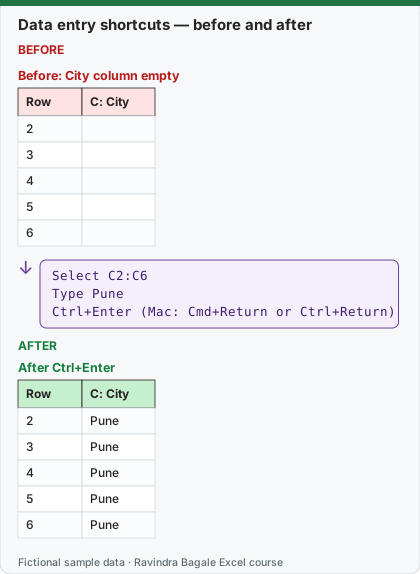
Expected result — After Ctrl+Enter
| Row | C: City |
|---|---|
| 2 | Pune |
| 3 | Pune |
| 4 | Pune |
| 5 | Pune |
| 6 | Pune |
Before table and formula as text
Before — Before: City column empty
| Row | C: City |
|---|---|
| 2 | — |
| 3 | — |
| 4 | — |
| 5 | — |
| 6 | — |
Formula / click path
Select C2:C6
Type Pune
Ctrl+Enter   (Mac: Cmd+Return or Ctrl+Return)
Do it step by step:
- Select C2:C6.
- Type
Pune(do not press Enter yet). - Press Ctrl+Enter (Mac: Cmd+Return). All five cells fill.
- Click B2 and press Ctrl+; (same on Mac) to enter today's date.
- Made a mistake? Press Ctrl+Z (Mac: Cmd+Z).
स्टेप बाय स्टेप करून बघा:
- C2:C6 select करा.
Punetype करा (अजून Enter दाबू नका).- Ctrl+Enter (Mac: Cmd+Return) दाबा. पाचही cells भरतात.
- B2 वर click करून Ctrl+; (Mac वर पण तेच) दाबा, आजची date येते.
- चूक झाली? Ctrl+Z (Mac: Cmd+Z) दाबा.
स्टेप बाय स्टेप करके देखें:
- C2:C6 select करें.
Punetype करें (अभी Enter न दबाएँ).- Ctrl+Enter (Mac: Cmd+Return) दबाएँ. पाँचों cells भर जाती हैं.
- B2 पर click करके Ctrl+; (Mac पर भी वही) दबाएँ, आज की date आ जाती है.
- गलती हुई? Ctrl+Z (Mac: Cmd+Z) दबाएँ.
Data entry shortcuts: Windows and Mac side by side
| To do this | Windows | Mac |
|---|---|---|
| Edit the active cell | F2 | F2 or Ctrl+U |
| Start a new line in the same cell | Alt+Enter | Option+Return |
| Fill the selected cells with the same entry | Ctrl+Enter | Cmd+Return or Ctrl+Return |
| Complete the entry and move up | Shift+Enter | Shift+Return |
| Fill down from the top cell | Ctrl+D | Cmd+D or Ctrl+D |
| Fill right from the left cell | (menu: Home › Editing › Fill › Right) | Cmd+R or Ctrl+R |
| Enter the current date | Ctrl+Semicolon (;) | Ctrl+Semicolon (;) |
| Enter the current time | Ctrl+Shift+Colon (:) | Cmd+Semicolon (;) |
| Copy the formula from the cell above | Ctrl+Apostrophe (') | Ctrl+Apostrophe (') |
| Copy the value from the cell above | Ctrl+Shift+Straight quotation mark (") | Ctrl+Shift+Straight quotation mark (") |
| Undo / redo | Ctrl+Z / Ctrl+Y | Cmd+Z / Cmd+Y |
| Cancel the entry | Esc | Esc |
| Insert or edit a note | Shift+F2 | Shift+F2 |
| Flash Fill | Ctrl+E | (menu: Data › Data Tools › Flash Fill) |
| Insert cells / delete cells | Ctrl+Shift+Plus sign (+) / Ctrl+Minus sign (-) | Ctrl+Shift+Equal sign (=) / Cmd+Hyphen (-) |
Ctrl+; versus =TODAY(): the shortcut types a fixed date that never changes; =TODAY() changes every day. Use the shortcut for an order date, the formula for an "as on" date.
Practice task (try it before you open the answer):
- Fill "Delivered" into I2:I6 in one go.
- Put "Blinkit" and "Pune" on two lines inside one cell.
- Copy the formula in G2 to G3 with a shortcut, without copy and paste.
Answer
Select I2:I6, type Delivered, Ctrl+Enter (Mac: Cmd+Return). Type Blinkit, press Alt+Enter (Mac: Option+Return), type Pune, press Enter. In G3 press Ctrl+Apostrophe (') on both platforms, or select G2:G3 and press Ctrl+D (Mac: Cmd+D).
Ravindra Bagale's Tip
Ctrl+Enter is the most underrated key in Excel. It also works for formulas: select a whole column of blank cells, type one formula, and Ctrl+Enter fills it with adjusted references.
Ravindra Bagale's Tip – मराठी
Ctrl+Enter ही Excel मधली सगळ्यात दुर्लक्षित key आहे. ती formulas साठी पण चालते: रिकाम्या cells चा पूर्ण column select करा, एक formula type करा, आणि Ctrl+Enter तो बदललेल्या references सह भरतो.
Ravindra Bagale's Tip – हिंदी
Ctrl+Enter Excel की सबसे कम आँकी गई key है. यह formulas के लिए भी चलती है: खाली cells का पूरा column select करें, एक formula type करें, और Ctrl+Enter उसे बदले हुए references के साथ भर देता है.