25. All Excel Keyboard Shortcuts (Windows and Mac)
25.8 Ribbon KeyTips: the Alt Keys (Windows)
Example first. Shahrukh wants Page Break Preview before printing. He presses Alt, letters appear on the ribbon (KeyTips), then he presses W (View) and I (Page Break Preview). Alt, W, L takes him back to Normal view. No mouse at all.
Ribbon KeyTips — in 30 seconds
What: Pressing Alt on Windows shows a letter on every ribbon tab and command. Press the letters in order to run any command, even ones that have no Ctrl shortcut.
Why: Every ribbon command becomes a keyboard command, and the sequence is shown on screen, so you never have to memorise it. Mac Excel has no KeyTips; use the menus or the Mac shortcuts.
Tiny example: Alt, W, I: Page Break Preview. Alt, W, L: Normal view. Alt, H, H: fill colour menu. Alt, H, A, C: centre.
Ribbon KeyTips — 30 सेकंदात
काय: Windows वर Alt दाबल्यावर ribbon च्या प्रत्येक tab आणि command वर एक अक्षर दिसतं. ती अक्षरं क्रमाने दाबली की कोणतीही command चालते, ज्यांना Ctrl shortcut नाही त्या पण.
का: प्रत्येक ribbon command keyboard command बनते, आणि sequence screen वर दिसतो, त्यामुळे तो पाठ करावा लागत नाही. Mac Excel मध्ये KeyTips नसतात; menus किंवा Mac shortcuts वापरा.
छोटं उदाहरण: Alt, W, I: Page Break Preview. Alt, W, L: Normal view. Alt, H, H: fill colour menu. Alt, H, A, C: centre.
Ribbon KeyTips — 30 सेकंड में
क्या: Windows पर Alt दबाने से ribbon के हर tab और command पर एक अक्षर दिखता है. वे अक्षर क्रम से दबाने पर कोई भी command चलती है, जिनका Ctrl shortcut नहीं है वे भी.
क्यों: हर ribbon command keyboard command बन जाती है, और sequence screen पर दिखता है, इसलिए उसे याद नहीं करना पड़ता. Mac Excel में KeyTips नहीं होते; menus या Mac shortcuts इस्तेमाल करें.
छोटा उदाहरण: Alt, W, I: Page Break Preview. Alt, W, L: Normal view. Alt, H, H: fill colour menu. Alt, H, A, C: centre.
First look at the data (before → after):
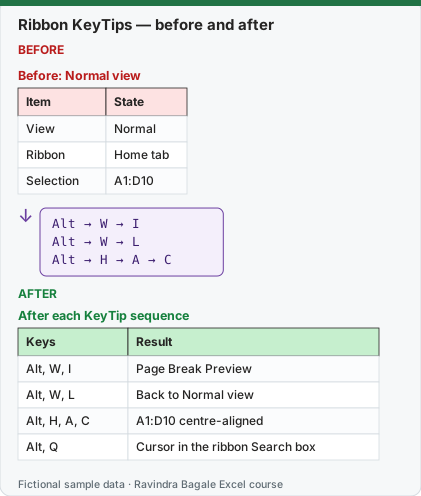
Expected result — After each KeyTip sequence
| Keys | Result |
|---|---|
| Alt, W, I | Page Break Preview |
| Alt, W, L | Back to Normal view |
| Alt, H, A, C | A1:D10 centre-aligned |
| Alt, Q | Cursor in the ribbon Search box |
Before table and formula as text
Before — Before: Normal view
| Item | State |
|---|---|
| View | Normal |
| Ribbon | Home tab |
| Selection | A1:D10 |
Formula / click path
Alt  →  W  →  I
Alt  →  W  →  L
Alt  →  H  →  A  →  C
Do it step by step:
- Press and release Alt. Letters appear on the ribbon tabs.
- Press W for the View tab; letters appear on its commands.
- Press I for Page Break Preview.
- Press Alt, W, L to return to Normal view.
- Not sure of a letter? Press Alt, Q and type the command name.
स्टेप बाय स्टेप करून बघा:
- Alt दाबून सोडा. Ribbon tabs वर अक्षरं दिसतात.
- View tab साठी W दाबा; त्याच्या commands वर अक्षरं दिसतात.
- Page Break Preview साठी I दाबा.
- Normal view ला परत यायला Alt, W, L दाबा.
- अक्षर माहीत नाही? Alt, Q दाबा आणि command चं नाव type करा.
स्टेप बाय स्टेप करके देखें:
- Alt दबाकर छोड़ें. Ribbon tabs पर अक्षर दिखते हैं.
- View tab के लिए W दबाएँ; उसकी commands पर अक्षर दिखते हैं.
- Page Break Preview के लिए I दबाएँ.
- Normal view पर लौटने के लिए Alt, W, L दबाएँ.
- अक्षर नहीं पता? Alt, Q दबाएँ और command का नाम type करें.
Ribbon KeyTips: Windows and Mac side by side
| To do this | Windows | Mac |
|---|---|---|
| Search the ribbon (Tell me) | Alt+Q | (menu: click the Search box) |
| File menu | Alt+F | (menu: File menu) |
| Home tab | Alt+H | (menu: Home tab) |
| Insert tab | Alt+N | (menu: Insert tab) |
| Page Layout tab | Alt+P | (menu: Page Layout tab) |
| Formulas tab | Alt+M | (menu: Formulas tab) |
| Data tab | Alt+A | (menu: Data tab) |
| Review tab | Alt+R | (menu: Review tab) |
| View tab | Alt+W | (menu: View tab) |
| Fill colour | Alt+H, H | (menu: Home › Fill Color) |
| Borders | Alt+H, B | (menu: Home › Borders) |
| Centre-align | Alt+H, A, C | Cmd+E |
| Delete column | Alt+H, D, C | (menu: Home › Delete › Delete Sheet Columns) |
| Define a name | Alt+M, M, D | Cmd+F3 |
| Page Layout view | Alt, W, P | (menu: View › Page Layout) |
| Normal view | Alt, W, L | (menu: View › Normal) |
| Page Break Preview | Alt, W, I | (menu: View › Page Break Preview) |
| Show KeyTips (or F10) | Alt or F10 | — |
| Expand or collapse the ribbon | Ctrl+F1 | Cmd+Option+R |
| Move focus between sheet, ribbon and panes | F6 | F6 or Shift+F6 |
How to read "Alt+H, A, C": press Alt and H together (or Alt, then H), release, then press A, then C. Commas mean "one after the other".
Practice task (try it before you open the answer):
- Switch to Page Layout view with KeyTips.
- Open the Data tab from the keyboard.
- Delete column D without the mouse.
Answer
Alt, W, P. Alt+A. Select a cell in column D, then Alt, H, D, C. (On Mac: View › Page Layout, the Data tab, and Home › Delete › Delete Sheet Columns.)
Ravindra Bagale's Tip
You do not need to learn KeyTips by heart. Press Alt, read the letters, and after a week your fingers will remember the five you use most.
Ravindra Bagale's Tip – मराठी
KeyTips पाठ करायची गरज नाही. Alt दाबा, अक्षरं वाचा, आणि एका आठवड्यात सगळ्यात जास्त वापरलेल्या पाच तुमच्या बोटांना लक्षात राहतील.
Ravindra Bagale's Tip – हिंदी
KeyTips रटने की ज़रूरत नहीं. Alt दबाएँ, अक्षर पढ़ें, और एक हफ़्ते में सबसे ज़्यादा इस्तेमाल होने वाले पाँच आपकी उँगलियों को याद हो जाएँगे.